
Claude Cowork + Project.
How to best set up Claude with Projects:

You switched from ChatGPT to Claude.
You read my guides on Claude, Cowork, Teams, Charts, Code, and Computer.
In my Claude guide back in February, I wrote: “I don’t use Projects anymore.”
I meant it. The old Projects (on claude.ai) were fine for chat. Upload files, write instructions. But they couldn’t create documents or run hard tasks. It’s a chatbot with a better memory, basically.
Then Claude launched Claude Cowork.
Claude Cowork is the best thing to happen to AI since ChatGPT.
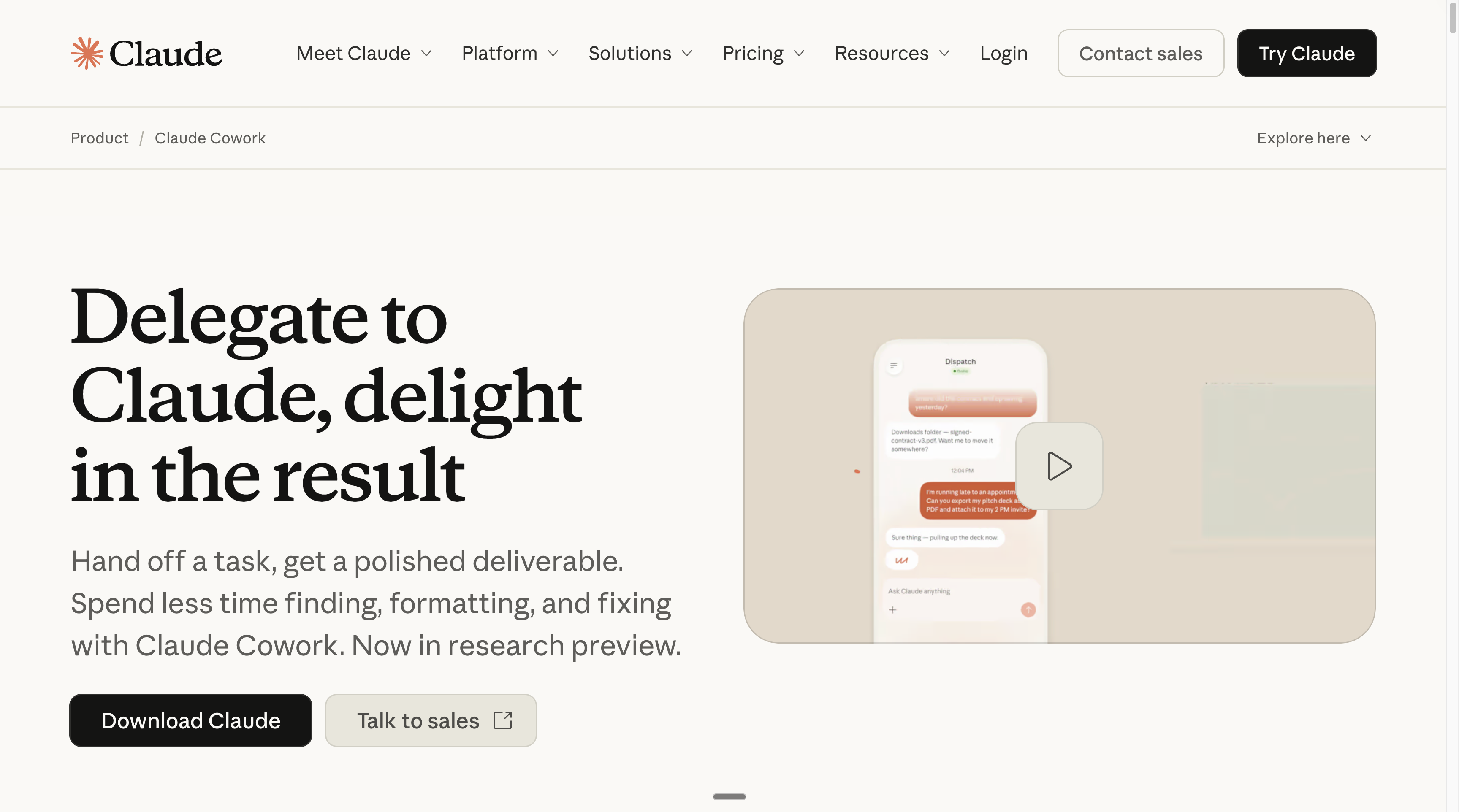
But Cowork had one flaw: it forgot everything. Every session started from zero. You re-explained your context and re-uploaded the same files. Over and over.
Anthropic (Claude’s parent company) just fixed it.
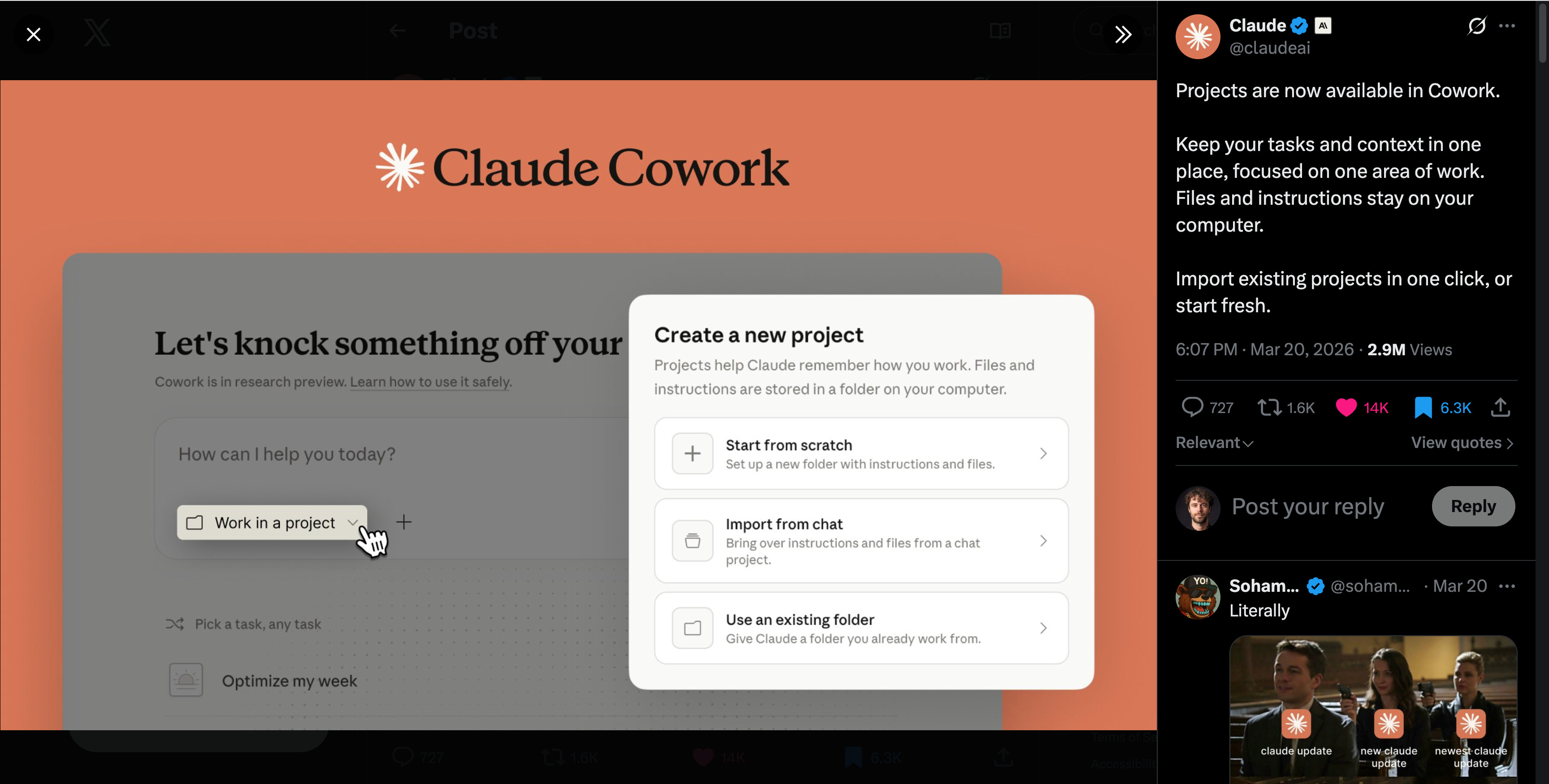
Projects now live inside Cowork. Memory that persists between sessions, custom instructions baked in, dedicated folders, and scheduled tasks. All inside the same Cowork you already use. I haven’t opened a standalone session since.
But how? Well, this is How to AI.
I will share my very latest setup, and how you can copy it for yourself & your team.
Two things before we start:
Save this guide and set up your first Cowork Project this weekend.
Send it to anyone who has never used Claude or never seen Claude Cowork.
1 - What Cowork Projects actually is.
The old Claude had two separate things:
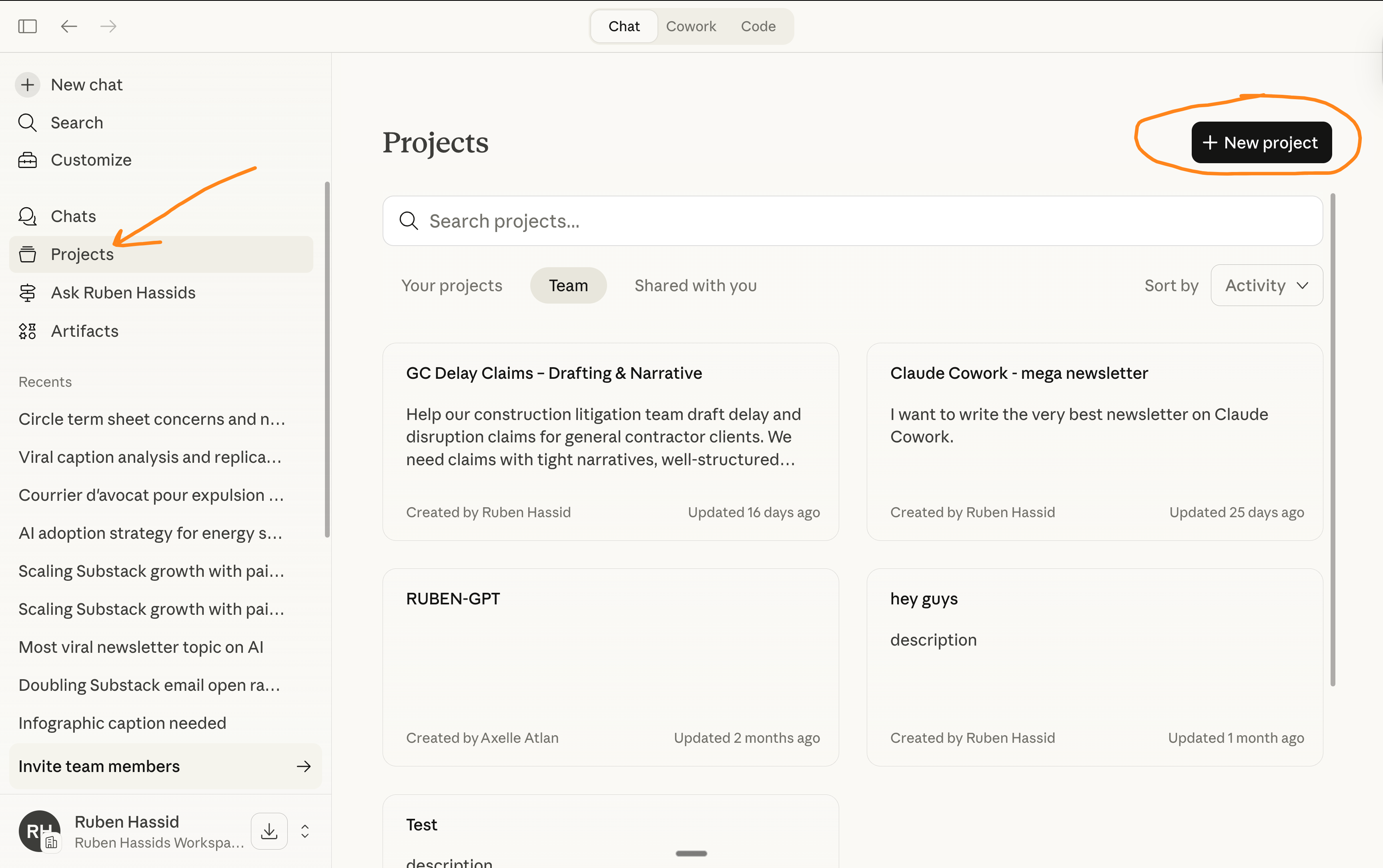
Claude Projects (on claude.ai) = a folder of chats in your browser. Upload files and write instructions. Share with your team. But it couldn’t create files or run code. Chat with better context, that’s it.
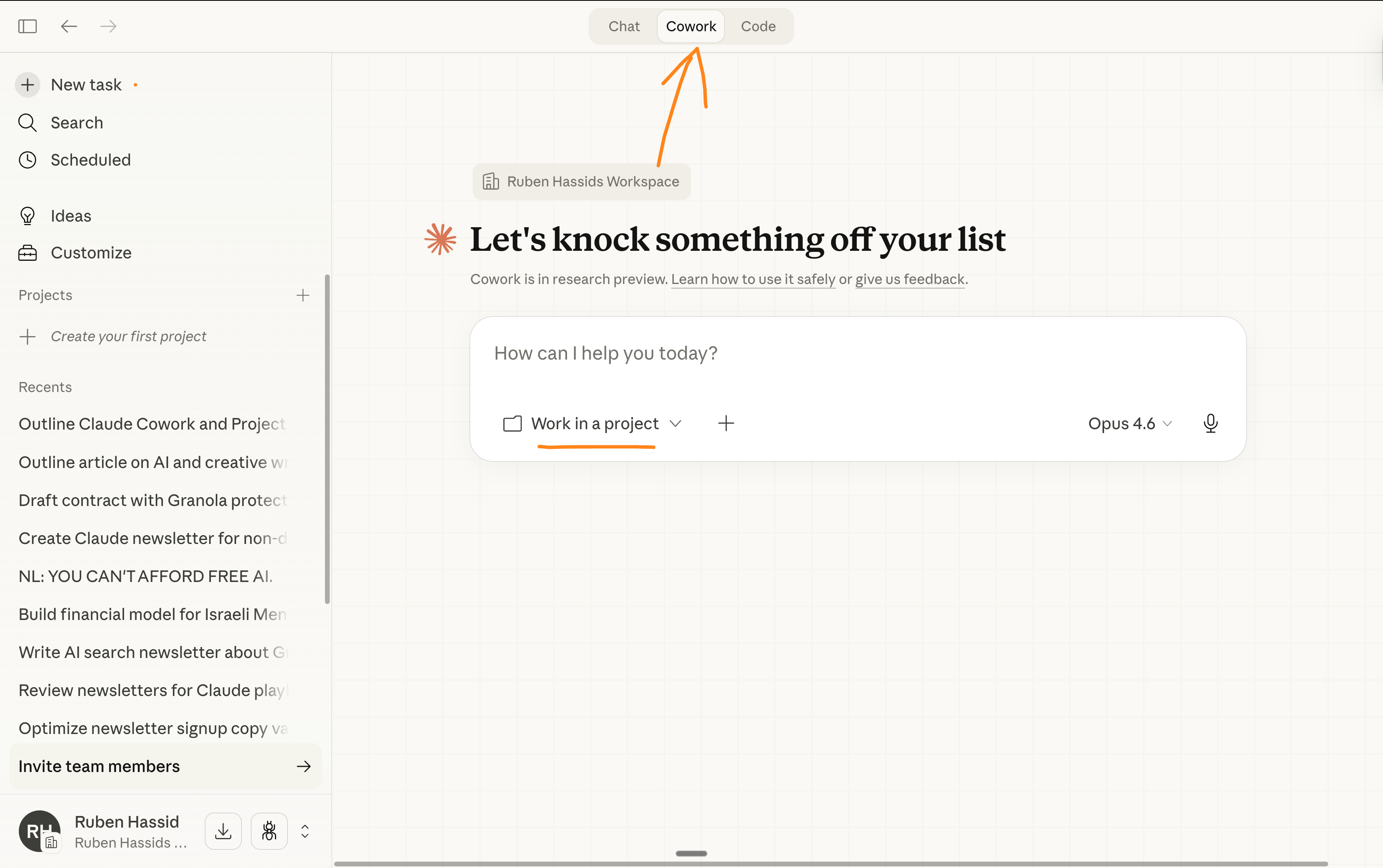
Claude Cowork = the desktop agent that actually does the work. It reads your files, creates real documents, runs code, asks you questions before executing. But every session was a blank slate.
Now: Cowork has its own Projects. Built directly into the desktop app. Each Project is a persistent workspace with:
→ Its own folder (Claude reads and writes here)
→ Custom instructions (tone, rules, format, guardrails)
→ Scoped memory (Claude remembers what it did inside this Project)
→ Scheduled tasks (recurring work, tied to this Project)
→ Task history (every run stored locally)
Scoped memory is the feature worth paying attention to. You say, “build on last week’s report,” and Claude knows what last week’s report was. Only inside this Project. It doesn’t leak into your other work.
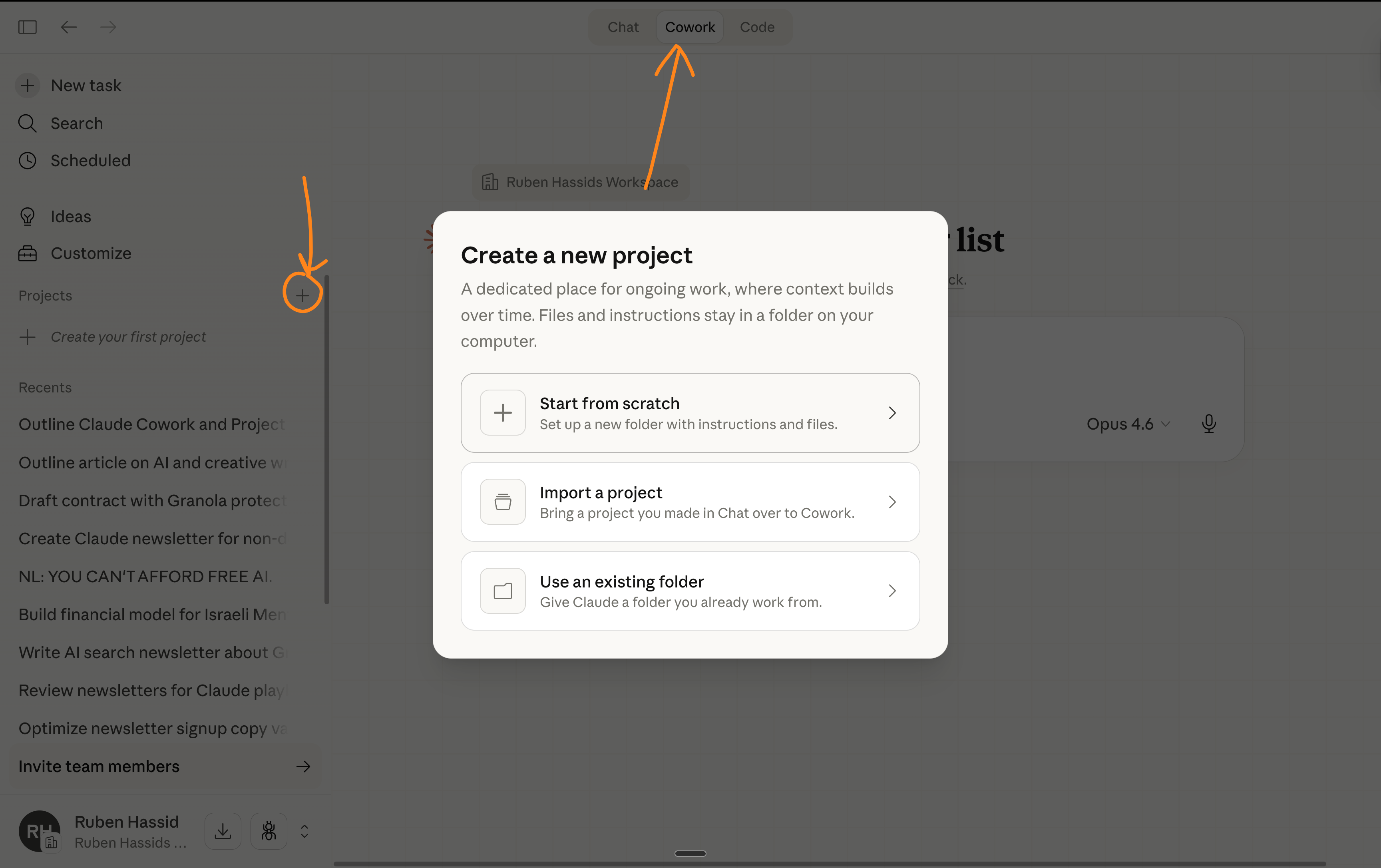
2 - How to create your first Cowork Project.
Open the Claude desktop app. Left sidebar. Click Projects. Click +.
You get 3 options:
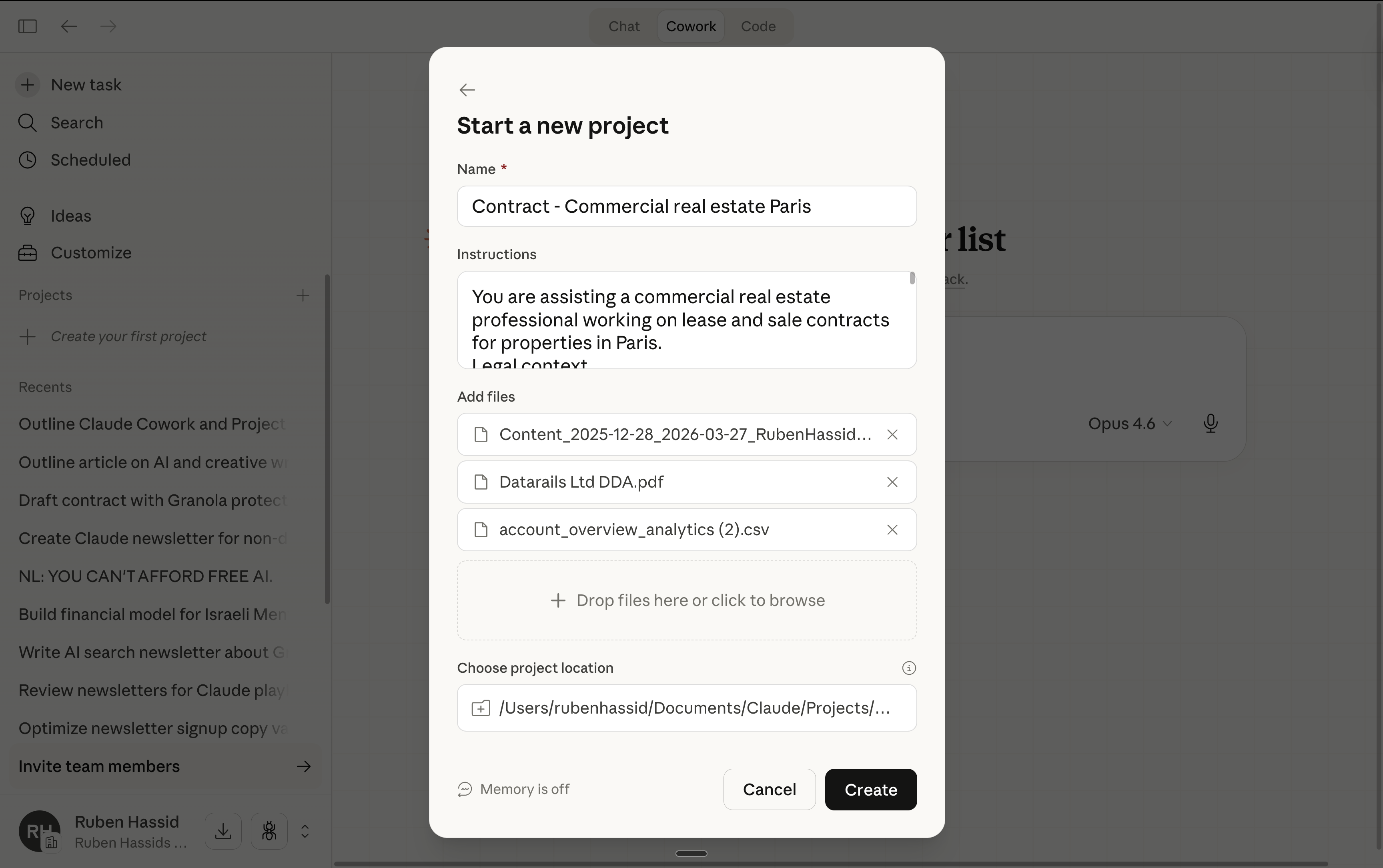
Option 1: Start from scratch.
Best for: a brand new workflow you’re building from zero.
Create a new local folder on your computer.
Click on the Cowork tab > Projects > + > Select Start from scratch.
Add your instructions.
Add the necessary files (examples, brand guidelines).
Name it, and you’re done.
Option 2: Import from a Claude Project.
Best for: anyone who followed my Teams guide. You already built the brain. Now it can execute.
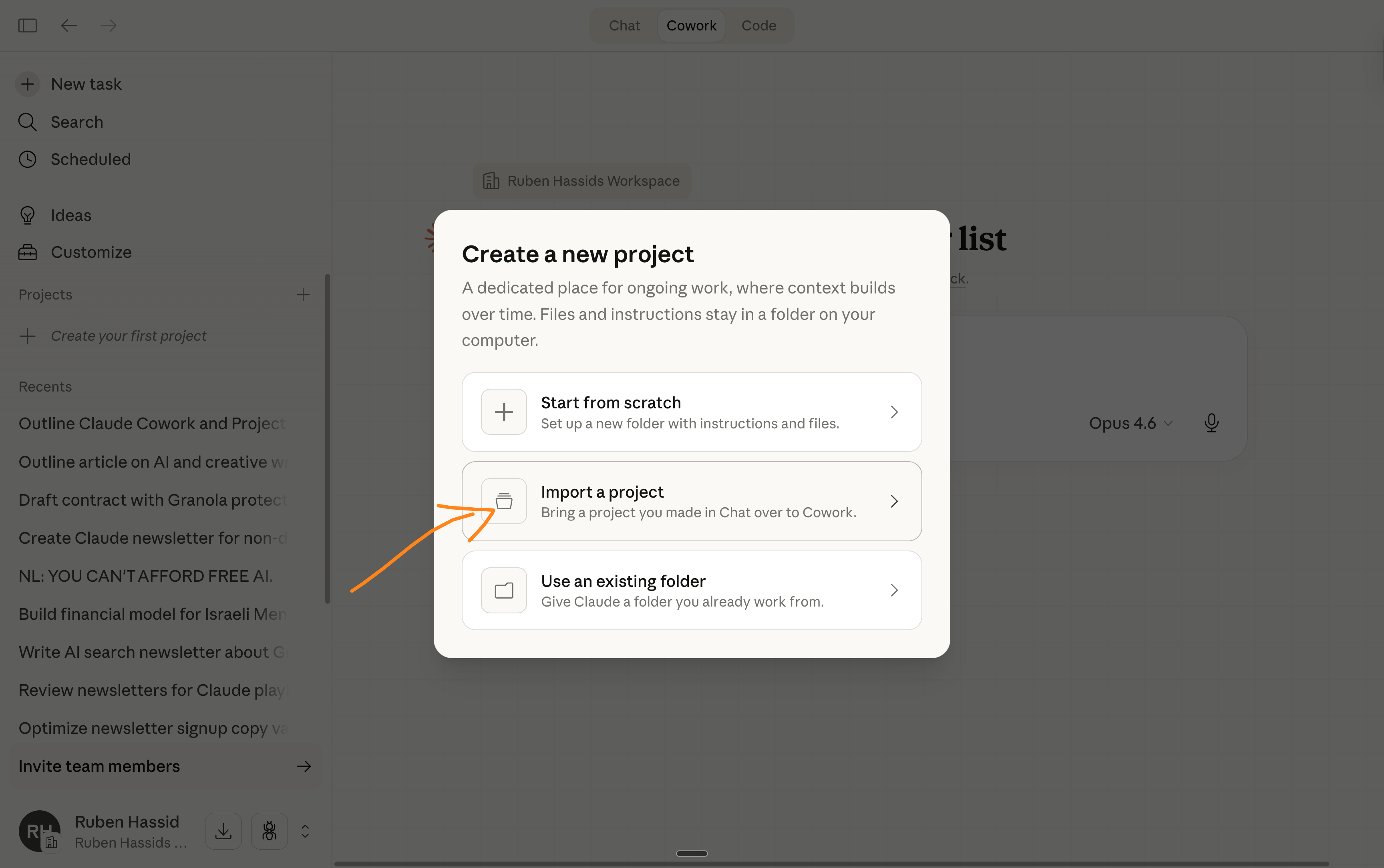
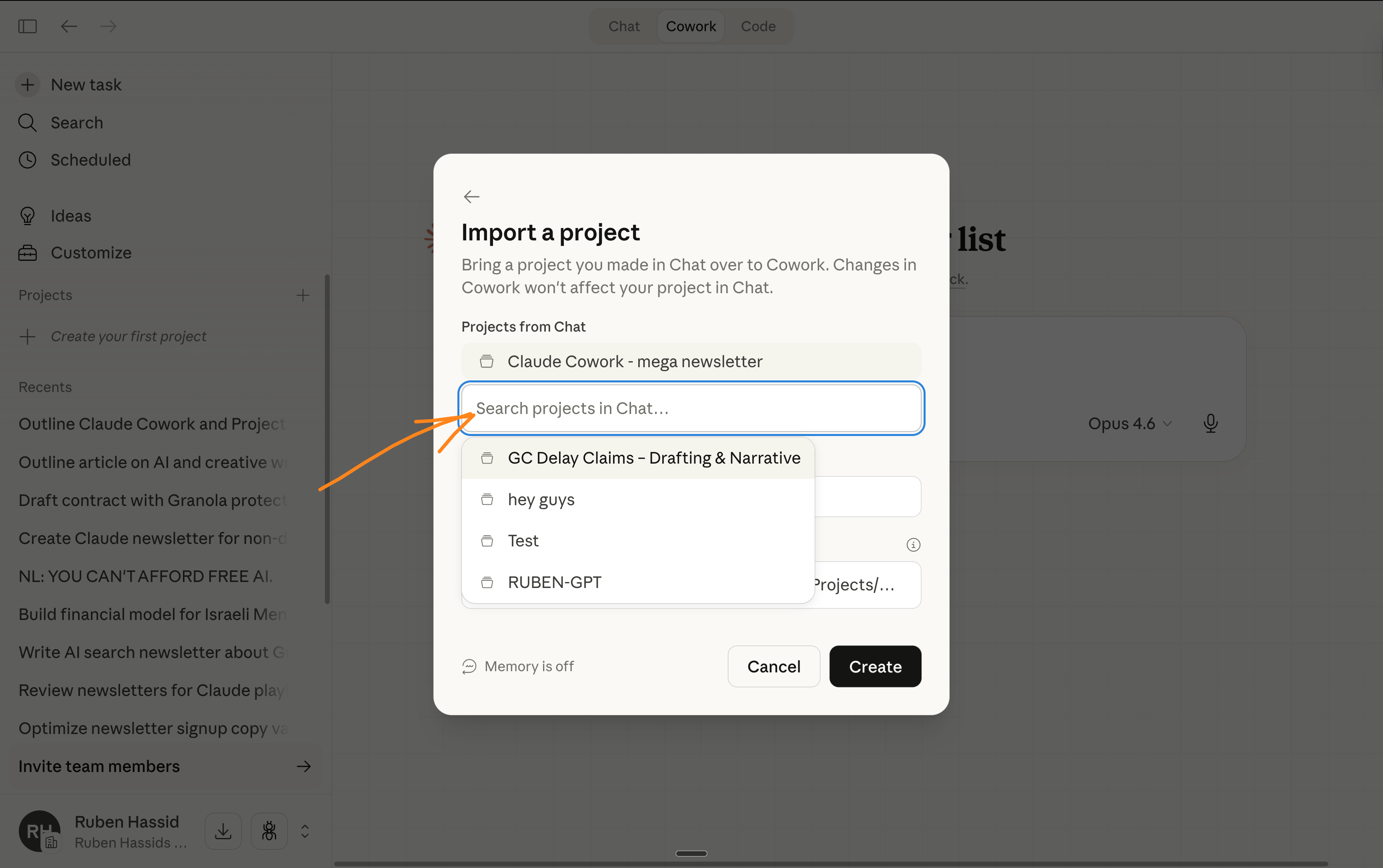
Click on the Cowork tab > Projects > + > Select Import a project.
Search your existing browser Projects.
Pick one. Files and instructions transfer over.
Choose where to save it locally.
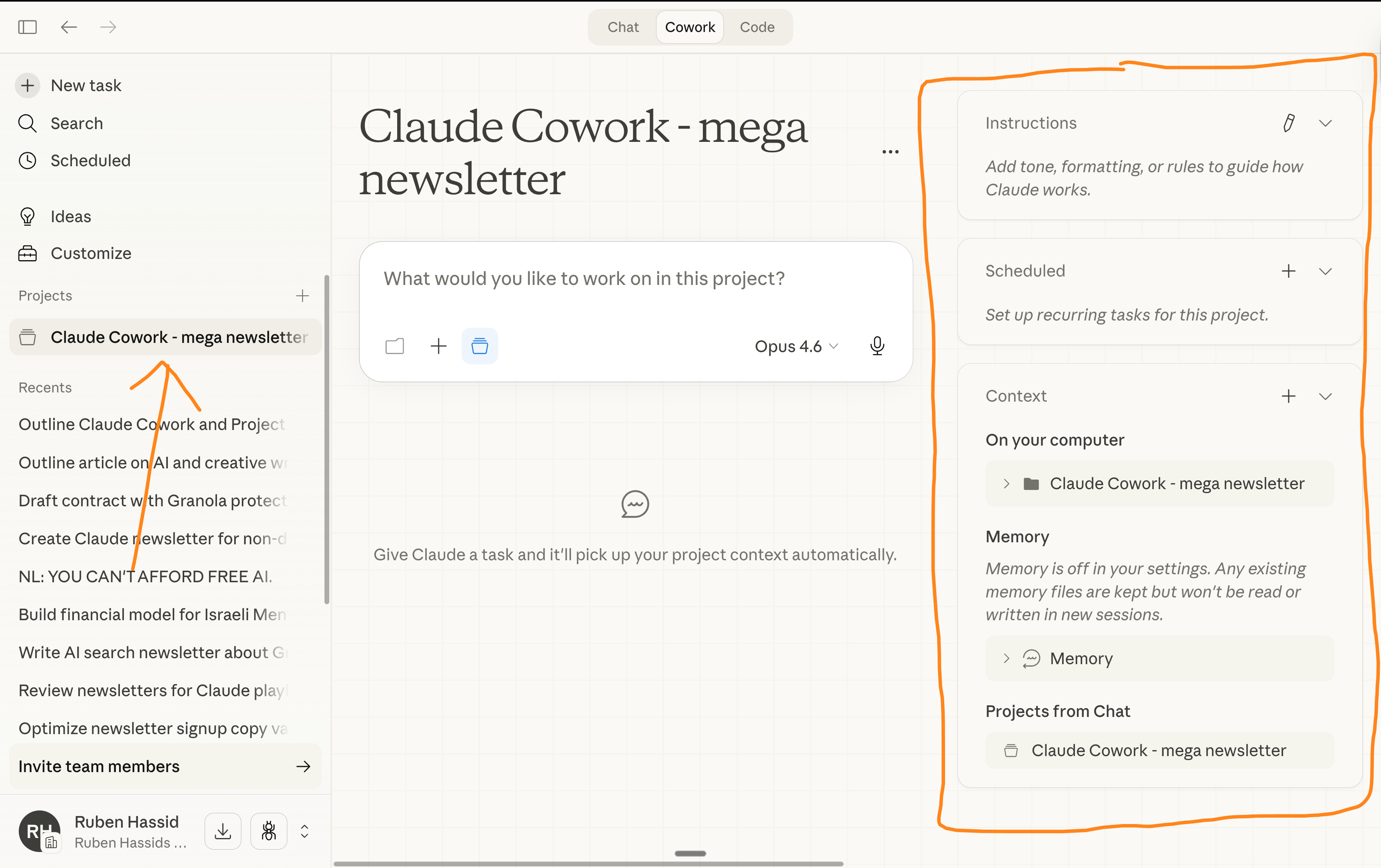
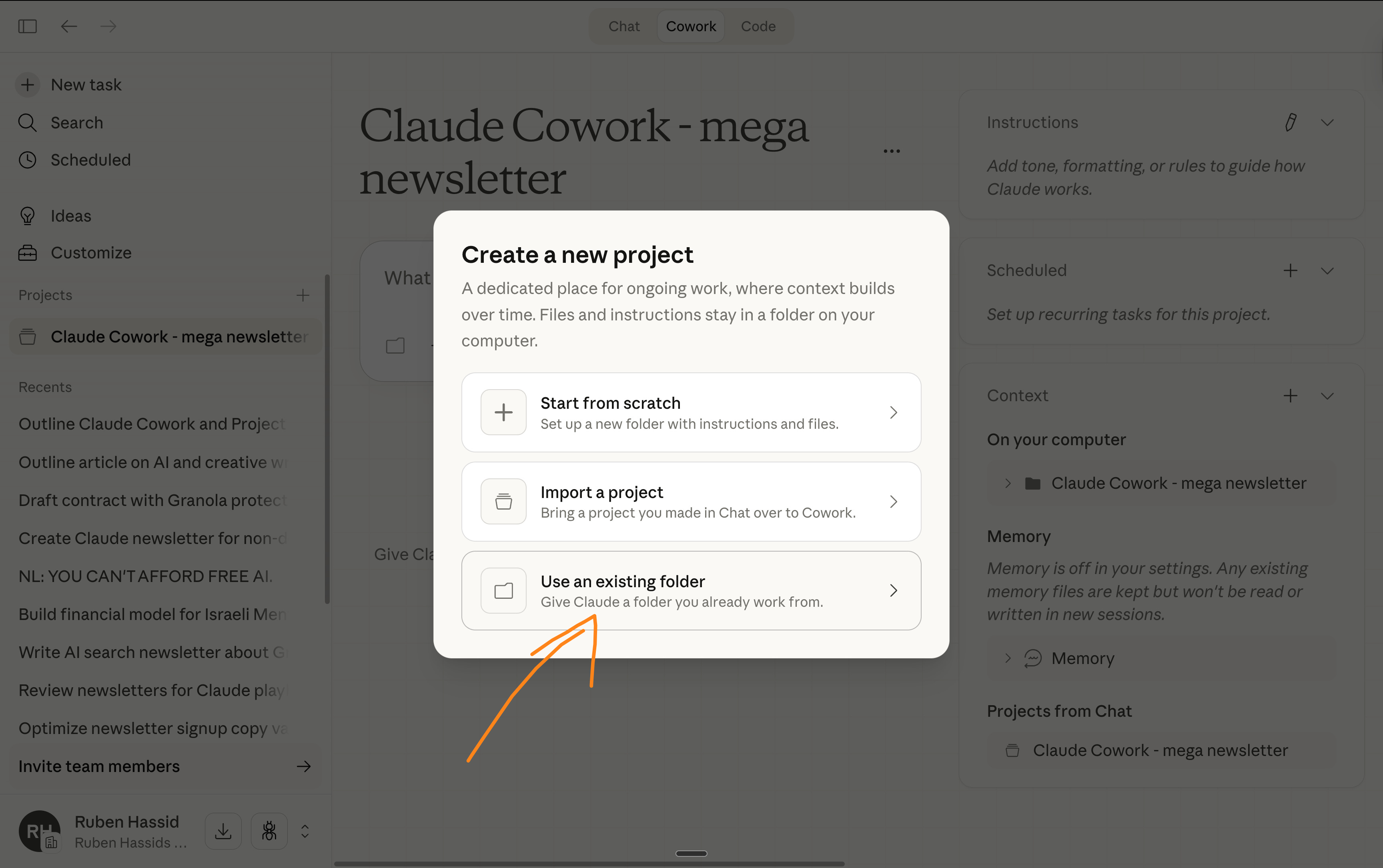
Option 3: Use an existing folder on your computer.
Best for: anyone who followed my Cowork guide and already has a CLAUDE COWORK folder. You just wrap it in a Project for memory and instructions.
Pick a folder you already have.
Name the Project.
Add instructions and extra files.
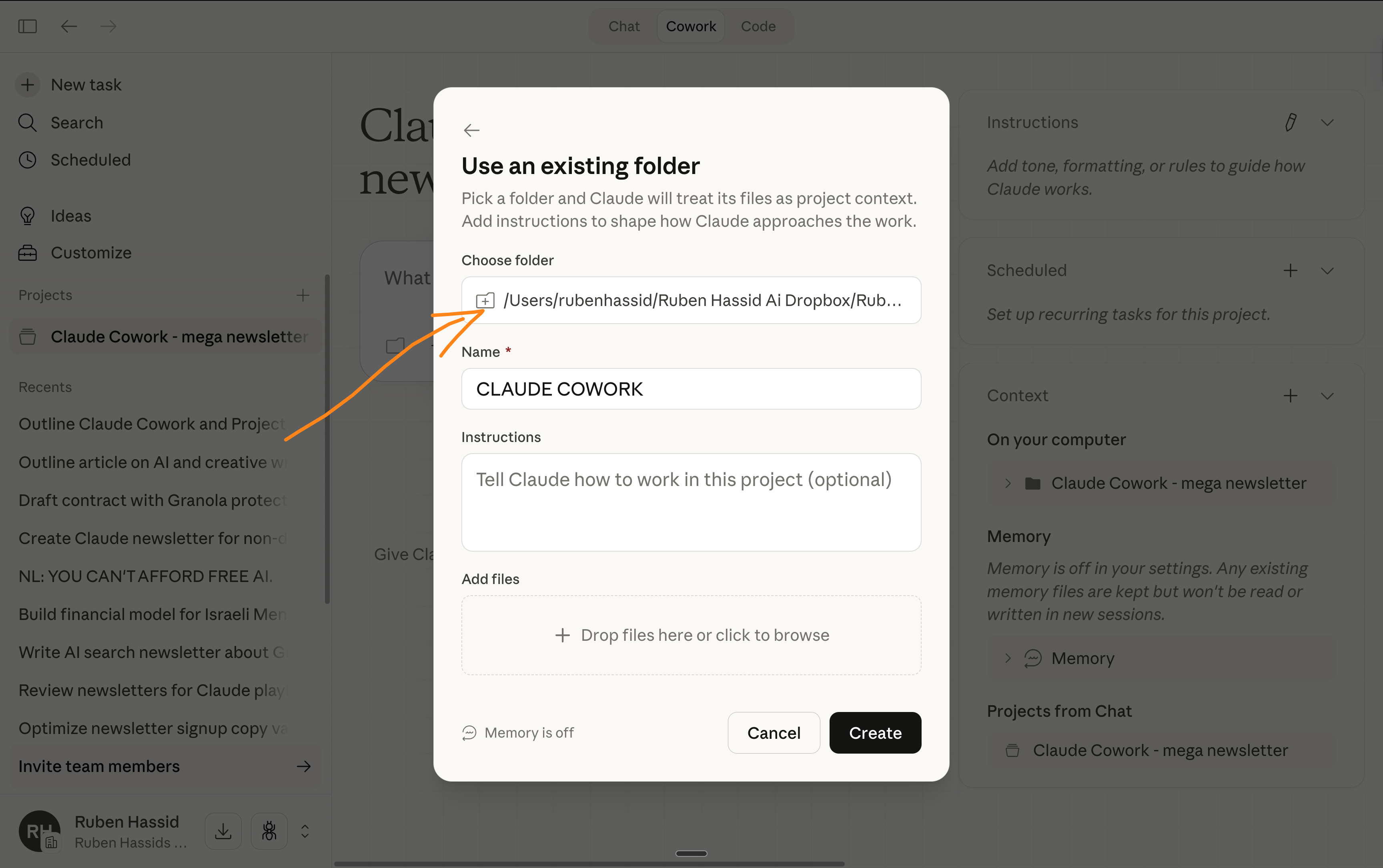
After creation, the Project appears in your sidebar. Every task you run inside it gets the full context. You stop re-explaining yourself.
The setup prompt I use for every new Project.
Just copy and paste this:
I just created this Project. Read every file in the folder. Then summarize what you know about this workspace: what's here, what I probably use it for, and what instructions you'll follow. If something is unclear, use AskUserQuestion.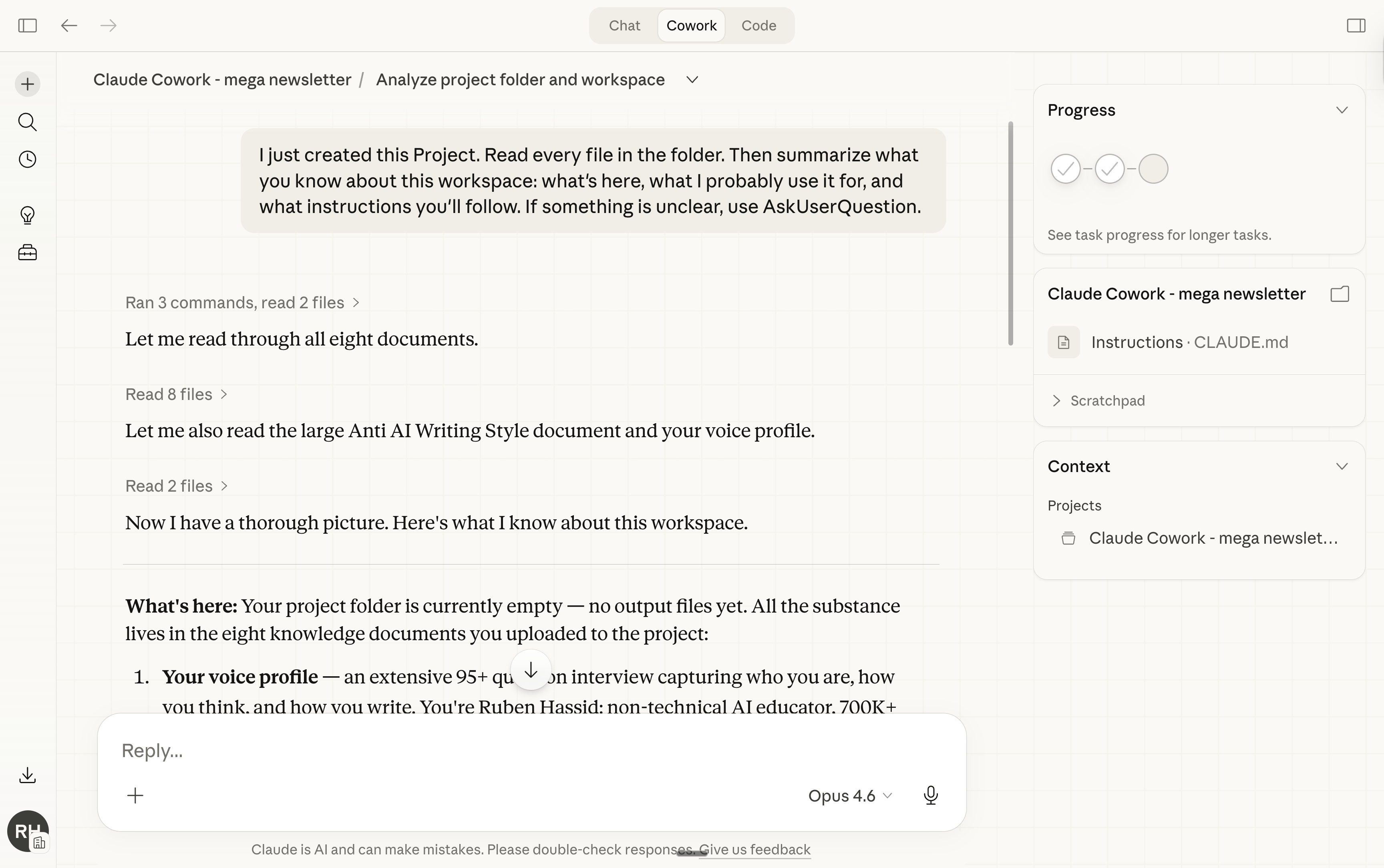
Claude “learns” the Project on day one.
After that, it remembers.
3 - How I use Cowork Project every day.
This is how I use Claude Cowork every day.
Workflow 1: Weekly newsletter (Content teams / Freelancers)
The Project: “Newsletter”.
Folder contains: my about-me.md, my anti-AI writing guide, 5 past newsletters that performed well, reference material from other creators (a step-by-step guide covering part of what I need), official docs from companies I cover.
Instructions:
Read ABOUT ME/ and anti-AI-writing-style.md before every task. Match this voice exactly. Never use banned words. Keep paragraphs under 3 sentences. Always use AskUserQuestion before writing.What I do every week: I drop the new topic brief and research into the folder.
Pro tip: Use Grok for researching the web. It’s the best, by far.
Open the Project. Type:
I want to write my next newsletter on [topic]. Start with AskUserQuestion to refine the angle with me before you write anything.Claude remembers my voice from last week. It remembers which angles worked. It asks me 5-6 questions (in a clickable form).
I click answers. It writes a full draft as a markdown file, directly in my folder.
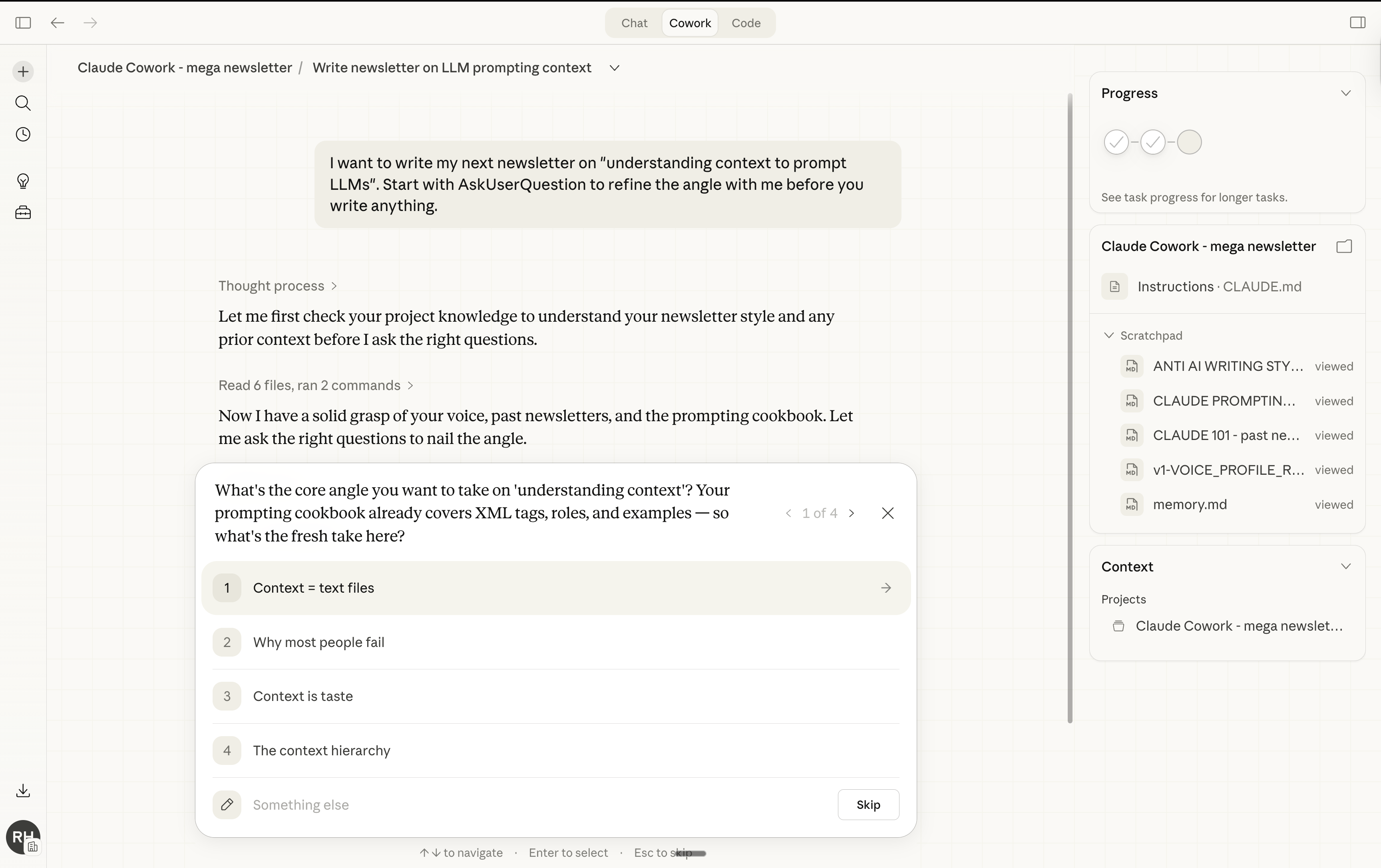
Why this works as a Project: The voice and examples are permanent. I set them once. The scoped memory means Claude learns what resonates over time. I used to re-explain my style every session. Now I just say, “Write the next one.”
Applicable for: marketing teams, agencies, freelance writers, anyone producing content on a recurring basis.
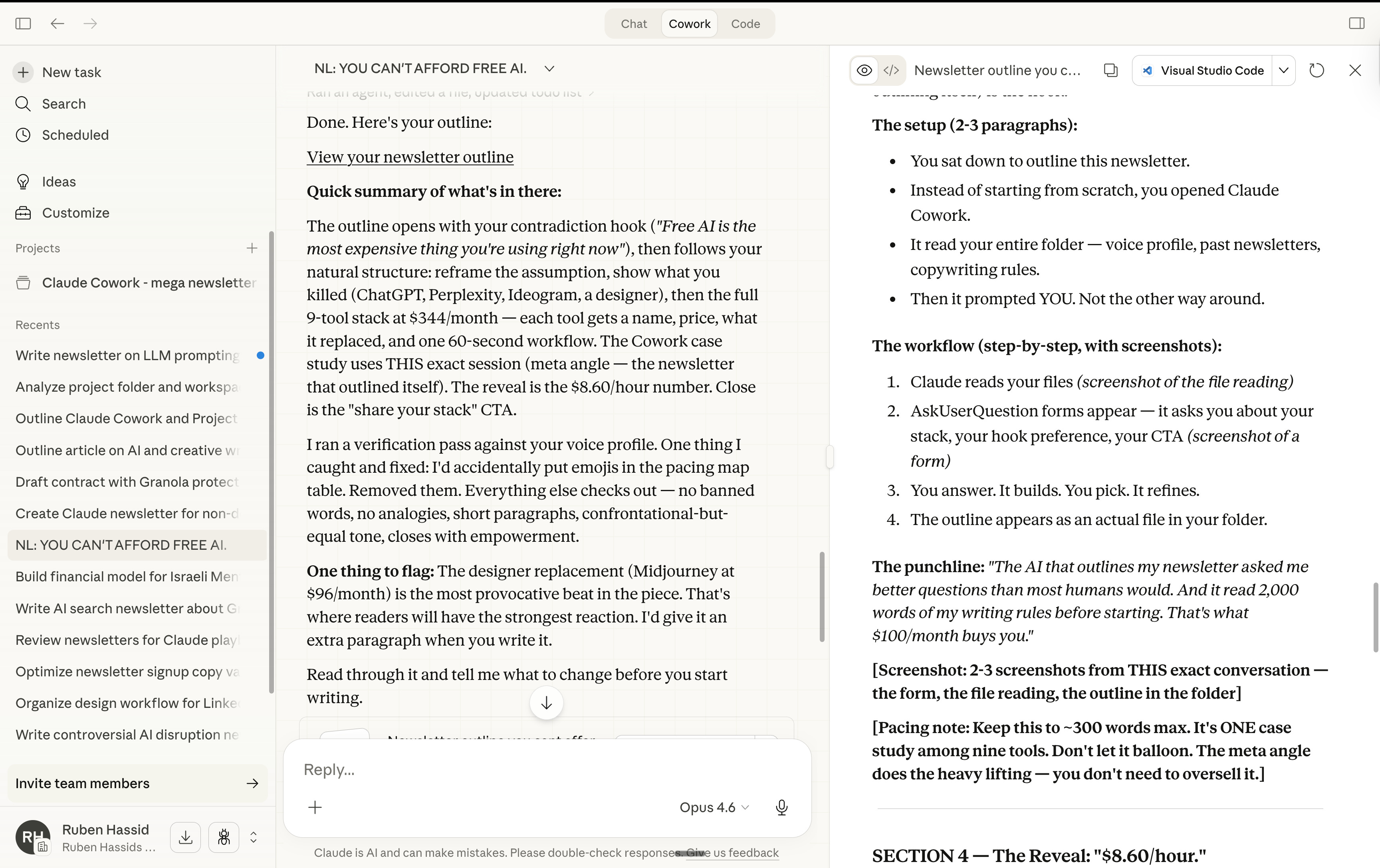
Workflow 2: Client deliverables.
The Project: “Client Strategy Reports” (one Project per deliverable type)
Folder contains: my report template, 2 strong examples, the client brief for the current engagement, any reference docs the client sent.
Instructions:
Always include an executive summary. Never exceed 15 pages. Use the client's terminology (found in the brief). Structure: exec summary → findings → recommendations → next steps → appendix. Output as .docx. Ask questions first.What I do: Client sends a new brief. I drop it in the folder. Open the Project.
Type:
New client brief just dropped. Read it. Create a strategy report as a .docx. Ask me questions first.Claude reads the brief, compares it to my template and past examples, asks me 3-4 questions (”Should this include a timeline or just recommendations?” “Do you want competitor benchmarks?”).
I click answers. It creates a .docx in my folder.
Why this works as a Project: Every report follows the same structure. The template and examples are a permanent context.
And by the third report, Claude knows my formatting preferences and the level of detail I expect. It gets better each time.
Applicable for: law firms, consulting firms, accounting firms, agencies.
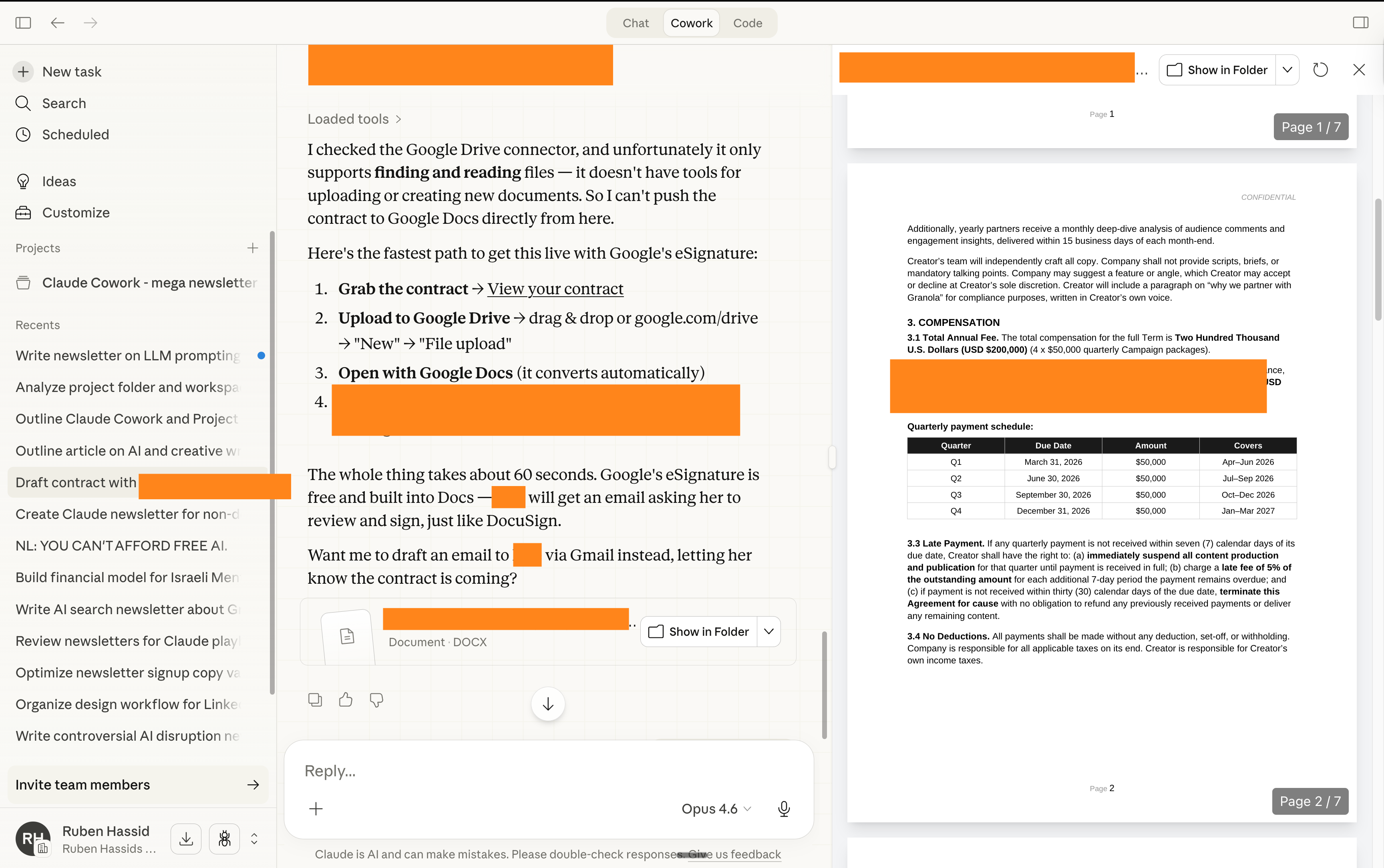
Workflow 3: Sales proposals (Sales teams)
The Project: “Sales Proposals”
Folder contains: pricing sheet, 3 winning proposals, case studies, objection-handling playbook, the rep’s discovery call notes (dropped in before each run).
Instructions:
Always lead with the prospect's pain point. Never mention competitors by name. Always end with a proposed timeline. Match the tone of the winning proposals in this folder. Output as .docx. Ask clarifying questions first.What I do: Rep finishes a discovery call. Drops their notes (from Granola) into the folder. Opens the Project.
Pro tip: Connect your Granola + Gmail + Slack to your Claude (with connectors).
This way, you can connect your entire context to your negotiation.
Type:
New discovery call notes in the folder. Create a proposal. Ask me questions first.Claude reads the notes and the winning proposals for tone, then asks a few questions (”Budget range?” “Decision timeline?” “Main competitor they’re comparing?”). Creates a .docx proposal from there.
Why this works as a Project: The playbook and examples live permanently. New call notes go in, finished proposals come out. Nobody writes from scratch anymore. And the scoped memory means Claude learns what language closes deals over time.
Applicable for: sales teams, business development, partnerships, agencies pitching new clients.
Workflow 4: Weekly operations briefing.
The Project: “Weekly Ops Briefing”
Folder contains: last 4 weekly briefings (so Claude sees the pattern), a one-page template for the format, raw inputs from team leads (dropped in each Monday).
Instructions:
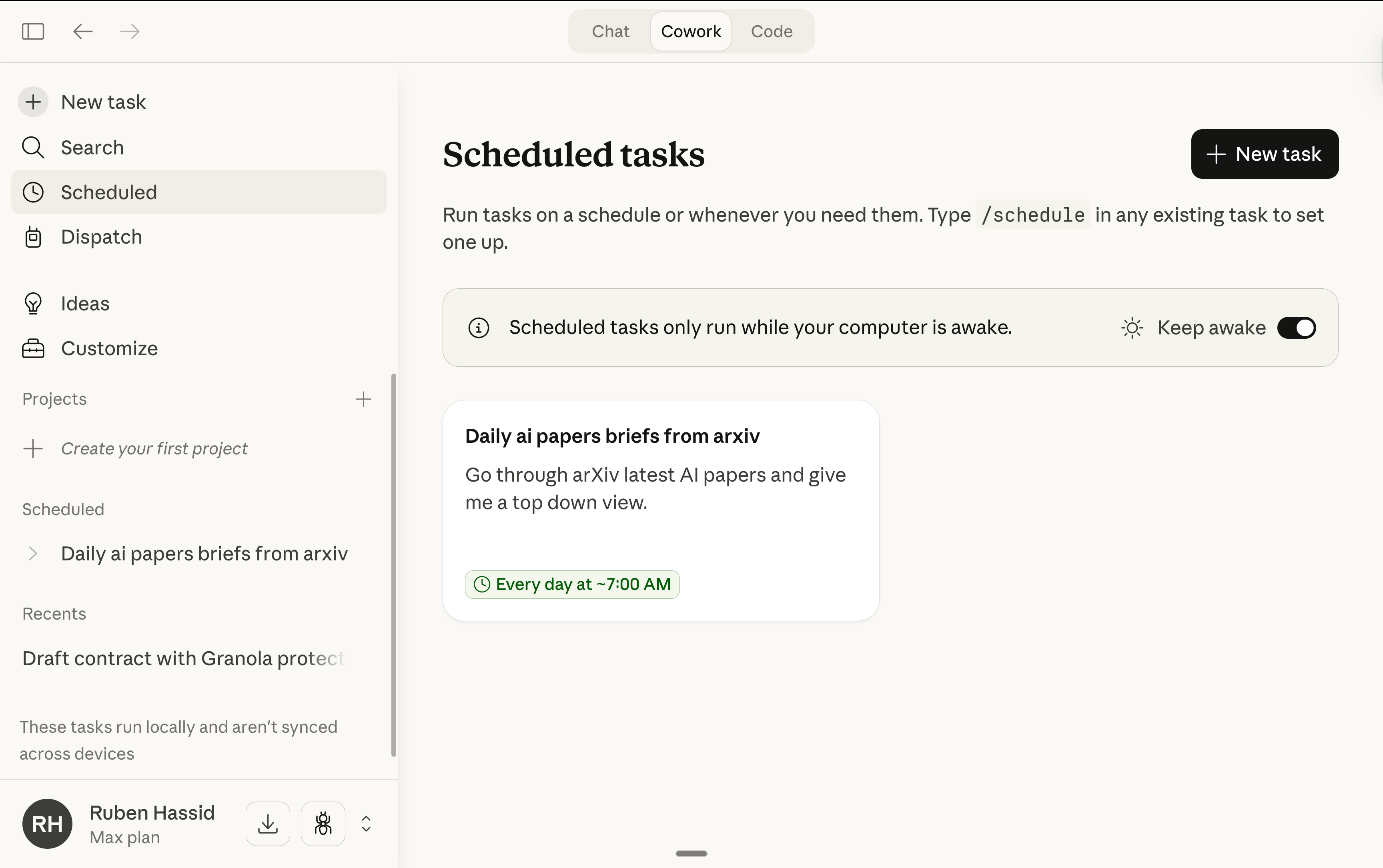
Every Monday, combine all raw inputs from team leads into one executive briefing. Format: 1-page max. Sections: wins, blockers, priorities for next week. Flag any blocker that appears in more than one team. Output as .docx.Scheduled task: Every Monday at 8 am, Claude runs this automatically. It reads the raw inputs, produces the briefing, and saves it to my folder. I wake up to a finished doc.
I explained how to run scheduled tasks here.
Why this works as a Project: The format and rules stay the same week to week. But the scoped memory means Claude notices patterns: “This is the third week in a row the engineering team flagged hiring delays.” That kind of continuity used to require a chief of staff. Now it’s a scheduled task.
Applicable for: any manager who aggregates reports from multiple people.
4 - The old Projects still matter. Here’s when.
Cowork Projects are better for execution.
But the old Projects (without Cowork) still win in one area: team sharing.
Cowork Projects are local. They live on your machine. You can’t share them with 10 teammates (yet). So if your entire team needs access to the same instructions and files, the old browser Projects are still the move.
My setup right now:
→ Claude Projects = shared team playbooks. The “source of truth” everyone can access. I set these up using my Teams guide.
→ Cowork Projects = my personal execution workspaces. Where I actually produce the work. I imported the team Projects into Cowork, so I get the same instructions with full execution power.
When Anthropic adds team sharing to Cowork Projects, the old ones become redundant. But we’re not there yet.
You can be sure I’ll make a newsletter when this happens. So make sure to subscribe if you didn’t:
5 - How to set up Cowork Project in 15 min.
Minutes 0-1: Update your Claude Desktop app.
Make sure you’re on the latest version. The Projects feature only works on the March 2026 update. It’s on the bottom left (next to your name).
Minutes 1-8: Create your first Cowork Project.
Pick one recurring task. Something you do every week. A report, a proposal, a client update.
Open Cowork → Projects → + → Pick your method (scratch, import, or existing folder).
If you followed my Teams guide, import your best Project. If you already have a Cowork folder from my Cowork guide, pick that folder and add instructions. Starting fresh? Create a new folder with your about-me.md and any templates you have.
Write your instructions. Keep them short. 5-8 lines max.
Minutes 8-12: Run your first task inside the Project.
Open the Project. Type:
Read everything in this folder. Then [your task]. Start with AskUserQuestion so we align before you execute.Watch Claude read your files and produce the work. All inside a persistent workspace that remembers what happened.
Minutes 12-15: Set up a scheduled task (optional).
If this task recurs weekly, set it up:
Go to the Project → Scheduled tasks → New → Write the prompt → Pick the frequency.
6 - Where it falls short (I promised honesty).
No team sharing yet. Cowork Projects are local to your machine. You can’t share them with teammates. For shared workflows, you still need the old Claude chat Projects. Anthropic says team sharing is coming.
Local storage only. Your Projects live on your computer. No cloud sync. If you work on two machines, you can’t access the same Project from both. Mobile task assignment works (via Dispatch), but the files and memory stay on your desktop.
It still eats your usage. One Cowork Project session = 20+ regular chats. The scoped memory and persistent context are worth it, but expect to hit your limits faster on the Pro plan ($20/month). I’m on Max ($100/month).
Still a research preview. Agentic execution can make mistakes, especially on complex multi-step tasks. Claude sometimes misreads a file or takes a weird approach. Review your outputs before sending them to a client. Always.
App must stay open. Close the Claude desktop app, and your scheduled tasks stop. Cowork only runs when the app is running, and your computer is awake.
Memory is scoped, and that’s (mostly) good. Claude remembers everything inside a Project, but nothing across Projects. So your “Newsletter” Project doesn’t know what your “Sales Proposals” Project learned. That’s intentional (isolation). But sometimes you wish it could connect the dots. I can tell you it’s much better.
Side note on this: I hate “consistent memory.” Because AI ends up doing what I call “overfitting” (trying too hard to tell you it knows about you).
I am not a Claude fan.
I know I talk (a whole lot) about Claude.
But I don’t care about Claude. Claude or Anthropic does not pay me.
I’m sharing, twice a week, how my work is speeding up (very fast) with AI.
As I’m trying to keep up, I want you to keep up.
So we move just as fast.
I want to be the great filter to your AI noise.
And 410,000 people read this twice a week to focus on the How.
Some came because of my LinkedIn. But most readers subscribed because someone they trusted sent one of my articles to them.
If this article helped you, be that person for someone else (and share it):
If someone did send you this, thank them and subscribe for free here:
What's the benefit of using Projects over a MEMORY .md file and a Skill that recaps each chat?
Thanks Ruben
I have been trying to understand this application, that is certainly important to making progress in group and individual work.
DL