
Claude for teams.
How to set up Claude for your team in 7 days (to quit ChatGPT):

You quit ChatGPT, and set up Claude for yourself.
You use it every day. You’ve cut hours off your week.
But now look around.
Your team is still writing everything from scratch. Still Googling. Still spending 2 hours on emails that take Claude 7 minutes (at max). Atrocious.
And you tried everything. You shared this newsletter on the Team’s channel. You made them switch from ChatGPT to Claude. Maybe even did a ‘lunch-and-learn’.
But adoption never lasted. People pretend like they use AI (they don’t).
So I am writing the full playbook to set up Claude as a team.
It takes a week. Start on Monday. By Friday, your team runs on Claude.
Make sure your team stays ahead. Share this free article on your Team’s channel:
Table of contents
How to set up Claude’s team plan.
Monday: How to set up ‘Projects’.
Tuesday: How to create ‘Prompt Templates’.
Wednesday: Test your Project for a ‘wow’.
Thursday: Don’t train 10 people. Convert 1.
Friday: How to quickly roll it out for the team.
What happens next?
How to set up Claude’s team plan
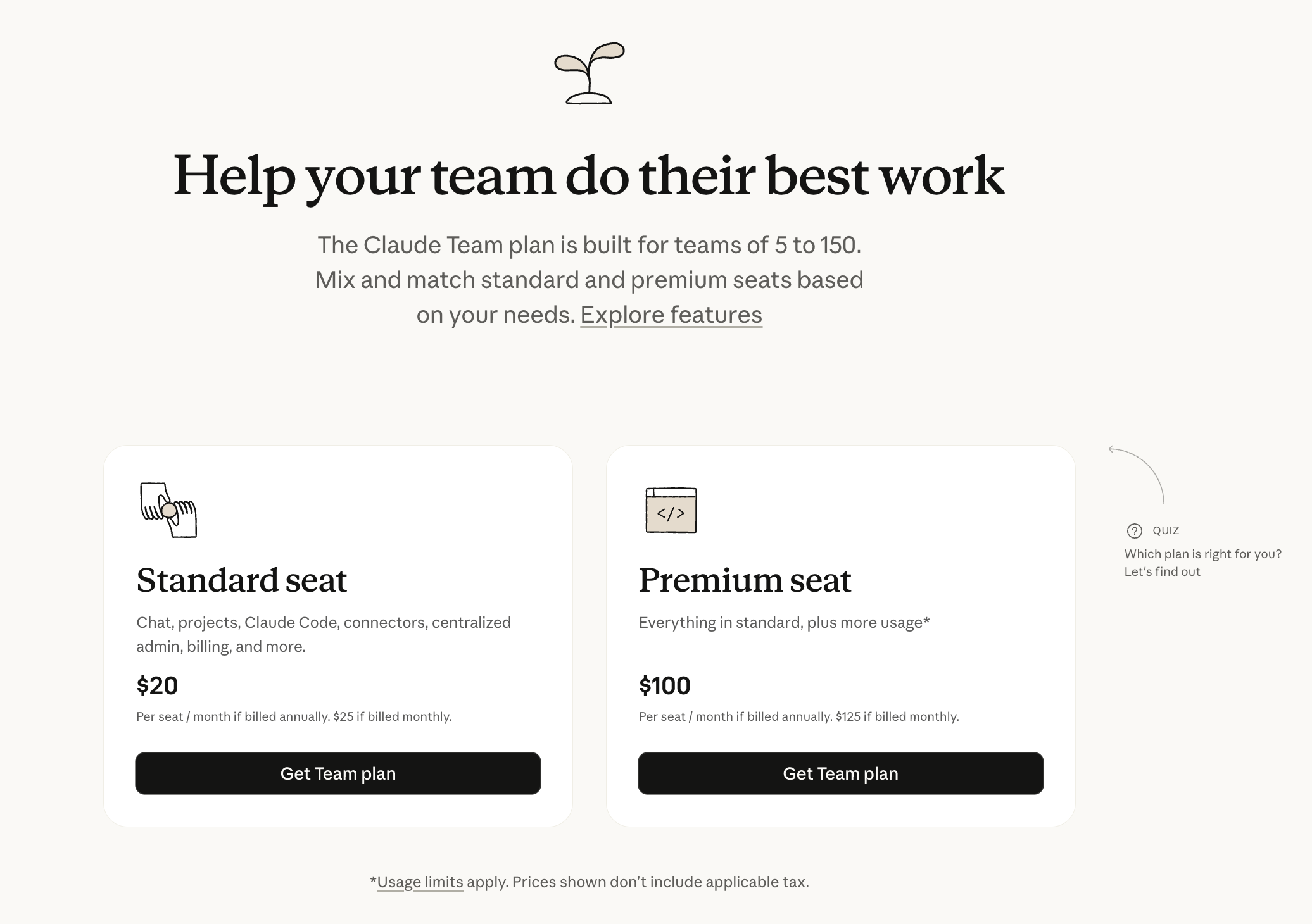
Go to claude.com/pricing/team.
Minimum seats: 5, up to a maximum of 150.
I highly suggest the Premium seat if you’re seriously using it.
If you are an enterprise, go to claude.ai/create/enterprise/qualification.
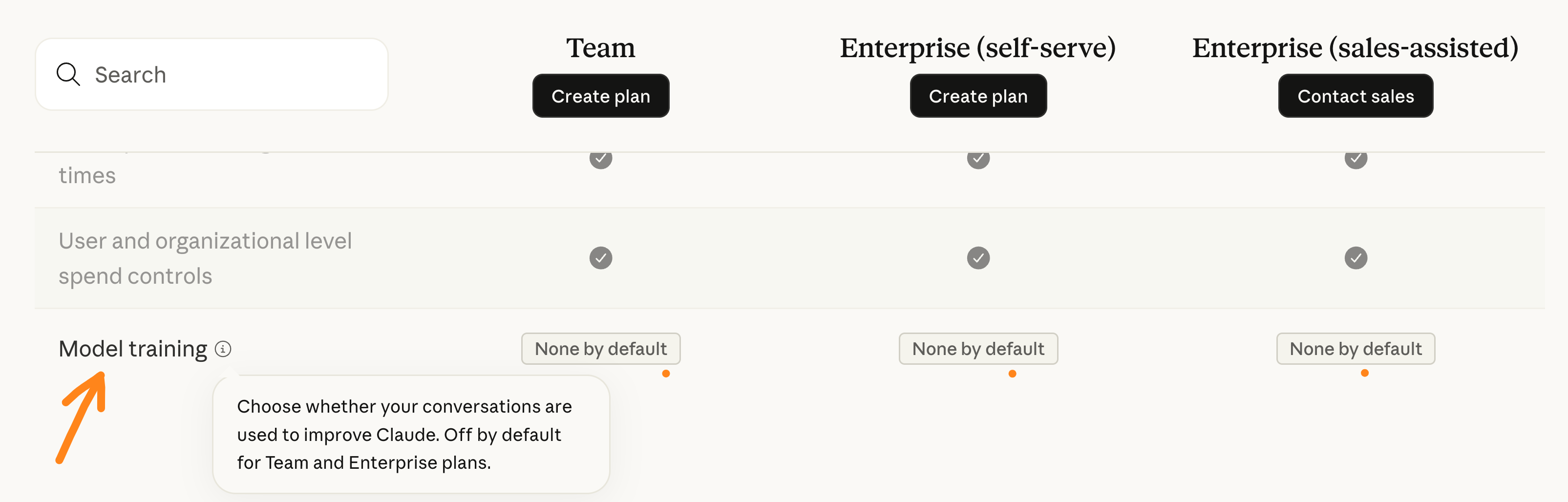
Claude does not train on your data (like every AI-team plan).
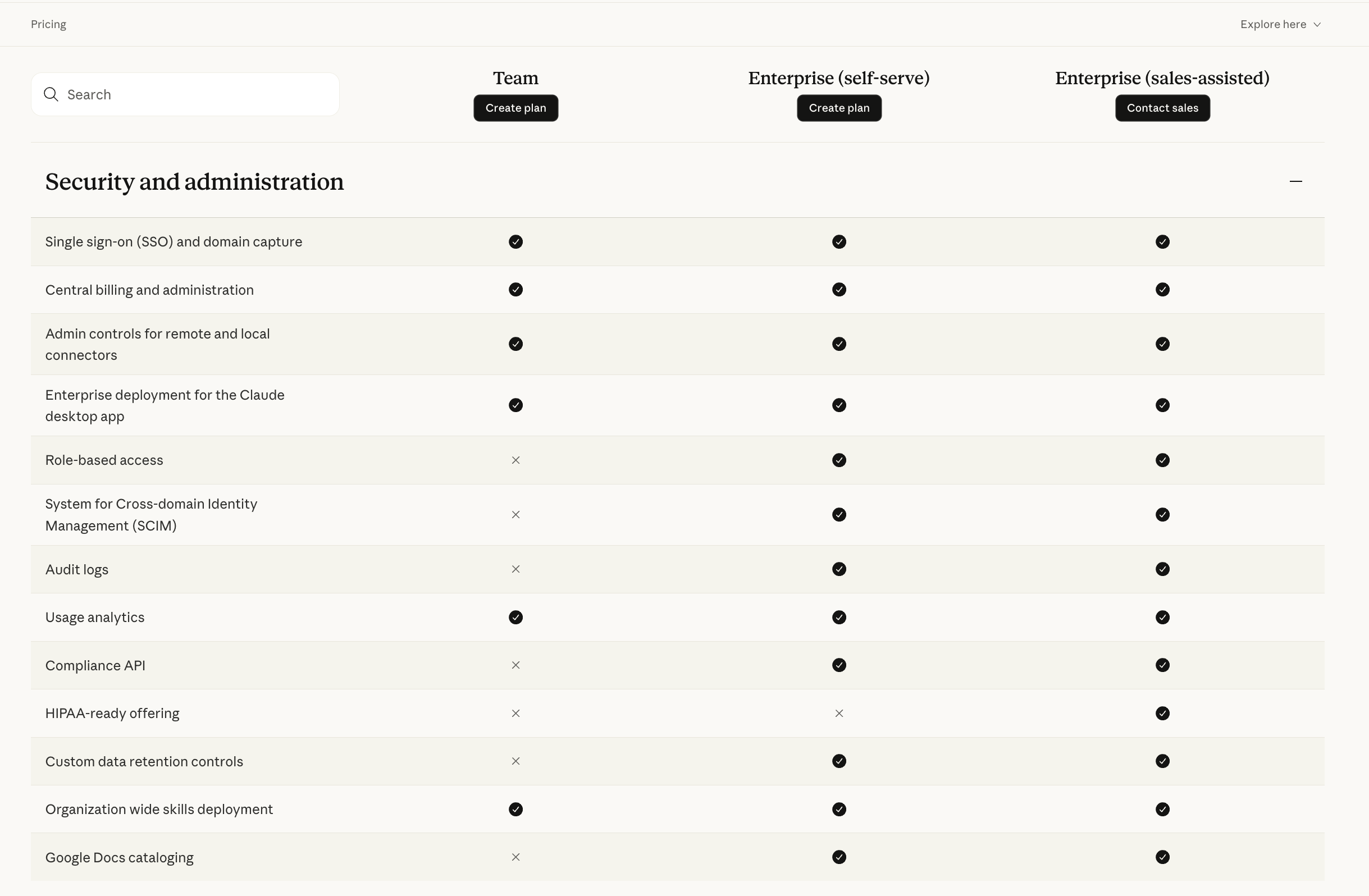
Here’s what they say around security, depending on the tier level:
Monday: How to set up ‘Projects’.
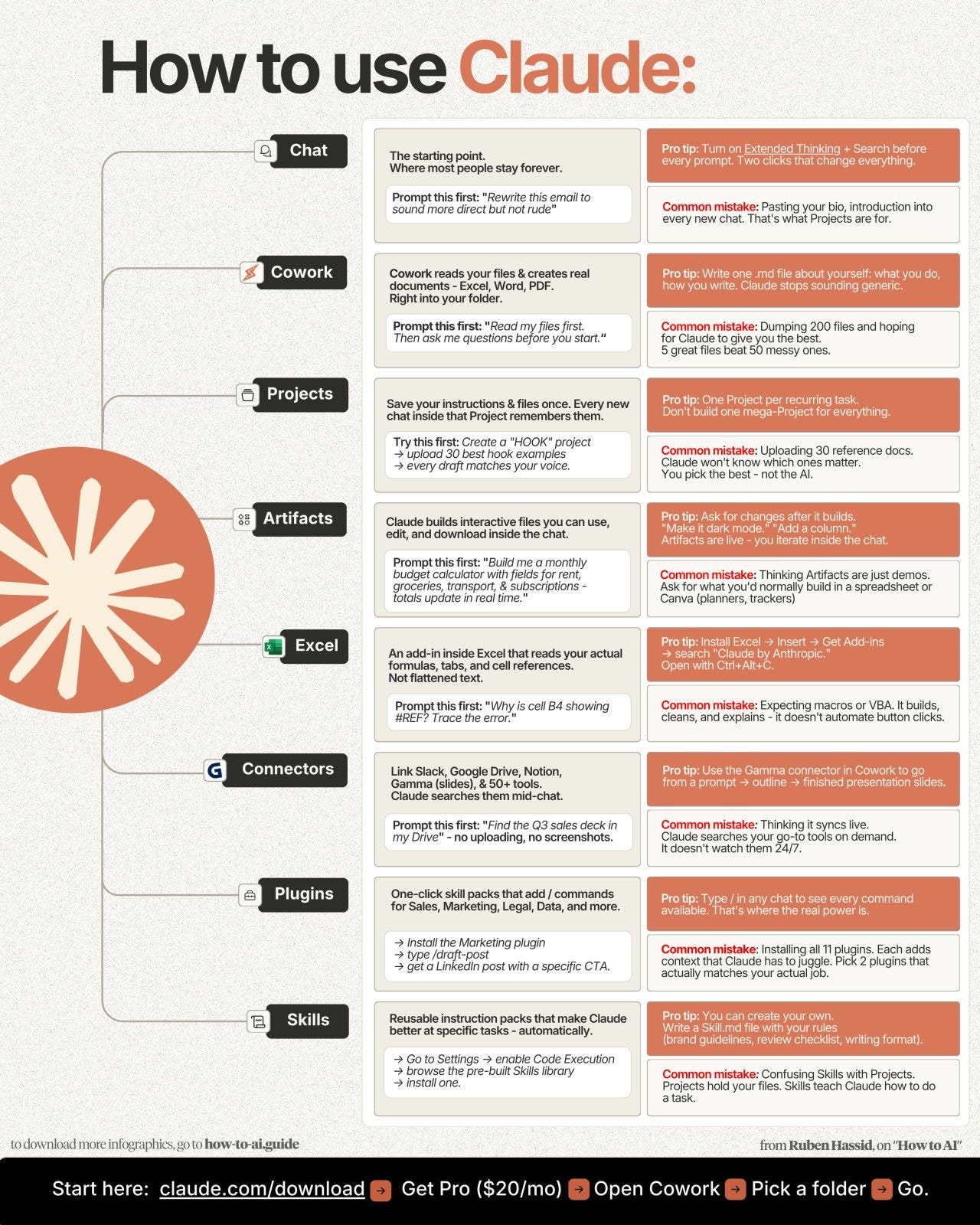
I prefer Claude ‘Cowork’ to Claude ‘Chat’.
But to effectively onboard an entire team on Claude, you need ‘Projects’.
The goal: build a separate Project for every task your team does repeatedly.
Your team probably produces the same 5 things every week. Client updates. Proposals. Meeting recaps. Campaign briefs. Internal reports. Each one has its own tone, its own format, its own “what good looks like.”
For example, a law firm would have one for client memos, one for case summaries, one for demand letters, and one for internal reports. Each Project gets only the context that the deliverable needs. Client memos get the tone guide and client roster. Court filings get the formatting rules and statutory references.
Here’s how to create your Projects folder:
Step 1 → Let Claude figure out which Projects you need.
Paste this prompt and answer Claude’s questions.
📋 Prompt #1 — Identify your team’s recurring deliverables.
I work at [company + industry]. My team specifically help [clients] [achieve goals].

You are helping me set up Claude for my team. We need to identify the 3-5 recurring deliverables my team produces, so we can create a separate Claude Project for each one.
Interview me. Ask me ONE question at a time about:

1. What my team does day-to-day
2. What we deliver to clients, leadership, or each other
3. What tasks feel repetitive every week or month
4. What work someone always ends up redoing because the first version wasn't right

When you have enough context, stop and give me:

1. A numbered list of 3-5 recurring deliverables, each described in one sentence
2. For each one: a suggested Project name (clear, specific)
3. For each one: a list of exactly which documents I should upload into that Project (be specific — tell me what to look for in my Drive or inbox)

Start now. Use AskUserQuestion.
I will follow your steps by creating my own Project folder for a fake company.
I called it RubenLegal, a law firm in the US:
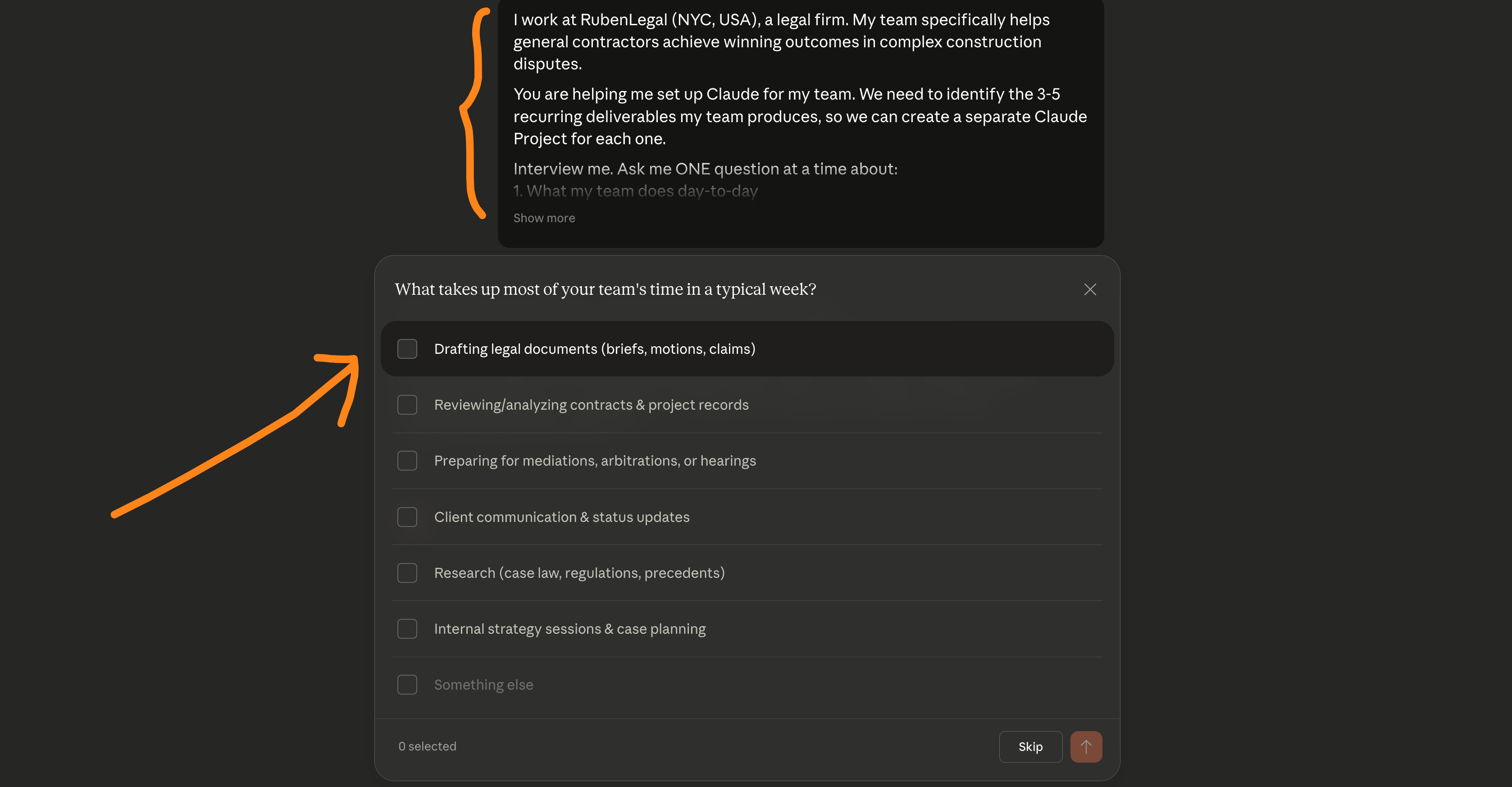
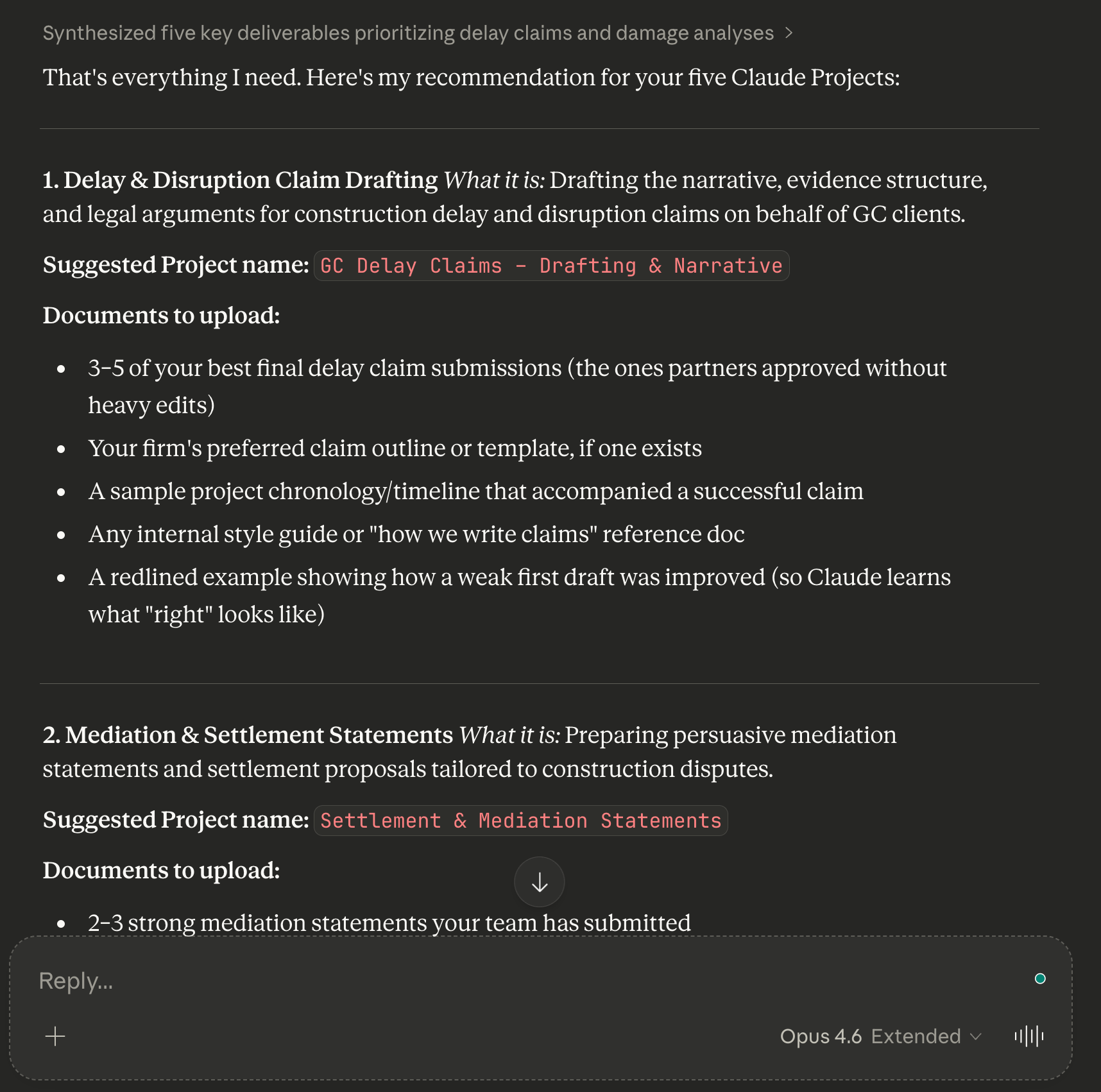
You now have your Project list. Each one becomes its own Project.
Step 2 → Create the Projects and upload what Claude told you to.
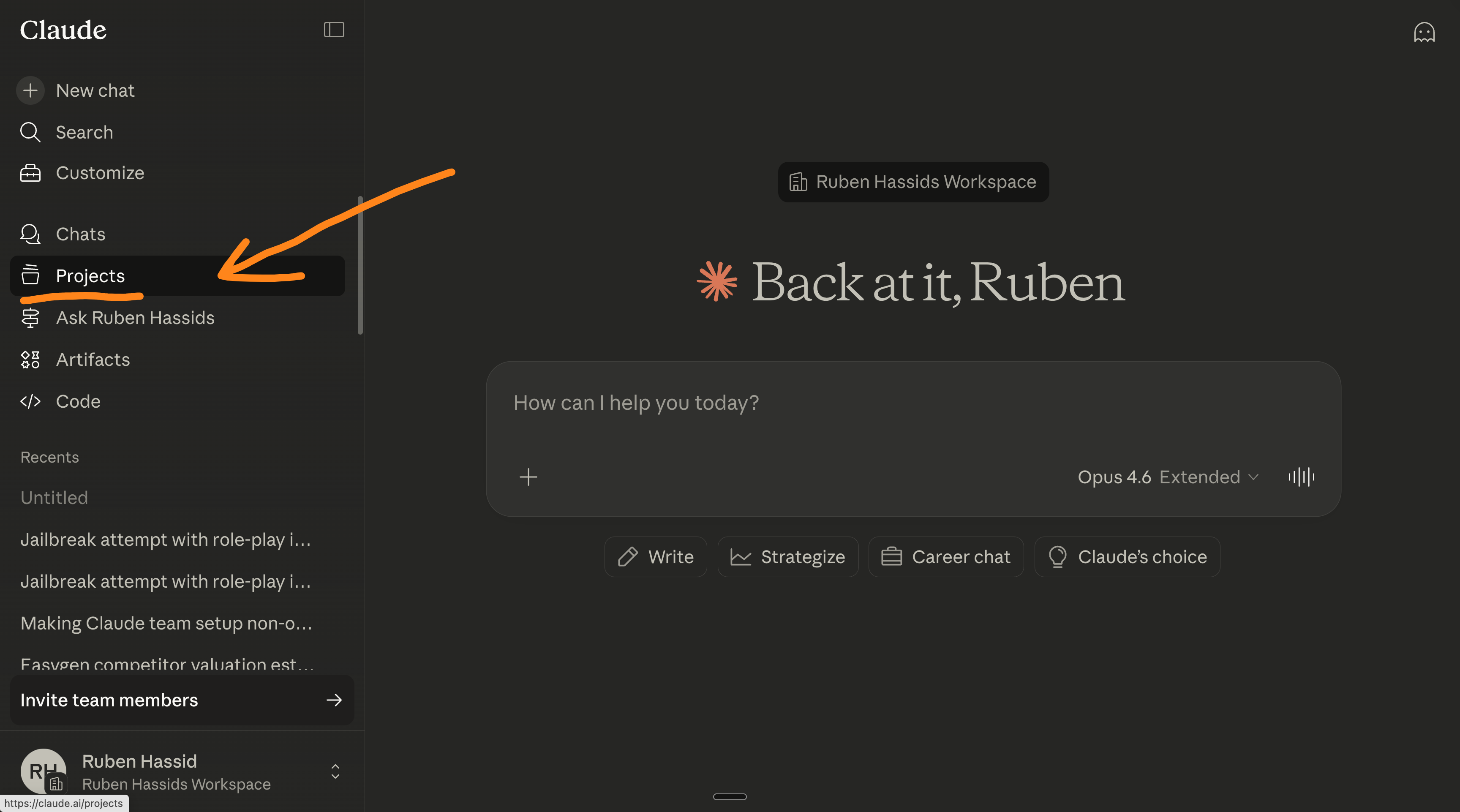
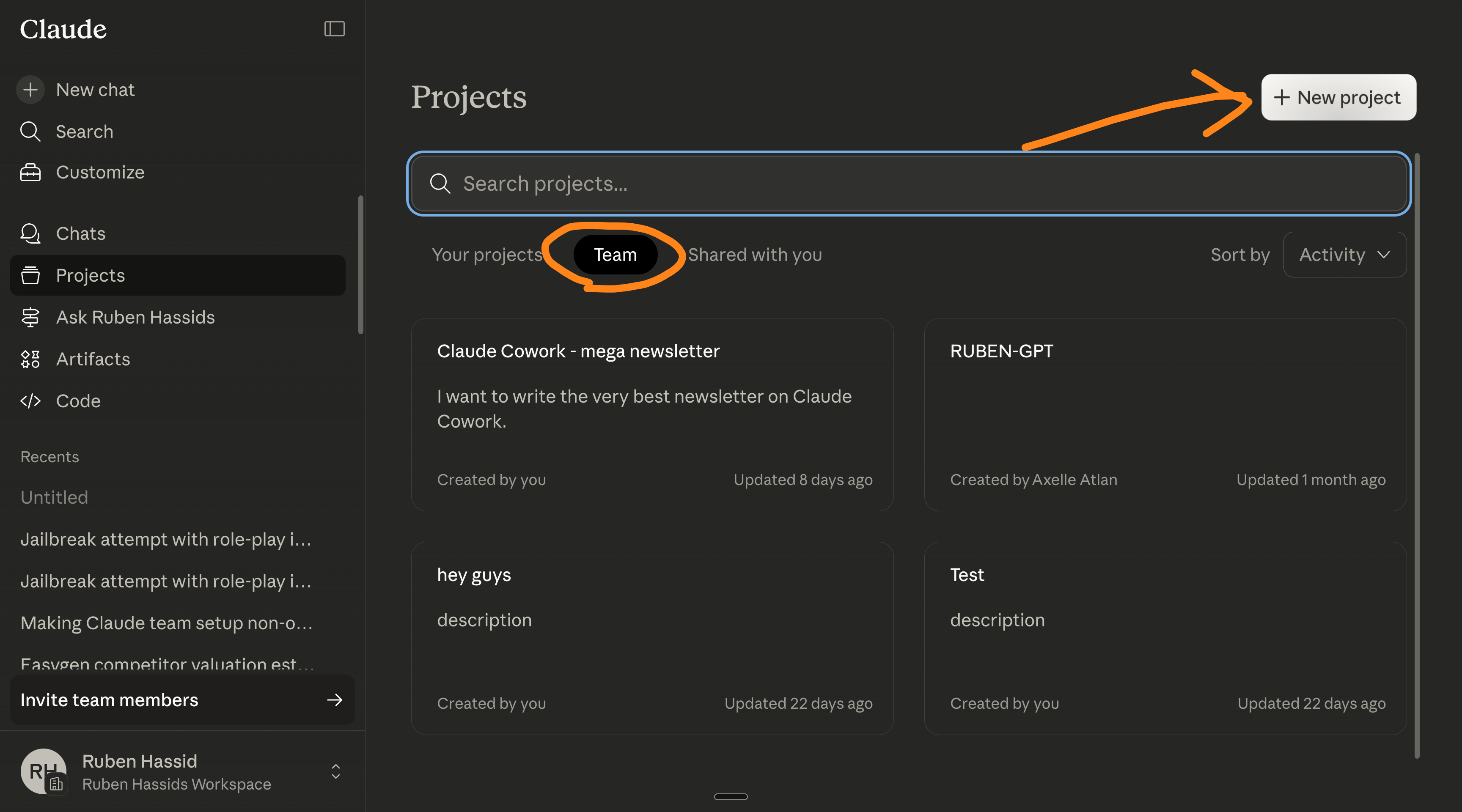
Go to Claude → Projects → Team → New Project.
One per deliverable. Name them exactly what Claude suggested. Set each to shared. You’ll invite people on Thursday (I’ll explain how down below).
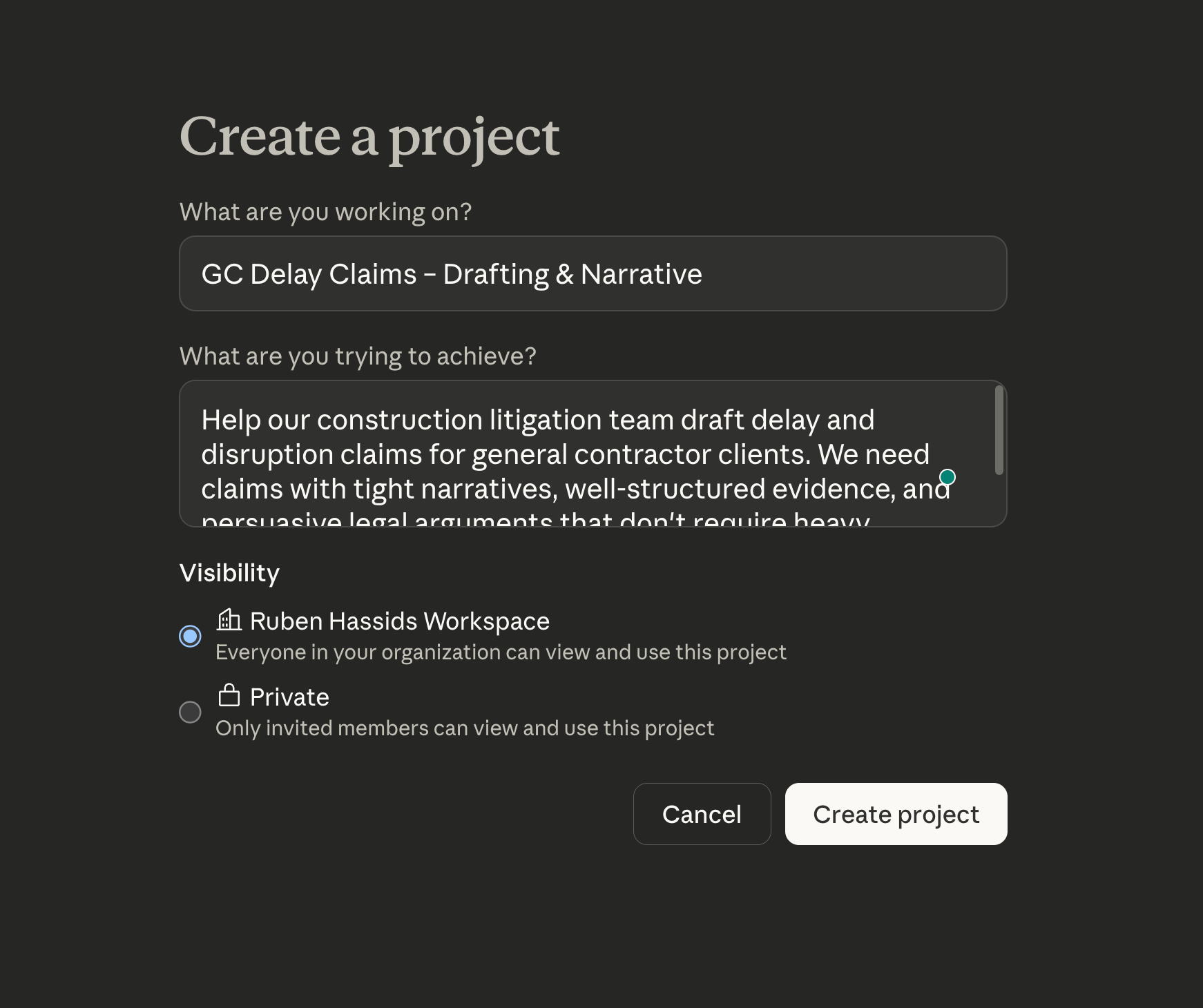
Step 3 → Load each Project with the right context — and only the right context.
This is what makes separate good from bad Projects. Your sales proposals don’t need your brand guide. Your meeting recaps don’t need your pricing sheet.
Each Project gets only what it needs (in terms of context).
For each Project, upload:
→ One great example of that deliverable (the “gold standard” your team already produced)
→ Any relevant background doc (the client list for client updates, the pricing sheet for proposals, etc.)
→ The brief or template your team currently follows for this deliverable (if one exists)
Then upload only the docs Claude listed for that specific Project.
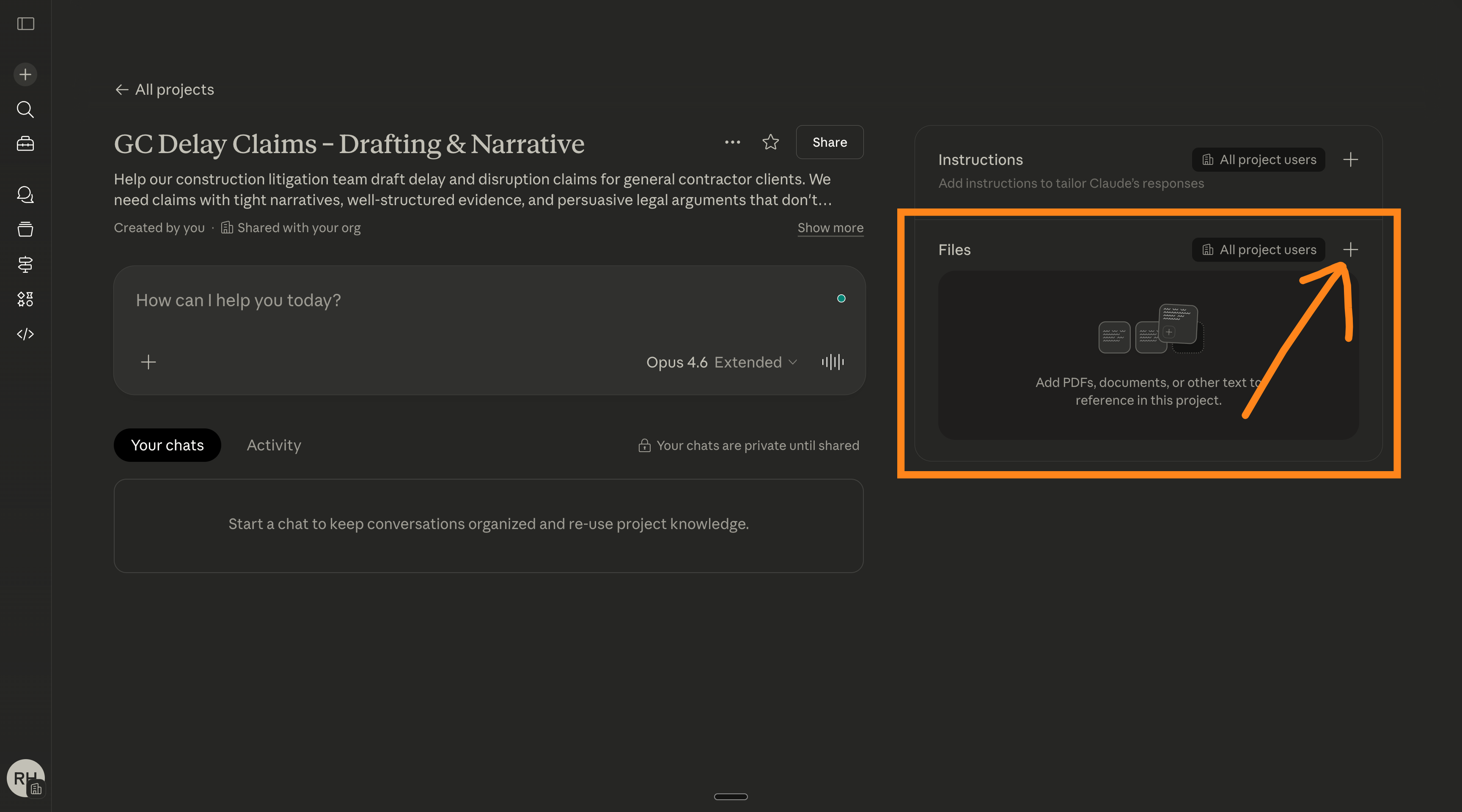
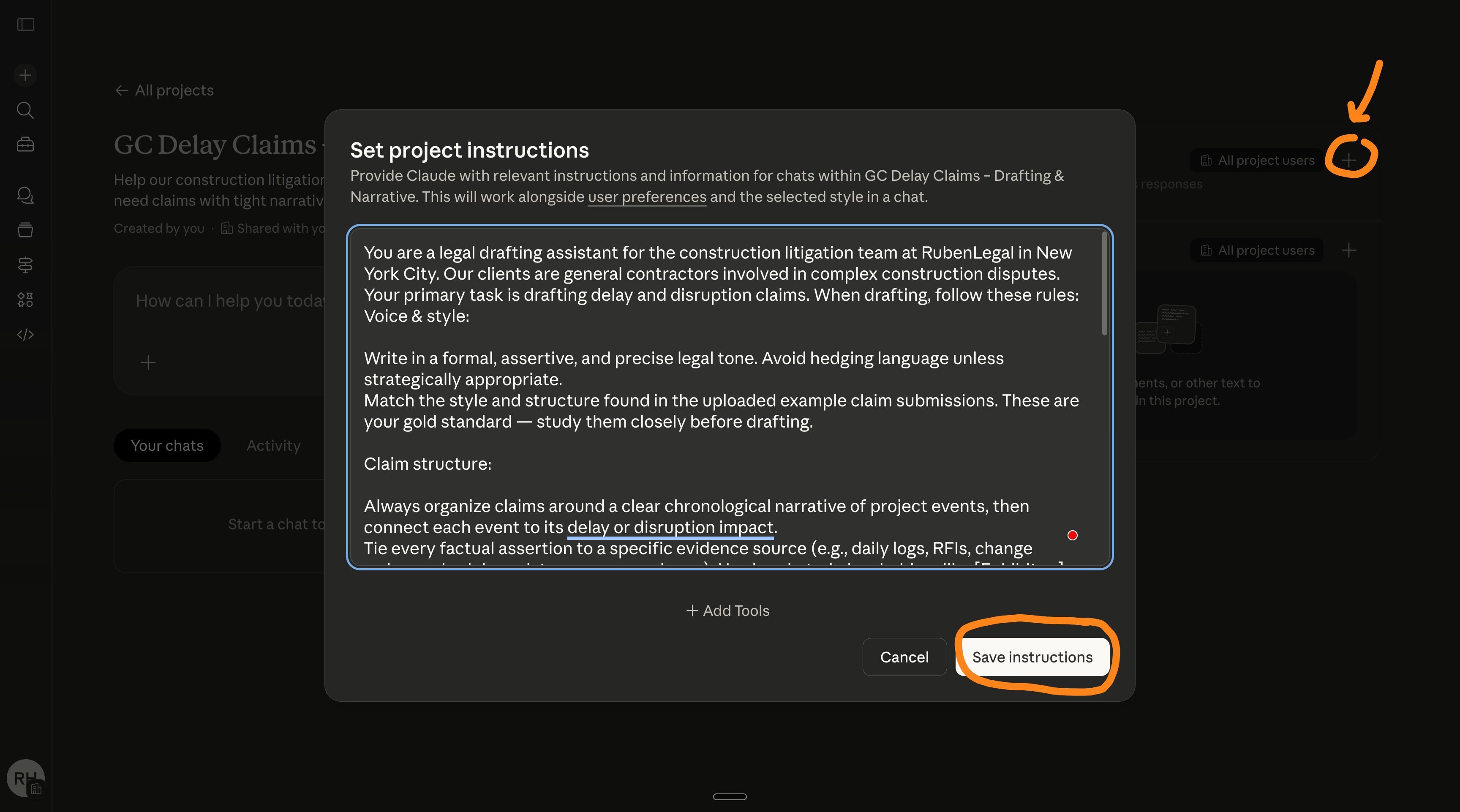
Step 4 → Generate tailored instructions for each Project.
It’s the core prompt of your project, always running before each chat.
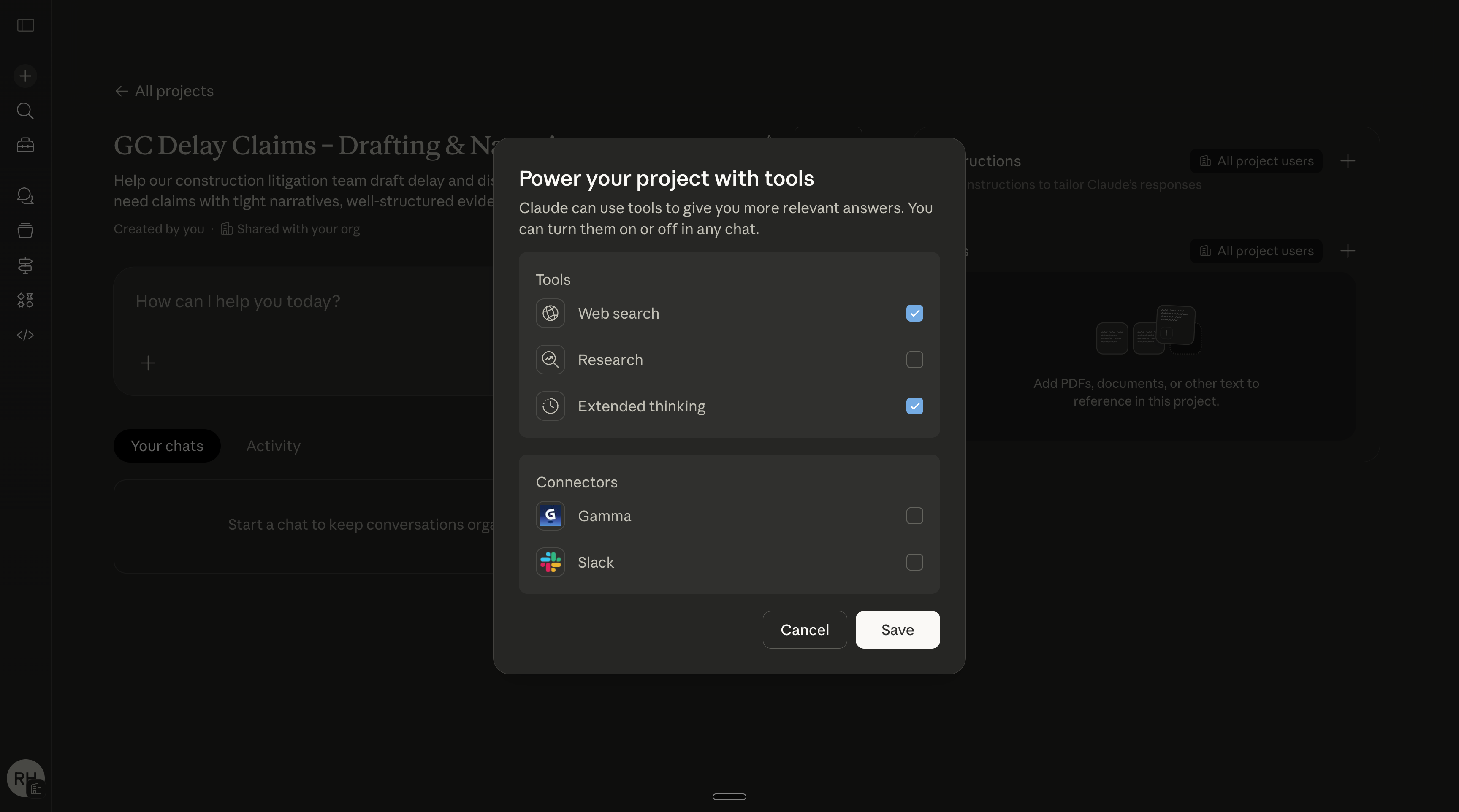
To help you generate a custom instructions prompt, go to the regular Claude (Opus+Extended thinking), and run this prompt:
📋 Prompt #2 — Copy and paste this to Claude:
I’m setting up this Claude Project for one specific recurring deliverable my team produces: [NAME OF DELIVERABLE, e.g., “weekly client status update”].

I’ve uploaded example outputs and background docs.

Your job: Generate a Project instruction set I can paste into this Project’s instructions field. It should include:

WHAT THIS DELIVERABLE IS: One sentence describing the output
WHO IT’S FOR: The audience (internal, client, leadership, etc.)
TONE & FORMAT: How it should read, how long it should be, what structure it follows
QUALITY BAR: What separates a good version from a bad one — based on the examples I uploaded
GUARDRAILS: What to never do in this specific deliverable (e.g., never speculate on timelines, always include next steps, never exceed one page)

Format the output as a ready-to-paste instruction block.
Claude will then give you a solid Custom instructions prompt like this:
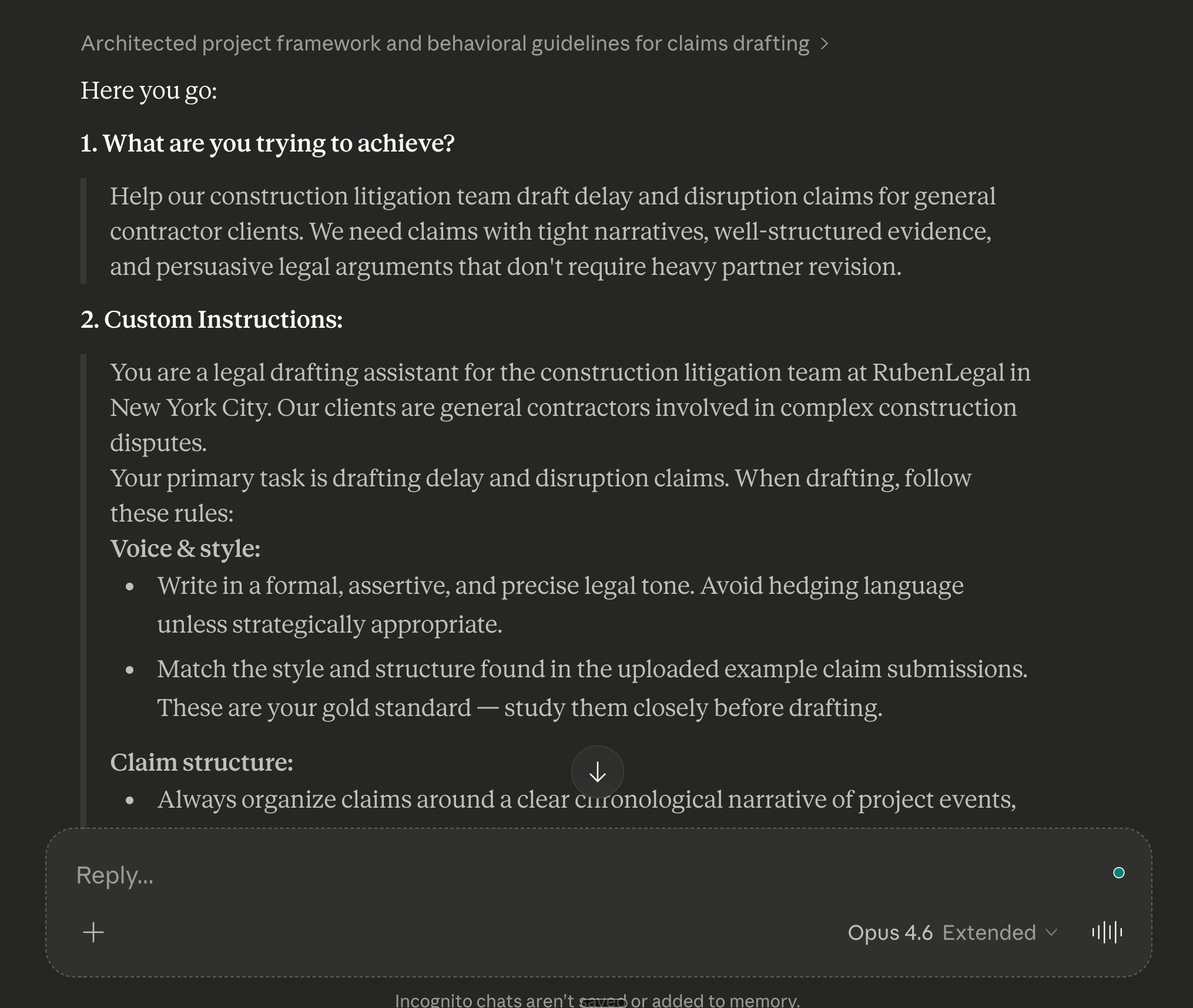
You simply copy and paste it for each project.
Claude learned from real examples. Now each Project now has its own personality.
Step 5 → Test & validate each one.
Once set up, run the Project with this test prompt:
📋 Prompt #3 — Copy and paste this:
Based on the instructions and examples in this Project, produce a sample [DELIVERABLE NAME] for [a recent or fictional scenario].

Then critique your own output: what matches our standards, what doesn’t, and what should I add to this Project to make it better?
If it nails the tone and format, the Project is ready. If something’s off, tweak the instructions. Takes 2 minutes per Project.
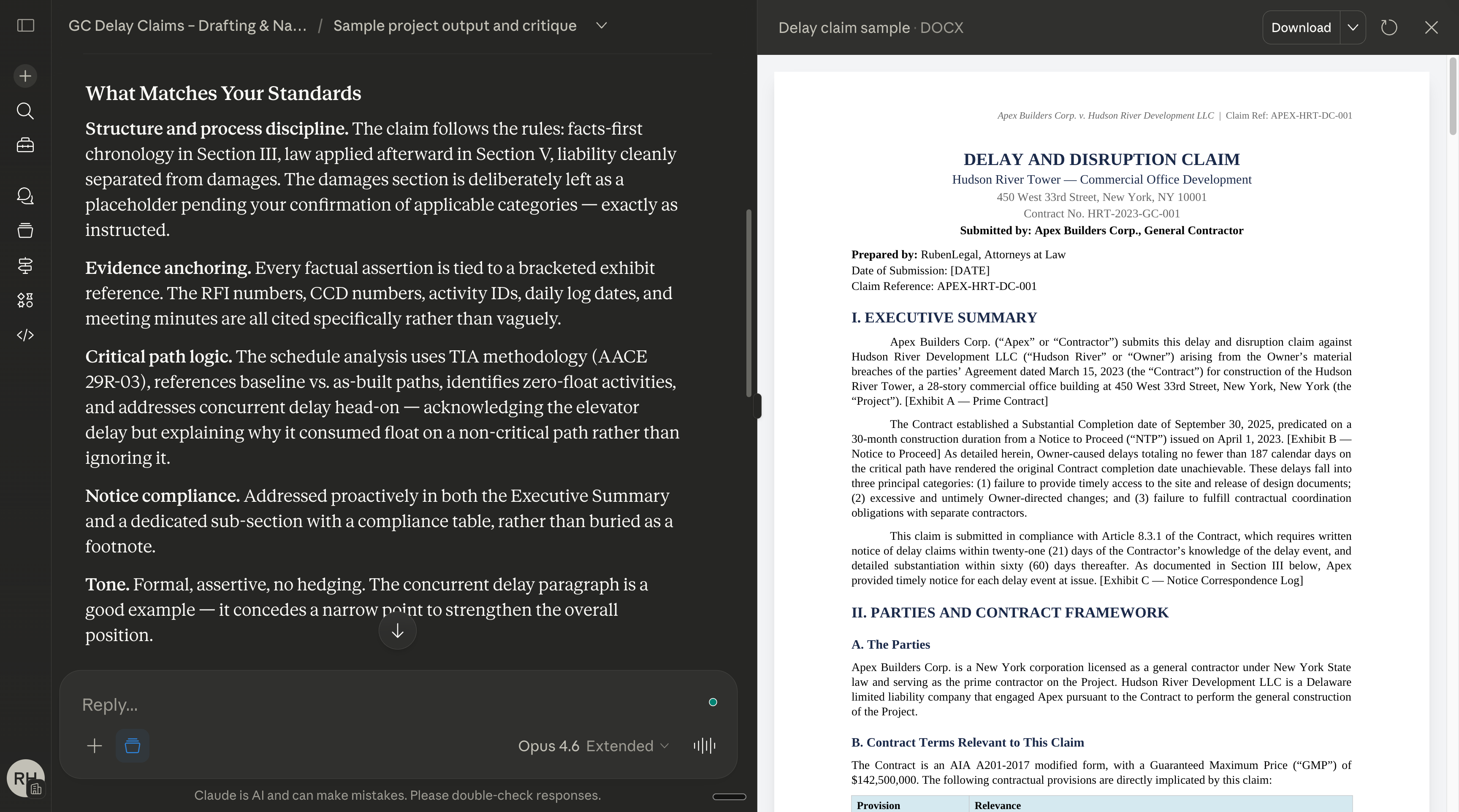
Monday is now done. It’s the heaviest day. 45–60 minutes for 3-5 Projects.
Tuesday: How to create ‘Prompt Templates’.
Your Projects are set. But when your teammates open one on Friday, they’ll stare at the empty chat and think, “What do I type?”
You’re going to put the answer right in front of them.
Go into each Project. Run this:
📋 Prompt #4 — Copy and paste this once per Project:
Based on the instructions in this Project, write me the shortest possible prompt template my teammates can copy-paste to produce this deliverable.
Rules:

1. One sentence max
2. ONE [INPUT] field (raw notes, a rough draft, or bullet points they already have)

The template should rely on the Project instructions for everything else — tone, format, quality, guardrails. Don't repeat any of it in the template.
Review what Claude gives you. Tweak it if needed. Save it to that Project’s Knowledge (probably on your Drive). Repeat for each Project. 5 minutes / Project.
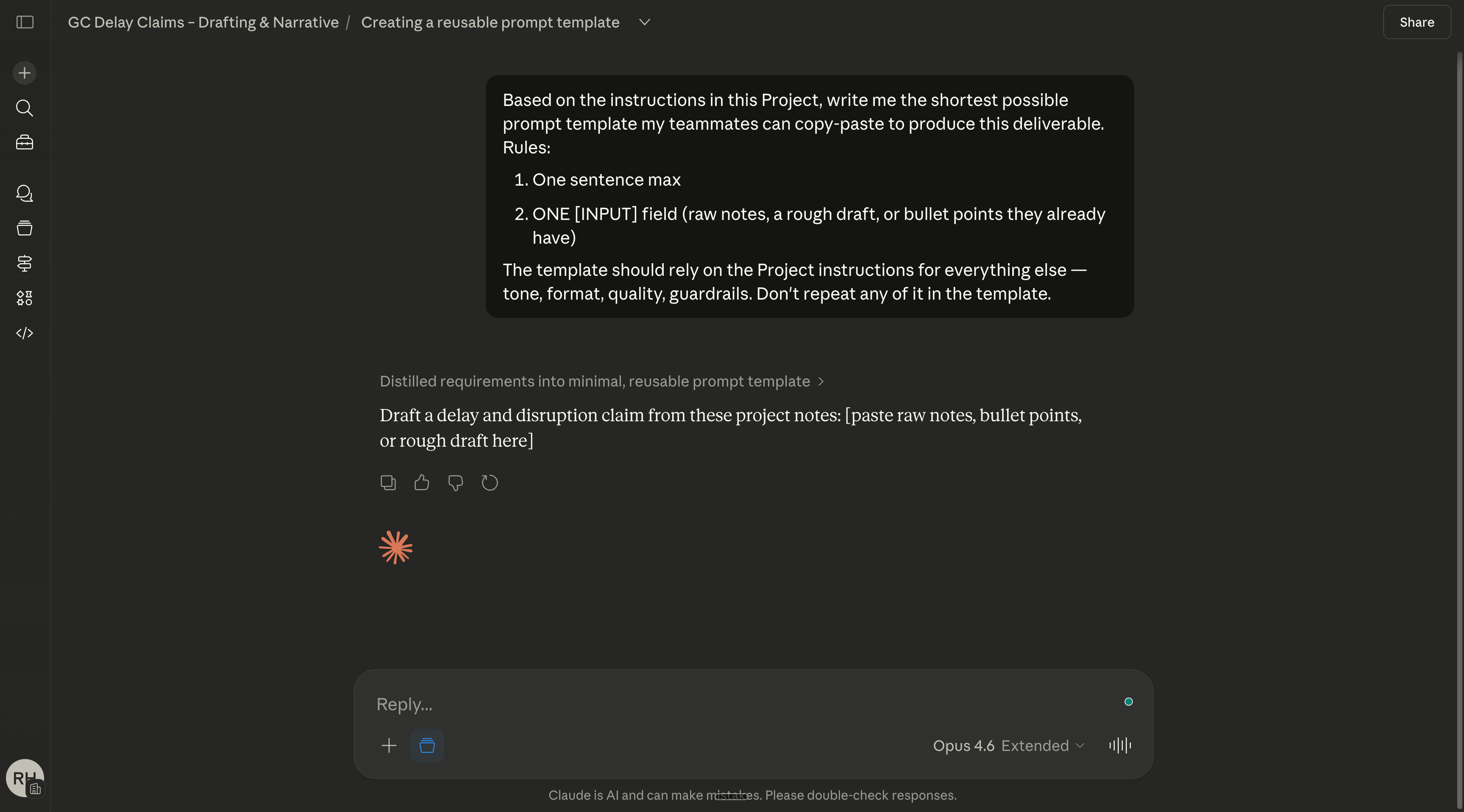
A junior associate opens the Project, pastes their notes, hits enter. Done.
Tuesday done. 15-25 minutes.
Wednesday: Test your Project for a ‘wow’.
The goal: use the system on one real task. Create a before/after comparison that becomes your adoption ‘wow’ moment.
People don’t adopt tools because of features. They adopt tools because someone showed them a specific output that made them feel behind.
Your job today is to manufacture that moment.
Step 1 → Pick one task.
Something you did manually this week. Something that took 30+ minutes. Something with a visible “before” — the version you actually made yourself.
Ideally, something a teammate also has to do regularly.
Step 2 → Run it through your system.
Bonus point if you record yourself (I use ScreenStudio myself on my videos).
That video will sit on your Drive alongside the prompt template and the link to access the Project. It’s a nice-to-have for onboarding.
Step 3 → Screenshot everything.
Your manual version. It’s faster than the video.
Save everything under one document. You need it for tomorrow.
This is your proof. Not “trust me, Claude is good.” Actual side-by-side evidence.
Wednesday done. 20–30 minutes. Depending on whether you make a video.
Thursday: Don’t train 10 people. Convert 1.
The goal: onboard your first teammate.
Adoption is a sales problem. Get one colleague excited, and the rest will follow.
Step 1 → Pick the right person.
Not the tech enthusiast → they’ll figure it out on their own.
Not the biggest skeptic → too much resistance for Day 1.
The person who is drowning. Behind on emails. Always in meetings. Staying late. The person who visibly doesn’t have enough time.
Also, the person whose reaction will make others curious.
Step 2 → Send this message.
📋 Message — Copy and paste this into Slack or Teams:
Hey [name] — I built something that I think could save you serious time on [specific task they do]. Would you mind if I show it to you for 15 min? I’ll use your actual [report/email/brief] from this week so you can see if it works. No prep needed from you.
Step 3 → The 15-minute session.
Sit with them. Open your Project. Use THEIR work.
Run this together:
1/ Open the Project we built on Monday,
2/ Copy & paste the prompt template from Tuesday,
3/ Show the ‘wow’ effect we prepared on Wednesday.
Now watch.
Claude produces something good. Using their work. In the company’s voice. On the first try. They didn’t learn a single thing. They didn’t take a course. The context layer you built Monday through Wednesday did the work.
You have your ‘wow’ effect.
Step 4 → Make them a co-owner.
→ Add them to the shared Project. → Show them where the templates live. → Ask them: “What other tasks should we template?”
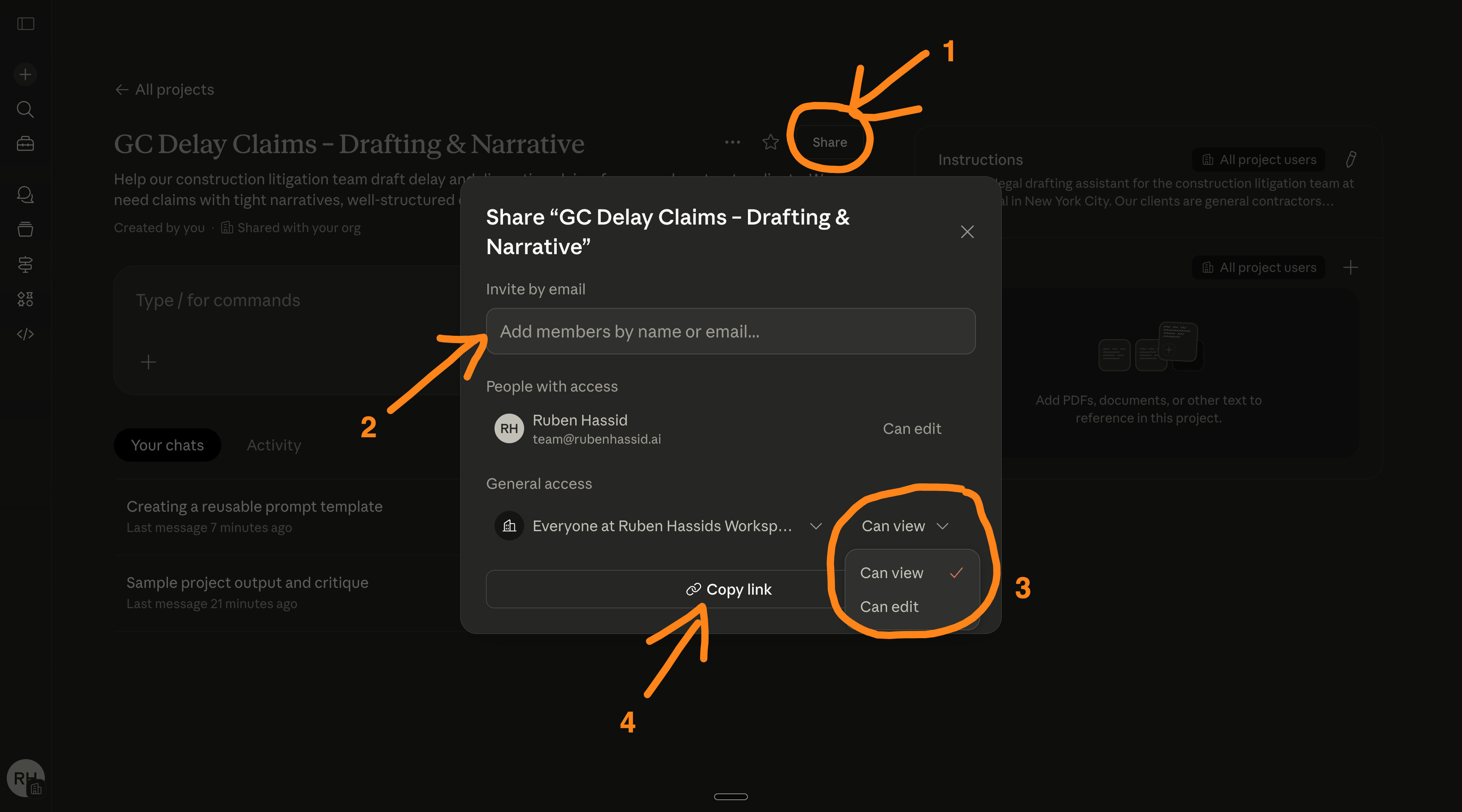
Thursday done. 20 minutes of prep + 15 minutes together.
Friday: How to quickly roll it out for the team.
The goal: roll out to the full team, with a workspace that’s already configured so their first interaction feels like magic.
The first interaction someone has with an AI tool determines whether they use it again. You just spent 4 days making sure that first interaction isn’t “stare at a blank chat and wonder what to type.”
It’s: “open a Project where Claude already knows you, your work, and your standards,” and then “copy and paste this prompt so it always works”.
Step 1 → Pre-flight check.
Quick gut check before you go live:
→ Project instructions validated (Monday) ✓
→ Prompt template (Tuesday) ✓
→ Before/after receipts ready to share (Wednesday) ✓
→ One teammate who can vouch for it (Thursday) ✓
Good. Let’s go.
Step 2 → Generate your rollout message.
Claude can help you here, too.
📋 Prompt #5 — Copy and paste this:
I need to announce our new Claude team workspace to my team via Slack. Write a message that:

1. Leads with ONE specific result — the time saved or quality improvement from my test this week

2. Explains what the shared Project is in one sentence

3. Lists 3 things they can do RIGHT NOW (using our existing templates)

4. Ends with: “Try [specific template] on your next [specific task]. It takes 2 minutes.”

5. Keep it under 150 words. Casual, not corporate. No exclamation marks. Make it sound like a teammate, not a manager.

Here’s the result from my test this week: [PASTE Wednesday’s comparison or key metric]

End on an invitation for an onboarding call.
Step 3 → Send and seed.
Send the message to your team channel.
Then — and this matters — separately DM 2-3 people: “Hey, try the [specific template] on your [specific task] today. Takes 2 min.” Your Thursday co-champion does the same, not just you pushing. That changes a lot.
Step 4 → Collect feedback at the end of the day.
📋 Prompt #6 — Copy and paste this:
My team started using our shared Claude workspace today.

Here’s the feedback and questions I’ve gotten so far: [PASTE any Slack messages, questions, or reactions from the team]

Based on this feedback:
1. What should I adjust in our project instructions?
2. What new templates should I add?
3. What’s the biggest misconception I need to address?

Write a short follow-up Slack message for Monday that addresses the top concern and shares one quick win from the team.
Friday done. Probably 60 minutes.
What happens next.
You just did in 5 days what most companies hire a consultant to do in 5 months.
No IT ticket. No leadership buy-in deck. No PowerPoint. No training session.
Just this simple & free playbook. 15-60 minutes a day.
One week to implement Claude internally.
Your company can’t afford not to use the smartest AI. Your competitors do.
In a week, you just made smart colleagues/employees a little bit smarter.
And intelligence compounds.
That’s precisely how humans evolve to be the dominant species.
We were hunting together. We were smart, together.

By the way, why Claude and not another AI?
It’s simply the best out there, and Polymarket (= the world) thinks it will stay like this for quite a long time. I am betting on it.
Polymarket is our data partnership, now on Substack.
A message from the author, Ruben.
This newsletter exists because 350,000+ people decided AI is too important to leave it aside. Not only that, but they shared it around them. They understand they are the sum of the 5 people around them. So better have them using AI.
If this helped you — or if it’ll help someone you know — forward it to them. That’s how this grew. Just readers like you sending it to people like them.
New here? Someone smart sent you this. Prove them right:
People think AI requires technical skills but it requires playing with it like a kid.
The problem is: nobody plays.
They try once, get a bad result, and quit.
Opening a blank chat and figuring out what to type is its own job. I guess maybe it’s why a lot of people fail at AI adoption.
They'd open it, not know what to ask, close the tab, go back to doing things the old way.
Surely if that step is removed, it will work.
They just need to show up and paste their needs.