
Claude Code.
How to setup Claude Code (without coding):

You finally use Claude over ChatGPT.
Recently, you’ve been abusing Claude Cowork.
And you successfully created Claude Projects for your team.
But you keep hearing about another Claude changing the world: Claude Code.
What’s the difference? My side-by-side explanation:
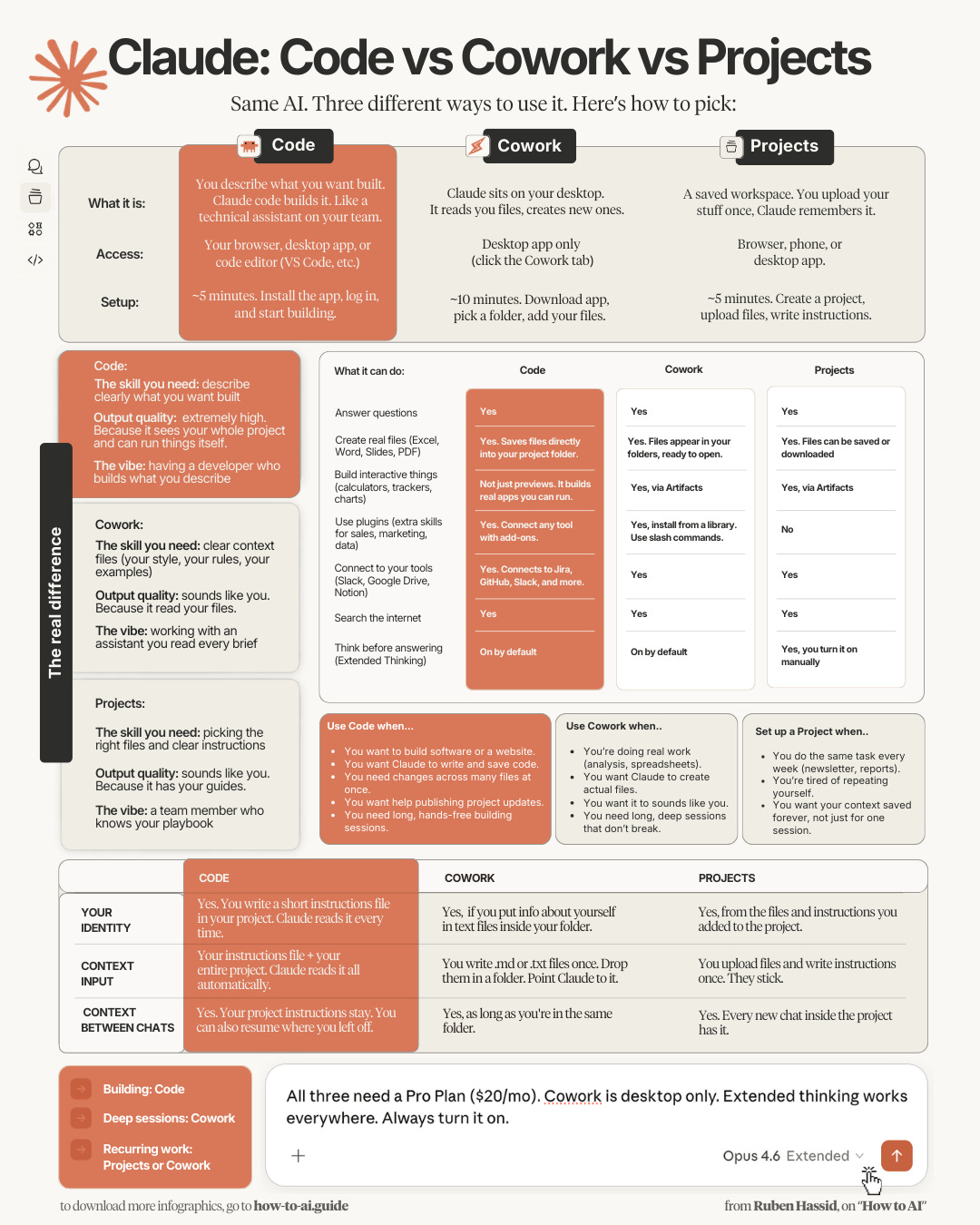
And here’s the entire Claude product line, in short:
Chat → it’s like ChatGPT. A chatbot.
Project → it’s still Claude Chat, but separated as individual Projects.
Cowork → think Google Drive + Claude Project have a baby. Unbeatable.
Code → massive revolution for developers to code much faster.
This newsletter is built on never having to code. And Claude Code used to be reserved only for developers. But something changed in January this year.
I made this as the one guide for Claude Code, for people who don’t code. How to set it up. How I use it to brief my tech team, code entire websites without coding, and benefit from the fastest AI breakthrough (= coding).
Also, I will share where Claude Code falls short (I’m always honest).
Two things before we start:
1. Save this guide and spend 30 minutes this weekend to explore Code.
2. Send it to anyone who still hasn’t tried Claude Code (or Claude).
Forget coding. English is the new code.
You read my Claude guide. So you installed it correctly.
Just a quick reminder for those who didn’t read it:
Go to claude.com/download. Download the app.
You need a Pro account ($20/month). It’s very much worth it.
Open the app. Click on the Code tab at the top next to Chat & Cowork.
Select a folder from your computer. More about it down below.
You are not a developer. So why would you use Claude Code for?
Create professional websites with prompts (= English).
Build personalized training from any piece of content.
Generate an interactive dashboard like a data analyst.
Sky is the limit with coding. Imagine having a junior developer who answers every single one of your requests, for less than a dollar a day.
And yes, the code is pushed on a website, live for everyone to visit. For this, you must connect Claude Code to a free GitHub account.
Here’s how to set up Claude Code (no code needed):
Step 1: Create a free GitHub account.
GitHub is where your website’s code lives online. Think of it as a Google Drive for code. You don’t need to pay. The free plan is enough.
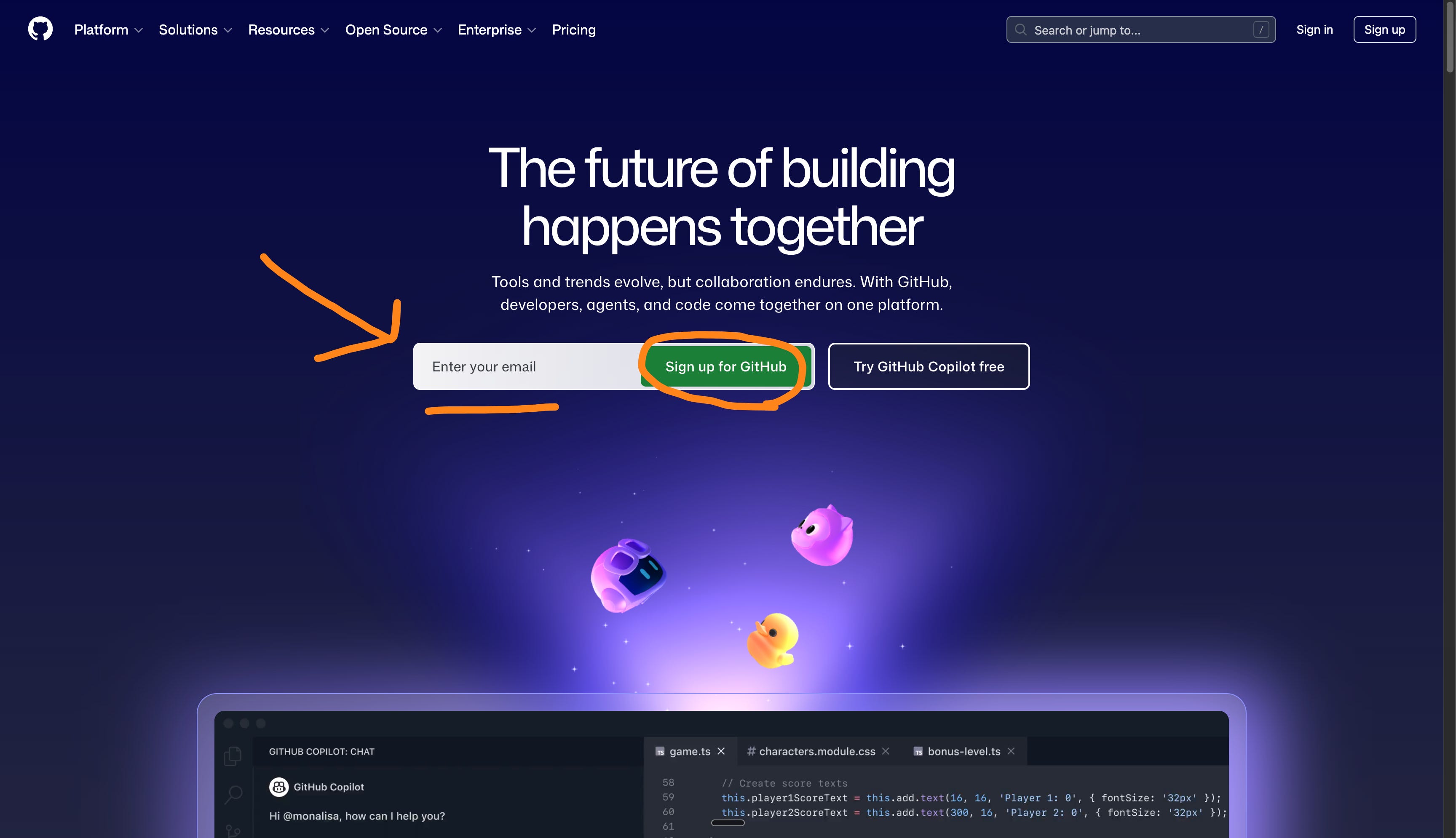
Go to github.com. Click Sign up (right in the middle).
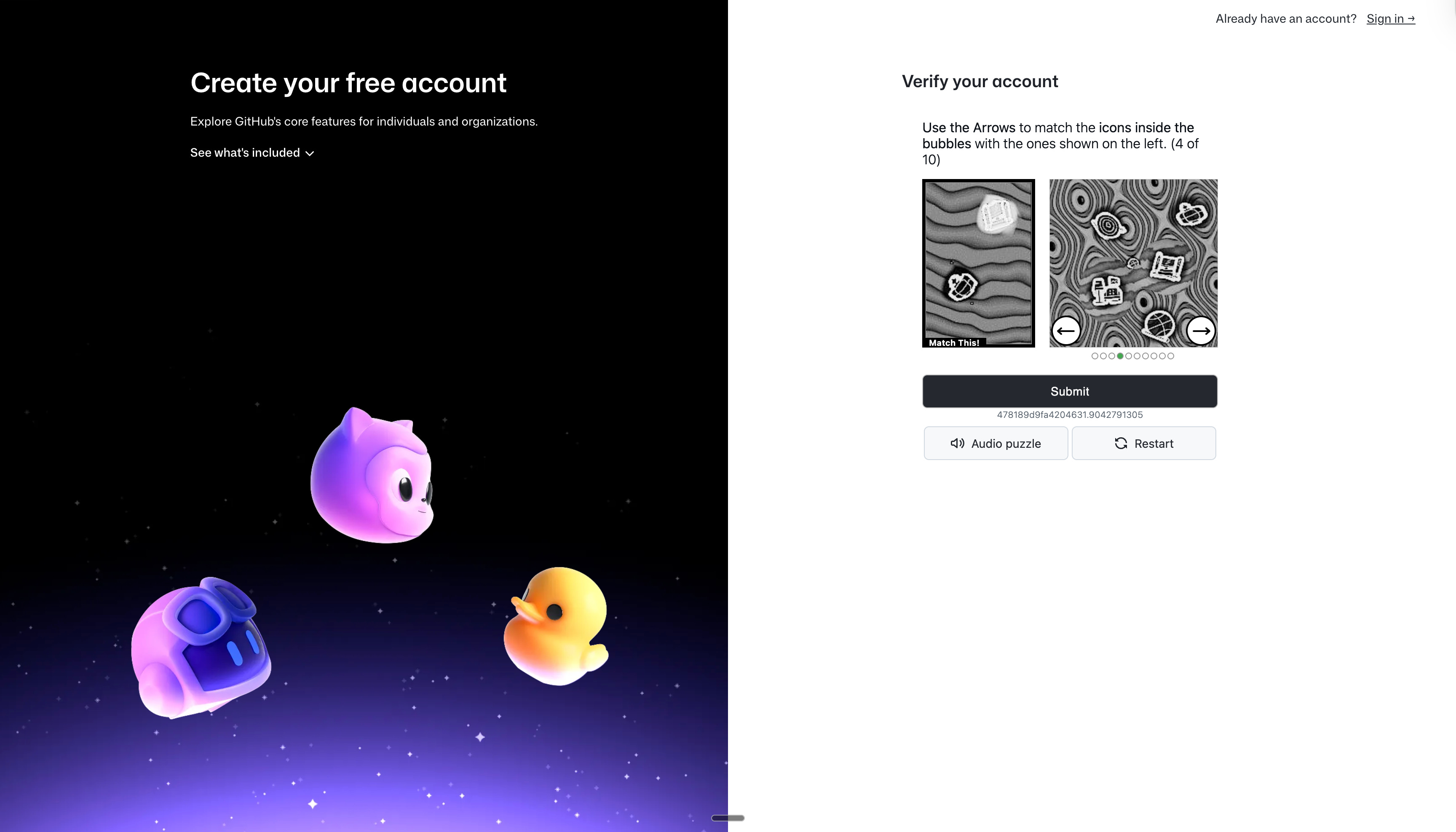
Add your email. Pick a username. Create a password. Done.
Step 2: Go back to Claude Code, and link your GitHub.
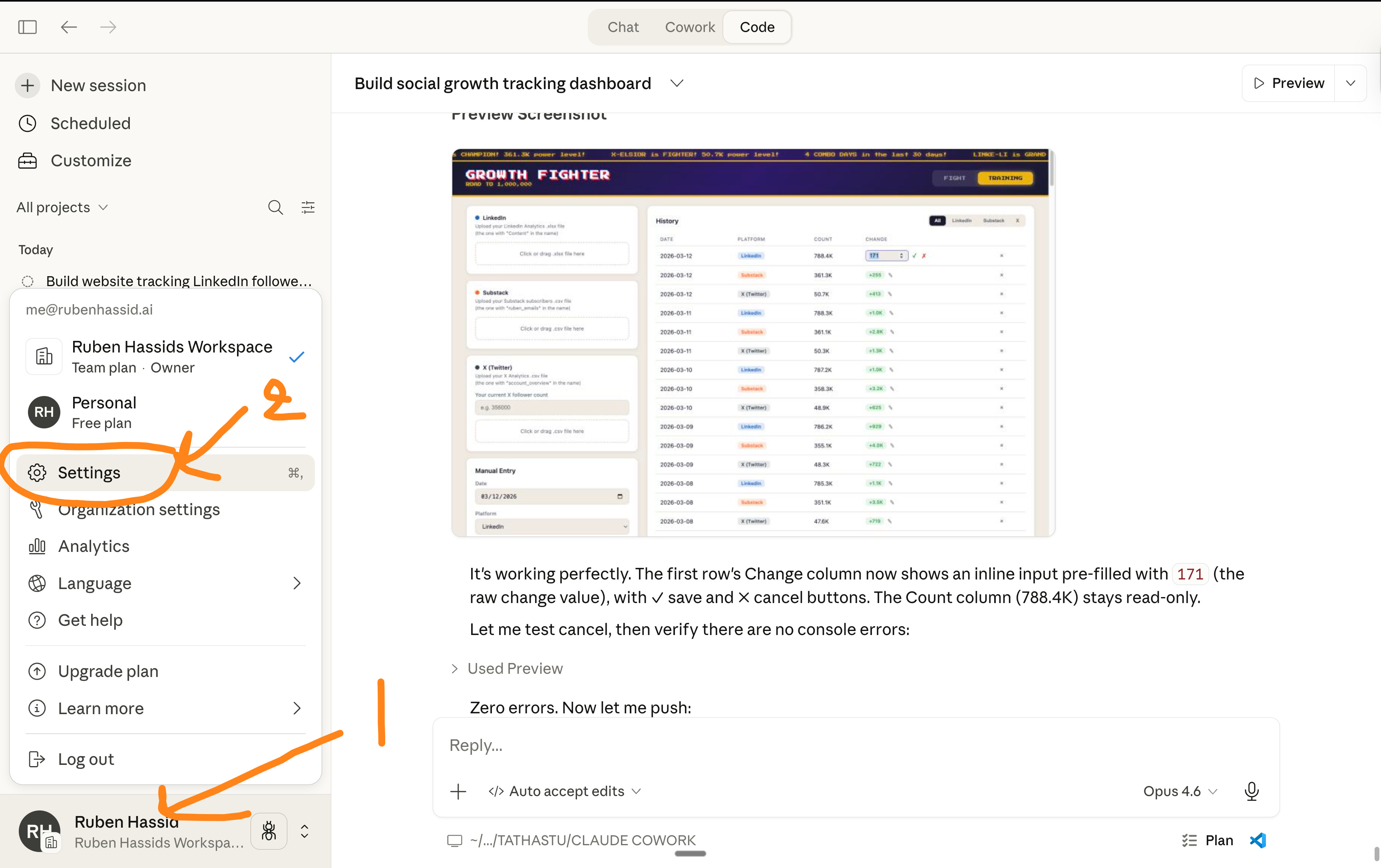
Go to your Claude desktop app.
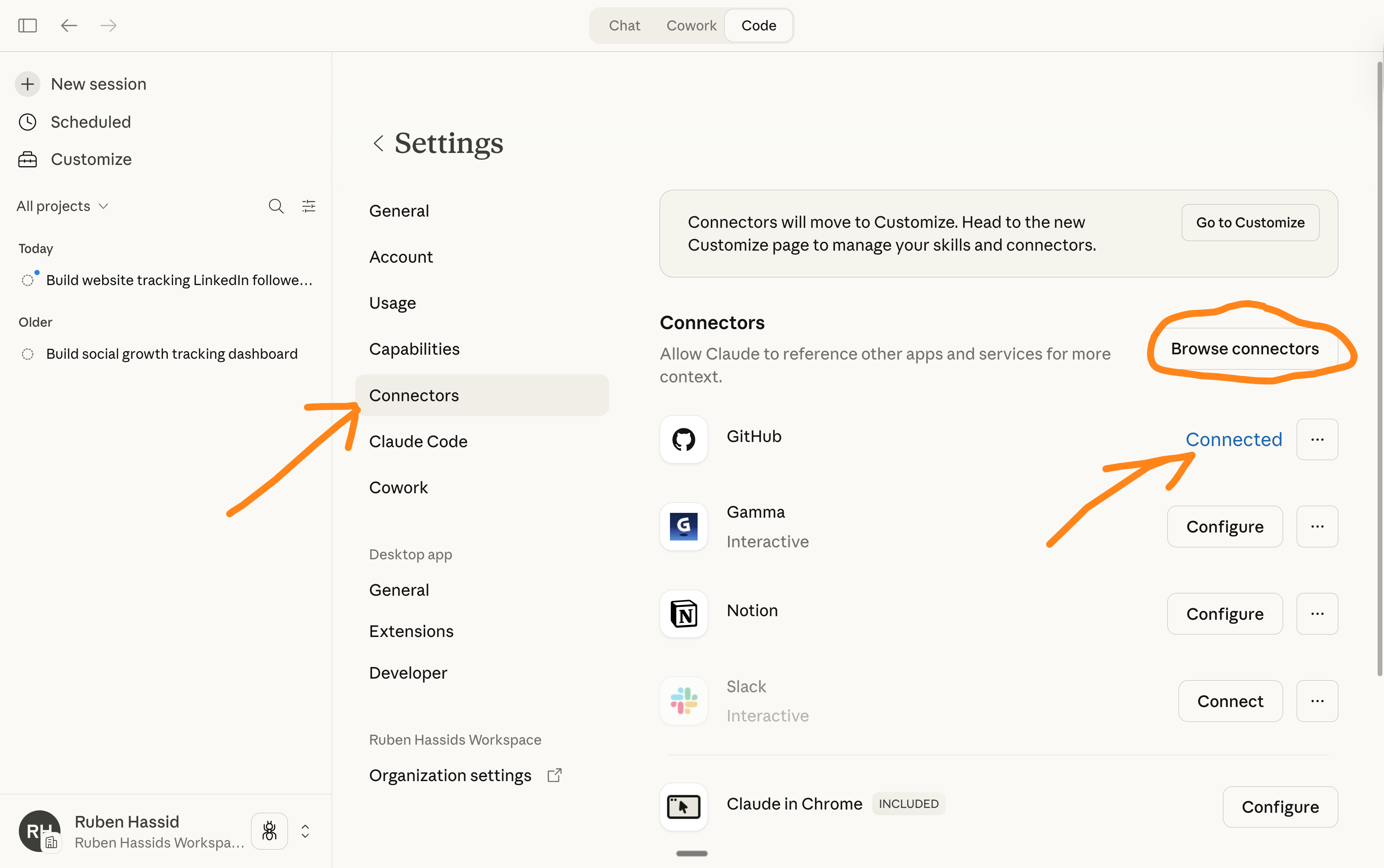
Click on your Settings → Connectors.
Go to Browse connectors → Search GitHub → Connect your GitHub.
Step 3: Code, but without code. Just type words.
Now go to Claude Code.
Use Opus 4.6 + Auto accept edits.
Make sure your GitHub is connected.
Type a prompt that says what you want, for what, with an example.
Here’s my favorite prompt template:
Create a GitHub repo named "mediakit-website".

I do not know how to code and don't want to learn. Code everything for me. Do not ask for permissions (or as little as possible).

Follow these instructions:

1. I want to [goal] for [success criteria].
2. Here's an example [attached].
3. [Steps to follow].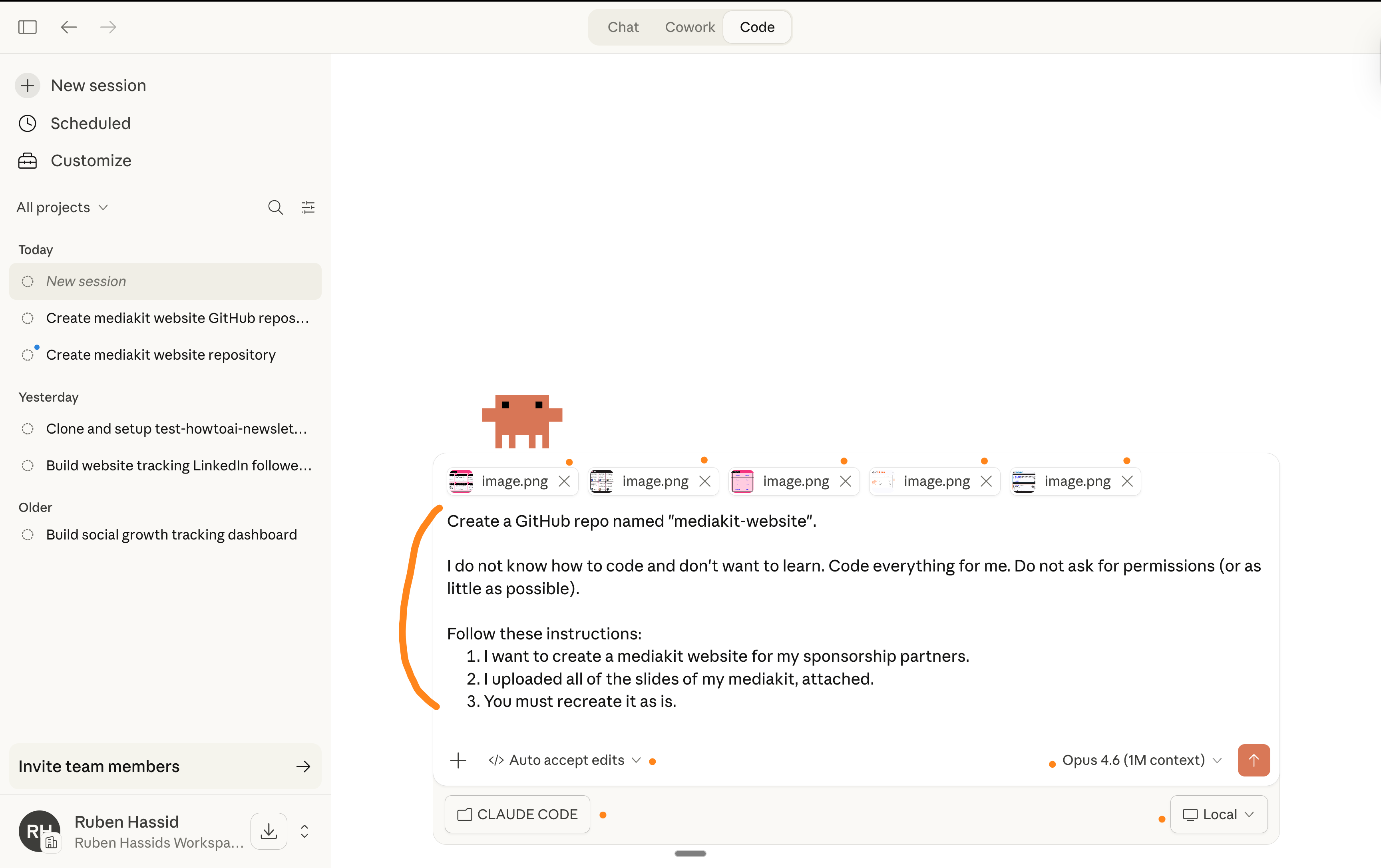
Step 4: Accept everything. Check the live website. Edit infinitely.
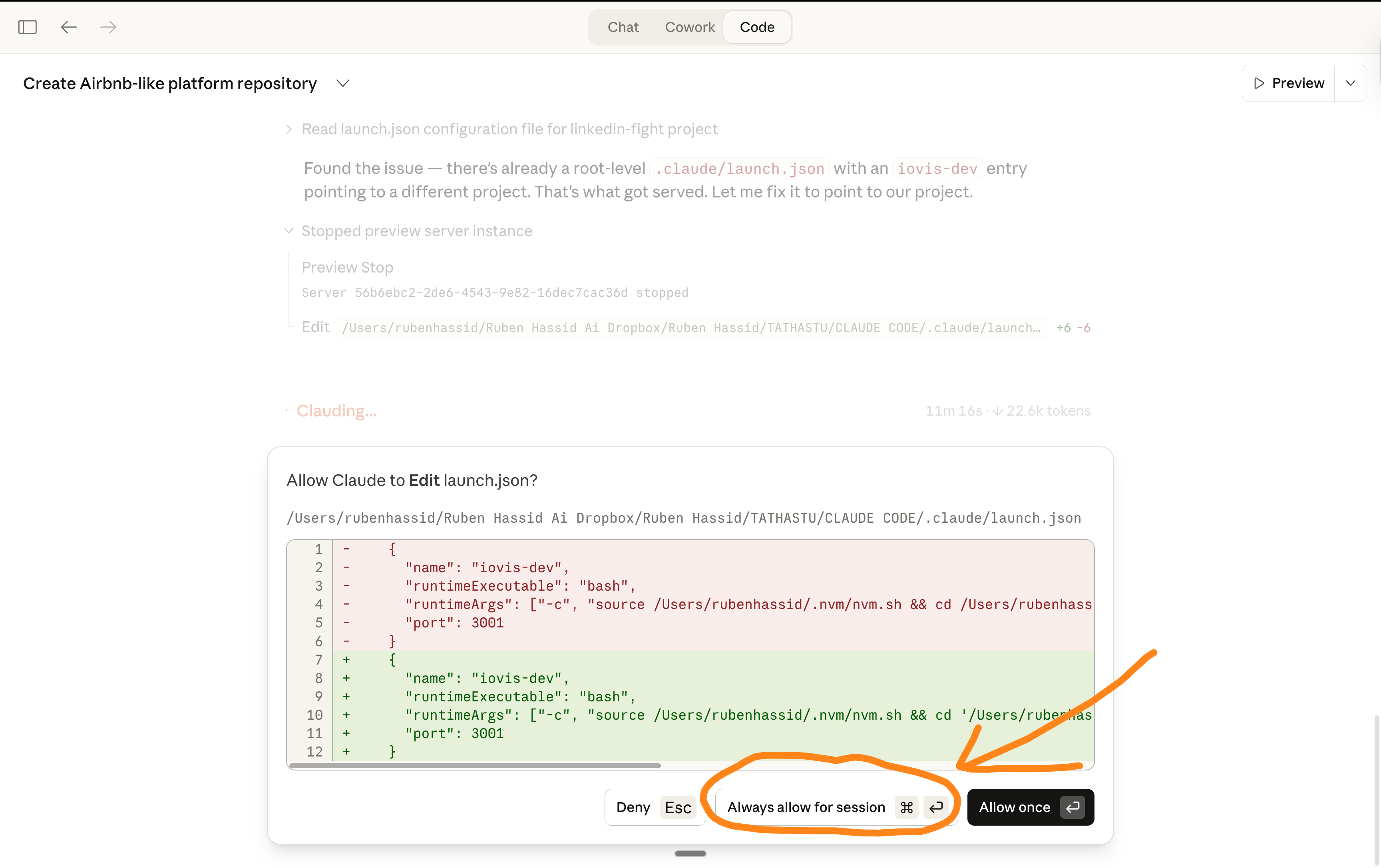
Claude Code will keep asking for permissions, even with “Auto accept edits” enabled. I explain more on how to avoid this completely (and code 100x faster).
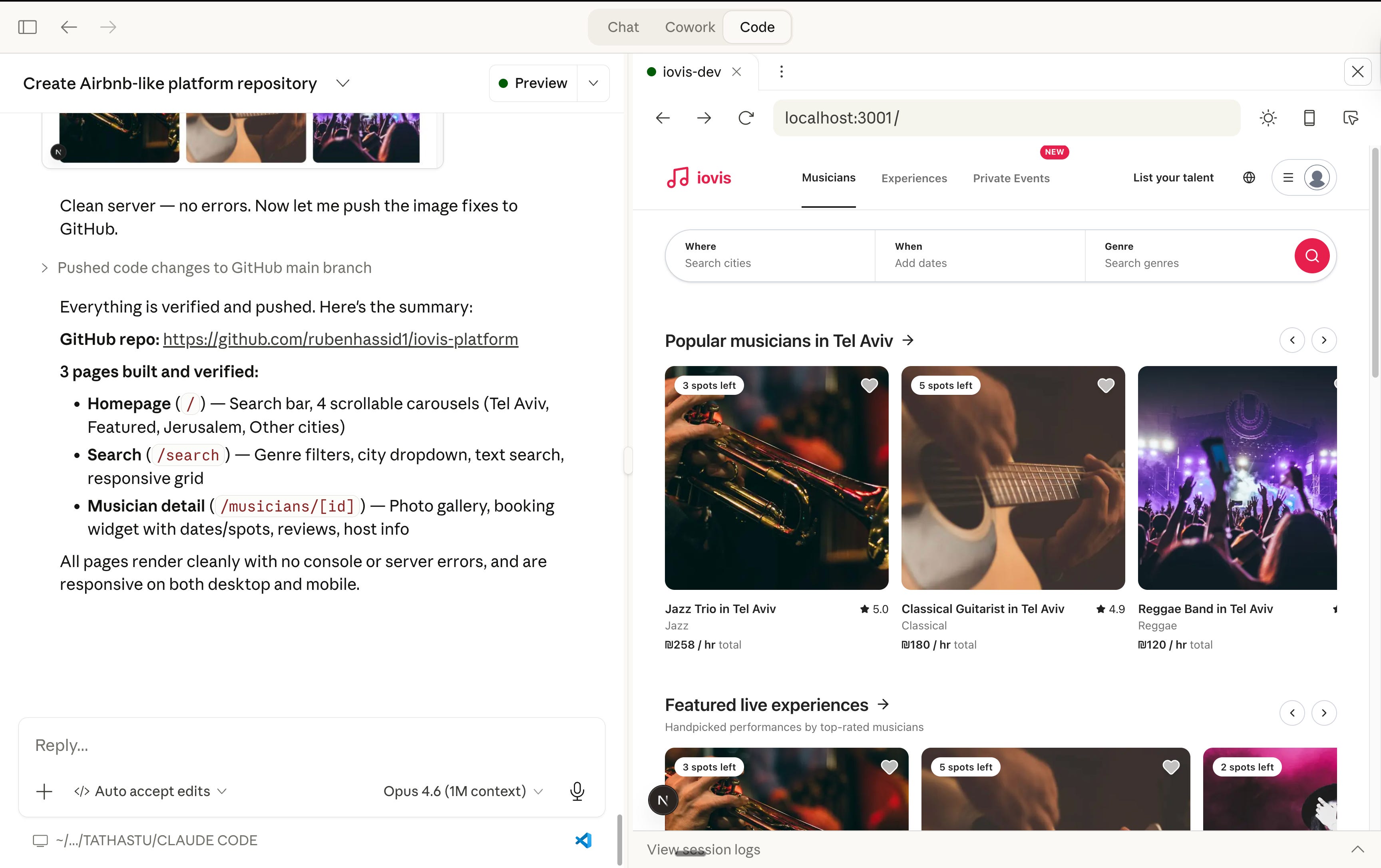
Now, here’s your endless feedback loop:
Check the live website (ask “I need a link now so anyone can access it.”).
Note down all of the problems you see when navigating.
Follow up in Claude Code with a numbered list of the issues.
Claude Code fixes it one by one.
You go back to the live website. Refresh. Note down the issues…
This is a good way to start vibecoding.
But there is a magical way to code 100x faster.
I can make you code 100x faster.
I know you don’t code - I don’t either. So very quickly, you will be annoyed by a limitation Claude Code has: permissions.
Every time Claude wants to edit a file, create a file, or run a command, a popup appears: “Do you want to allow this?”
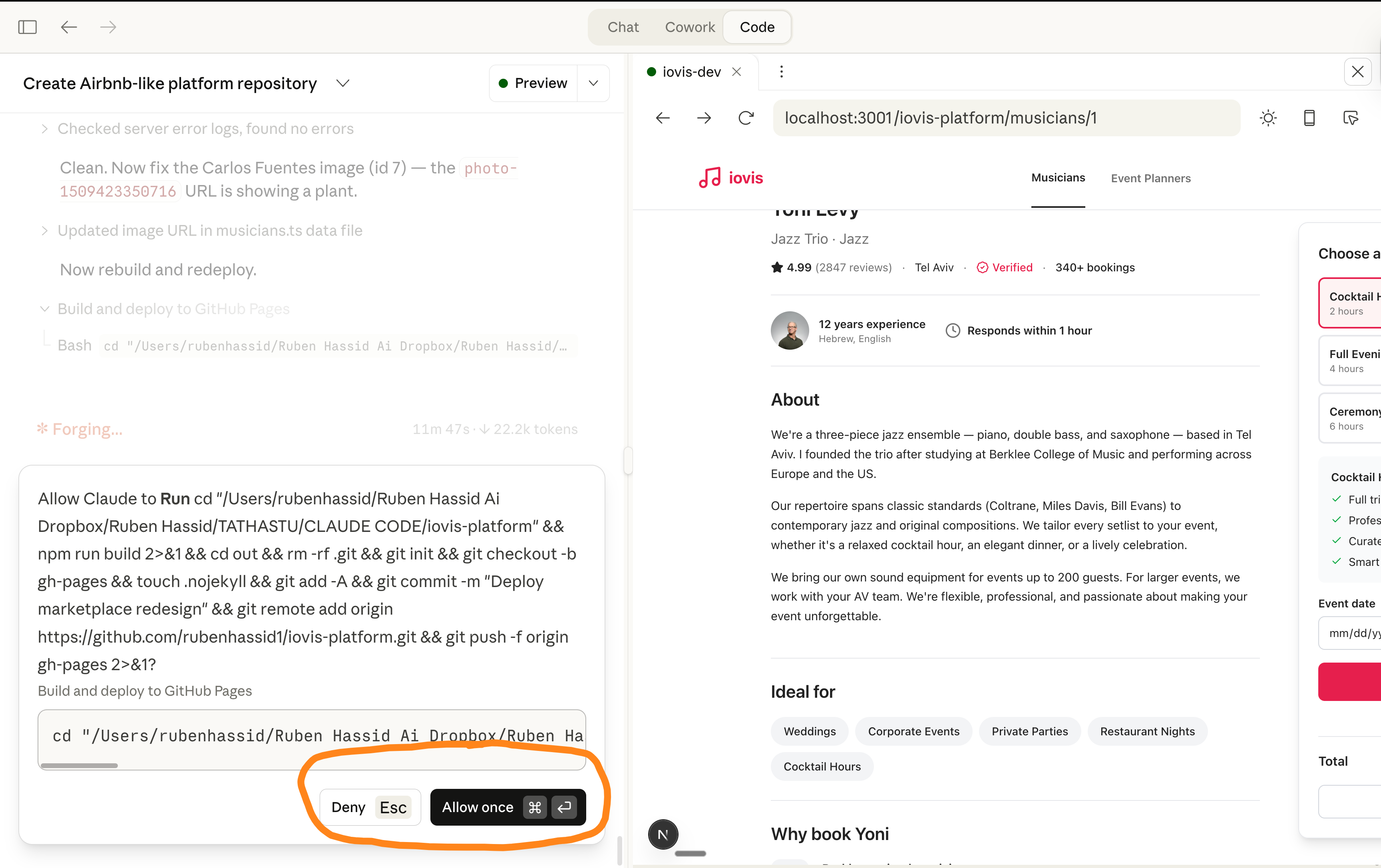
→ You click yes.
→ Another pop-up.
→ You click yes.
For one small website, you’ll click “Allow” 20+ times. It kills the flow.
Claude just wants to make sure the developer (so, not us) accepts the edits. But since you and I both don’t code, we… always validate the permissions.
This is called vibecoding.
The only way to bypass permissions is to follow these steps.
⚠️ It will look intimidating, but it’s rather easy. Set it & forget it.
Step 1: Download VS Code. It’s free.
Go to code.visualstudio.com. Download it. Install it.
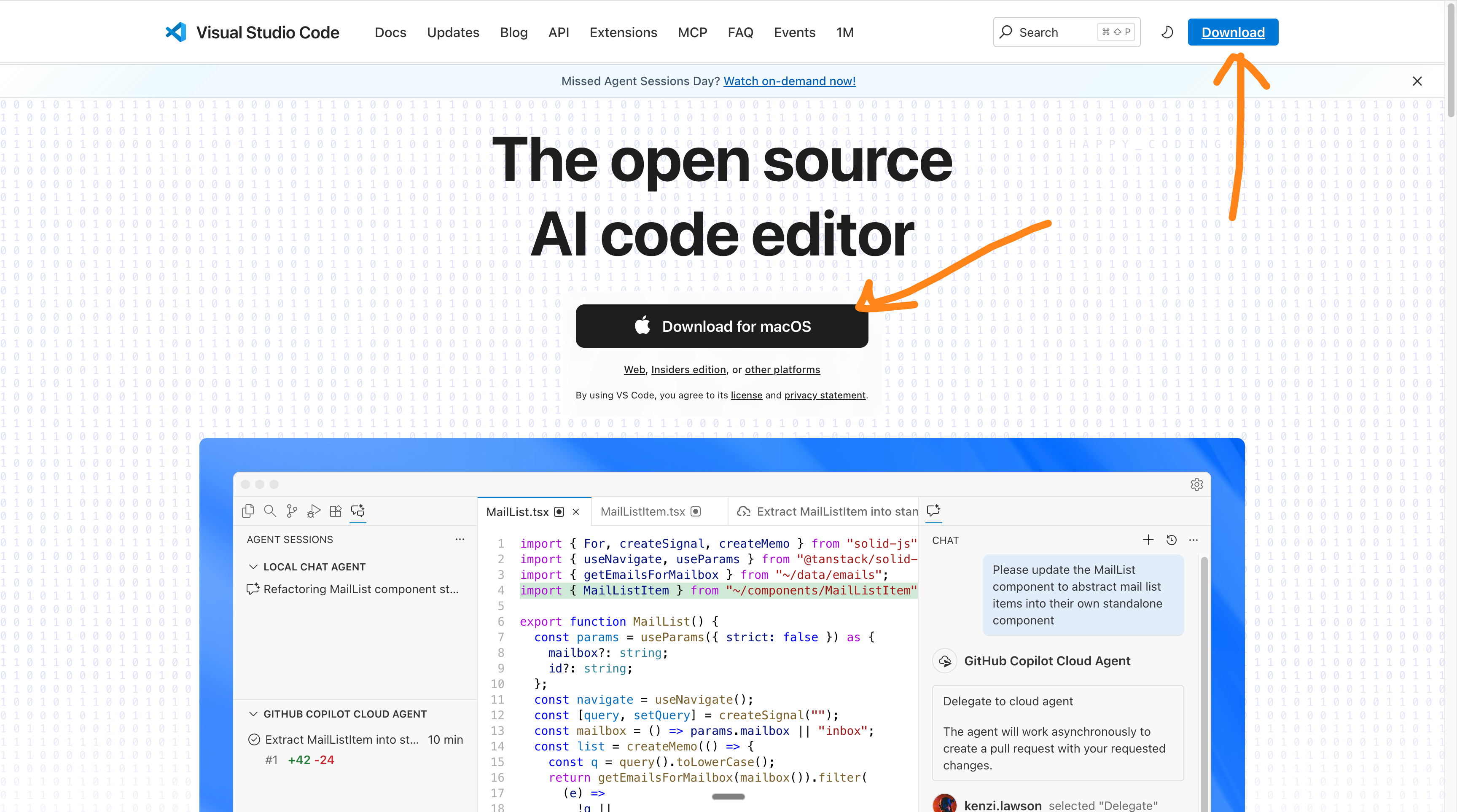
VS Code is what developers use to write code.
You won’t write any code in it. But Claude will, for you.
Step 2: Install the Claude extension.
Open VS Code. Click the Extensions icon on the left sidebar (looks like 4 small squares). Search for “Claude” by Anthropic. Click Install.
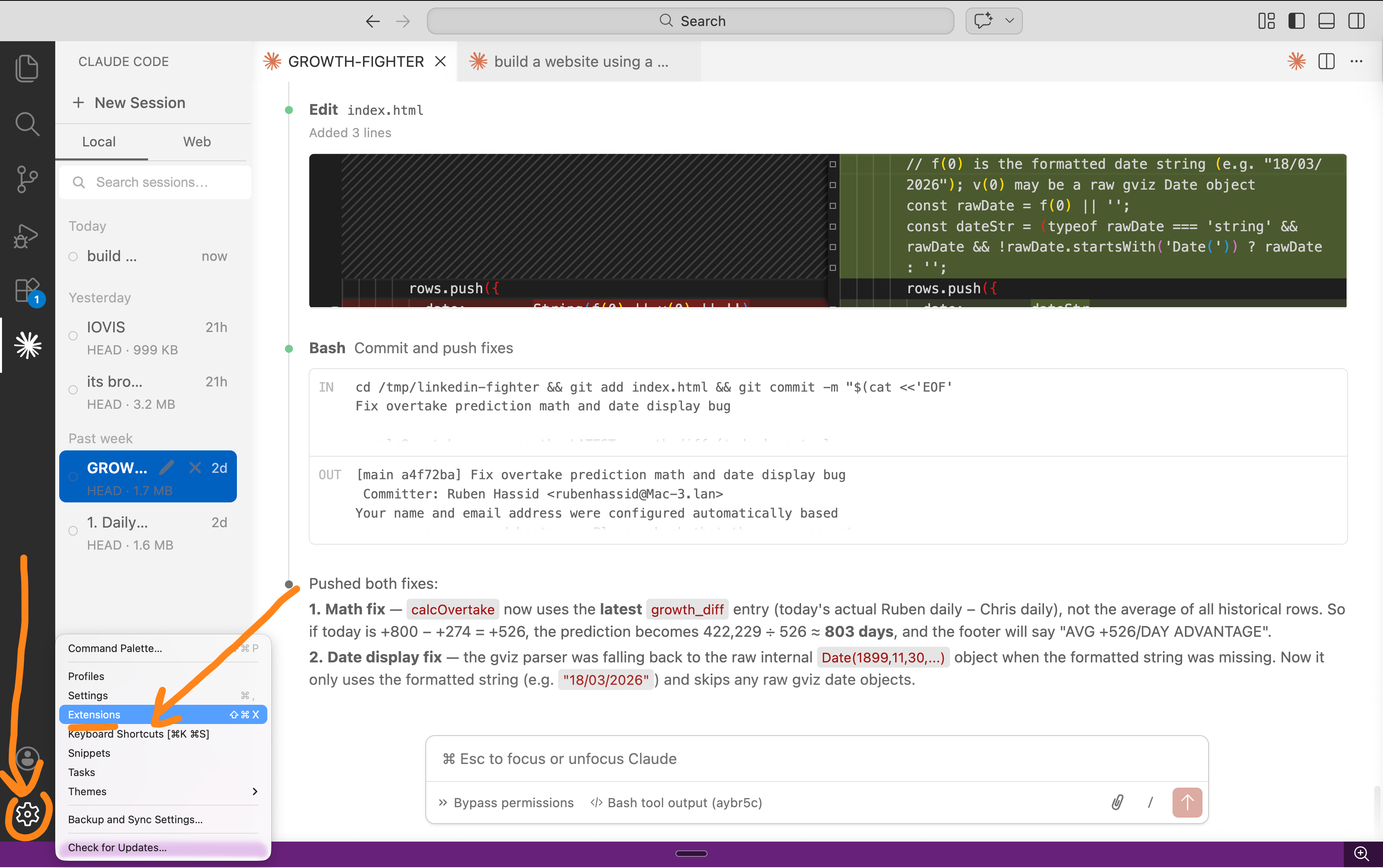
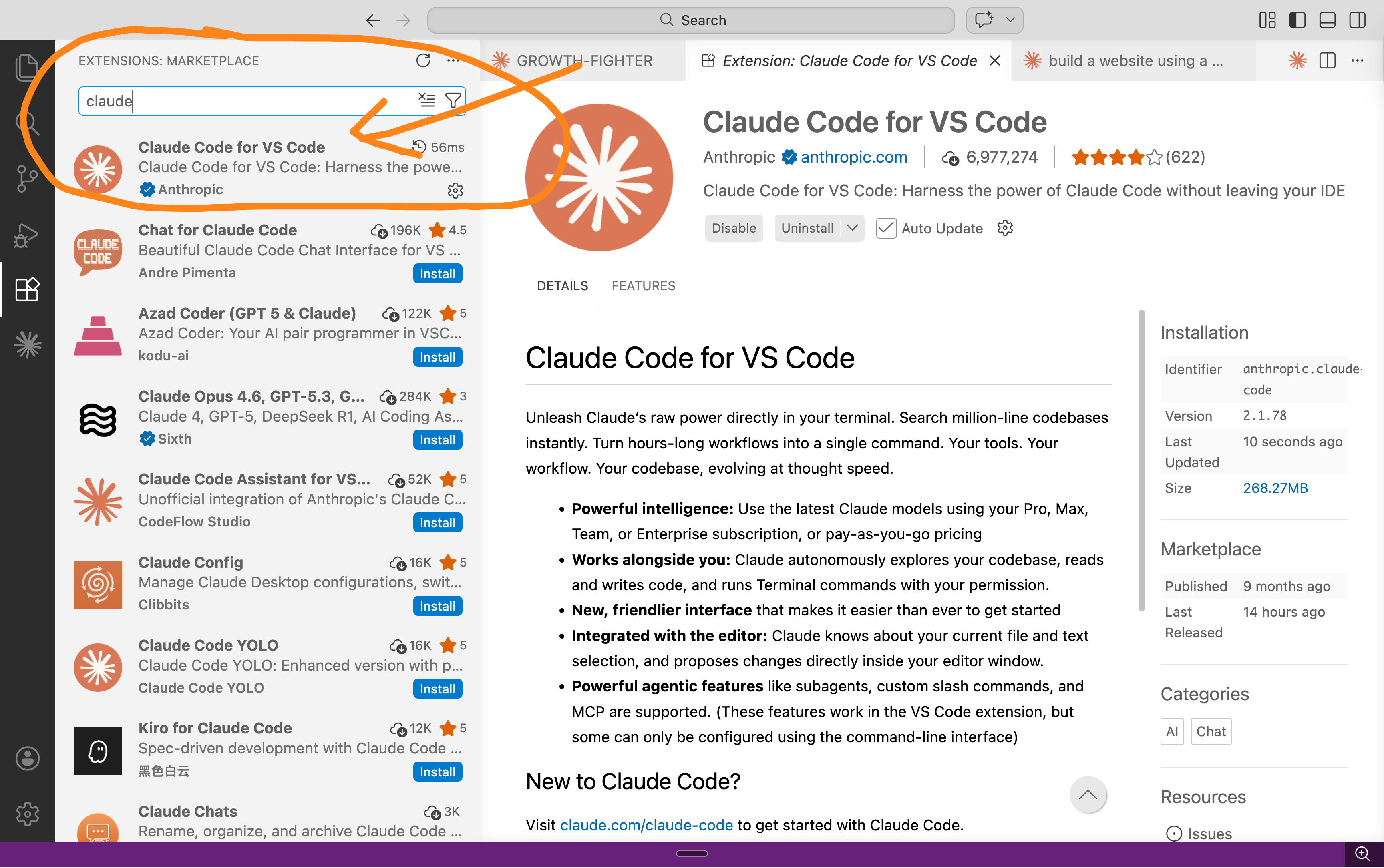
It asks you to sign in with your Anthropic account. Do it. Same account you use for Claude. You now have Claude Code running inside VS Code.
Step 3: Go to Claude’s settings inside VS Code.
It’s on the same screen.
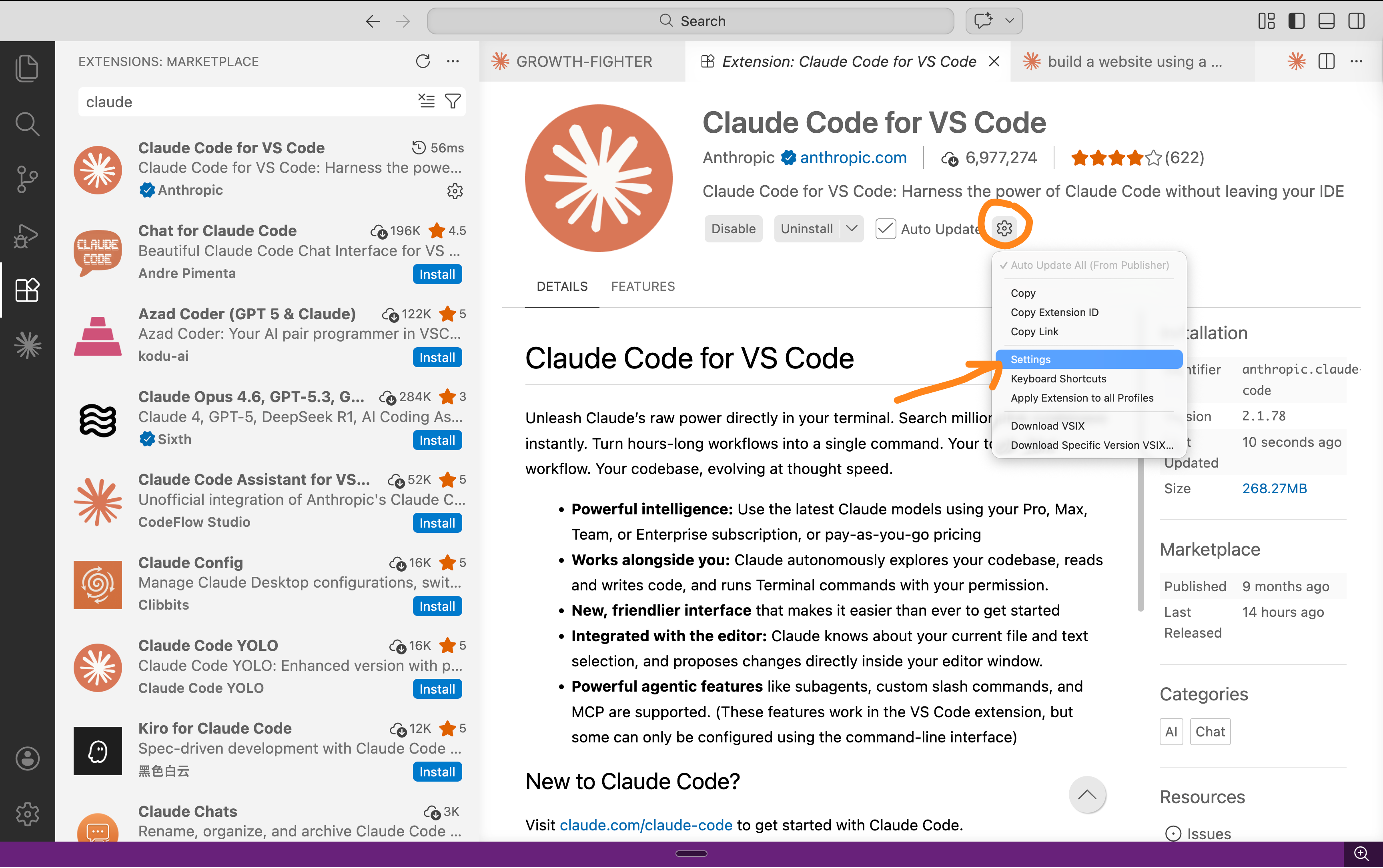
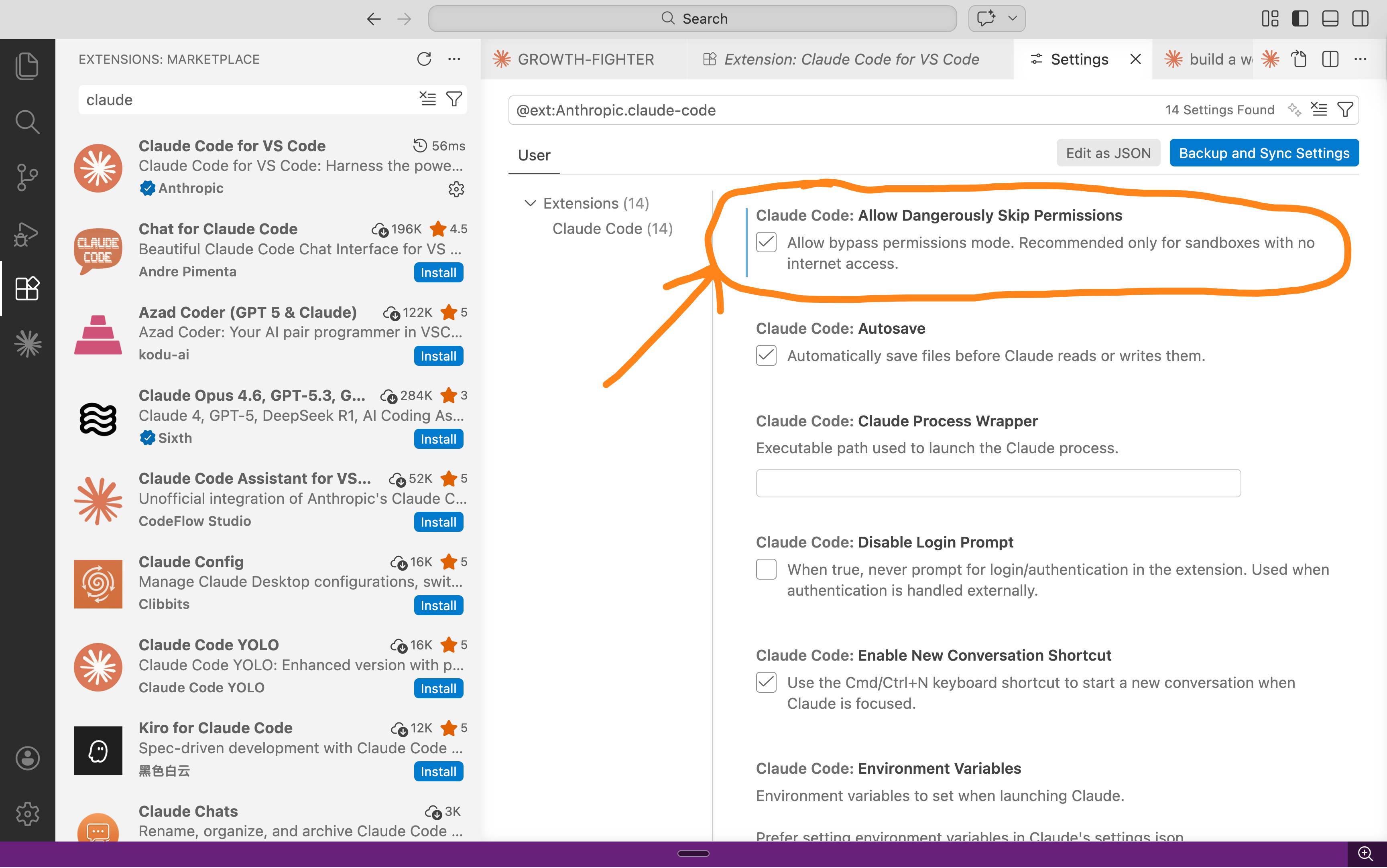
Find the option called “Skip Permissions”. Turn it on. This tells Claude to stop asking for your permission for every tiny action. Set it and forget it.
Open a new session, and make sure “Bypass permissions” is on.
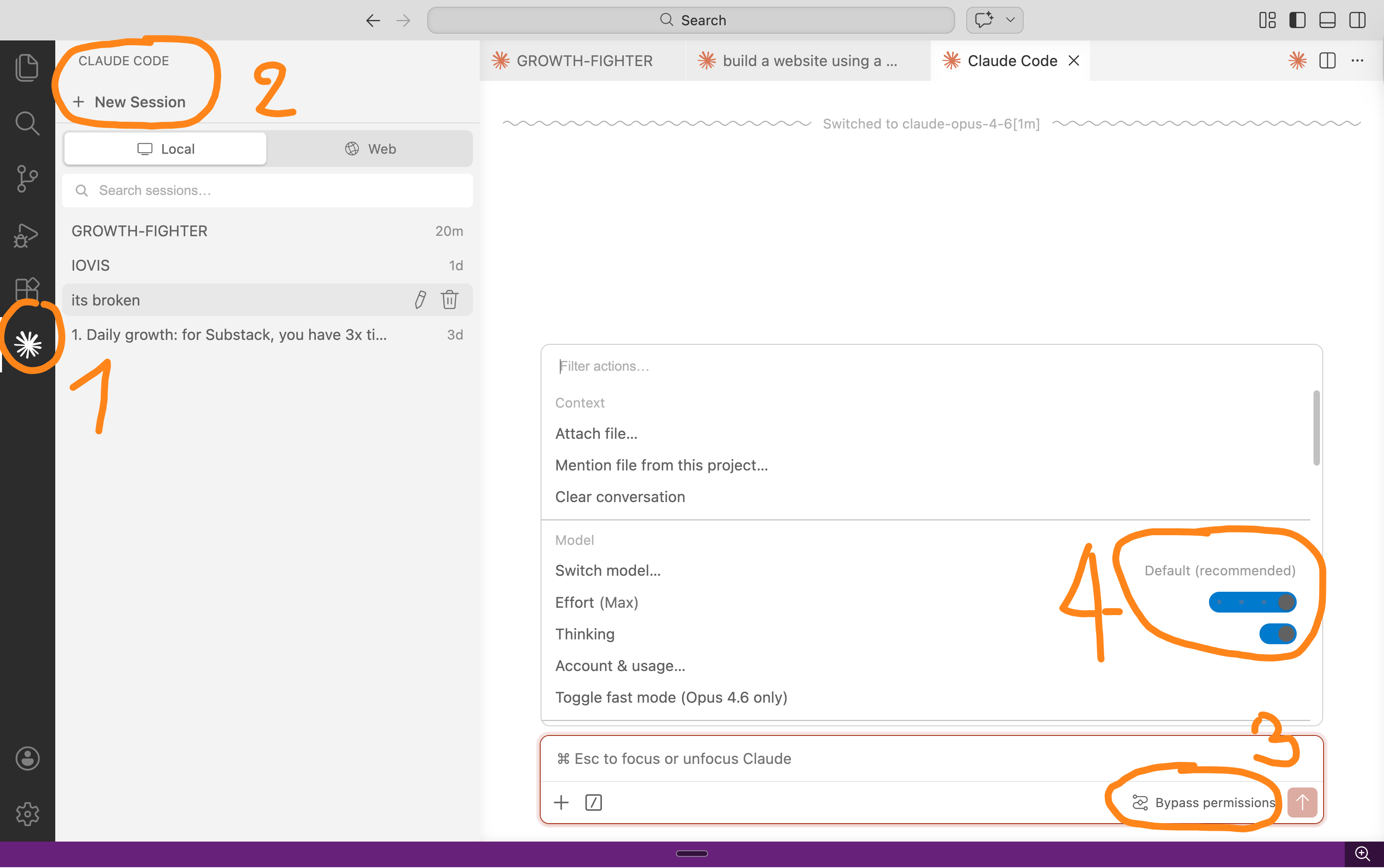
Step 4: Vibecode, faster than ever.
Type your prompt. Claude reads your files, writes code, creates new files, runs commands. Zero interruptions. You go do something else and come back to finish the work.
This is vibecoding at full speed:
It feels like magic.
Sure, this example is just a “one-shot” (one prompt, no edit). But I couldn’t record 30 minutes of vibecoding - that’d be too long for this article.
Try it at home. There is no going back.
The best way to prompt Claude Code.
I’ve been vibecoding for weeks.
These are the prompting habits that saved me the most time.
Start with a screenshot.
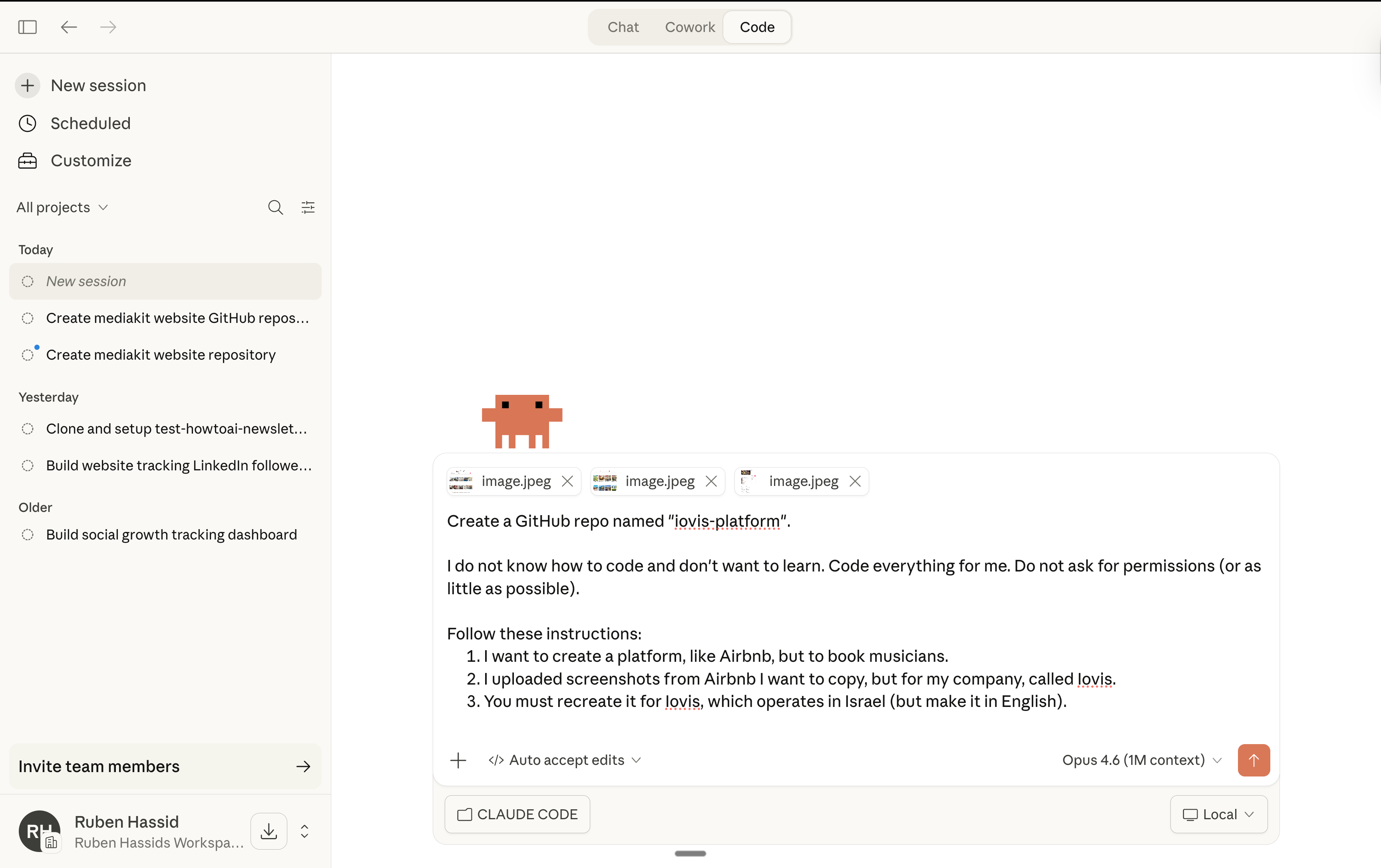
Found a website you like? Screenshot it. Drag the image straight into Claude Code. Type: “Build me something that looks like this, but for [your project].”
Claude sees the image. Recreates the layout in code. This is the fastest shortcut I’ve found. Way faster than describing what you want in words.
Describe the end result. Never the steps.
Bad prompt: “Create an HTML file, add a CSS stylesheet, use flexbox for layout, make it responsive...”
Good prompt: “I want a clean landing page for my consulting business. Big headline, 4 services listed, a booking link, footer with my socials.”
You’re the project manager. Claude is the developer. Give the brief.
Point Claude to your files.
Already have an about-me.md or brand guidelines in your folder. Tell Claude: “Read the files in my folder first. Use my tone and style for the website copy.”
Same context trick from Cowork. Works here too.
One thing at a time.
Don’t dump 12 features in one prompt. Start with the homepage. Get it right. Then add the contact page. Then the blog section. Each conversation is a sprint.
One deliverable per prompt.
When something looks off, screenshot it.
See a visual bug? Screenshot it. Paste it into Claude Code.
Type: “This section overlaps on mobile. Fix it.”
Claude sees the problem and patches the code. Takes 10 seconds instead of a paragraph of explanation.
Your Claude Code needs a brain.
I stumbled on this by accident.
Every time you open Claude Code on a project, it starts from zero. It doesn’t remember what you built yesterday. It doesn’t know your font choices, your color palette, your page structure. You have to re-explain everything.
There’s a fix. One prompt, one time.
Copy and paste this into Claude Code after your first session on any project:
Create a CLAUDE.md file in the root of this project. Inside it, write down everything you’ve learned about this project so far. Here are examples, but not limited to thisL the folder structure, what each file does, the design choices I made (fonts, colors, layout), my preferences, and what pages or sections exist.Claude creates a file called CLAUDE.md inside your project folder. It’s a memory file. Claude writes down your preferences, your past decisions, the structure, the style, all of it.
Now close the app. Come back 3 days later. Open the same folder.
Claude reads CLAUDE.md first. It already knows what your website looks like, what fonts you picked, which pages exist, and what your last edits were.
You say, “Add a blog section,” and Claude builds it in the exact same style as everything else. I do this for every project now.
(Developers have been doing this for months. Now you can too.)
Where Claude Code falls short.
(I promised honesty)
1. It burns through usage. Fast. One Code session eats what would be 20+ regular Claude chats. If you use Code daily on the $20/month Pro plan, you’ll feel the cap within a week. I’m on the Max plan ($100/month) because of this.
2. You can’t review the code. When Claude writes code, you’re trusting it. You don’t read code. I don’t either. If Claude writes something messy, we won’t catch it. My workaround: test the actual website. Click every button. Check it on your phone. Your eyes are your code review.
Also, this is soooo good to brief a technical guy. And that’s the point. I don’t want to vibecode a fully working piece of software. I just want to show a dev exactly what I need.
3. It sometimes loops. Claude hits a bug, tries to fix it, creates a new bug, tries to fix that one, and spirals. You’ll notice when the same error appears twice. When that happens, type: “Stop. Explain what’s going wrong. Give me 2 different approaches.” This breaks the cycle every time.
4. The desktop Code tab is limited. The Code tab inside the Claude app works fine for a first try. But VS Code gives you auto-accept, better file browsing, and a much faster workflow. I’d skip the desktop tab and go straight to VS Code once you’re comfortable.
5. Design taste is average. Claude builds functional websites. But its default design choices look generic. You need to push it. Show screenshots of what you want. Specify fonts, spacing, colors. If you say “make it look good,” you’ll get something that looks like everyone. Bring references.
Your first 30 minutes with Claude Code.
Open your calendar. Book 30 minutes with yourself, this newsletter, and Claude.
Minutes 0–5: Install and open Claude Code.
→ Go to claude.com/download. Download the desktop app.
→ Sign in with your Pro account ($20/month, $100/mo is better though).
→ Open the app. Click the Code tab at the top.
→ You’re in.
Minutes 5–10: Build your context folder.
→ Create a folder on your computer called “Claude-Code.”
→ In the context folder, create your first file: about-me.md. Write three things: (1) What you do for work. (2) How you like to communicate. (3) One example of writing you’re proud of. Paste it in.
Pro tip: Instead of typing, use Wispr Flow to talk. It’s 4x faster.
Minutes 10–15: Start your first Code conversation.
→ In Code, click Add Folder and select your Claude-Code folder.
→ Make sure to select Opus 4.6 + for the smartest AI.
→ Type: “I want [task] for [success criteria]. Go through my folder first, and use AskUserQuestion tool so you gather enough content before executing.”
→ Watch what happens. A form appears. Click answers. Let it create your context files.
Minutes 15–20: Accept everything. Ask for edits.
→ Claude will ask for permissions. Accept everything.
→ Look at what Claude built. Open the file in your browser or check the live preview.
→ Type what you want changed. Be specific: “Make the headline bigger. Change the background to off-white. Move the button higher.”
→ Claude edits the code instantly. Refresh your browser. Keep going until you like what you see.
→ This back-and-forth is where vibecoding gets addictive. You talk, it builds.
Pro tip: Take another 15 minutes to set up the VS Code + bypass permission. It truly makes you go 100x faster. It’s worth it.
Minutes 20-30: Create a tough deliverable.
→ Give Claude something real. A landing page for your side project. A personal site you’ve been putting off for 6 months. A dashboard your team keeps asking for.
→ Type: “Build me [specific thing] with [specific requirements]. Read the files in my folder first.”
→ Watch it work. Push to Github. Open the live link. Send it to someone.
→ Optional: realize you just built a real website in under 30 seconds of work without writing a single line of code.
I don’t care about Claude.
I don’t care about Claude, ChatGPT, Grok, Gemini, or any other model.
I don’t pick sides. I’m not paid to make this newsletter.
I’m sharing, twice a week, how my work is transforming (very fast) with AI.
As I’m trying to keep up, I want you to keep up. So we move just as fast.
I want to be the greatest filter to the AI noise. And 380,000+ people read this twice a week to focus on the How. Some came because of my LinkedIn. But most readers subscribed because someone they trusted sent one of my articles to them.
If this article helped you, be that person for someone else (and share it):
It does not cost you anything to share. And sharing is caring :)
If someone did send you this, thank them and subscribe for free here:
Really useful piece. What stands out is not just Claude Code itself, but the bigger shift behind it. Coding is slowly becoming more accessible to people who can think clearly, give direction, and test well, even if they do not write syntax.
Thanks for sharing, love the explanation of Claude Code.