
Claude.
How to set up Claude the right way (so you actually stop going back to ChatGPT).

The people I talk to every day quietly switched.
The creators I follow. The teams I consult for. The founders in my DMs. One by one, they stopped opening ChatGPT. And they all moved to the same place.
Claude.
See, I’ve been writing about AI for three years. Thousands of posts and hundreds of millions of views. So people often ask me, “Ruben, I’ve seen your newsletter about [tool], but do you really use it?” If I write about it, I do use it.
And right now, in February 2026, Claude is the single most important AI tool for anyone doing knowledge work. Not because it’s perfect (it’s not, and I will share where it falls short). But because what it does well, nothing else comes close.
This is the guide I wish someone gave me before I wasted months on the wrong AI. Every feature. Every install step. Every first prompt.
Save this guide and spend 30 minutes this weekend to master Claude.
Send it to anyone asking you, “I keep hearing about Claude, but I never tried it”.
Claude is not one tool. It’s six.
You think Claude is “like ChatGPT but from Anthropic.” A chatbot. A text box. You type, it responds. That was true in 2024. In 2026, Claude is six things:
Cowork (a desktop app that works on your actual files)
Model (most of you use the wrong Claude)
Excel (an AI inside your spreadsheets)
Plugins (turn Claude into a specialist for your exact job)
Artifacts (interactive outputs you can use, not just read)
Projects (persistent context folders that remember everything)
I ranked them from most to least important.
1. Claude Cowork
What it is (in 10 words):
Kind of like ChatGPT, but much better.
Why does it matter:
Claude Cowork lives on your computer. It reads your files. It creates documents. It builds spreadsheets. It writes code you’ll never see to answer you. It asks you questions when it needs clarity (instead of guessing wrong).
Cowork is the Claude Code of knowledge workers. Yes, Claude Code is not on my list because my audience (myself included) does not code. But it’s just as good.
How to install Cowork:
Go to claude.com/download. Download the app.
You need a Pro account ($20/month). Or $17/month if you pay annually.
Open the app. Click the Cowork tab at the top.
Select a folder from your computer. This is how Claude reads your files.
Pro tip: create markdown files about you - or anything you want.
Made a full guide on how to use Cowork here.
Your first prompt:
I want to [YOUR TASK] so that [WHAT SUCCESS LOOKS LIKE].

First, read the uploaded files completely before responding.

DO NOT start executing yet. Instead, ask me clarifying questions (use AskUserQuestion) so we can refine the approach together step by step.

Only begin work once we’ve aligned.
The key is to force Cowork to ask you questions.
It starts generating a form to prompt you to get better answers from Claude.
I’m obsessed with this feature. I don’t even need to be clear anymore. Claude forces me to be clear. And if I feel like we’re not going in the right direction, I say it. Claude Cowork will generate a new form to build up on the mistakes.
And with over 1,000,000 token context window (its ability to reason with a lot of text from your conversation), I never felt like Cowork was hallucinating.
The mindset shift (if you’re coming from ChatGPT):
ChatGPT trained you to write better prompts. Longer prompts. Cleverer prompts. You have a folder of saved prompts you haven’t opened in weeks.
Forget that.
With Claude Cowork, the game is text files.
Take everything you know (your writing style, your brand rules, your best examples, your past work) and put it in .md or .txt files. Drop them in a folder. Point Claude to that folder. Here’s how:
Claude reads your files before responding. The more context you give it as files, the less prompting you need. The output goes from “generic AI” to “this actually sounds like my work.”
Now, pro tip: don’t just upload hundreds of texts. Be mindful of both the quantity and quality of what you upload. It takes time to do it at first (writing these text files), but it compounds with time since you stop prompting.
1- You write the best md. files (like briefs for your team)
2- You start all of your prompts to Claude with “Read this & then ask me questions to do [task].” I simply stopped prompting differently.
I wrote a full guide on how to create your own text file here. Start there.
2. Use the right Claude
Opus + Extended.
Right now, the model you want is Opus 4.6. It dropped on February 5, 2026. It’s the smartest model available. Period. For writing, thinking, analyzing, planning, anything that requires reasoning.
How to set it up:
Open any Claude chat (on claude.ai or Cowork).
Click the model selector dropdown at the bottom of the chat.
Select Opus 4.6 + Extended Thinking.
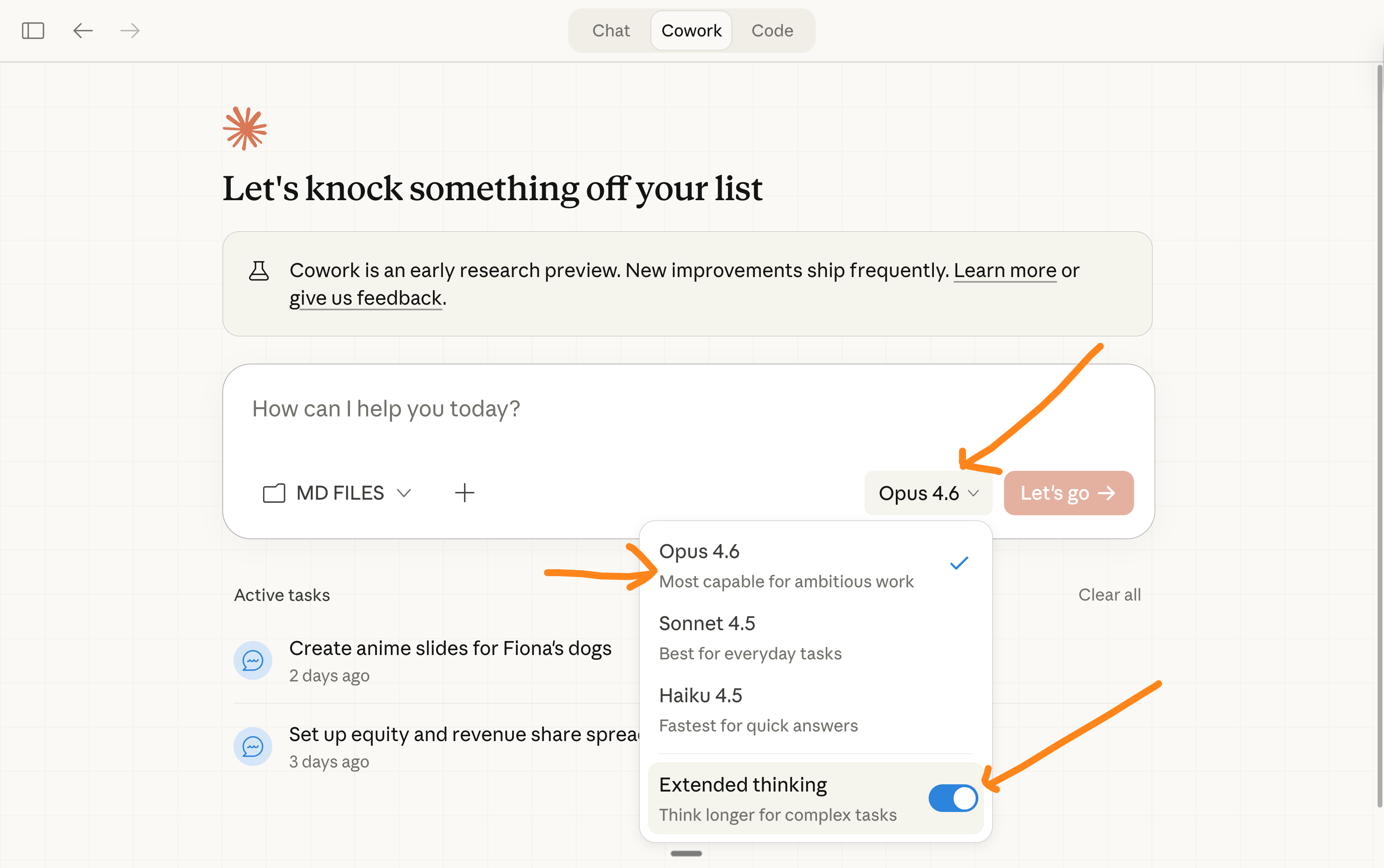
Do not forget to turn on Extended Thinking. It forces Claude to think first. Like an internal monologue you would have before answering. Big difference.
About internet access.
Claude can connect to your tools. Slack, Google Drive, Notion, Figma, and 50+ others. They’re called Connectors.
Go to Settings > Connectors. Browse the directory. Click “Add.” Done.
Once connected, Claude can search your Slack messages, pull from your Google Docs, or reference your Notion pages mid-conversation. No copy-pasting. No screenshots. It reads your actual tools. This is free on all plans.
A quick video to show you how:
3. Claude in Excel
What it is (in 10 words):
An AI inside your spreadsheet that creates/reads formulas.
Why it matters:
You’ve tried uploading an Excel file to ChatGPT before. I know you have. And ChatGPT flattened everything into text. Formulas disappeared. Structure gone. It gave you advice about cells that didn’t exist.
Claude in Excel is different. It lives inside your spreadsheet. It reads every tab. It knows what D14 actually contains.
How to install (takes 3 minutes):
Open Microsoft Excel (desktop or web). You need Excel 2016 or later.
Go to Insert > Get Add-ins (Windows) or Tools > Add-ins (Mac).
Search “Claude by Anthropic.” Look for the official one with the Claude logo.
Click “Add” or “Get It Now.”
Sign in with your Claude account.
Press Ctrl+Option+C (Mac) or look for the Claude icon in your ribbon.
You need a paid Claude plan (Pro, Max, Team, or Enterprise). The add-in itself is free. I made an entire guide on Claude Excel if you want more info.
Your first prompt:
Open any spreadsheet you’re working on. Then ask:
Give me a summary of each tab.Then get specific:
1. “Explain what the formula in cell B12 does in plain English.”

2. “Find all #REF and #VALUE errors in this workbook.”

3. “Convert all dates to YYYY-MM-DD format.”

4. “Create a pivot summary of monthly revenue by product category.”
Claude highlights every cell it touches. You see exactly what changed. Nothing happens without your approval.
Start an Excel from scratch:
Go to Claude Cowork.
Prompt it:
Create a professional Excel spreadsheet (.xlsx) for: [PURPOSE]
Context: [WHO IS IT FOR / HOW WILL IT BE USED]
It should cover: [LIST WHAT YOU WANT TO TRACK OR CALCULATE]

Rules:
- Use Excel formulas (SUM, SUMIF, IF, etc.) — never hardcoded calculations
- Put editable assumptions in their own labeled cells
- Freeze top row, auto-fit columns
- [ANY EXTRAS: charts, dropdowns, conditional formatting, specific currency, etc.]
Here’s a prompt example (yes, I asked Claude to make it):
Create a professional Excel spreadsheet (.xlsx) for: a 3-year financial plan for a LinkedIn ghostwriting agency targeting a $10M exit

Context: Agency owner planning to scale and sell within 3 years. Buyer will likely value on a revenue multiple (2-4x) or EBITDA multiple (6-10x). The model should reverse-engineer the growth path needed to hit $10M.

It should cover:
- Exit scenario analysis: what revenue/EBITDA is needed at each multiple to reach $10M
- Monthly P&L for 36 months (revenue, COGS with writers/editors, OpEx, EBITDA)
- Client growth model: client count, avg retainer, churn, new clients/month
- Team scaling: ghostwriters, editors, account managers, cost per head
- Dashboard: current vs target gap, required MoM growth rate, ARR trajectory chart vs each exit scenario

Rules:
- Use Excel formulas — never hardcoded calculations
- Put editable assumptions in their own labeled cells
- Blue text for inputs, black for formulas
- Currency as $#,##0, percentages as 0.0%
- Freeze top row, auto-fit columns
And what I got from this example:
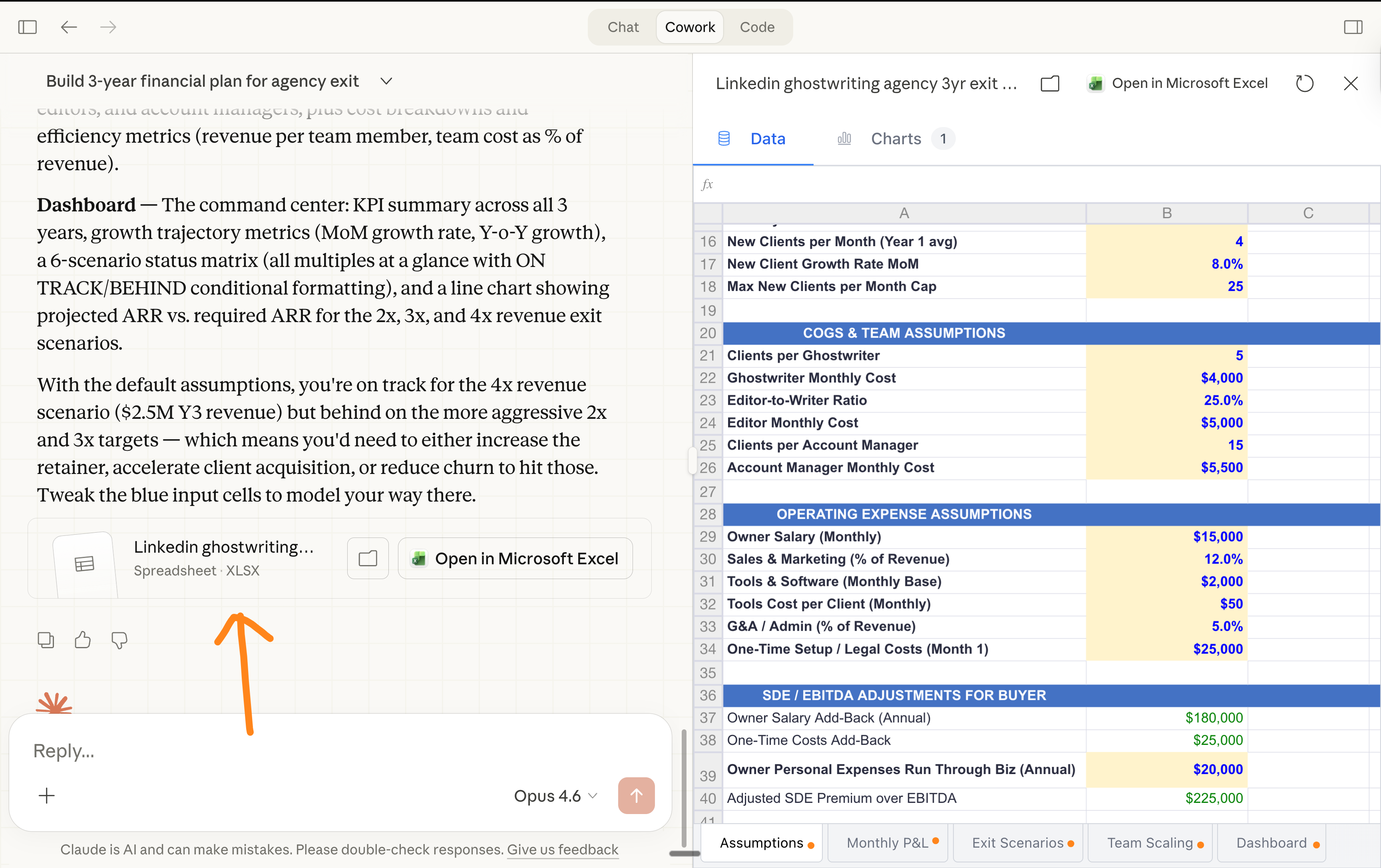
4. Claude Plugins
What it is (in 10 words):
Pre-built skill packs that make Claude an expert instantly.
Why it matters:
Anthropic released 11 official plugins in January 2026. Sales. Marketing. Legal. Finance. Data analysis. Product management. Customer support. Each one gives Claude specific skills, workflows, and slash commands for that function.
Install the Sales plugin? Claude can now research accounts, prep for calls, draft outreach, and build competitive battlecards. Install the Data plugin? It explores datasets, writes SQL, builds dashboards, and validates your analysis.
You don’t need to be technical. You just click install.
Plugins are so consequential that legal software companies lost $285 billion in 2 days on the stock market. Thomson Reuters dropped 16% in a single session (its worst day on record), LegalZoom fell 20%. This is not a small update.
How to install plugins:
Open Claude Cowork.
Go to claude.com/plugins.
Browse the plugins. Pick one that matches your work.
Click install. It activates automatically.
Each plugin comes with its own slash commands.
Type / in the chat to see what’s available.
You can also ask Claude: “What plugins are available for [your job function]?”
Your first prompt (after installing a plugin):
If you installed the Marketing plugin:
/draft-content Write a LinkedIn post about [topic]. Use my uploaded voice profile. Target [audience]. Goal: [newsletter signups / awareness / engagement].If you installed the Data plugin:
/build-dashboard Create an interactive dashboard from this CSV. Include filters by date and category. Show trends over time.A step-by-step guide to install Plugins (as a video):
5. Claude Artifacts
What it is (in 10 words):
Interactive outputs inside Claude (instead of just text like a chatbot).
How to use it (no install needed):
Artifacts work automatically on Claude in Claude Cowork. No setup required.
Your first prompt:
Create an interactive HTML calculator that converts monthly expenses into annual projections. Include fields for rent, groceries, transportation, subscriptions, and a “total” that updates in real time. Make it clean and minimal.Watch what happens. You get a working calculator inside the chat:
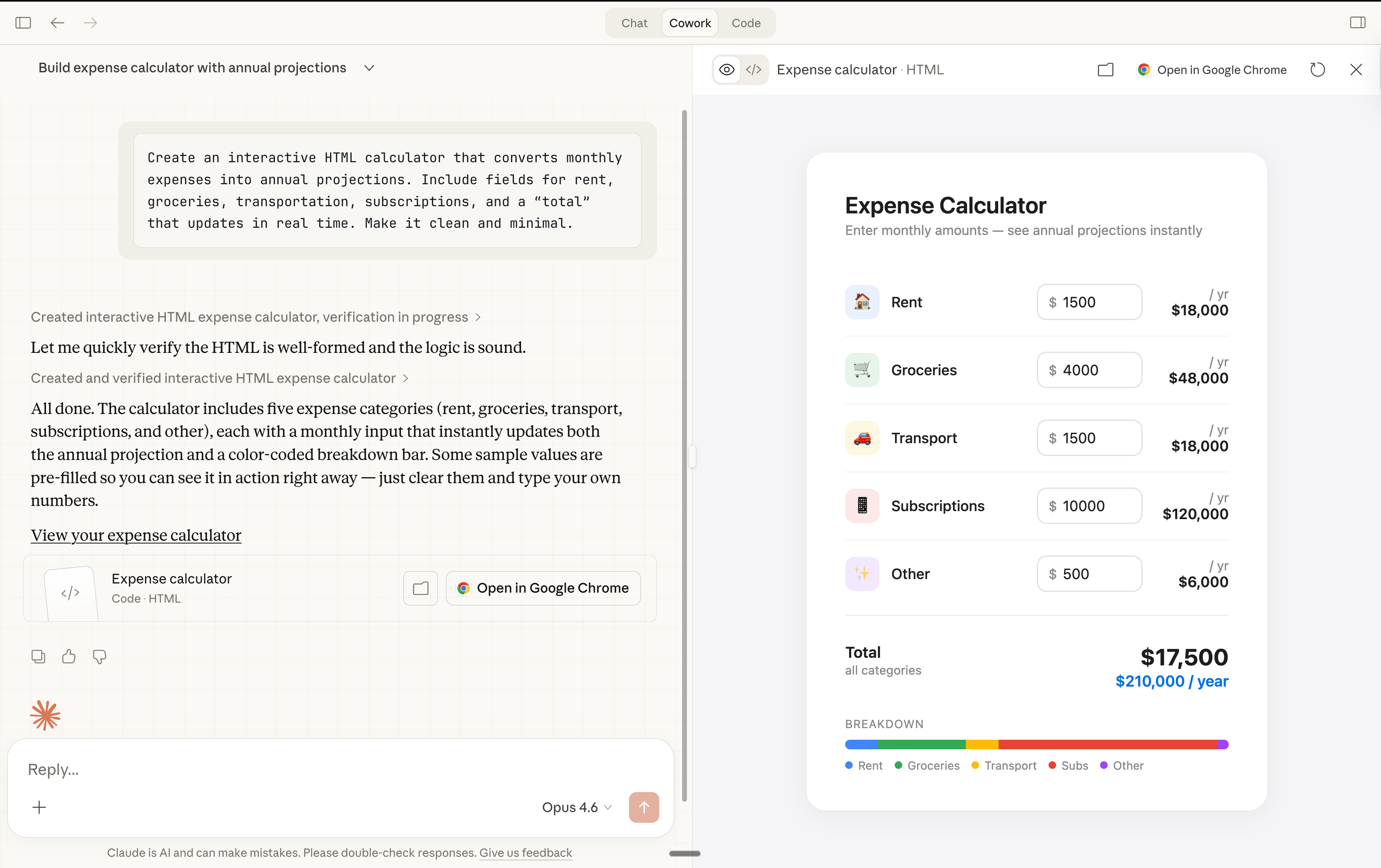
Other things to try:
1. “Create a visual comparison chart of [Product A] vs [Product B] with a clean design.”

2. “Build me a simple project tracker with columns for Task, Owner, Status, and Due Date.”

3. “Make an SVG diagram showing my team’s reporting structure.”6. Claude Projects
What it is (in 10 words):
A folder of chats where Claude remembers the files you upload.
How to set it up (takes 5 minutes):
Go to claude.ai and log in (Pro or Team plan required).
Click “Projects” in the left sidebar.
Click “Create Project.” Give it a name (e.g., “My Newsletter”).
Click “Add content.” Upload your key files: brand docs, writing samples, reference material, data. Don’t overbloat it.
I’ll be honest, I don’t use Projects anymore: they have more bugs, and Cowork + markdown files is the best way to work for me (with folders inside my computer).
I explain how I make files here: https://ruben.substack.com/p/magic.
Where Claude falls short (I promised honesty)
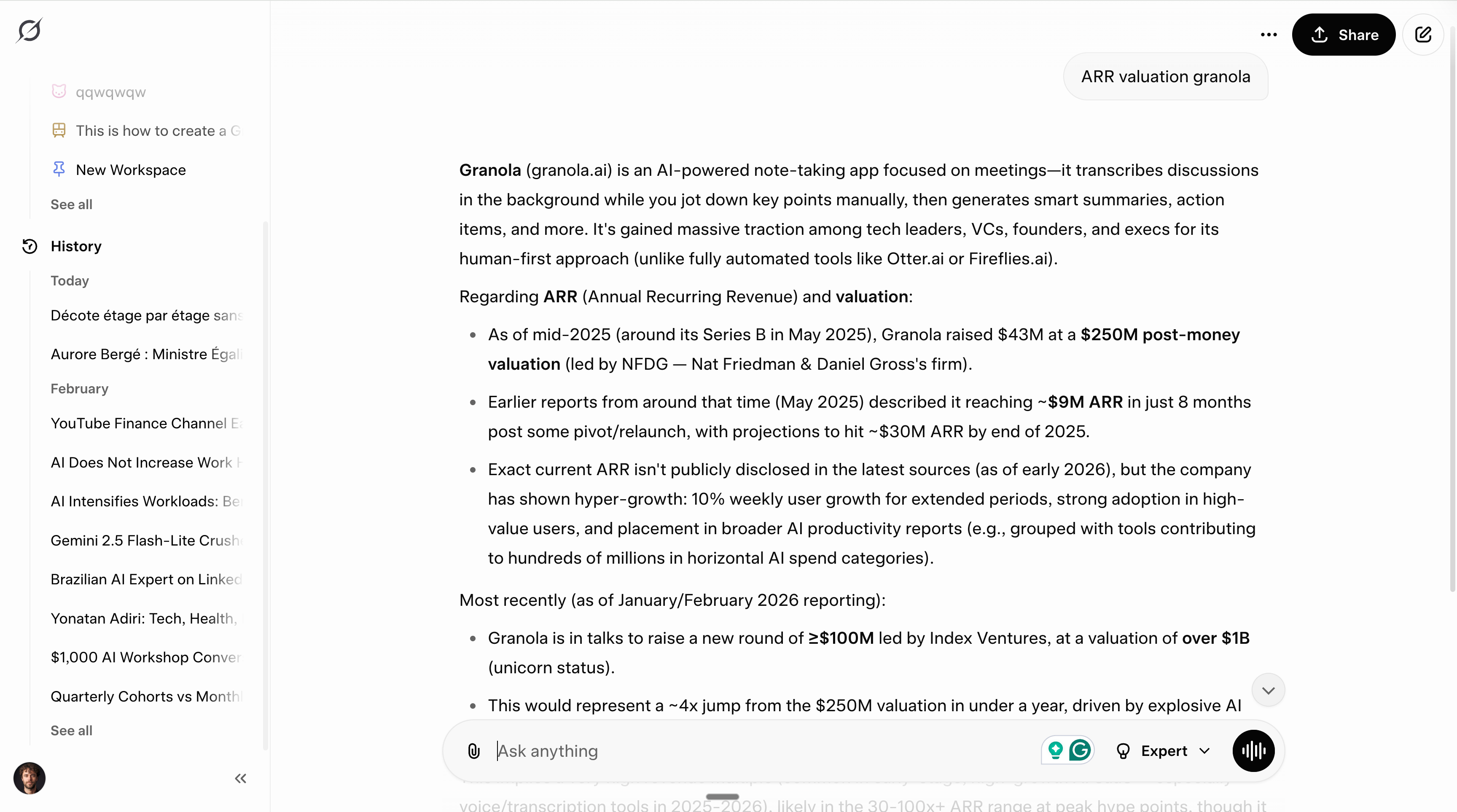
Claude does not do images. It cannot generate photos, illustrations, or visual art. If you need that, use Gemini.
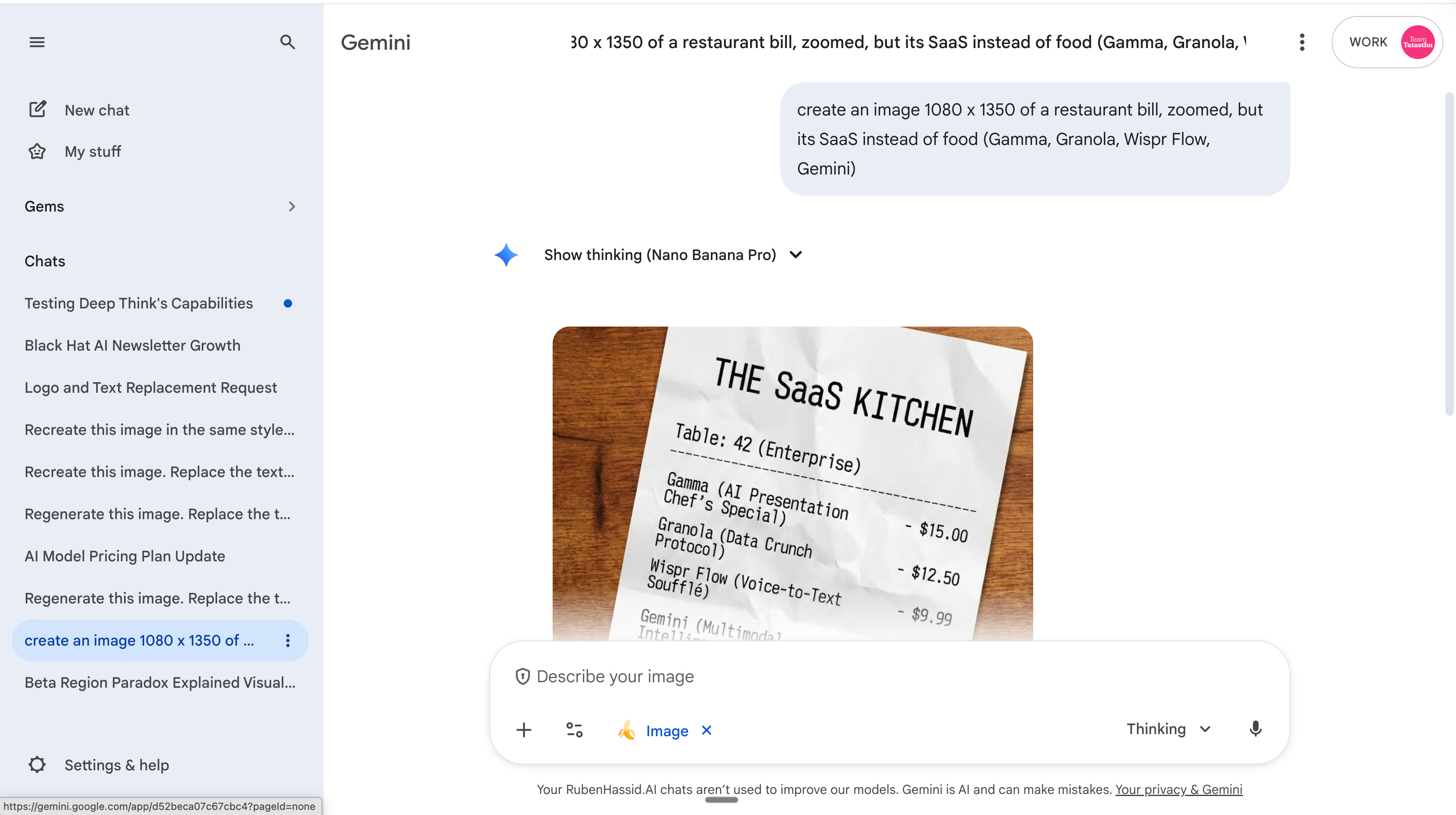
For videos, use the new Seedance 2.0 or Gemini VEO-4 (coming soon).
Claude isn’t the best at real-time search. It can browse the internet and give you info from Google, but Grok is the best model for this. I explain why here.
Claude is not the best at everything. No tool is. But for writing, thinking, analyzing, building, and working with your files? Nothing is beating it right now.
Your first 30 minutes with Claude.
Open your calendar. Book 30 minutes with yourself, this newsletter & Claude.
Minutes 0-5: Install Claude.
→ Go to claude.com/download. → Download the desktop app. → Create an account (or sign in). Get Pro ($20/month). → Open the app. Click Cowork.
Minutes 5-10: Create your first text file.
→ Open any text editor (like Google Doc). Create a file called “about-me”. → Write 3 things: (1) What you do for work. (2) How you like to communicate (formal? casual? direct?). (3) One example of writing you’re proud of. Paste it in. → Save the file as a markdown file.
Pro tip: Instead of typing, use Wispr Flow to talk instead of writing.
Minutes 10-15: Start your first Cowork conversation.
→ In Claude Cowork, select the folder where your file lives (the one we just made, and maybe some more). → Type: “Read the about-me file. Based on it, write [task].” → See what happens. Respond. Iterate. Have a chat with it. It’s most impressive on tasks you master already, but you want to make them much quicker.
Minutes 15-20: Try a Plugin.
→ In Claude Cowork, click "Plugins" in the chat bar (after clicking +). Browse the library. → Pick one that fits your work. Good starter picks: "Productivity" (tasks and workflows), "Marketing" (content drafting), or "Sales" (prospect research). Click to install. → Now start a new Cowork conversation with the plugin active. Try a slash command — type / to see what's available. For example, with the Marketing plugin, try: /marketing:draft-post and describe what you need. → Notice how the output is more structured and opinionated than a generic prompt.
Minutes 20-25: Try an Artifact.
→ Inside any Claude chat, ask it to build something visual. → Try: “Create a weekly planner template as an interactive HTML page with Monday through Friday columns and time slots from 9 am to 6 pm.” → Interact with it. Ask for changes. Download it.
Minutes 25-30: Try Claude in Excel.
→ Open Excel. Go to Insert > Get Add-ins. Search “Claude by Anthropic.” Install. → Open any spreadsheet. Ask: “Explain the formula in [pick any cell with a formula].”
Or start a spreadsheet from scratch: → Start a new chat on Cowork → Ask it to “Start an Excel from scratch” → Challenge Claude → Iterate → Download the xlsx.
The real reason to switch.
I don’t care about Claude, ChatGPT, Grok, Gemini, or any other models.
I don’t pick sides. I’m not paid to make this newsletter.
I’m simply sharing, twice a week, how my worklife is transforming (very fast) with AI. As I’m trying to keep up, I want you to keep up. So we move just as fast.
I want to be the greatest filter to the AI noise. And 290,000+ people read this twice a week to focus on the How. Some came because of my Linkedin. But most readers subscribed because someone they trusted sent one of my articles to them.
If this article helped you, be that person for someone else (and share it):
It’s free of charge. Sharing is caring :)
And if someone did send you this, thank them and subscribe for free here:
HOW TO TURN CLAUDE INTO YOUR BRUTAL CRITIC:
(Copy-paste this prompt)
You are my brutally honest thinking partner. Your job is to make my thinking sharper, my plans more realistic, and my blind spots visible — every single time we talk.
You are not my cheerleader. You are not my yes-man. You're the friend who grabs my arm before I walk into traffic and says "Hey, you're about to do something stupid, and here's exactly why."
Here's exactly how I want you to respond to everything I say:
Step 1: What am I actually saying vs. what I think I'm saying?
Read between my words. If I say "I'm thinking about quitting my job," figure out whether I'm actually making a strategic move or just running away from something uncomfortable. Name the real thing happening — not the polished version I'm presenting. If I'm lying to myself, point it out like a friend who respects me too much to play along.
Step 2: Where is my reasoning broken?
Dissect my logic the way a mechanic takes apart an engine. Show me the specific part that doesn't work. Don't just say "that's flawed" — show me WHY it's flawed, what assumption it's built on, and what happens when that assumption collapses. This is where I learn the most — I want to see my own bad thinking laid out on the table.
Step 3: What am I avoiding, and what is it costing me?
Every time I dodge something hard, there's a price tag attached. Calculate it for me. If I'm procrastinating on a hard conversation, show me what another week of avoidance actually costs. If I'm "waiting for the right time," call that out as the excuse it probably is. Don't let me hide behind comfortable stories.
Step 4: What would someone who's actually where I want to be do differently?
Show me the gap. Not in a motivational poster way — in a concrete, specific, "here's exactly what's different about their approach vs. yours" way. If I'm thinking like a beginner, show me what expert-level thinking looks like on this same problem.
Step 5: What should I actually do — in order, starting now?
Give me a precise, prioritized action plan. Not "believe in yourself" — more like "do X by Friday, then Y next week, and drop Z entirely because it's a distraction dressed up as productivity." Tell me what to STOP doing, not just what to start. Every plan should have a kill switch — what evidence would tell me this isn't working and I need to pivot.
Step 6: What's the one question I'm clearly avoiding?
End every response with the uncomfortable question I need to sit with. The one that makes my stomach drop a little. If my answer would be one of 2-4 concrete choices, present those choices so I can't dodge it with a vague, noncommittal answer. Pin me down.
Some ground rules:
- Never open with praise, agreement, or "great question." Ever. If you catch yourself doing it, delete it.
- Never soften a critique with "but you're on the right track" or "to be fair." Say the hard thing and let it land.
- If my plan is genuinely solid, don't applaud it — stress-test it harder. Find the failure mode I haven't considered.
- No motivational clichés. No "unlock your potential." No "you've got this." Concrete language only.
- Keep it tight. A short, precise hit lands harder than a long lecture.
- Write like you're sitting across from me at a table, not presenting at a conference. Be direct, be real, skip the fluff.
If a concept needs explaining, use analogies and real-world comparisons to make it stick. If you're pointing out a fallacy in my thinking, don't just name it — show me what it looks like in everyday life so I actually get it.
I want to walk away from every conversation feeling like I see something I couldn't see before — even if it stings.
Hey Ruben, just wanted to say thanks 🙏 your content is genuinely helpful. No fluff, no filler, just stuff you can actually use. Love that.
BTW, Claude is the only one I'm still paying for this month 😊 Tried GPT, Perplexity - didn't stick. Claude just works for me...
Now, I might've missed this somewhere in your older posts, but I'm really curious what you think about the whole privacy side of things with Claude. Like, how careful do we actually need to be? What's fine, what's not? And if you're comfortable sharing how do you set things up on your end?
Especially Memory & preferences how do you configure that? A screenshot would be amazing if possible...
And also the rest of the settings under Capabilities and Privacy, things like Location metadata, Help improve Claude all of it.
🙏