
How to install Claude Excel.
The best way to use AI inside spreadsheets.

Here’s how you failed at using AI for spreadsheets before:
It’s 4 pm. You must send this spreadsheet by 5 pm.
There’s an error #REF! You don’t know where it’s coming from.
You screenshot it. You upload it to ChatGPT.
ChatGPT says: “Check if D14 references a deleted cell.”
There is no D14. You wasted 5 minutes.
Now you upload your Excel file to ChatGPT.
But ChatGPT can’t actually read Excel files.
Because it flattens everything into text. Formulas & structure disappear.
So you fix your spreadsheet manually. Again.
“AI can’t do Excel anyway”.
Well, no.
AI couldn’t do Excel. Until last Saturday.
The gap was never intelligence. Copilot (Microsoft’s own AI) just failed at building the right AI for Excel, inside Excel. So Claude did it first.
Claude Excel is the revolution everyone using spreadsheets was waiting for:
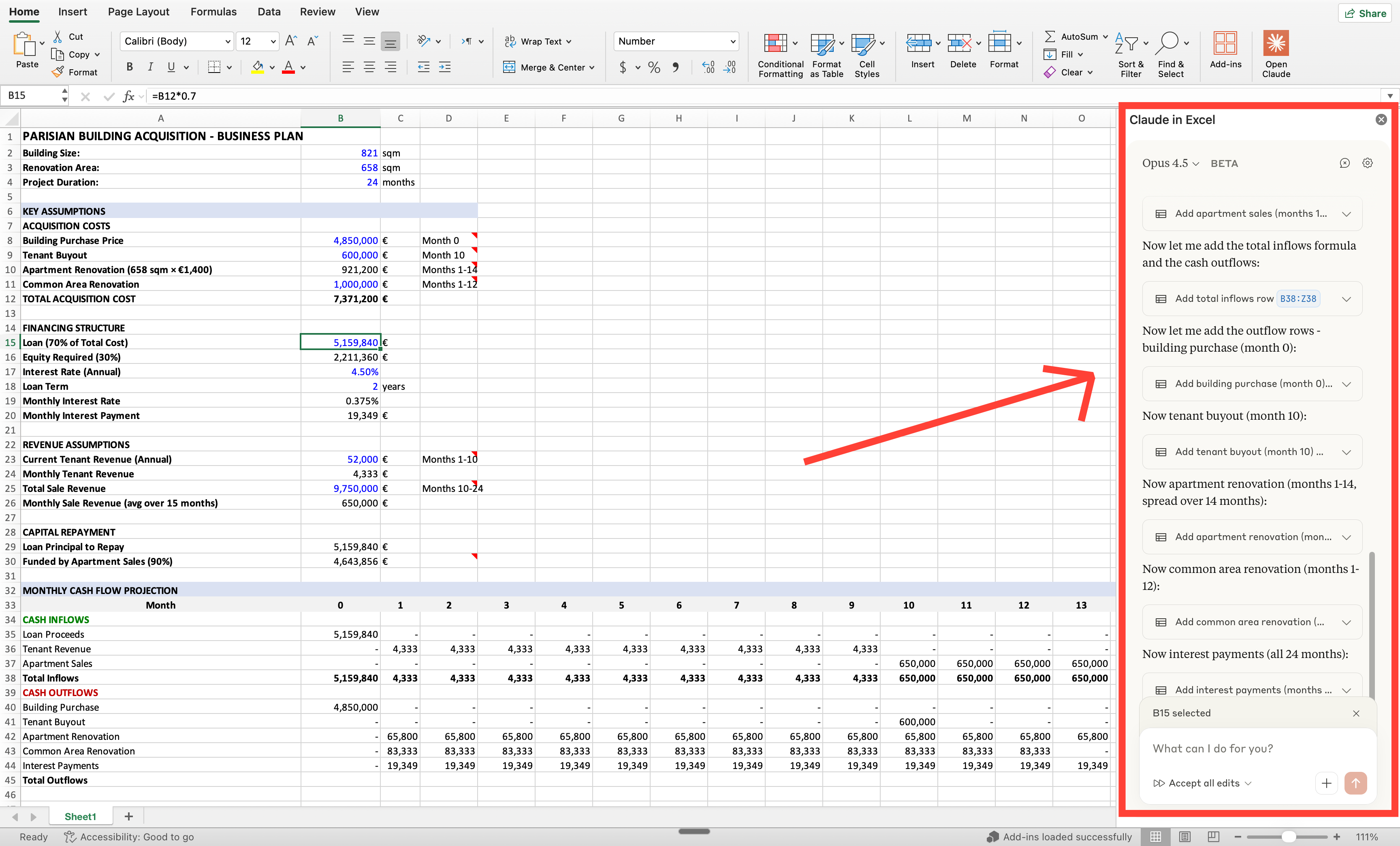
At the end of this guide, you will master (exactly) how to use Excel with AI in 2026:
UPDATE: As I’m writing this guide, Microsoft released a Copilot answer to the mega-viral Claude Excel. I am sharing how bad it is at the end, but in 2 words → it sucks.
How to install Claude in Excel.
First, you must have Microsoft Excel installed.
Quick tip: I downloaded Excel for free (Mac) using this official Microsoft link:
→ https://go.microsoft.com/fwlink/p/?linkid=525135.
Once you have it installed with a free Microsoft account, install Claude:
Go to the Microsoft Marketplace listing.
Click “Get it now” → Install the Claude add-in.
Open Excel → Tools → Add-ins (Mac) or Home → Add-ins (Windows).
Sign in with your Claude account. If you still don’t have one, go get one.
PS: You do need to pay for Claude ($17/mo). It’s worth it.
Here’s the quickest video guide I could make (Mac user):
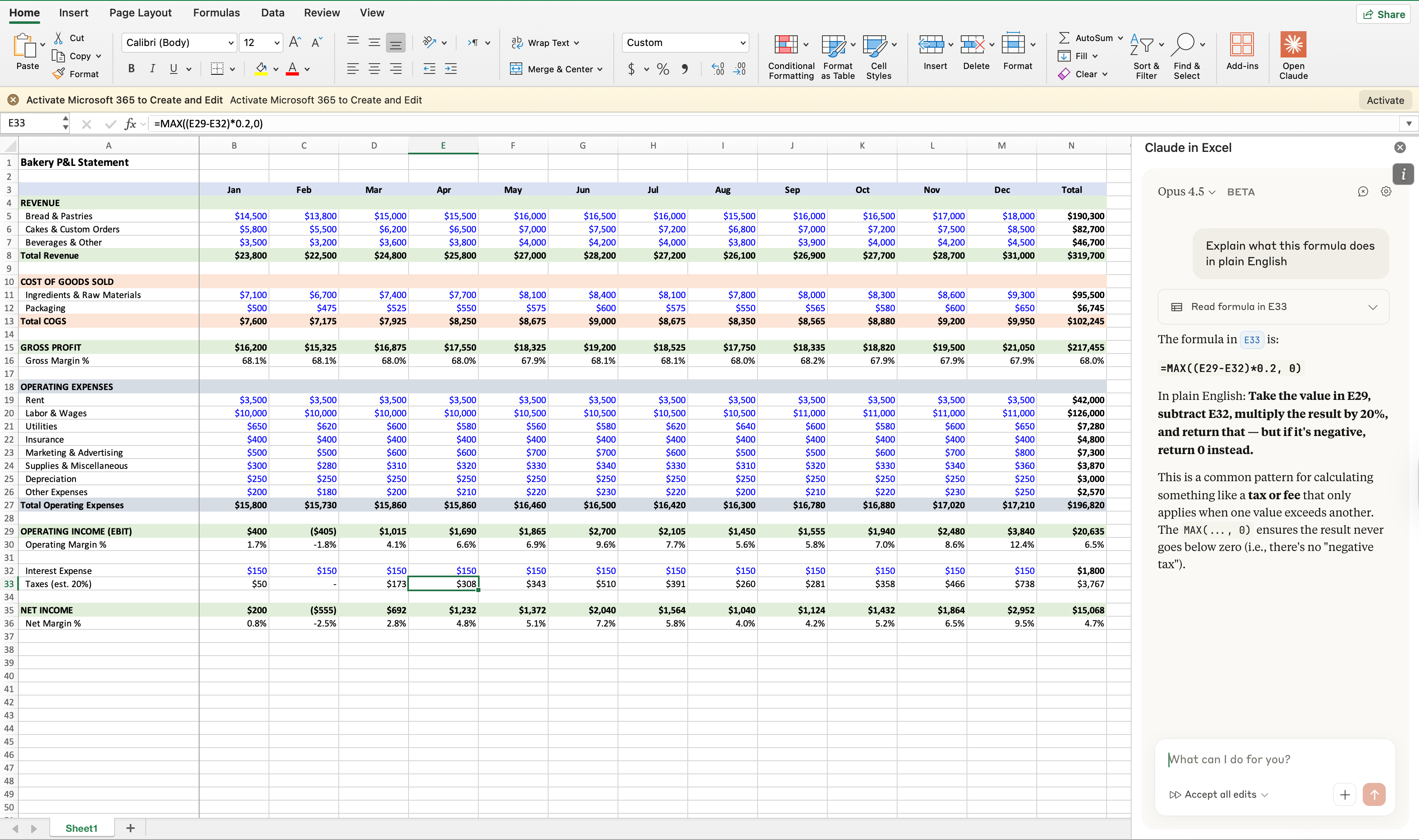
How to read formulas you've never seen.
Picture this: someone gave you an Excel.
47 tabs. 200 formulas.
There's a formula you've never seen. You need to know what it does, not what the function means in general, but what this specific formula does in this spreadsheet.
Instead of pretending, click on the cell & ask Claude:
→ “Explain what this formula does in plain English”
→ “Trace this cell back to its source inputs”
→ “Why is cell B4 showing an error? Trace the issue”
→ “This SUMIF isn’t returning the right result — what’s wrong?”
→ “Find all #REF and #VALUE errors in this workbook”
How to clean messy data in seconds.
You got a data export. Dates in 5 formats. Names split wrong. Duplicates everywhere. Before you can do anything, you need to clean it.
It usually takes hours. Now you can ask Claude:
→ “Convert all dates to YYYY-MM-DD format”
→ “Standardize phone numbers to +1 (XXX) XXX-XXXX”
→ “Clean up company names (remove Inc, LLC, Ltd variations)”
→ “Find and remove duplicate rows, keeping the most recent”
→ “Split full address into street, city, state, zip columns”
Claude highlights every cell it touches. You see exactly what changed.
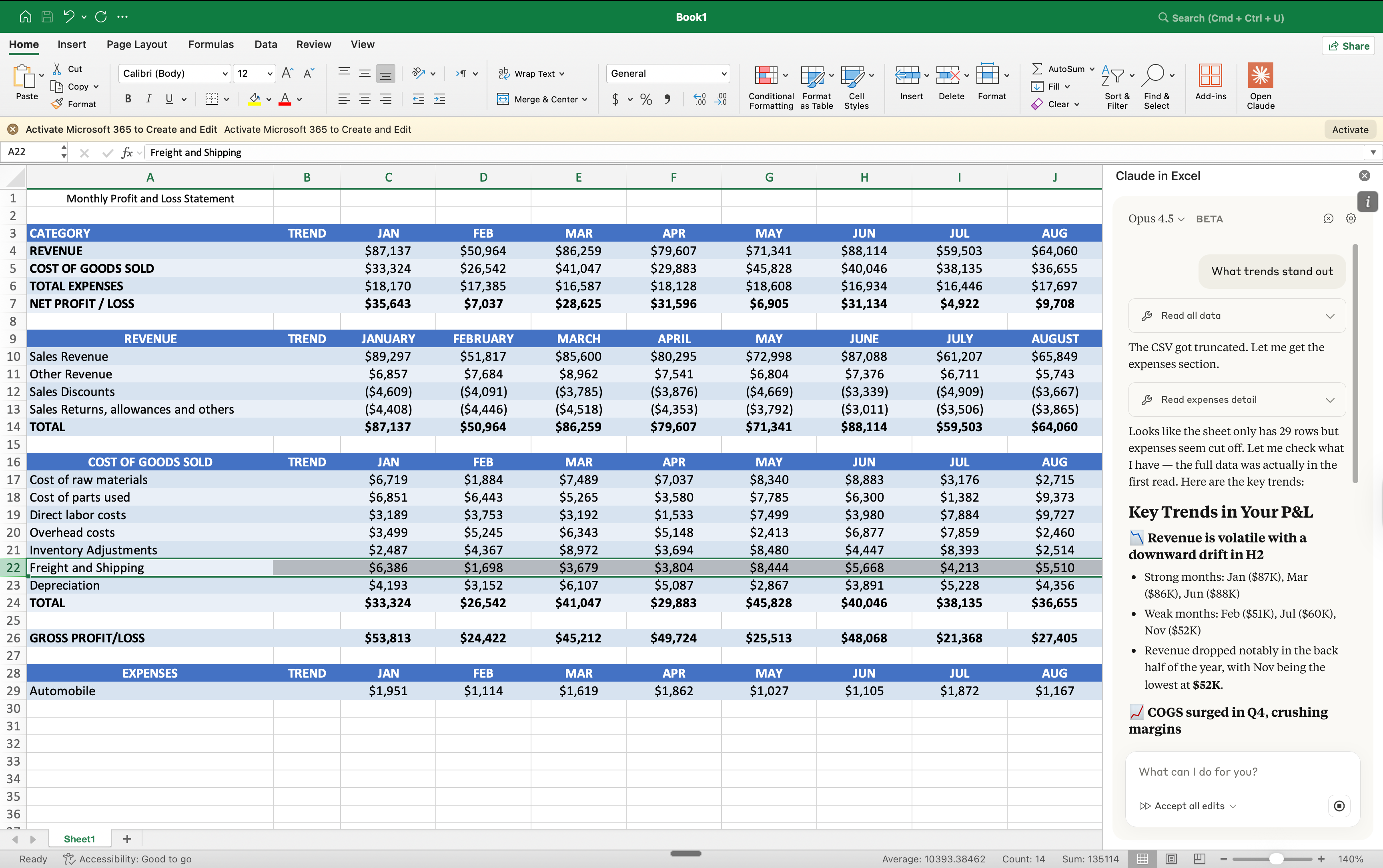
How to analyze data without formulas.
You have the data. You need insights.
But you don’t want to spend an hour writing SUMIFS and pivot tables.
So ask Claude:
→ “What trends stand out in 2025 vs 2024?”
→ “Identify the top 10 customers by revenue and their growth rates”
→ “Compare actuals to budget and explain the largest variances”
→ “Categorize these transactions into expense types”
→ “Score each lead based on likelihood to convert”
How to turn a PDF into a (real) Excel.
Someone sends you a PDF. The data you need is locked inside.
Normally, you’d retype it manually or pay for a converter tool.
Now you ask Claude:
→ “Extract the financial table from this PDF into Excel”
→ “Pull the line items from this invoice PDF into my template”
→ “Convert this scanned statement into editable data”
→ “Fill in my deal template using data from this offering memo”
Yes, you upload the PDF directly to Claude in Excel.
It reads it and pulls the data into your spreadsheet.
How to build (any) financial model.
You don’t want to start from a blank sheet and build every formula yourself.
So just ask Claude:
→ “Build a 3-statement financial model for [company/industry]”
→ “Create a SaaS metrics model with ARR, churn, and LTV calculations”
→ “Build a 12-month revenue forecast using historical trends”
→ “Add a downside case assuming revenue drops 15%”
→ “Build a sensitivity table showing IRR across exit multiples and hold periods”
What it can’t do (yet).
I don’t hype AI because it’s AI.
So here’s what Claude in Excel doesn’t support:
No macros or VBA.
No Power Query or Power Pivot.
No external database connections.
And Anthropic (Claude’s parent company) is clear: don't use it for final client deliverables without review, audit-critical calculations without verification, or models with highly sensitive data without proper controls.
It’s the classic: “It’s not because AI does it that it’s perfect.”
You must experience it first. For understanding, building, cleaning, and reviewing spreadsheets? It works. It actually works. And that’s the future of Excel.
Sure, it might have some rough edges.
But don’t make the mistakes of AI doomers:
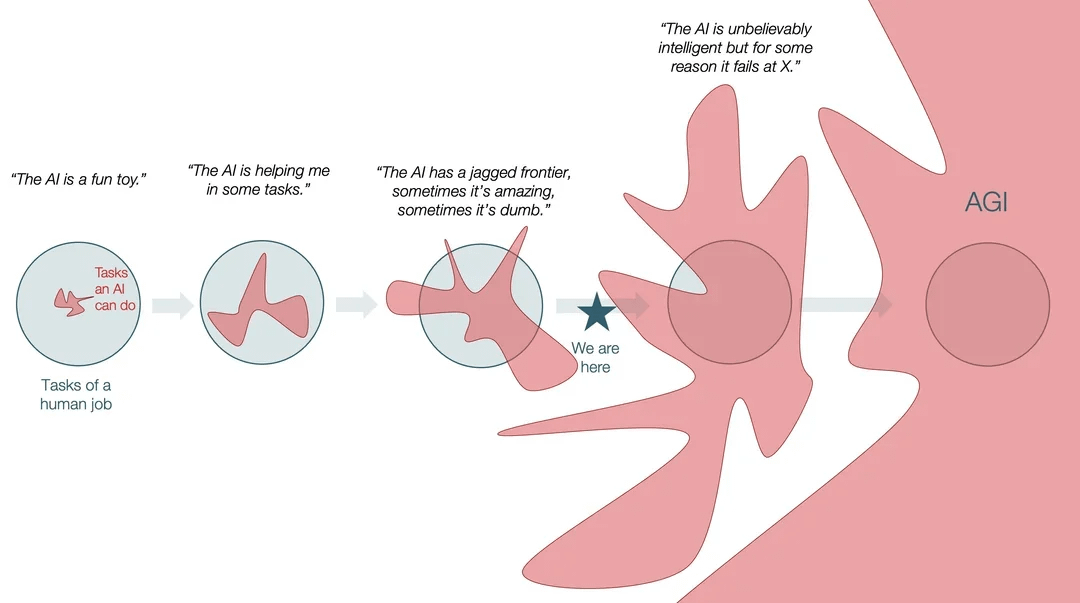
Too long, didn’t read.
Skip the guide, and do this:
Install Claude for free inside your Excel using Microsoft Marketplace.
Start any spreadsheet from scratch with a sidebar Claude bot.
Or upload any existing spreadsheet to the Claude sidebar.
Shortcut to open Claude: Control+Option+C (Mac) or Control+Alt+C (Windows).
This already instantly puts you in the top 1% of AI users.
Now, how can you quickly go from top 1% to top 0.1%?
✦ Join a community of obsessed AI users (like my Slack with 900 professionals).
✦ Play with Claude. You learned through games as a kid. You are still a kid.
✦ Pick one Excel to update. Understand the spreadsheet better, try to upgrade it.
Master AI, before it masters you.
Humanly yours - Ruben.
PS: Microsoft Copilot answered.
As I’m writing this newsletter, Microsoft answered.

First, here’s how to access it:
But the TL;DR is that it’s terrible. Here’s a Wall of Hate from the internet:

I'm betting on Claude over Copilot. Anyone want to defend Microsoft?
Well, this was life changing and already worth upgrading to paid Pro - thank you!
Ruben, we all get told off by you each week - on things we are not doing right with AI 🤣 thanks for keeping us all in check!! Much appreciated!