
Slides.
How to use AI to generate (fantastic) slides:

It’s 2026, so you better not make your slides manually. AI does it for you.
But how? I tested every method, and landed on 3 (the third one is my favorite).
Save this guide and try all three methods over the weekend.
Send it to your team's Slack or Teams channel to get them on board.
Method #1. Claude
Best for: you need extreme speed and a zero-effort design.
How:
Open Claude Cowork.
Select your folder.
Prompt:
I need a 10-slide PowerPoint (.pptx) about [TOPIC] for [SUCCESS CRITERIA].

Start by using the tool AskUserQuestion, and ask enough context to get the full context.

Then, and only then, create a .pptx.
Claude creates a pptx. in your folder. Open it. Edit from there.
Here’s a quick video of the process:
There’s also a Claude add-in inside PowerPoint (Insert > Get Add-ins > search “Claude by Anthropic”). You chat with it, and it edits your slides directly.
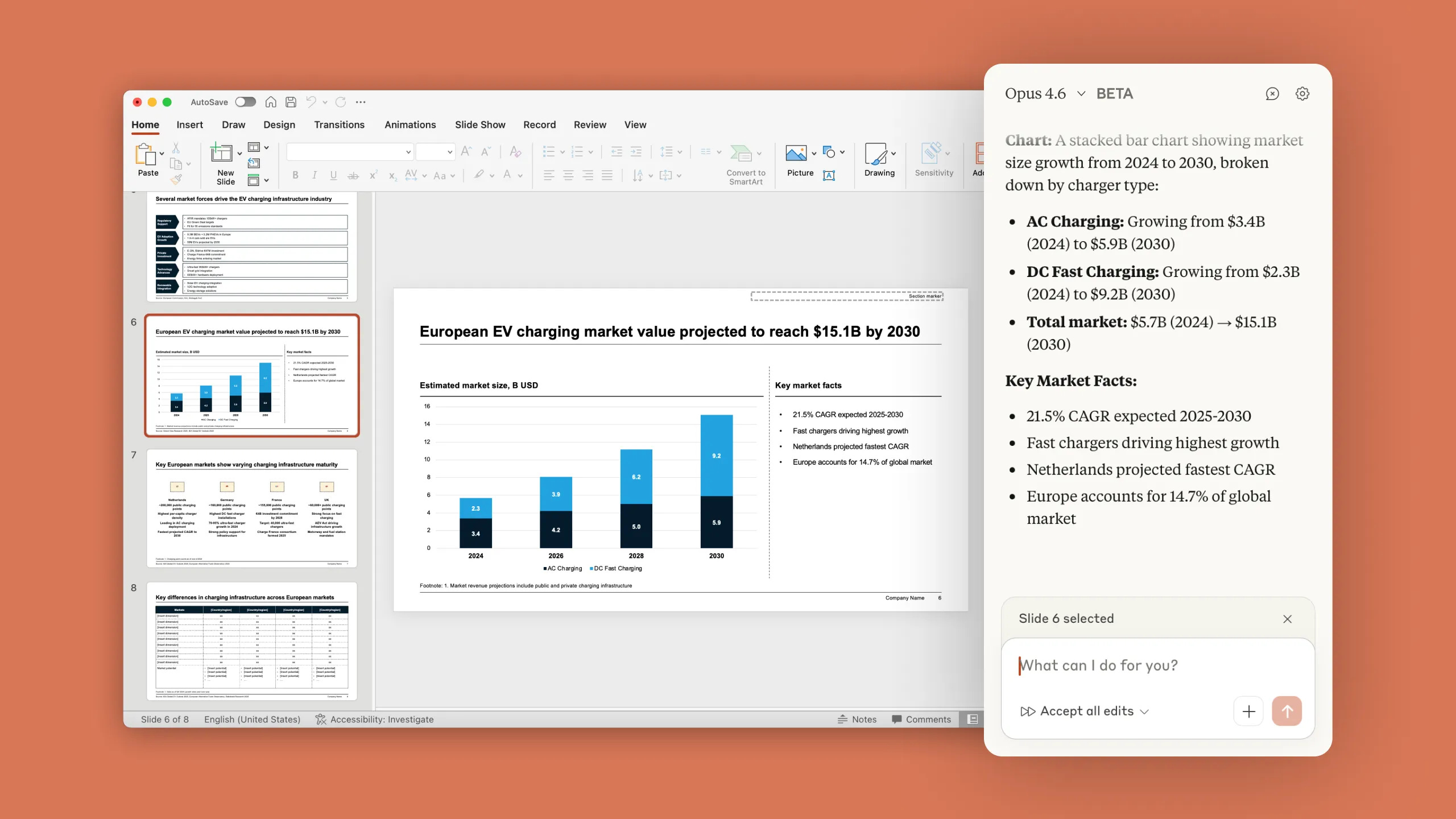
The catch: Claude writes and structures well, has great research capabilities, but the visual side stays basic. Good enough for a team sync (if they really don’t care about designs). Too flat for a client meeting.
Grade: 3 out of 10.
Method #2. Gamma
Best for: fast decks that look polished, explainers, when speed + design matter.
How:
Go to gamma.app. Free account, no credit card.
Click “Create new” → “Generate.”
Type your topic and success criteria (who is it for? why?).
Gamma shows an outline. Tweak it. Pick a theme. Hit generate.
60 seconds. Done.
What Gamma does well:
→ Beautiful layouts, spacing, and typography. Automatically.
→ AI-generated images from 20+ models (including Nano-Banana 2).
→ Shareable web link with view analytics (who opened it, scroll depth, time spent).
→ Export to PowerPoint, PDF, or Google Slides. You can even import them.
→ Made for decks (primarily), but also documents, websites, and social posts.
→ 70 million users. 400 million presentations. Free to start. Plus plan is $8/month. Pro is $15/month.
The catch: the design is great. The content is only as smart as your one-line prompt. Vague prompt = pretty slides that say nothing. You must be specific/do the proper research first.
8/10.
Method #3. Claude + Gamma
Best for: anything that matters. Client decks. Board presentations. Strategy decks.
This is where I spend most of my time. Claude thinks. Gamma designs. You decide what stays and what goes.
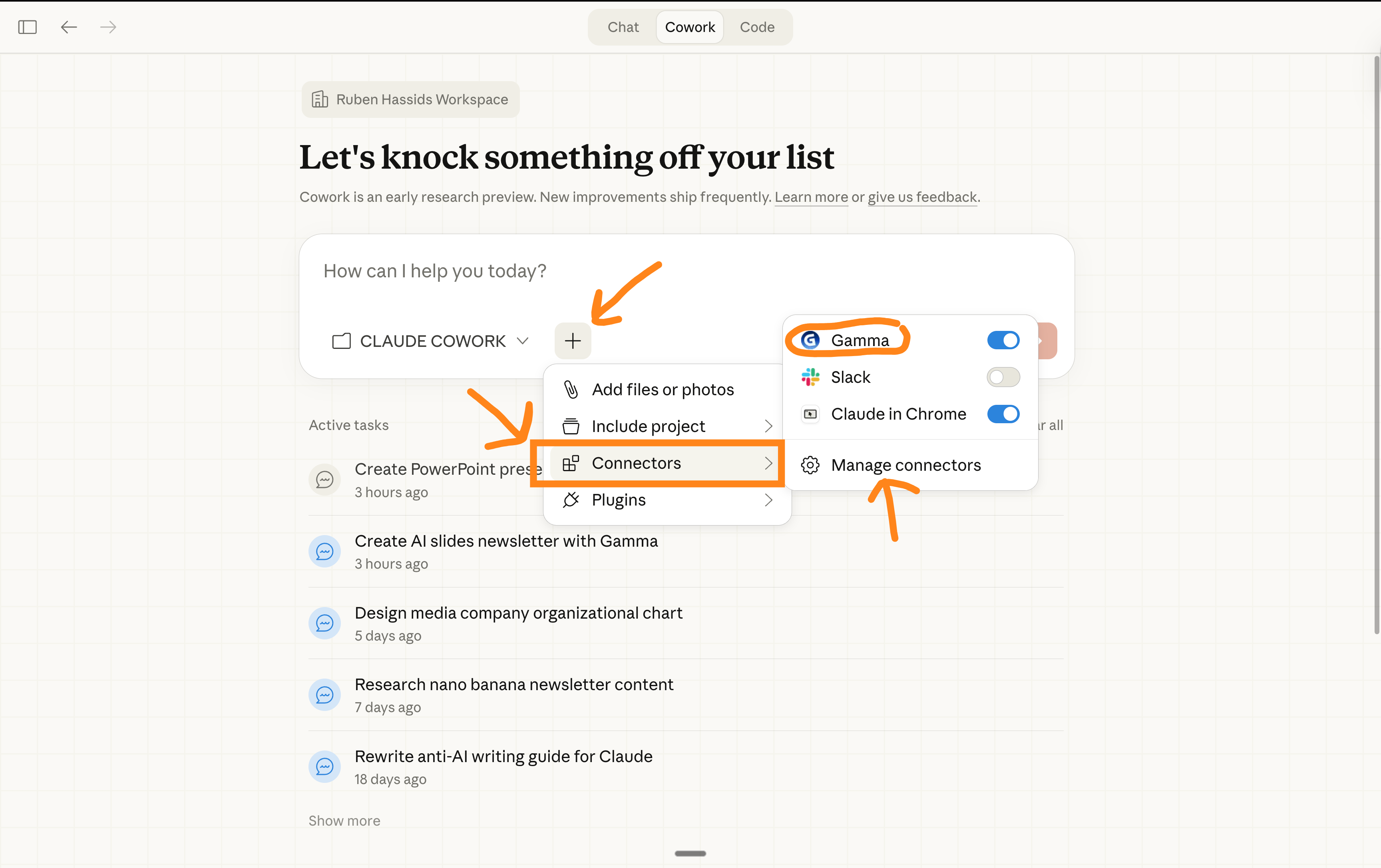
You could do it the fast way, but I don’t recommend it (scroll past it to see my other method). You just connect Gamma to Claude via “Connectors” and prompt Gamma inside Claude:
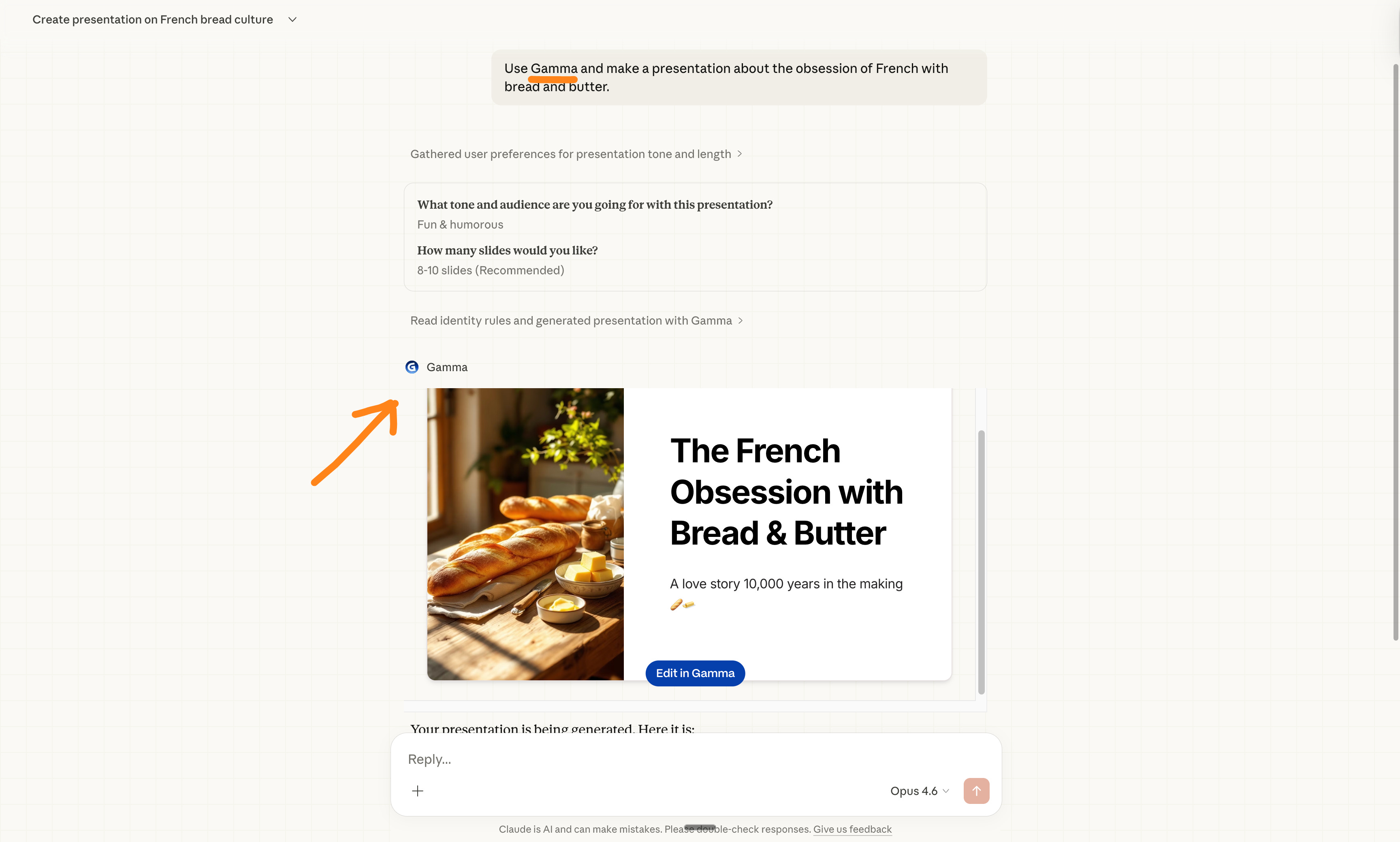
And then you just prompt Gamma:
How I recommend it (Research → Brief → Generate)
This is how I build presentations.
Step 1 — Research.
Open Claude Cowork. Prompt:
I’m building a presentation. Do not generate slides yet.

Research [topic] for  [success criteria] so I have everything I need to build a presentation about it.

1. Read all the files in this folder.
2. Search the web using at least 5 varied searches (trends, data, expert opinions, case studies, counterarguments).
3. Review findings against the success criteria. Identify gaps. Search again to fill them.
4. Save a structured research brief to research-brief.md — organized by theme, with source URLs and key data points pulled out.

Prioritize 2025-2026 sources. Flag anything where sources conflict or data is thin.

Start by using AskUserQuestion to make sure you research the right information once you have enough context from me.
About the “Read all the files in this folder”, that’s if - and only if - you drop your source material into a folder (docs, reports, data, notes, competitor pages).
Claude reads everything and gives you a focused analysis. Specific to your files, your audience, your goal.
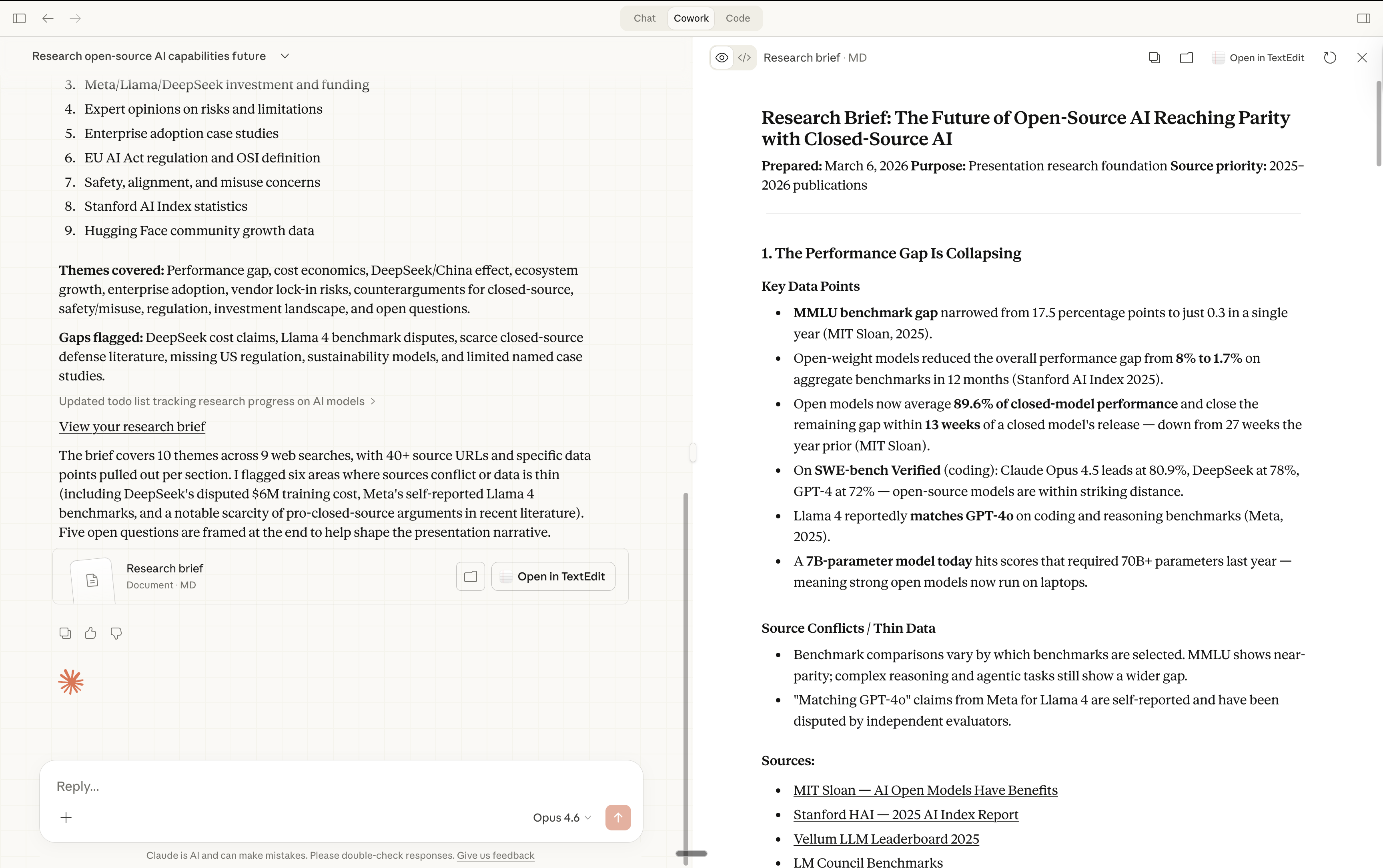
Step 2 — Brief.
Now, follow up with Claude with this prompt:
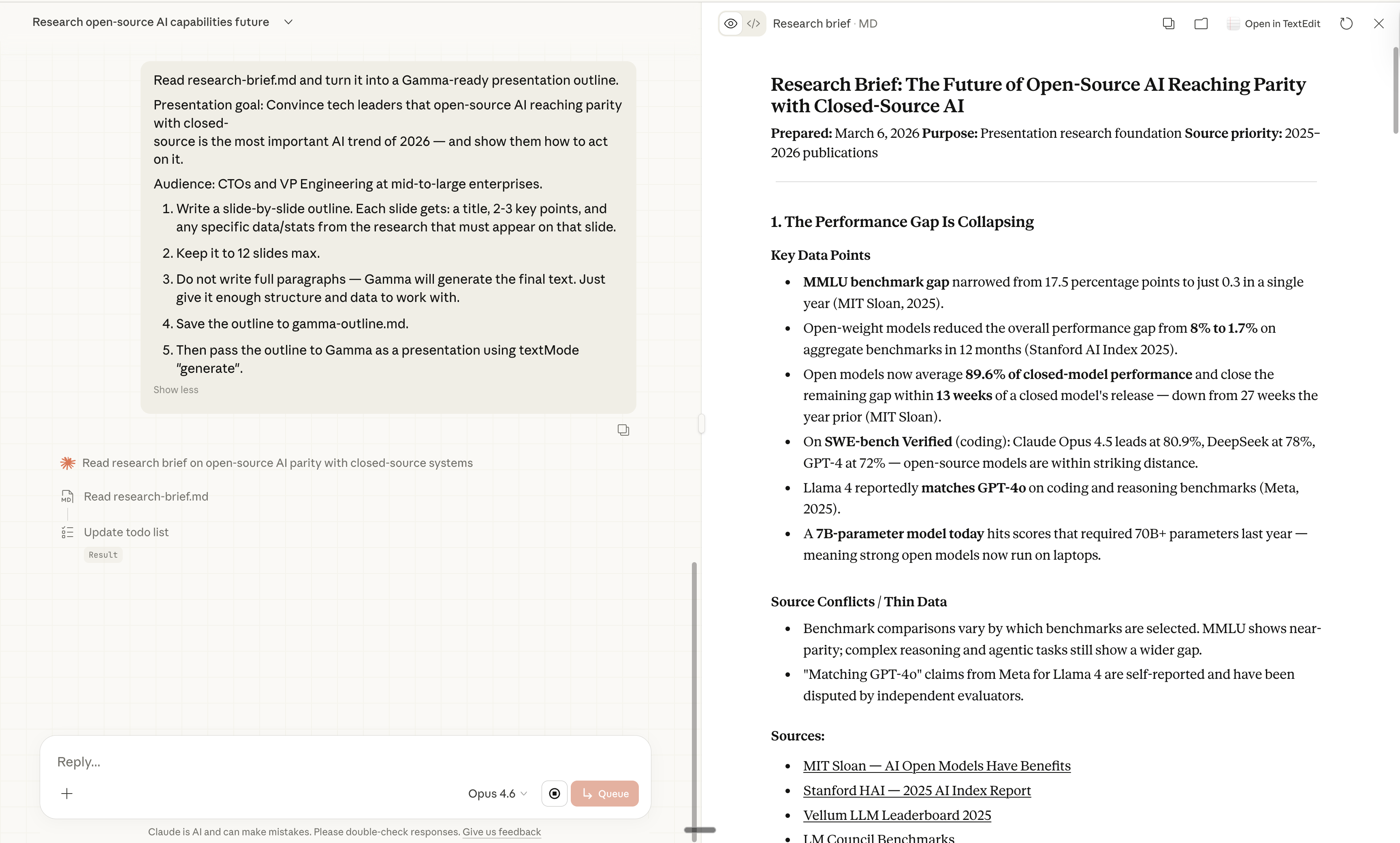
Read research-brief.md and turn it into a Gamma-ready presentation outline.

Presentation goal: [what the presentation should accomplish]
Audience: [who’s watching]

1. Write a slide-by-slide outline. Each slide gets: a title, 2-3 key points, and any specific data/stats from the research that must appear on that slide.

2. Keep it to [X] slides max.

3. Do not write full paragraphs — Gamma will generate the final text. Just give it enough structure and data to work with.

4. Save the outline to gamma-outline.md.

5. Then pass the outline to Gamma as a presentation using textMode “generate”.
Here’s the example:
Step 3 — Generate.
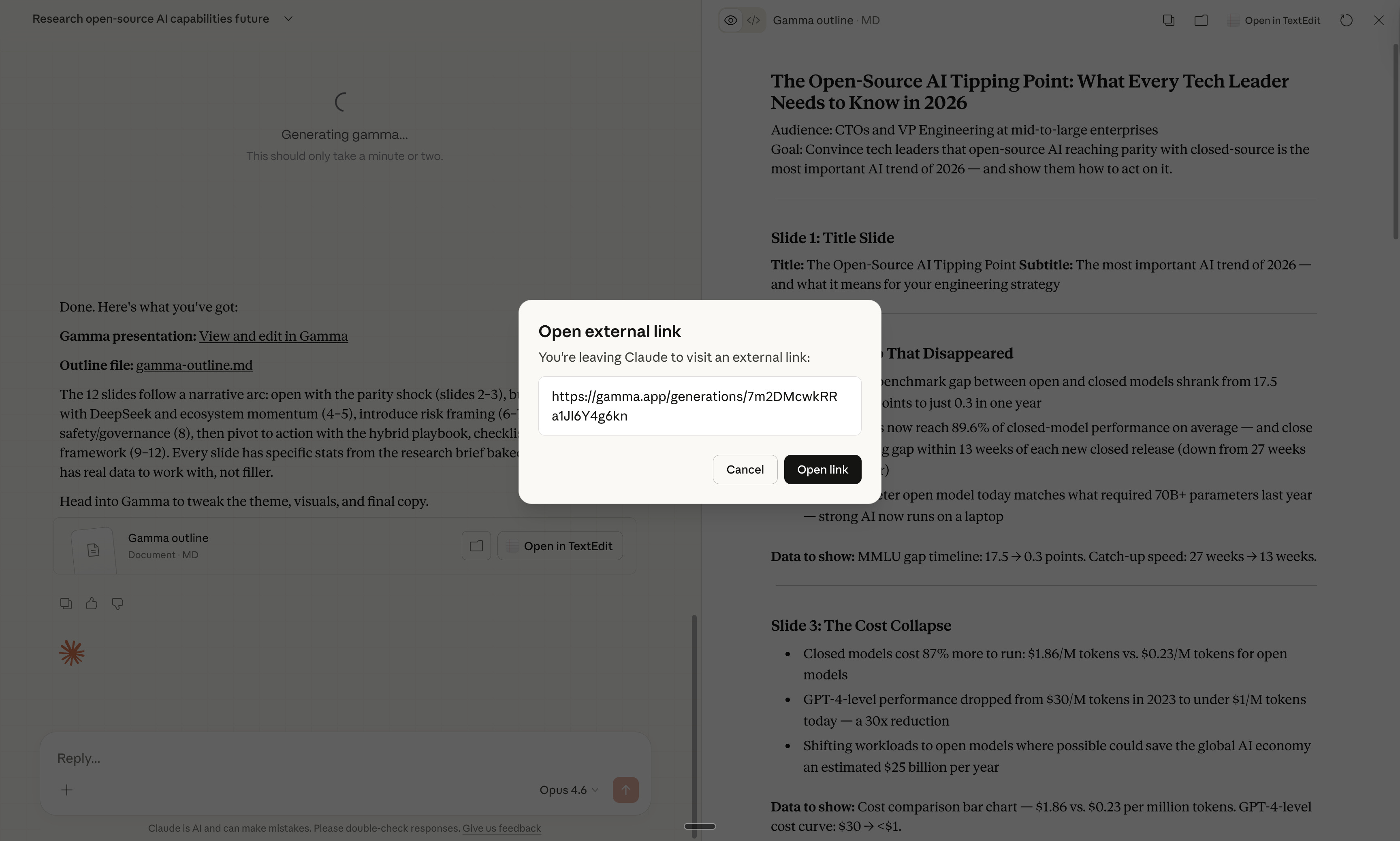
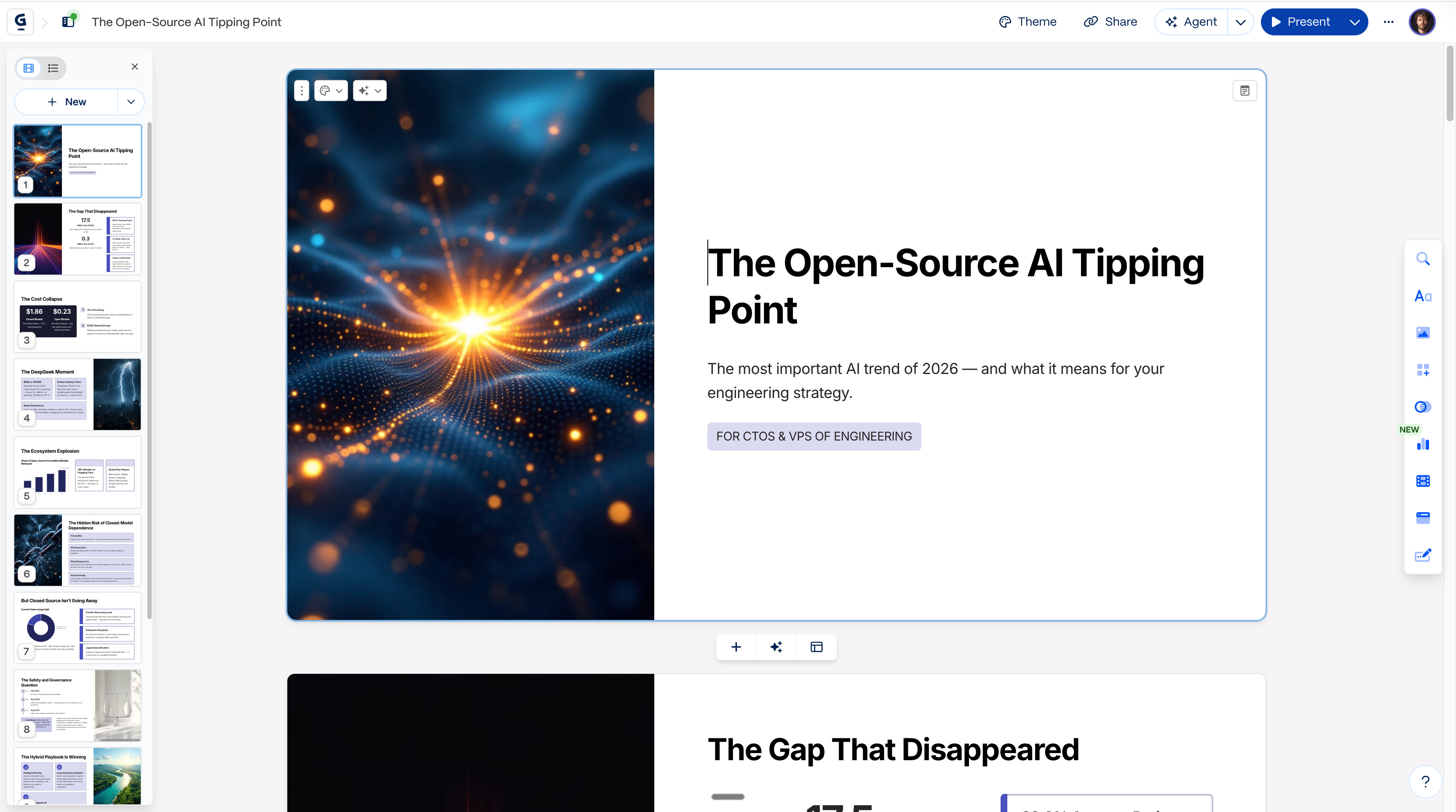
Once you’re happy with the brief, Claude generates it with Gamma:
Step 4 — Edit.
Open the Gamma link. Go card by card.
→ Would I say this out loud? Rewrite if I wouldn’t.
→ Does this card earn its place? Cut it if it doesn’t.
→ Is the data right? Verify it.
10 to 15 minutes. The hard part already happened in Claude.
PS: These 10-15 minutes usually separate good from greatness. Be great.
The ultimate guides for AI + slides, for teams.
You are part of a company with brand guidelines. This section is for you.
You’re going to extract your brand into two things: a Gamma theme (for the design) and a markdown file (for Claude). Set it up once. Everyone on the team makes on-brand decks from that point forward.
Step 1: Create your Gamma theme.
Find your existing brand template. The PowerPoint or Google Slides file with the right colors, fonts, and logo. Every company has one somewhere.
Open gamma.app.
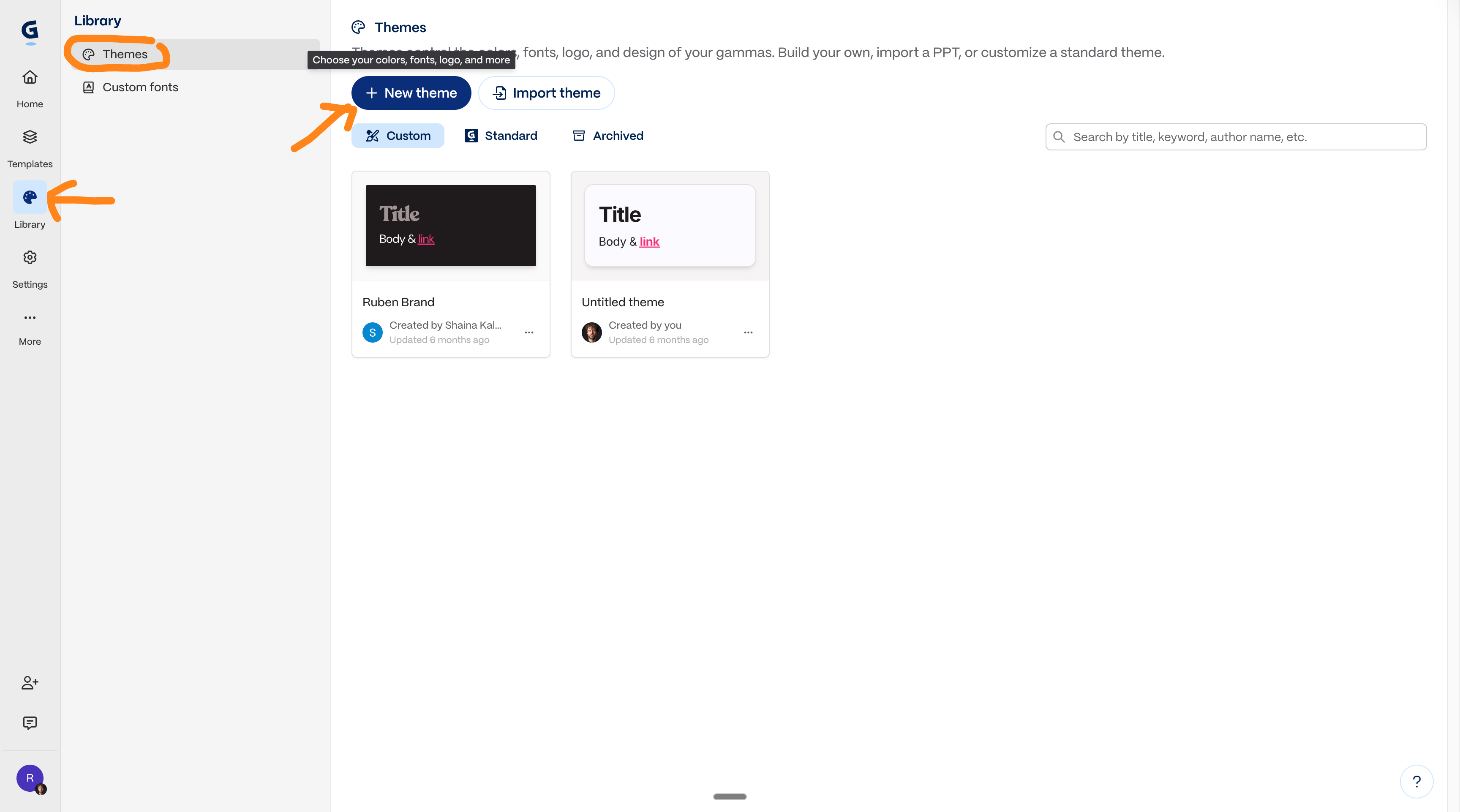
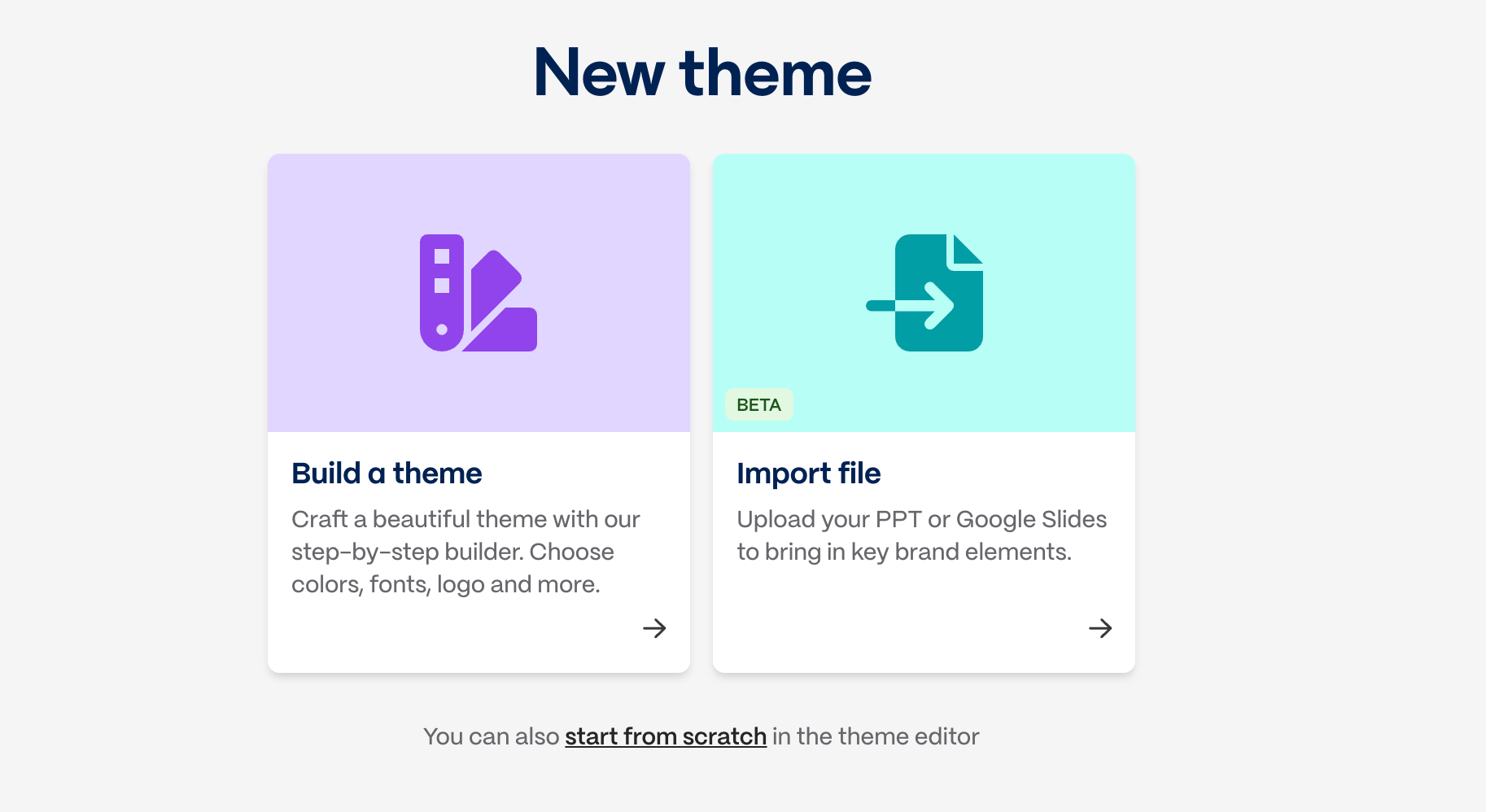
Go to Library → Themes → New Theme → Import Theme.
Upload your .pptx or Google Slides file.
Gamma extracts your colors, fonts, and logo automatically. Few seconds.
Review. Adjust the primary accent, card backgrounds, and page colors if needed.
Upload a cleaner version of your logo if the extracted one looks off.
Click “Save and Customize” to fine-tune cards and buttons. Or “Save and Finish” if it looks right.
Name it clearly (e.g., “Acme Corp Brand 2026”).
Go to Settings → Workspace Defaults → set this theme as default.
Every new Gamma now starts on-brand.
Step 2: Build your brand rules file.
Gather everything brand-related you have. Brand guidelines PDF, your best existing deck (the one that looks exactly right), tone of voice doc, anything. Drop it all into one folder.
Open Claude Cowork. Select that folder. Prompt:
Read all the files in this folder. These are our company’s brand assets.

Create a single markdown file called brand-deck-rules.md that captures everything needed to make an on-brand presentation.

Extract and organize:

Visual identity: - Primary and secondary brand colors (hex codes) - Fonts for headings and body text - Logo usage rules (where it goes, light vs dark version)

Slide structure: - What goes on the title slide - How we structure a typical deck (opening, body, close) - Max bullet points per slide - How we present data (chart types, labeling style) - Full sentences or short fragments

Tone and language: - How formal or casual - Words and phrases we always use - Words and phrases we avoid - How we refer to our company, product, and customers

Recurring elements: - Do we end with a CTA or next steps slide? - Contact or team slide? - Disclaimers or legal lines?

Write it as instructions for a new team member who’s never seen our brand.
Claude reads your assets and produces the .md file.
Review it. Add anything Claude missed. Save it in your Cowork folder.
If you don’t understand how to manage Cowork folders, go here.
Step 3: Add Gamma settings to the file.
Open the md file from Cowork. Add this block at the top:
## Gamma Settings - Theme: [name of the theme you saved earlier]

- Default image style: [clean photography / minimal illustration / no images]
- Default text density: [brief / medium / detailed]
- Default card count: [10-12]
Now the file has your visual rules and your Gamma-specific settings.
Claude reads both at once. You’re almost there!!
Step 4: Use it.
Every prompt starts the same way (once you selected the Cowork folder with your md. file you just made):
Read brand-deck-rules.md first. Create a Gamma presentation about [TOPIC] for [AUDIENCE]. Use our brand theme. [Anything specific about this deck].Claude reads the file, applies the rules, sends it to Gamma with your theme. On-brand from the first draft.
Share the folder with your team. Everyone uses the same file. Same theme. Same output quality. New hires included.
Step 5: Update it.
When your brand evolves:
Drop the current brand-deck-rules.md + new brand assets into the folder.
Prompt: “Read the current brand file and the new assets. Update the file with what changed. Keep everything else.”
Review. Save.
One update. Every future deck reflects it.
You finally understand the speed of AI.
Be that person.
This newsletter is entirely free. I want to be the greatest filter to the permanent AI noise. And 340,000+ people read this twice a week to know what to focus on.
Some people came because of my LinkedIn. But most readers subscribed because someone they trusted sent one of my articles to them.
If this article helped you, be that person for someone else (and share it):
It does not cost you anything to share. And sharing keeps this newsletter free!
If someone sent you this, first thank them, and don’t miss the next guide by subscribing for free. Bonus point if you introduce yourself in the comment.
Thanks Ruben, really useful.
Respect Ruben, grateful for your effort and selfless sharing of knowledge! I wish you all the best!