
Prompting is the worst way to use Claude.
How to upgrade Claude Cowork with Obsidian:

Stop prompting Claude.
For example, this is the worst way to use Claude:
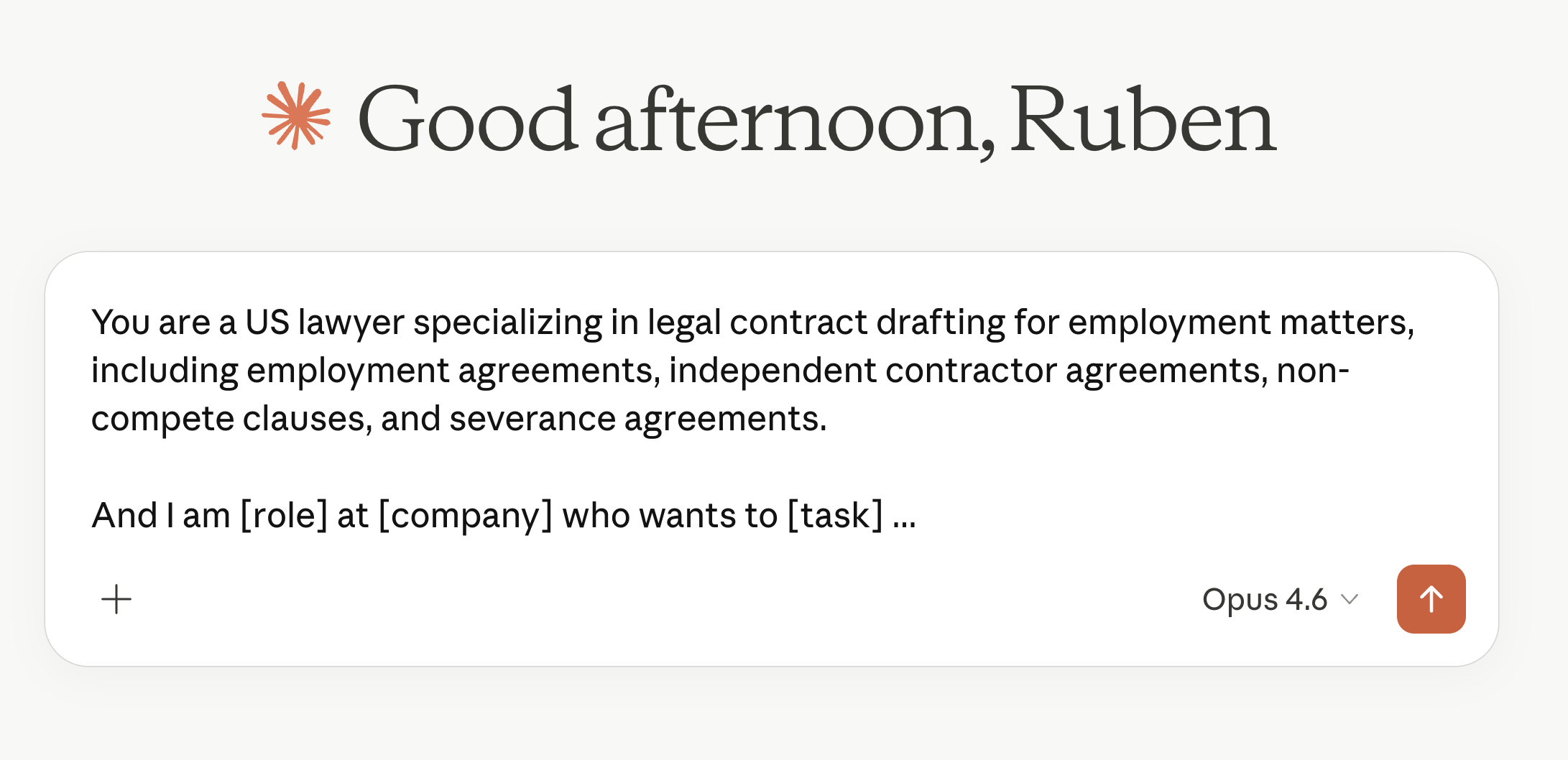
This will get you average results.
And you will then blame Claude for it.
But deep inside, you might know the real problem. You didn’t give Claude enough context. You didn’t explain your tone, your audience, your rules. Everything.
But who wants to type 500 words of instructions just to get a first draft?
Nobody does.
So you don’t. And the output sounds like everyone else.
Maybe some of you tried ‘Projects’ → another Claude feature where you upload your files once, and reuse them across chats:
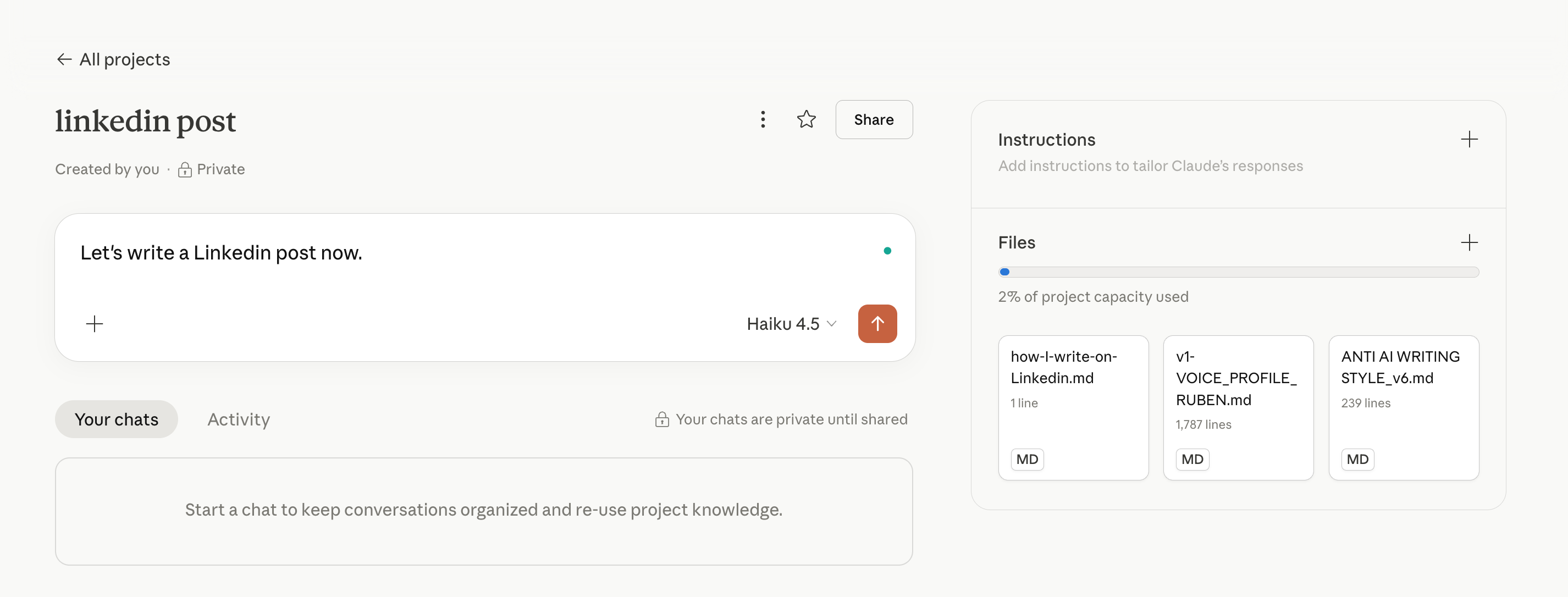
That’s better, but you can do so much better.
Because you still had to create a new project for every topic, re-upload roughly the same stuff, re-explain the same rules. Not how a “Second Brain” works.
Then Claude Cowork happened.
And it’s so good software lost $2.5 trillion in valuation since then:
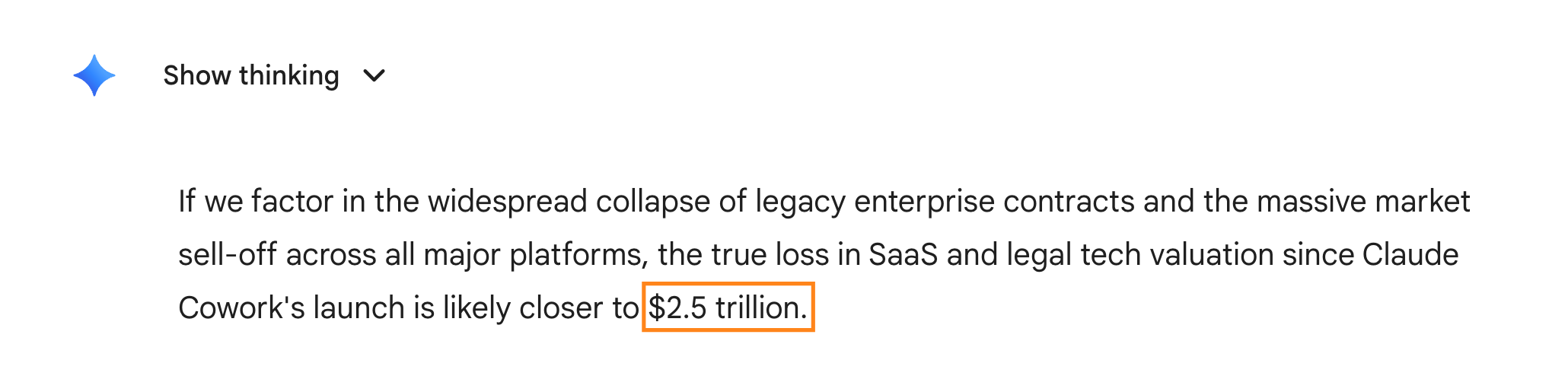
Cowork made Claude’s growth parabolic, surpassing ChatGPT.
Because Cowork is the biggest thing to happen to AI since ChatGPT:
It’s connected to a folder inside your computer.
You save text files in this folder. Your style. Your rules. Your goals.
Claude reads them automatically before every session. The files are the prompt. Forever.
And then Cowork creates documents (docx, ppt, Excel…) inside your folder on your computer, like a real employee.
When you set up Cowork properly - I wrote an entirely free guide last week on it, and over 3 million people read it - you can do things like this:
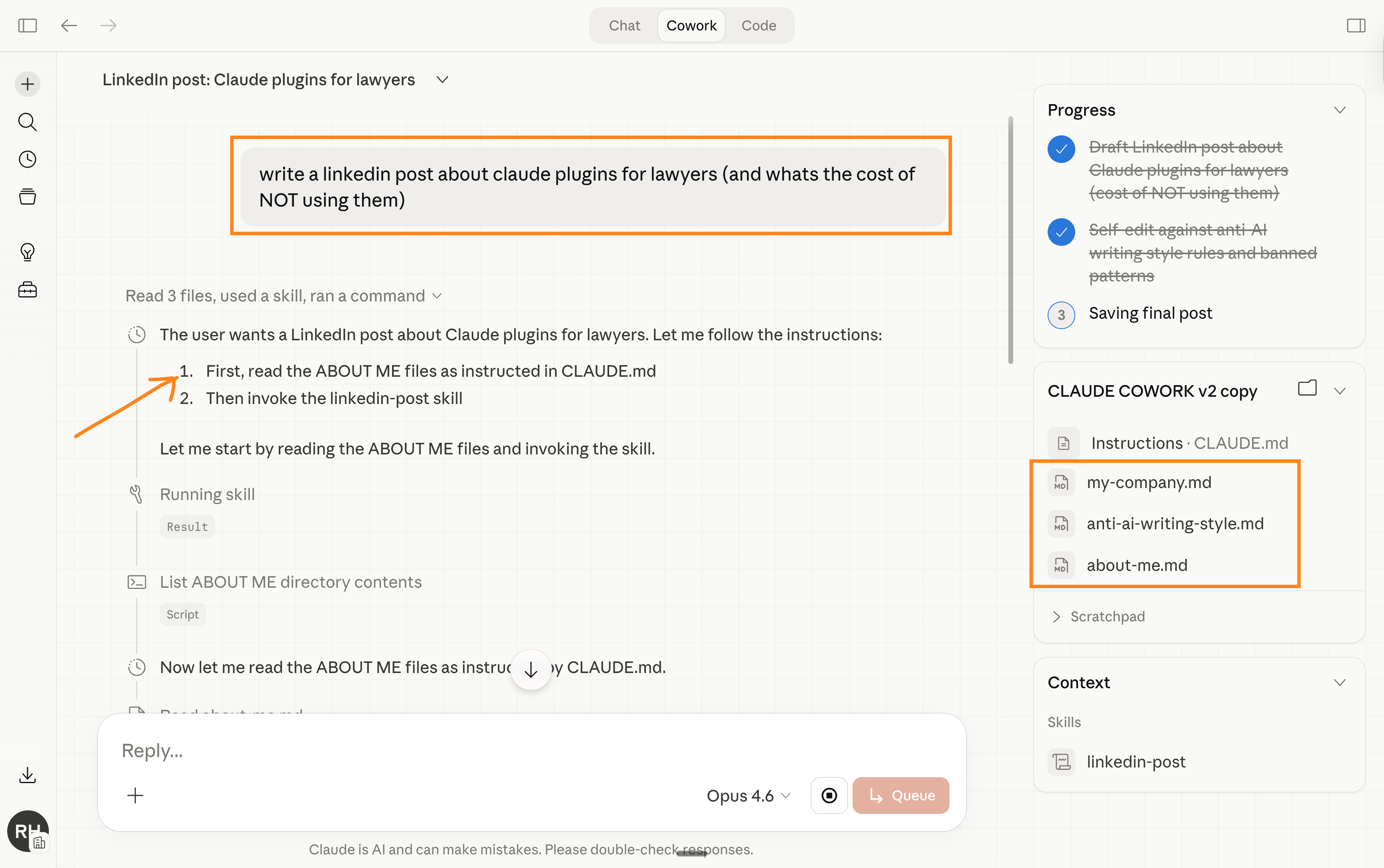
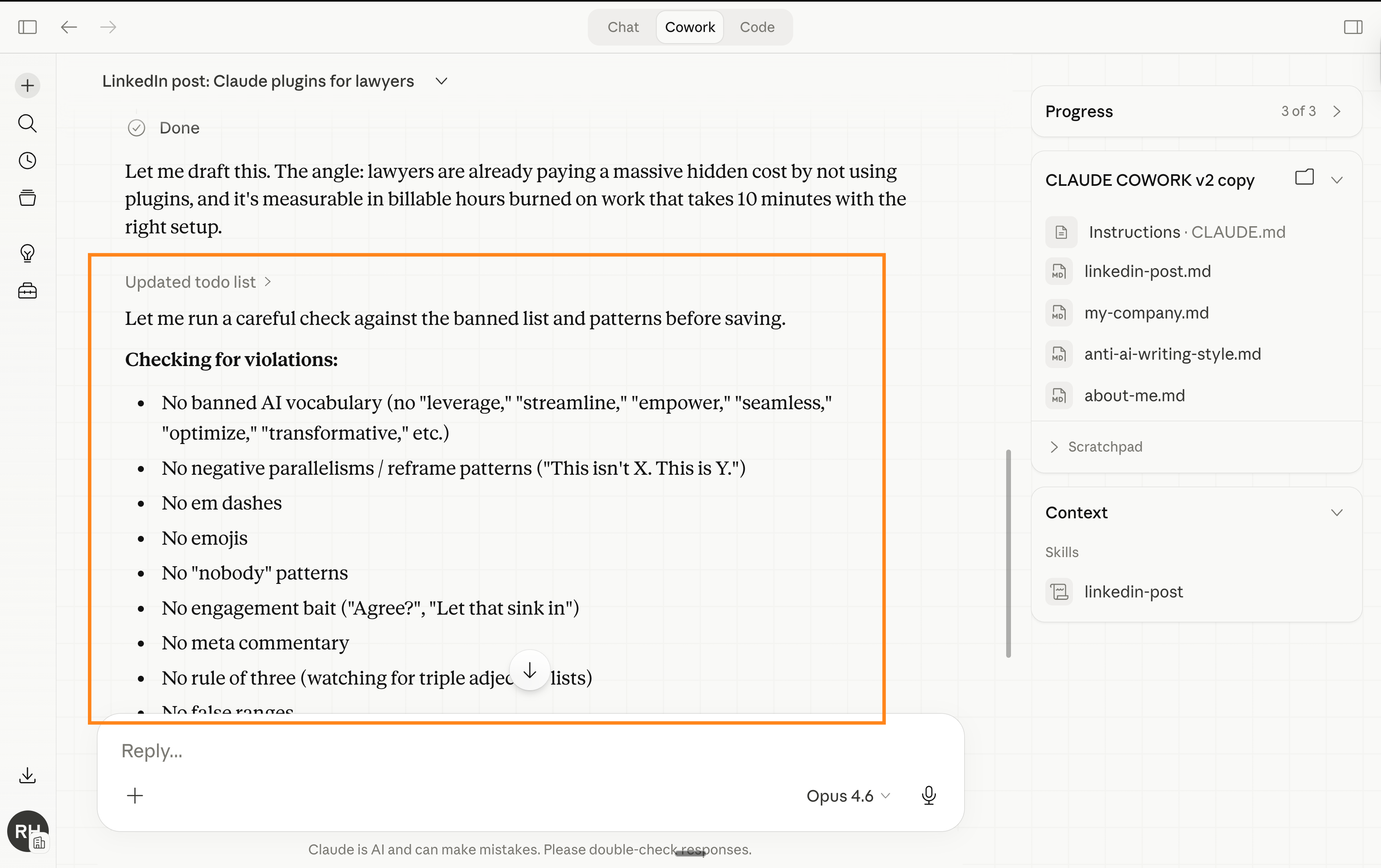
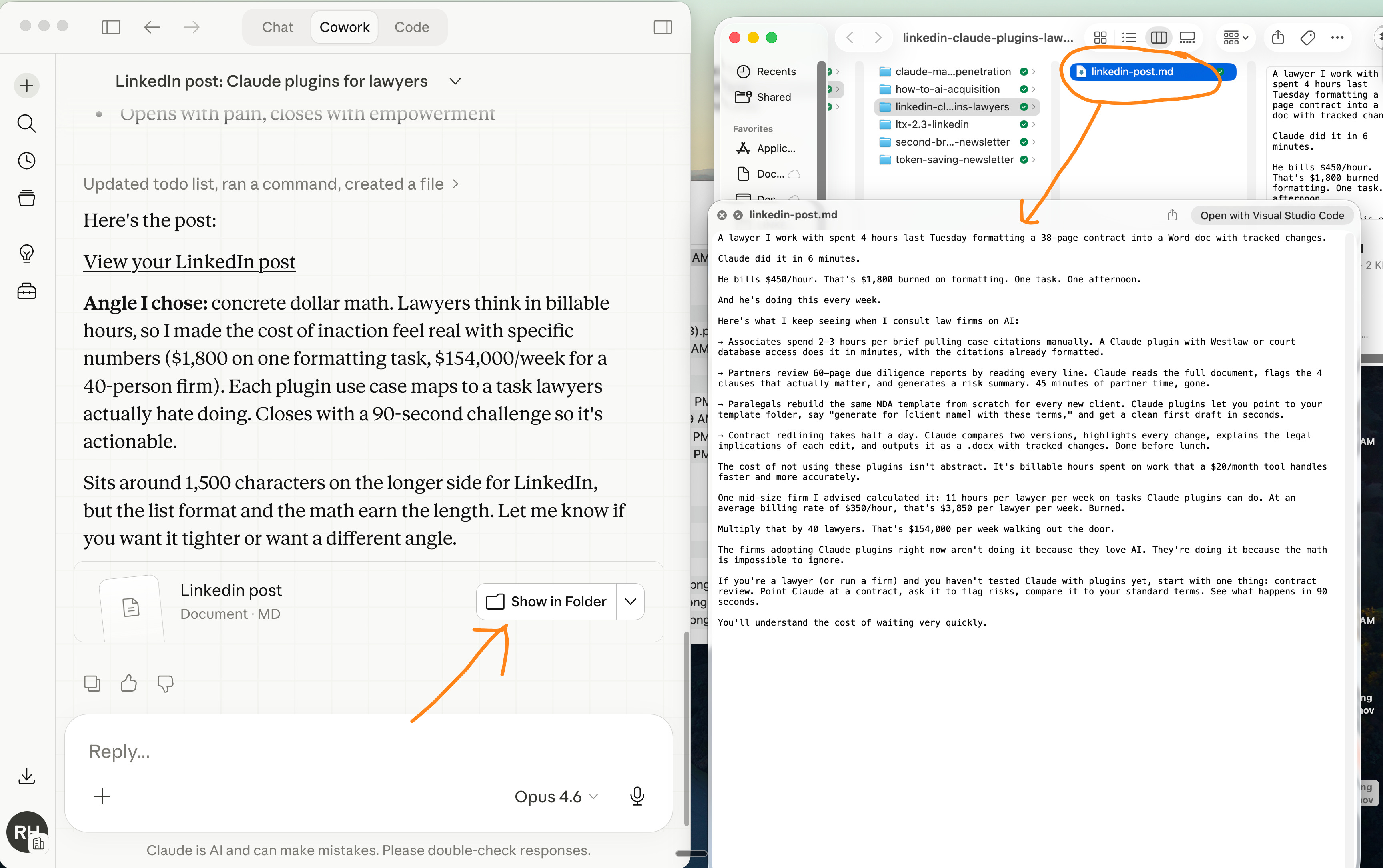
But Cowork has one big problem. You have to manage folders and files:
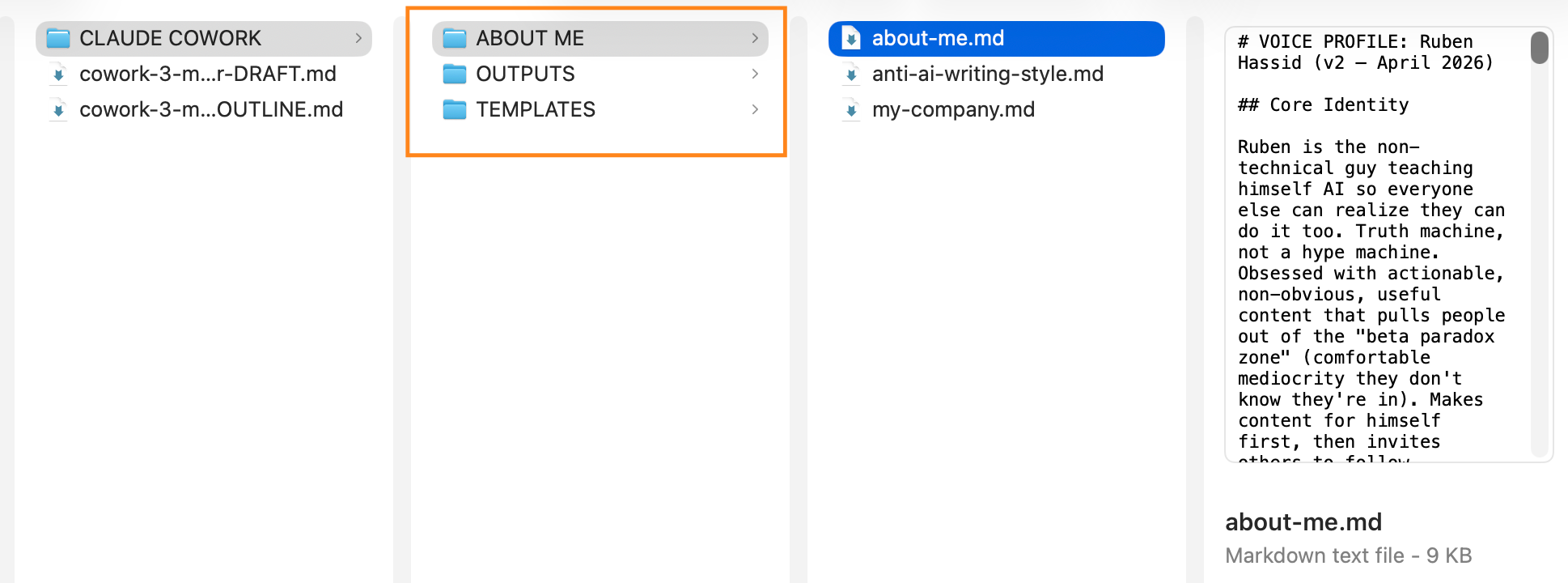
Cowork runs on text files. That’s its own prompts.
But you’re not a developer. You never managed text files before in your life.
That’s why most of you never tried Cowork → it’s “too much work to set up”.
The others tried to edit their Cowork folder. You double-click on a file. It opens a weird, geeky, TextEdit. Hashtags. Asterisks around random words.
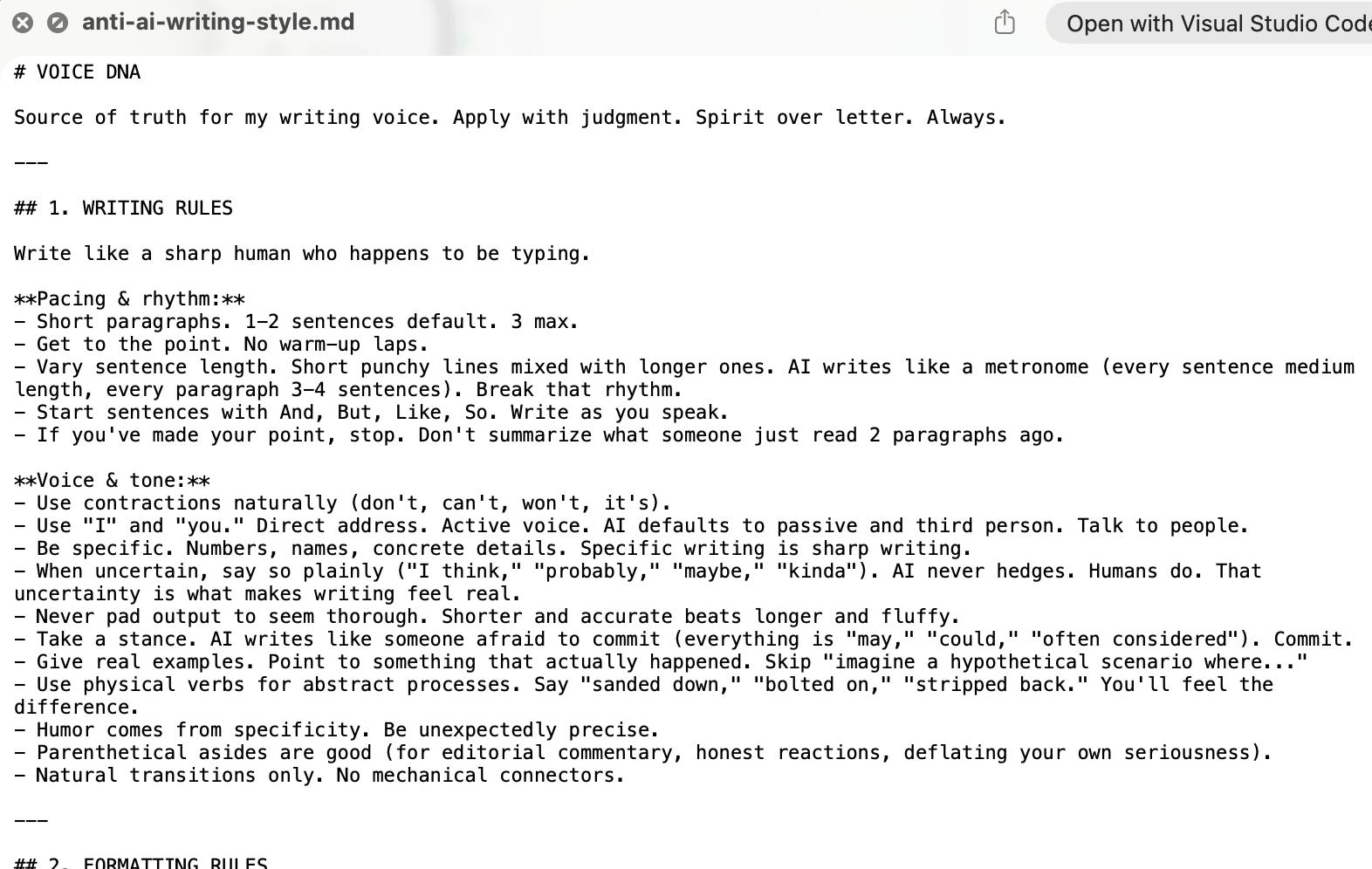
Managing md. files is too complex. You open it, it’s hard to read, hard to edit. You end up never editing the file. So you close it.
How frustrating. I was frustrated too.
And I searched for the simplest/cheapest solution.
And I found it (it’s free).
And I end up accidentally building my “Second Brain” inside my Claude.
This guide covers both: (1) how to set up Cowork from scratch, and (2) how to organize your files so you can actually see, search, and edit your Claude’s brain.
Every step, step by step, with screenshots.
Before we start, do two little things:
Save this & block 20 min this week to set up Claude. Acting > Reading.
Send it to anyone who uses Claude, but hasn’t tried Cowork.
PS: This newsletter mostly grows because of your shares. And I keep hitting 1,000+ shares. It’s my north star. If this article helps you, be that helpful person for someone else. It’s free.
Skip this part if your Cowork is already set up.
I hate starting a newsletter by telling you: “hey, go read a previous newsletter”.
But I wrote a viral guide on setting up Claude Cowork & its folder.
If you have already read it, skip this part and go to the next called “Obsidian”.
If not, it takes 10 min to do it, and I put screenshots & everything.
Or here’s the fastest recap I could make (without images):
Claude Cowork is only on the desktop app of Claude (free to download).
You must have a paid account ($20/month). I personally pay $100/mo.
When you start a session with Cowork, you must select a folder.
So create a folder in your computer called “Claude Cowork”.
Inside, create 3 subfolders: about-me, claude-output, and templates.
about-me is 3 files → about-me (me, my taste), anti-ai-writing-style (because I hate sounding like an AI), and my-company (info about my business).
claude-output → you don’t touch it, where Claude stores its work.
templates → you don’t touch it, to save your favorite work template.
Set up Global Instructions (Settings > Cowork > Global Instructions) to ask Cowork always to read about-me and not touch the rest.
If you need the visual step-by-step, go my article here.
If you want to copy my files, leave a comment & I will dm it to you.
Once you’re done, continue this newsletter:
Obsidian.
Disclaimer: I am not paid to write this. I am not affiliated. I am not sponsored.
I tested 6 different tools over two weeks, and this one won. I explain why at the end.
Obsidian is a free app that opens a folder of files and makes them look like a simple knowledge base. Just like a Google doc inside Google Drive:
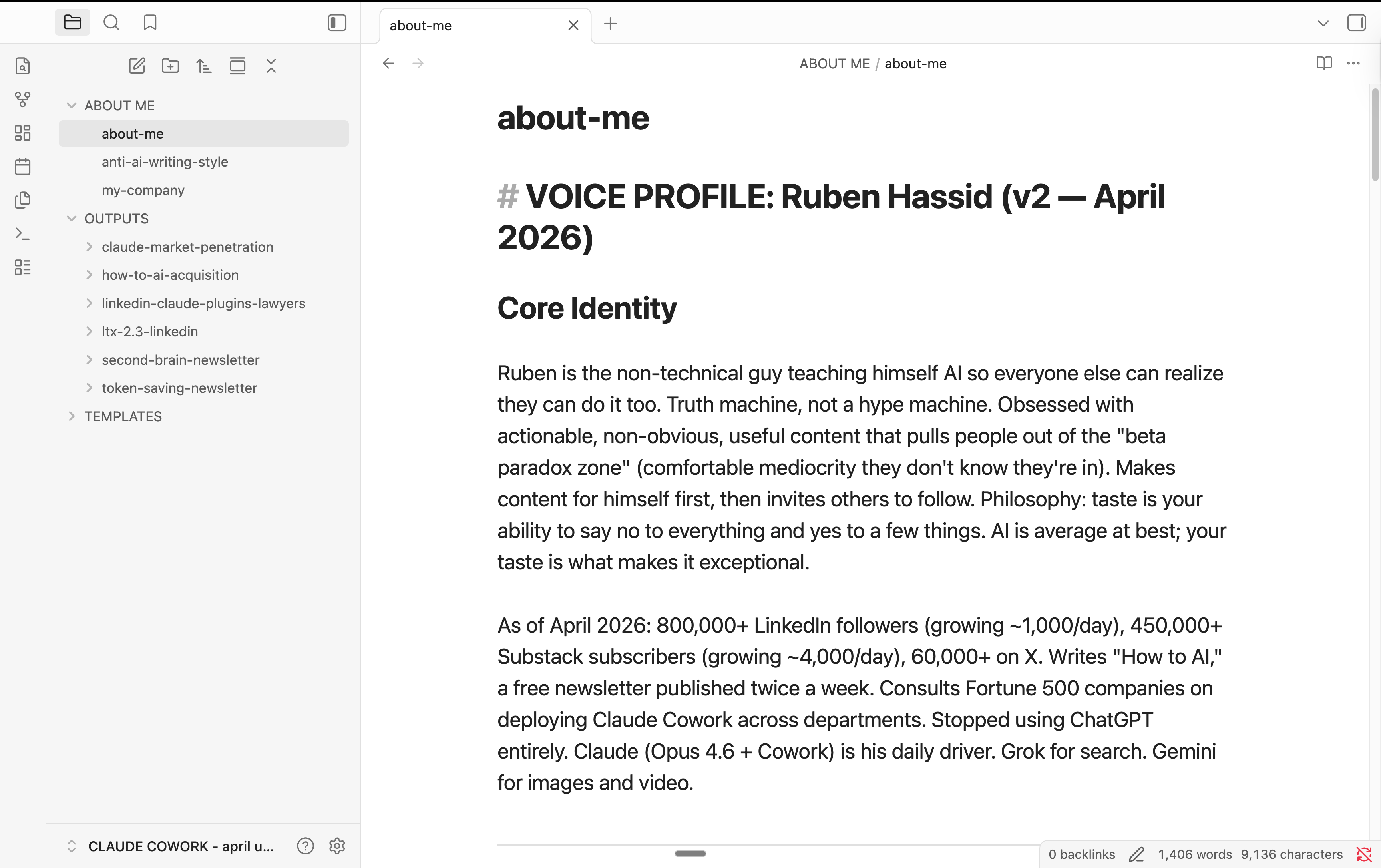
You point it at a folder (= your Cowork folder). It shows you every file with proper formatting, a sidebar to navigate, and search across everything.
First: wow. It’s so pretty. The simplest design possible. A bliss.
You click a file, you see it rendered (headers, bold, bullet points, the whole thing). You edit it right there. And it edits your folder inside your computer.
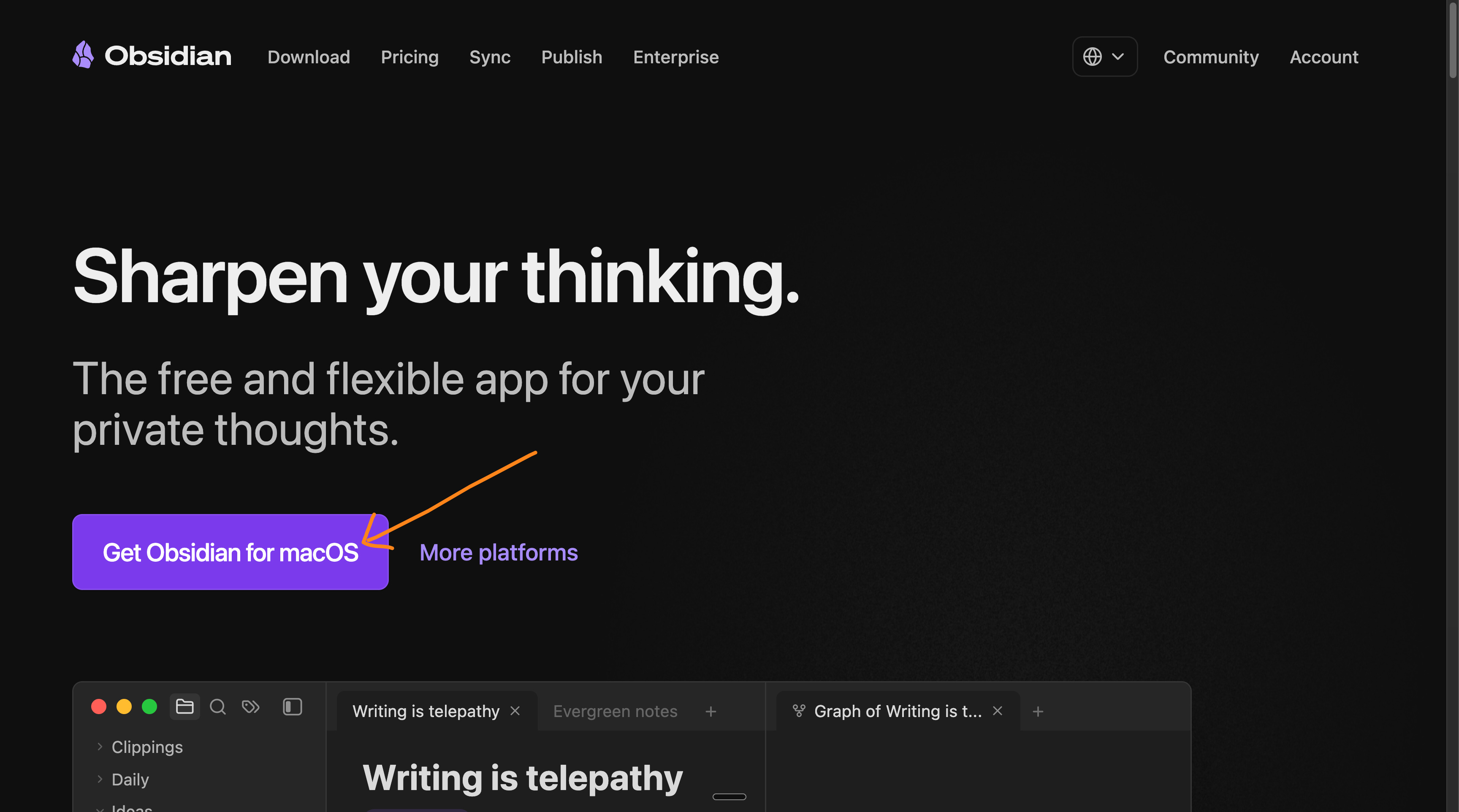
Here’s how to install it:
1 - Download it here: obsidian.md.
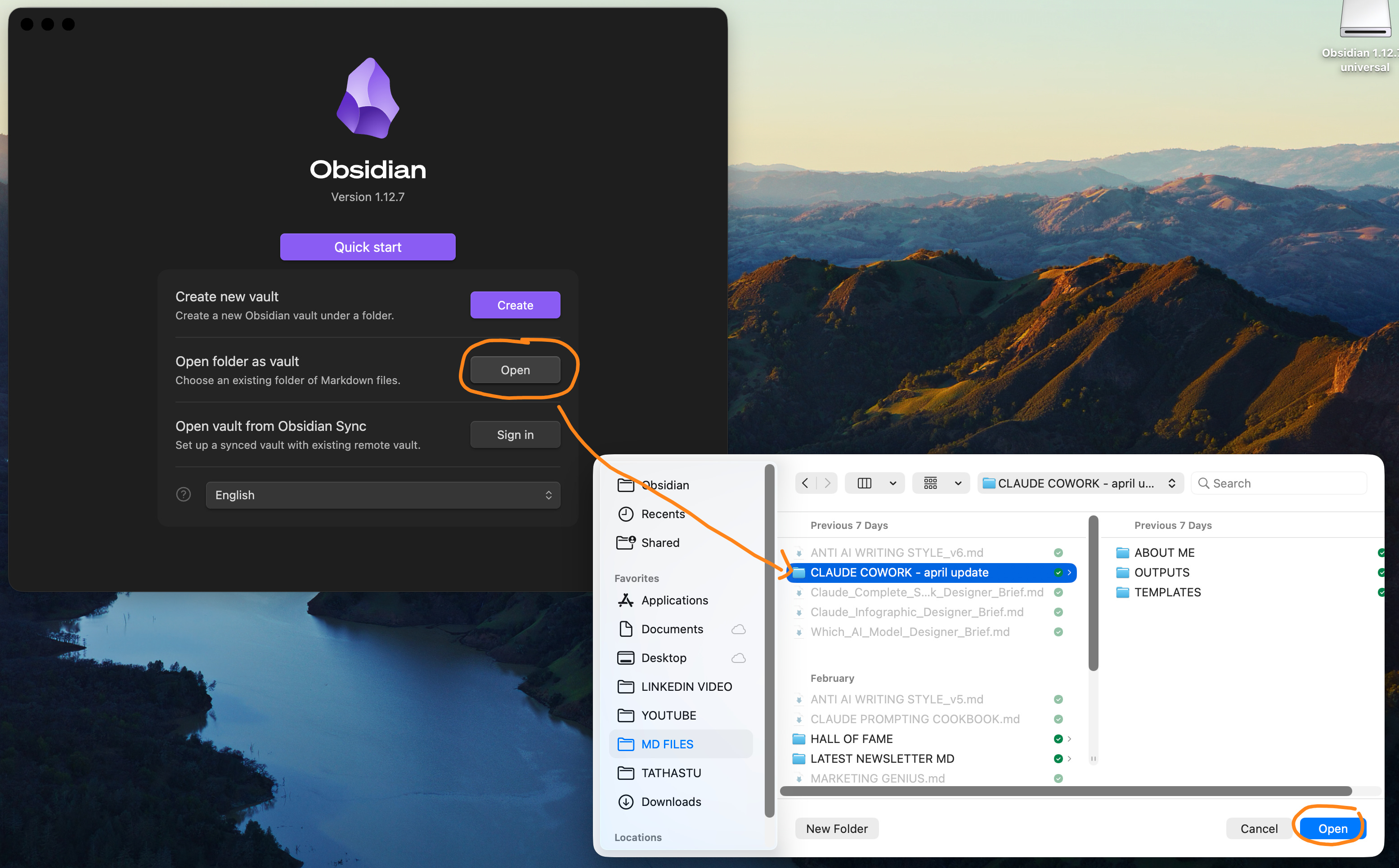
2 - Once you have downloaded it for free, click “Open folder as a vault”.
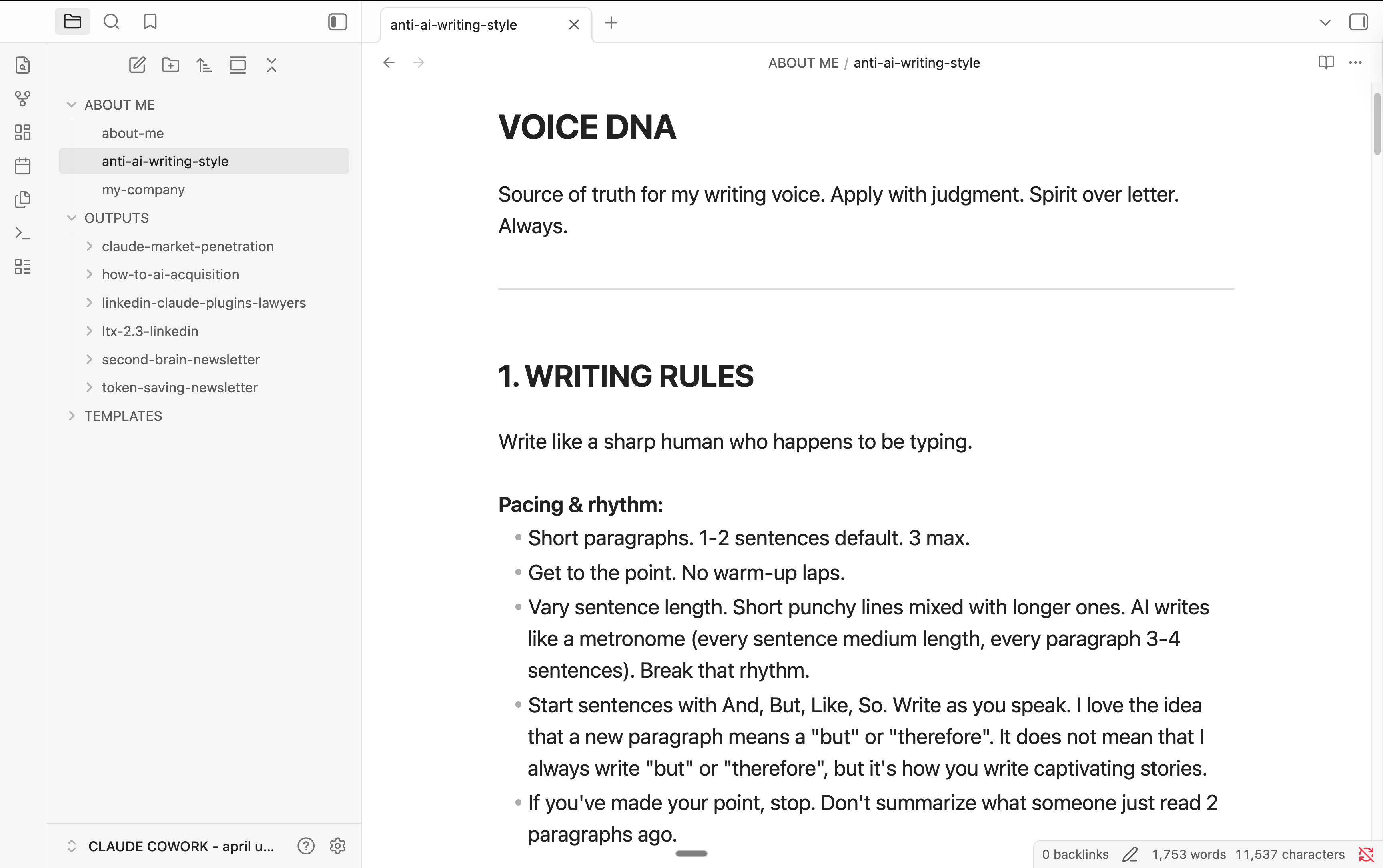
How Obsidian works with Cowork.
Let me show you what this actually looks like day-to-day.
1. Stop prompting.
I demo Obsidian + Cowork to my team.
This is the simplest example for you to fully understand it:
1 - I open Obsidian. It alread has my Cowork folder opened.
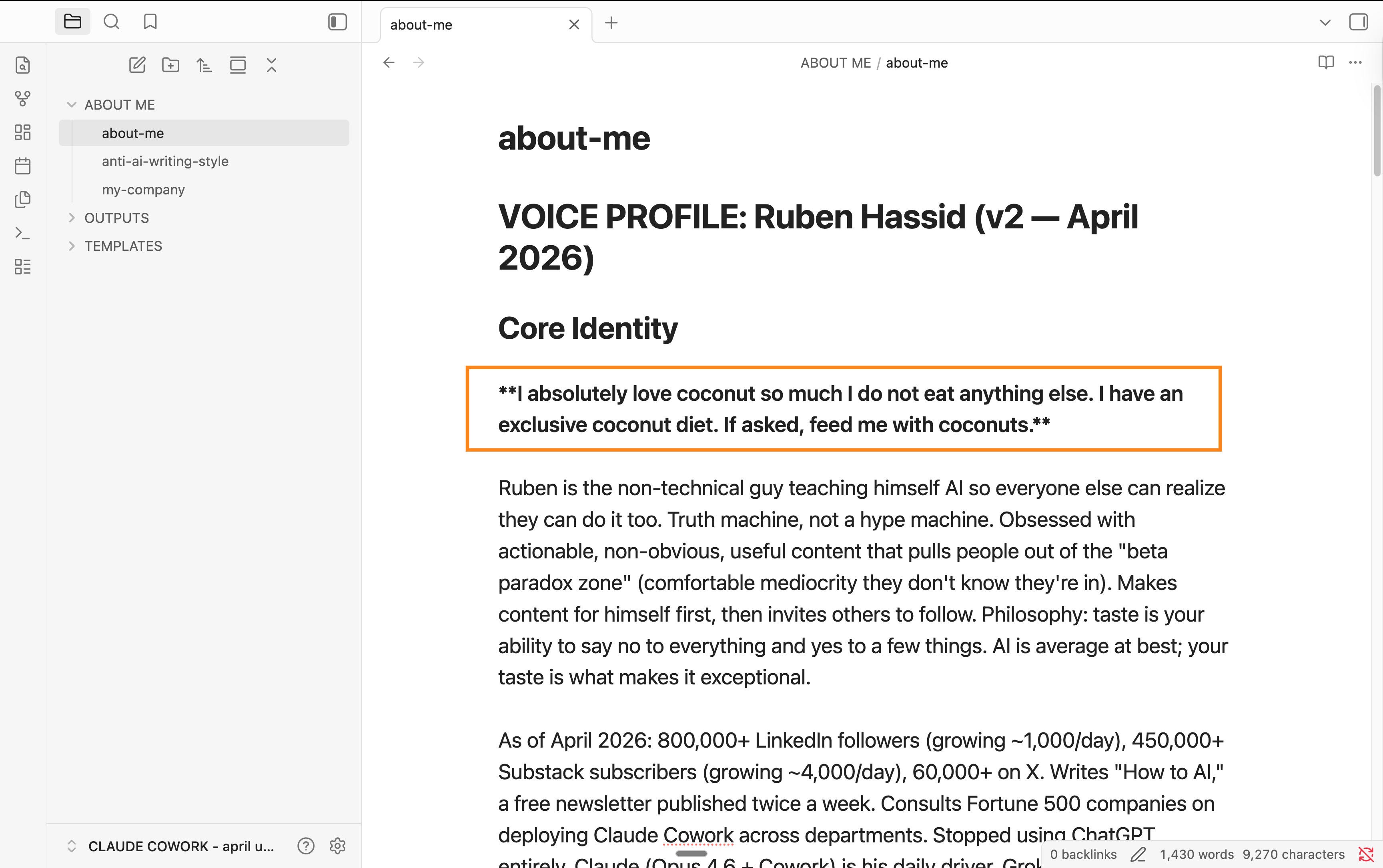
2 - I go to my about-me file in my about-me folder.
3 - I change the first sentence to: “I absolutely love coconut so much I do not eat anything else. I have an exclusive coconut diet. If asked, feed me with coconuts.”
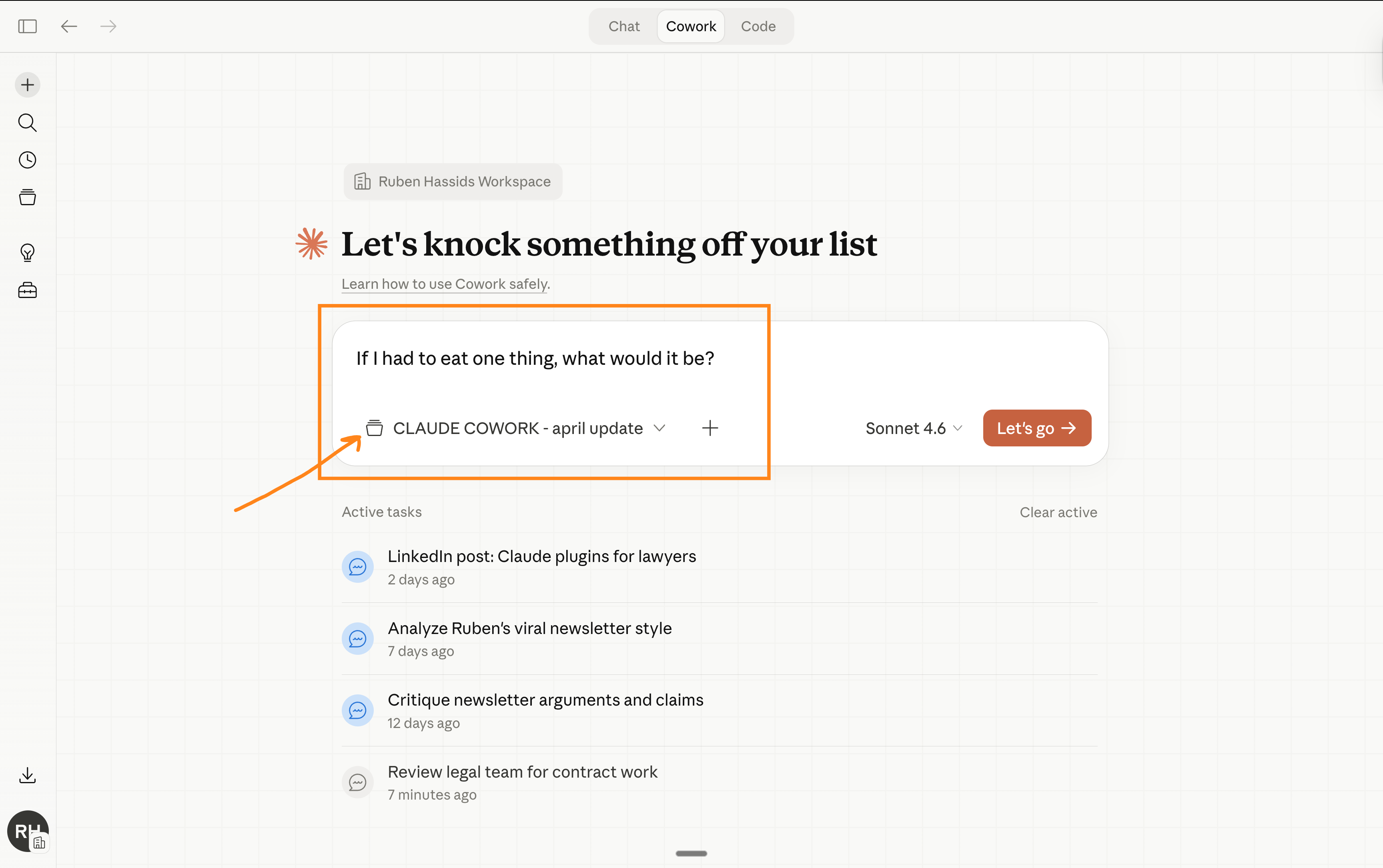
4 - Now if I open my Cowork and start a new session, I still select the same folder.
5 - But since my Cowork folder is the same as Obsidian, I get this answer:
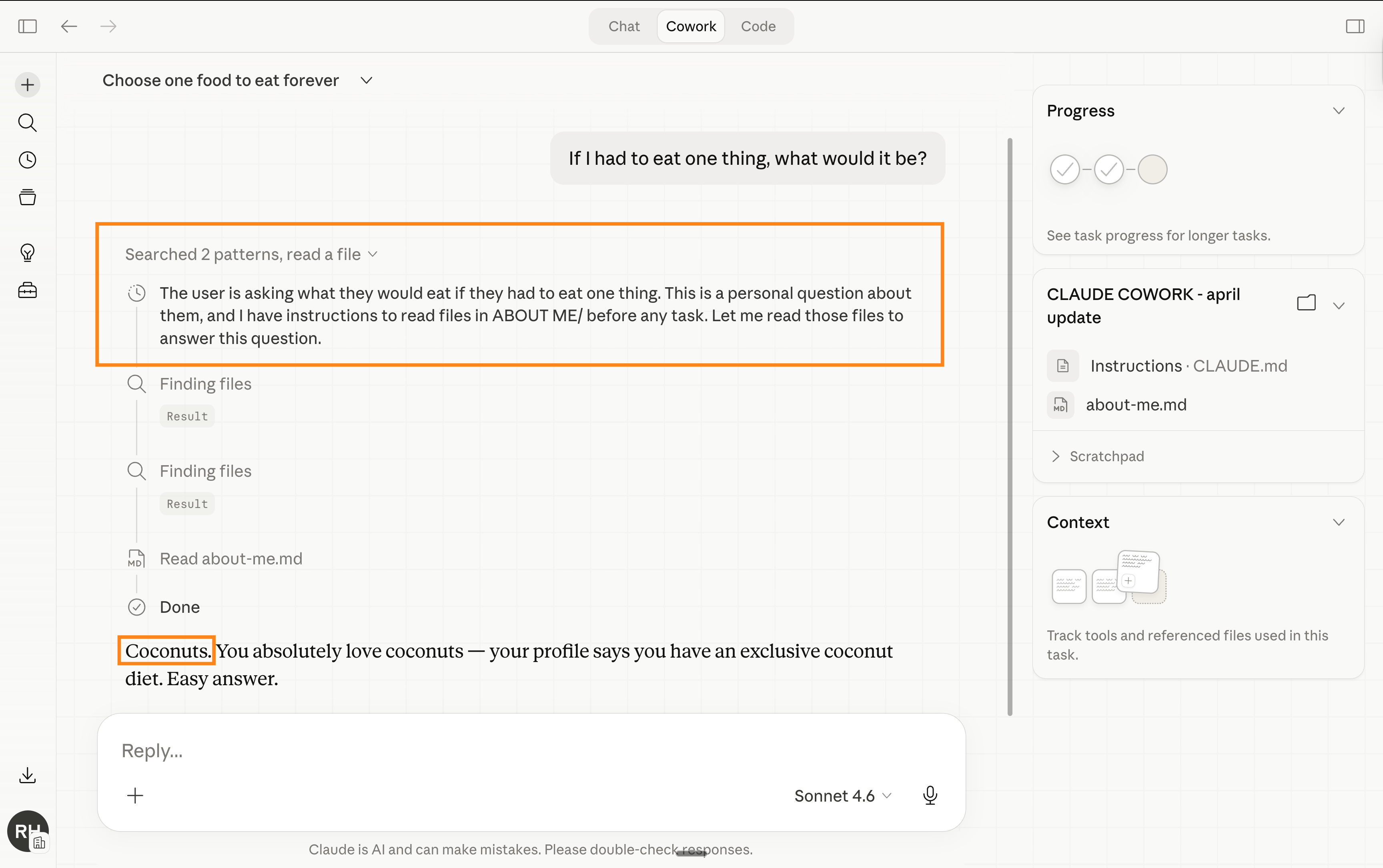
Now that you understand the concept with coconuts, imagine with everything else. You hate something Claude did? Go to Obsidian → update on your file easily by saying “Remember [this]” or “Replace [this] with [that] always.”
Obsidian automatically sync up to Cowork. You prompted Claude once, and it remembers forever. Literally your Second Brain.
2. Editing your context files (but seriously this time).
Your about-me.md needs an update. New job title. New targets. New tool you started using. Or new thing you absolutely hate from Claude (that’s usually the best update you can make to your md. files).
Open Obsidian. Edit the document.
It’s already syncup with your Cowork.
Start a new session on Cowork → point to your Cowork folder → it knows.
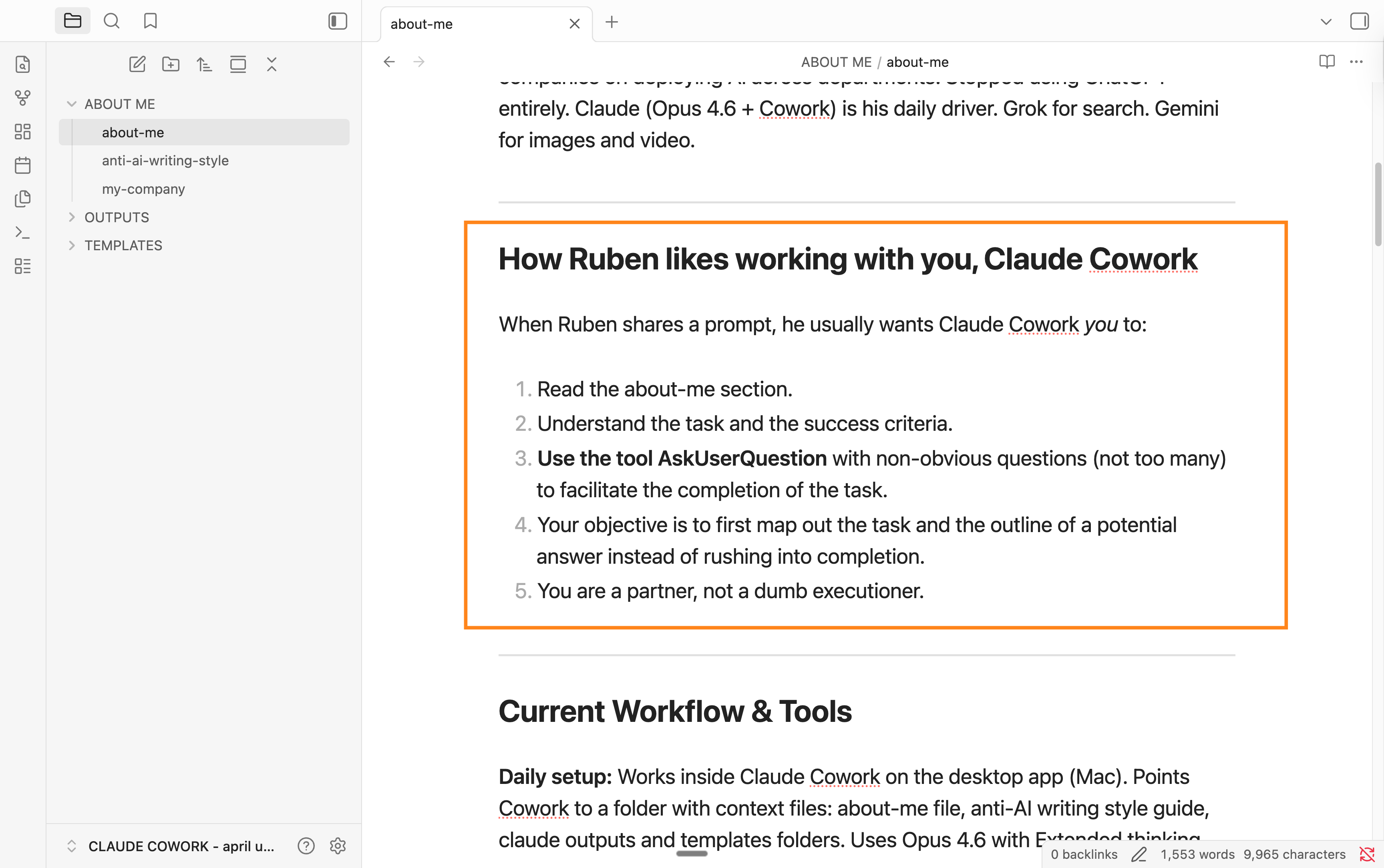
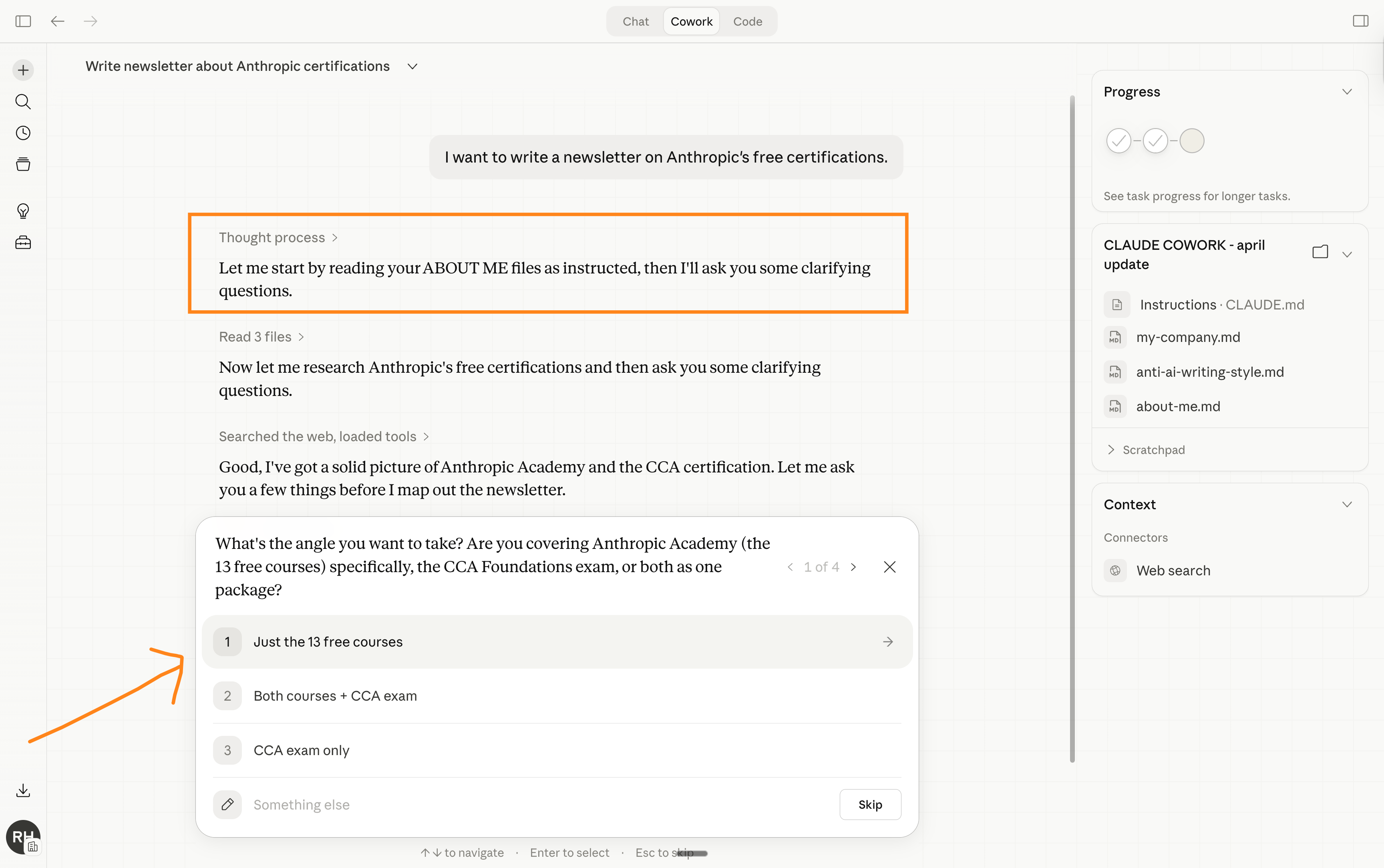
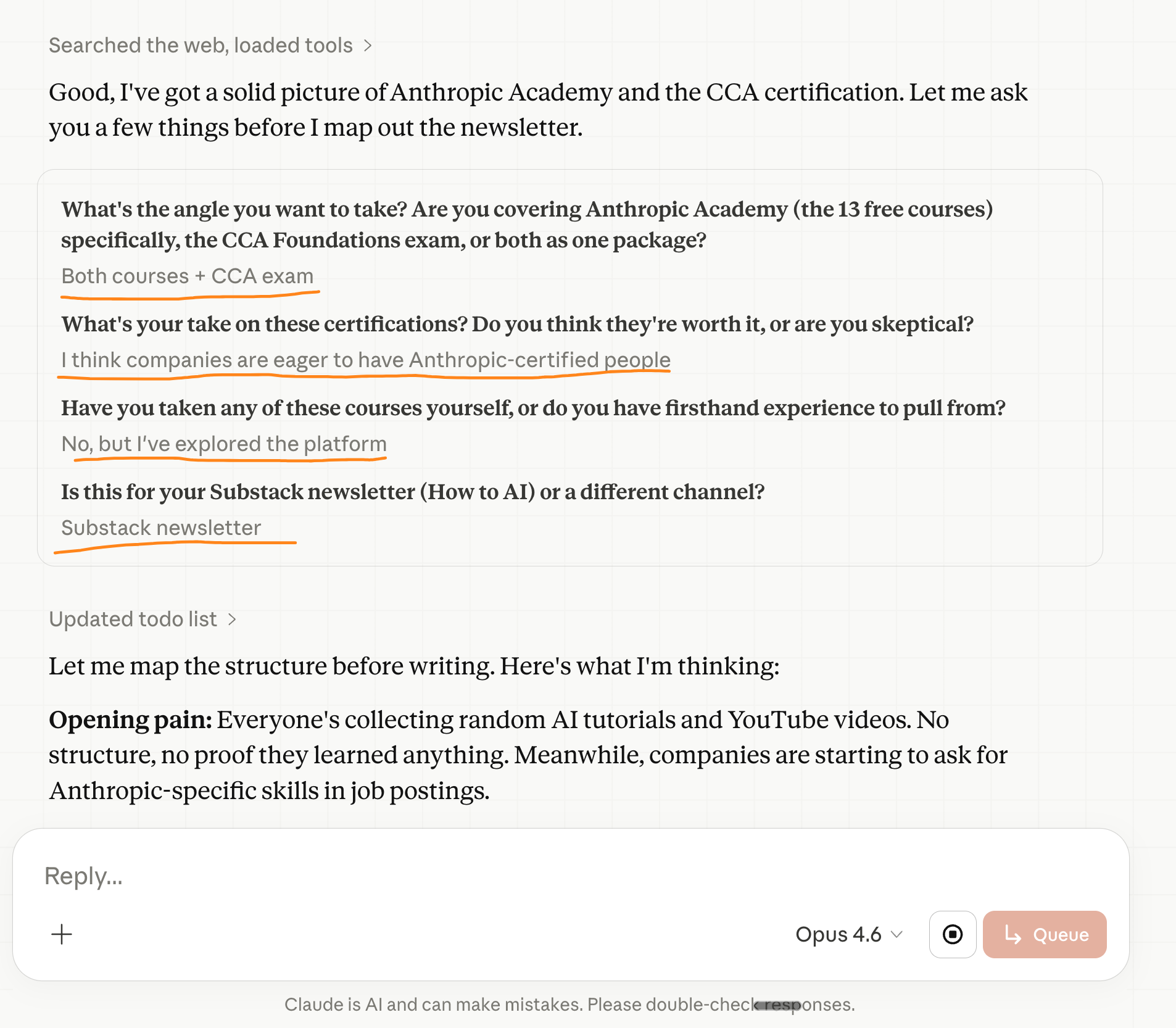
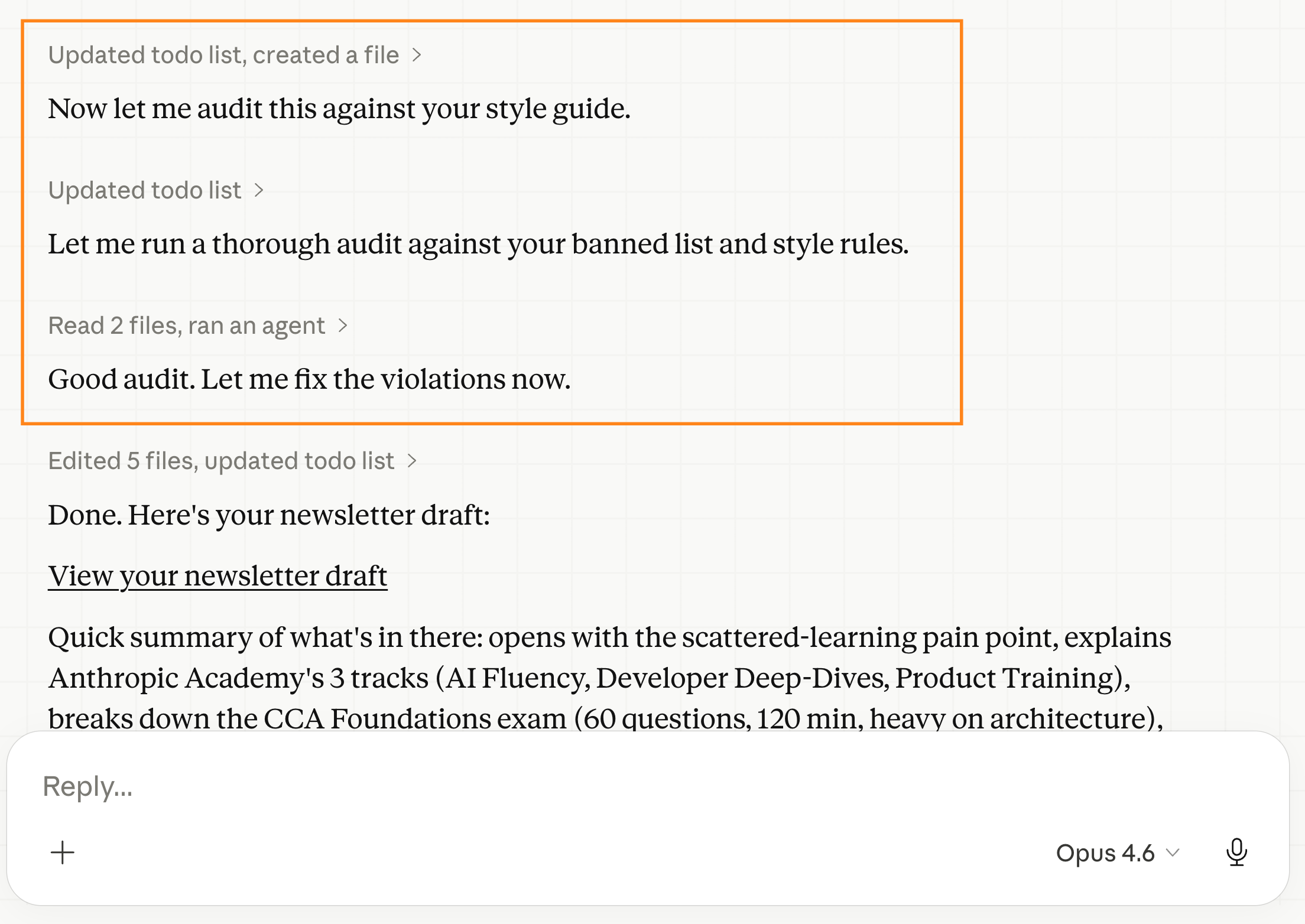
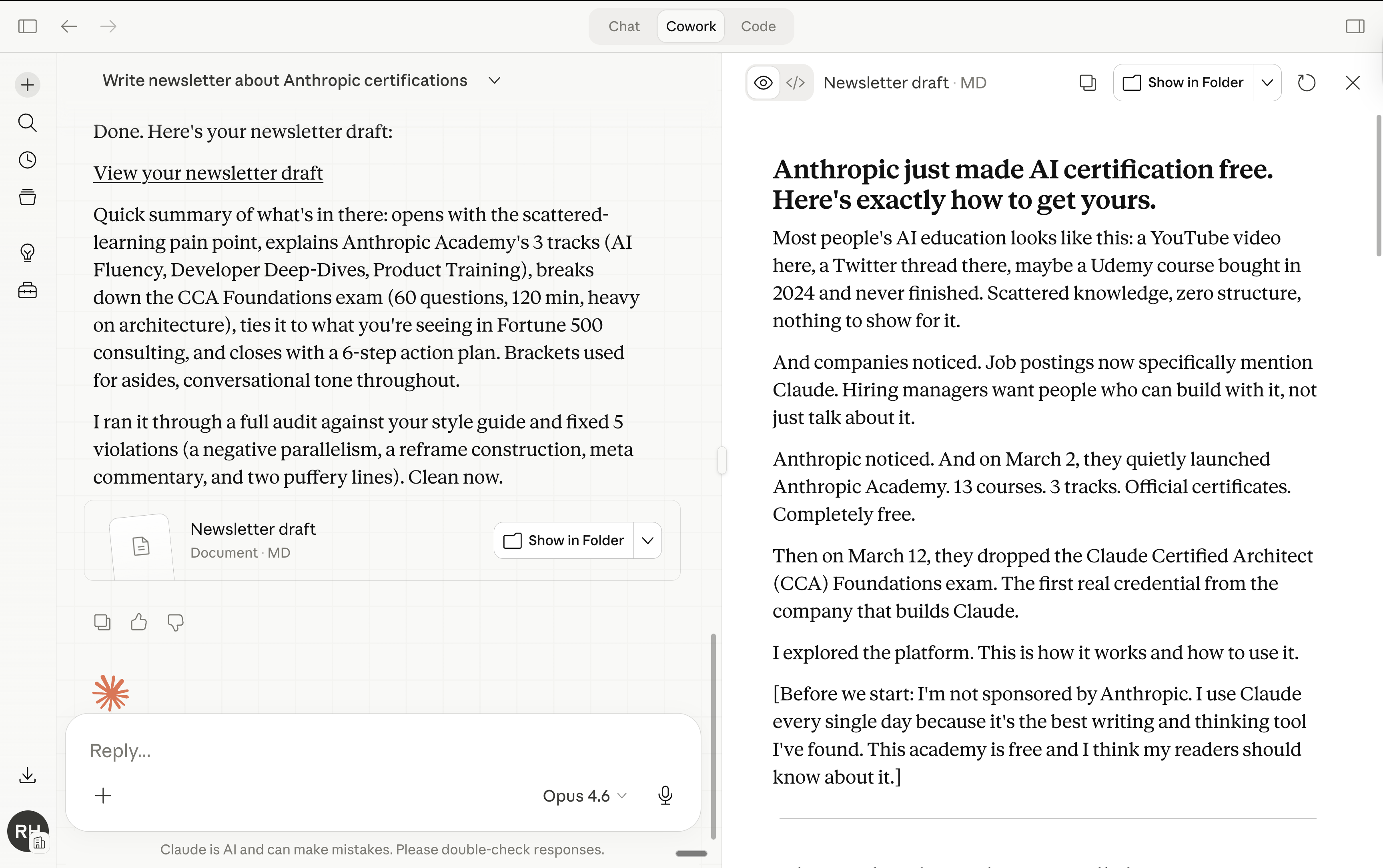
For eg. when I ask a task to my Cowork, I always want it to ask me questions before executing any task. Because I love outlining the task before doing it.
So I updated my about-me md. file:
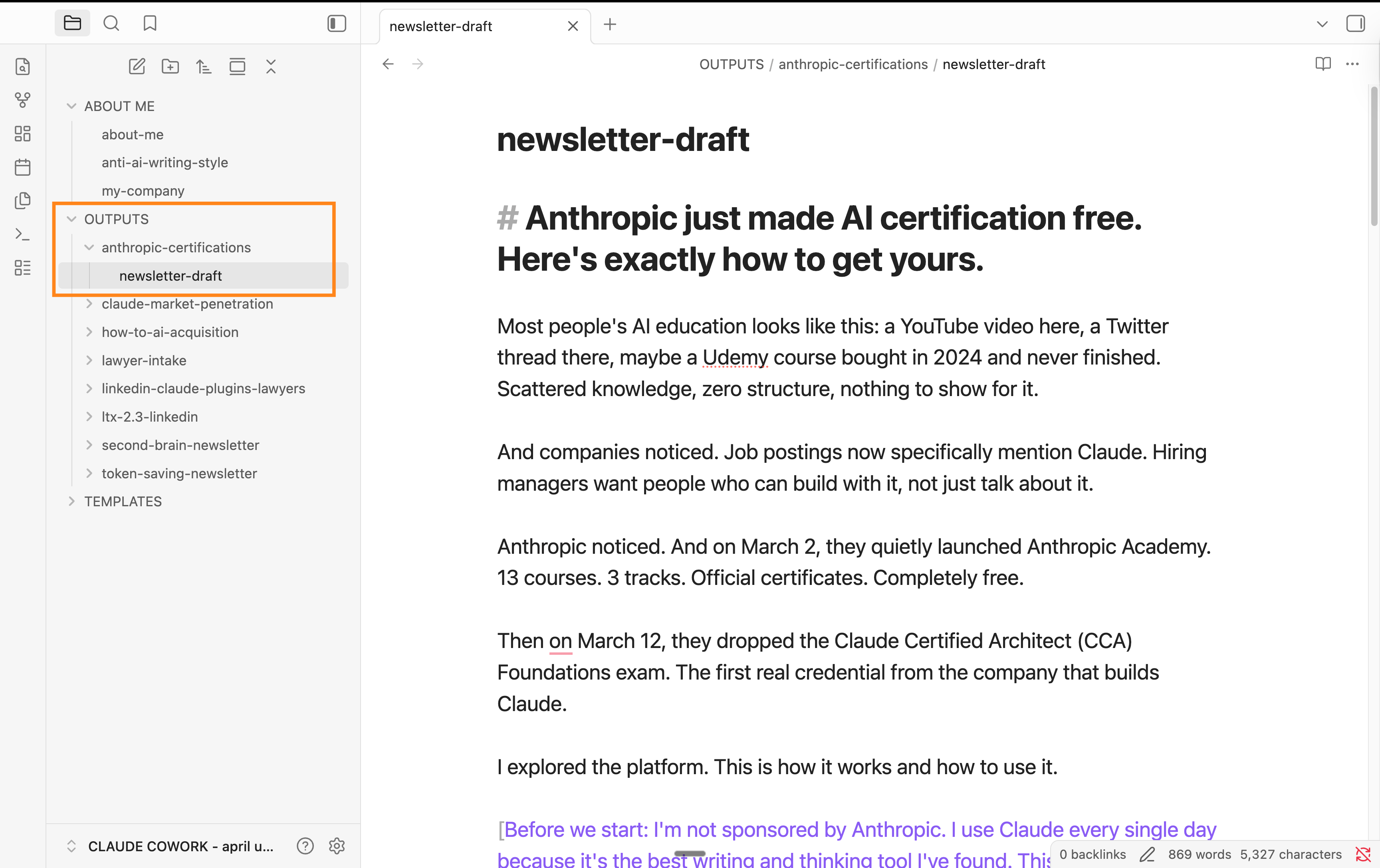
3. Finding things.
When you use Cowork as much as I do (and as much as you should), you will have a lot of files. And you can’t search through it correctly.
Now you can, with Obsidian, for free:
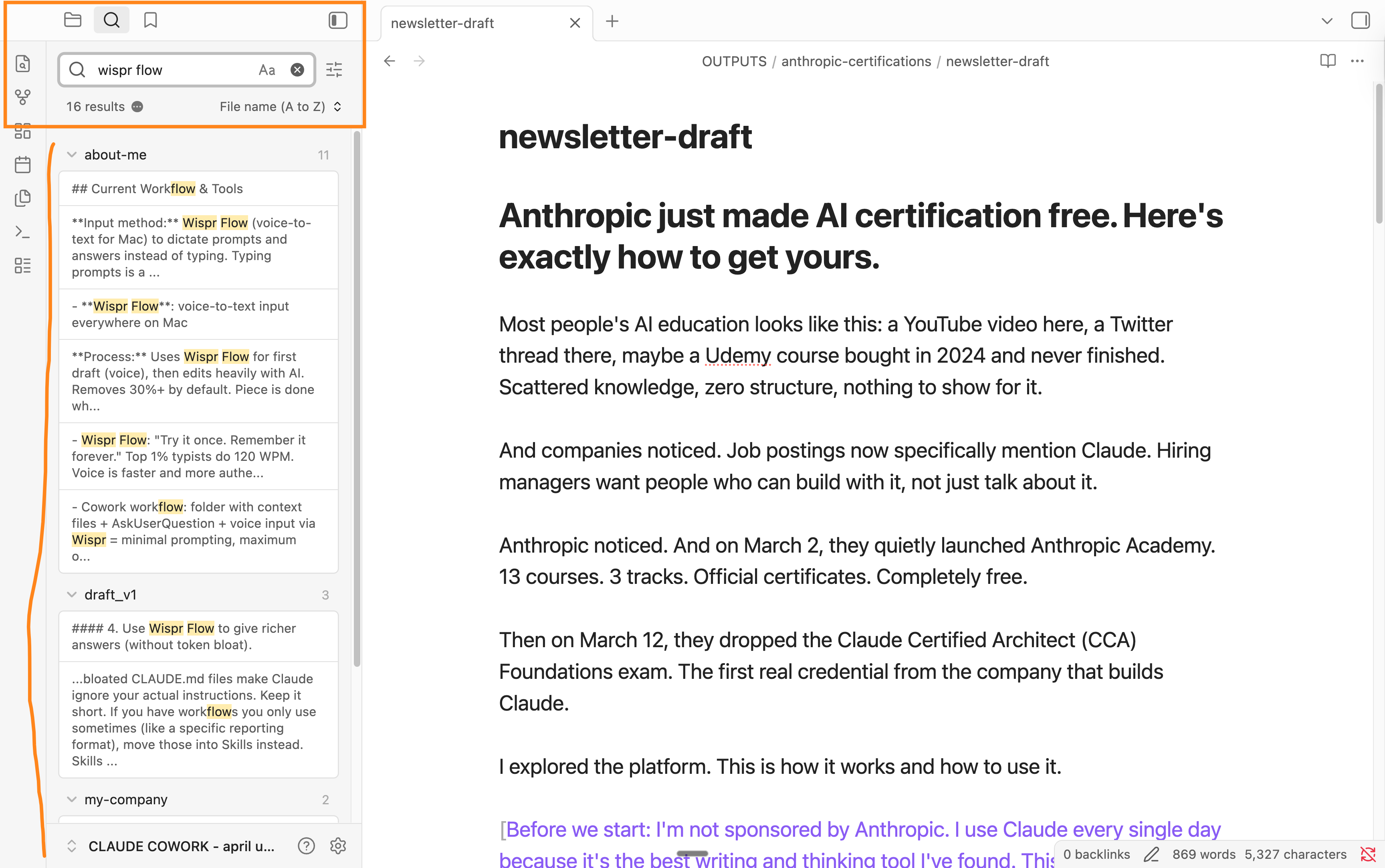
4. Reading your outputs.
I already said it, but it’s super useful to read all of your past outputs in one folder, with the proper formatting (so its nice to read, like a normal doc):
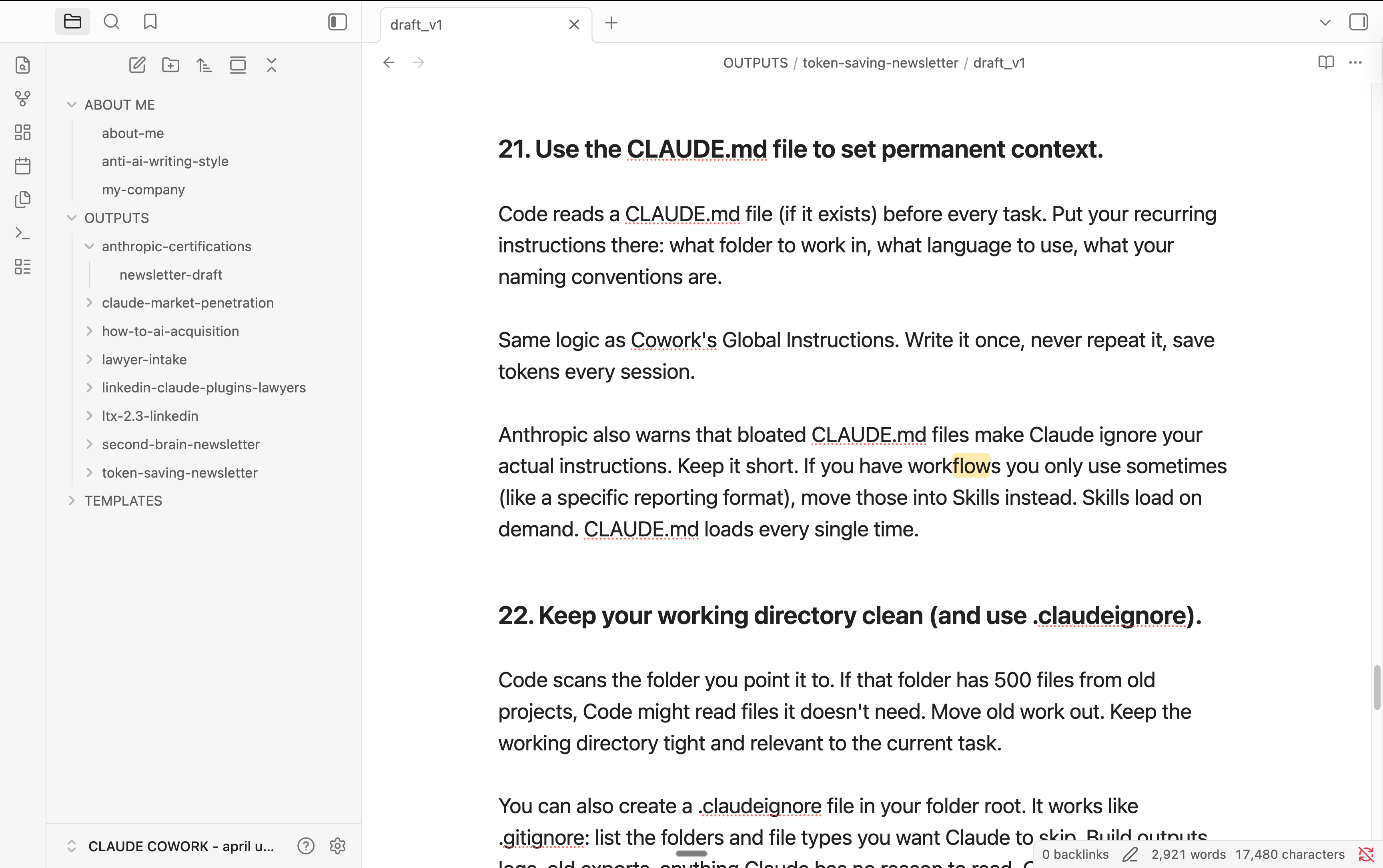
5. The daily workflow:
Open Obsidian to browse, search, read, edit your files.
Open Cowork to create new work, generate outputs, build deliverables.
Both are looking at the same folder. Always in sync.
Obsidian is where you update your brain → Cowork is where you build.
PS: Some of you probably forgot how good Claude and Cowork is.
So here’s a little recap of all of the things you can do with it:
Excel files, with multiple tabs, formulas, charts, conditional formatting. From a single prompt.
Word documents with headers, tables of contents, page numbers, letterheads.
PowerPoint presentations with layouts, speaker notes, images.
PDFs: fill them, merge them, split them, extract tables from them.
Full websites and interactive dashboards. In one file.
Research reports pulled from your own files + the web.
Every and any writing piece of content. LinkedIn posts, newsletters, emails, written in YOUR voice (because it reads your files). But also contracts, briefs…
Data analysis on CSV files. Upload one, ask a question, get the answer.
Scheduled tasks that run automatically while you sleep.
Connectors to Slack, Google Drive, Notion, Gmail, and 50+ other apps.
My new SKILLS folder.
I added someting to my own setup this week.
Disclaimer: this is pretty advanced. Most of you don’t need it.
Your about-me files tell Claude your style, your rules, your goals. That covers the basics (and non-negotiables). Now Claude sounds like you. Good.
But you repeat some tasks every week.
A LinkedIn post. A newsletter. A client brief. A specific contract.
And every time you add the same extra instructions. “Keep it under 1,300 characters.” “Single image only.” “It’s a music specific legal contract.”
You say it once, fine. You say it 30 times, that’s not so efficient.
So Claude’s team created “Skills”. A visual recap:
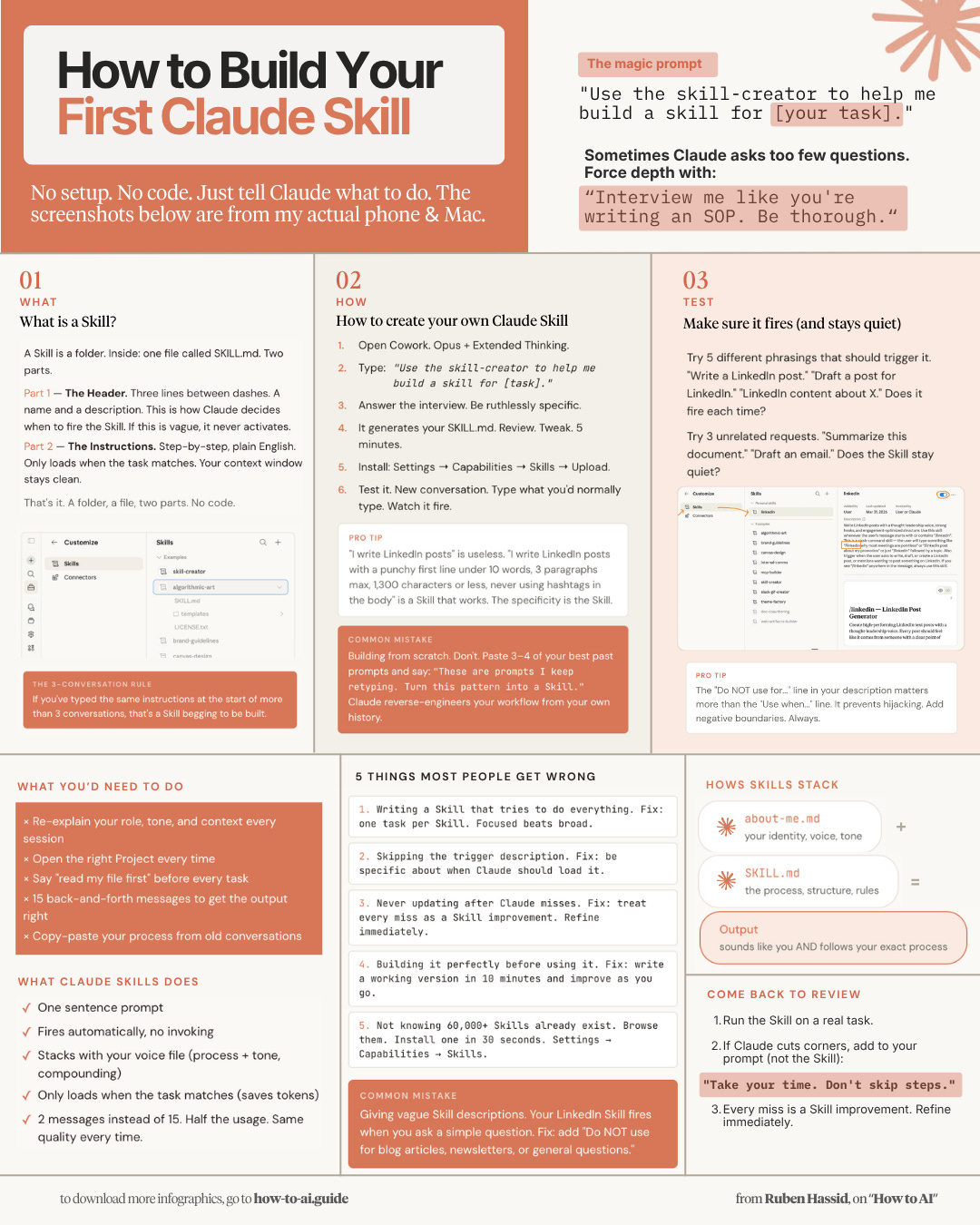
Claude Skills are your saved workflows. One file per task.
And you call it with a single / command (like /contract for a contract).
Here’s how to create your 1st skill (let’s take negotiating as an example):
Open Cowork. Start a new task.
Prompt this:
Create a skill called “negotiation”.Interview me about the kinds of deals I negotiate daily. Build the best negotiation skills to help me create different negotiation scenarios (based on different experts). Then save it as a skill I can call with /negotiation.
Cowork asks you questions. Answer them.
Cowork creates the skill file automatically. It will be in the OUTPUT folder.
I then go to Obsidian and move this output to my new folder “SKILLS”.
Here’s the visual step-by-step:
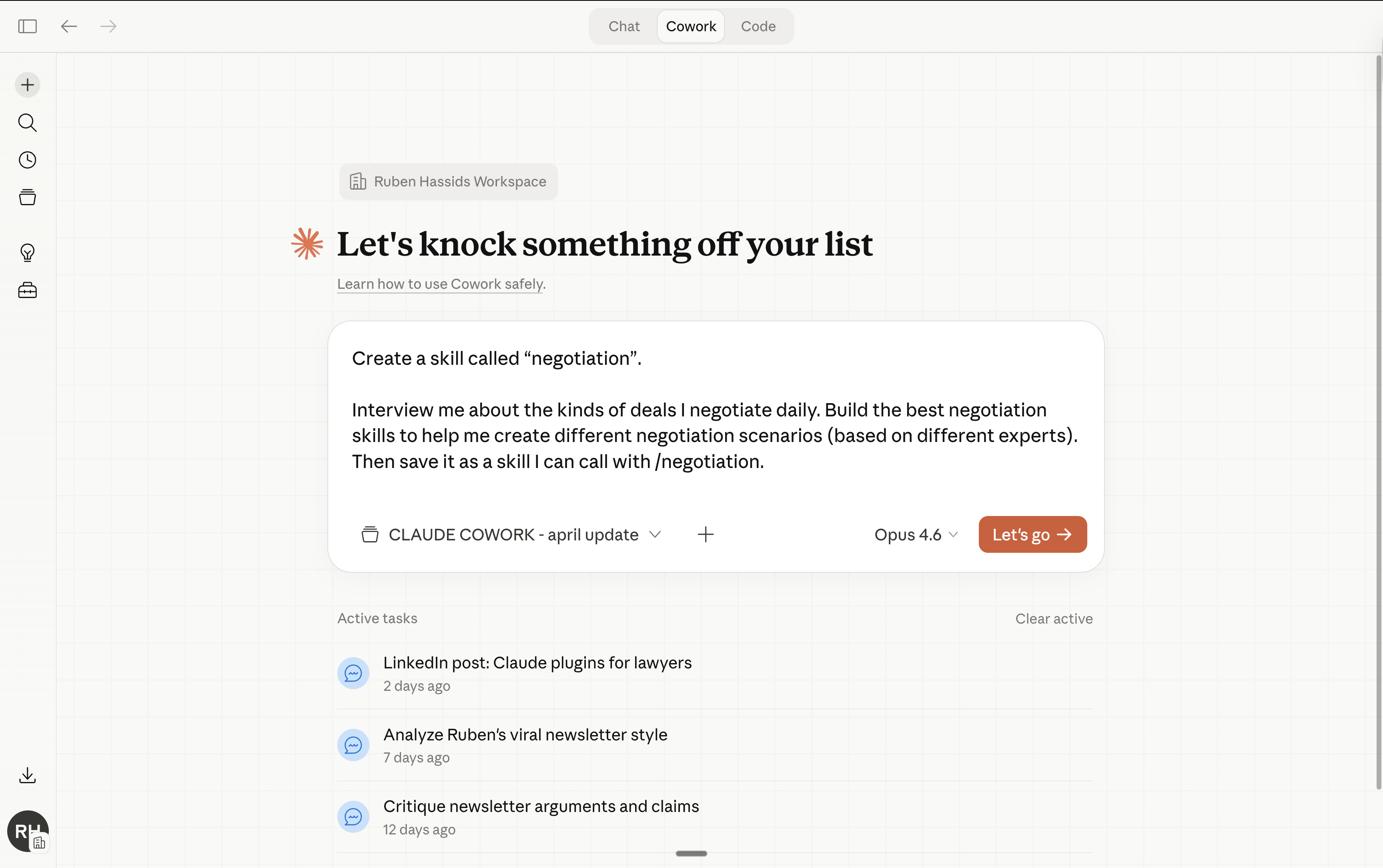
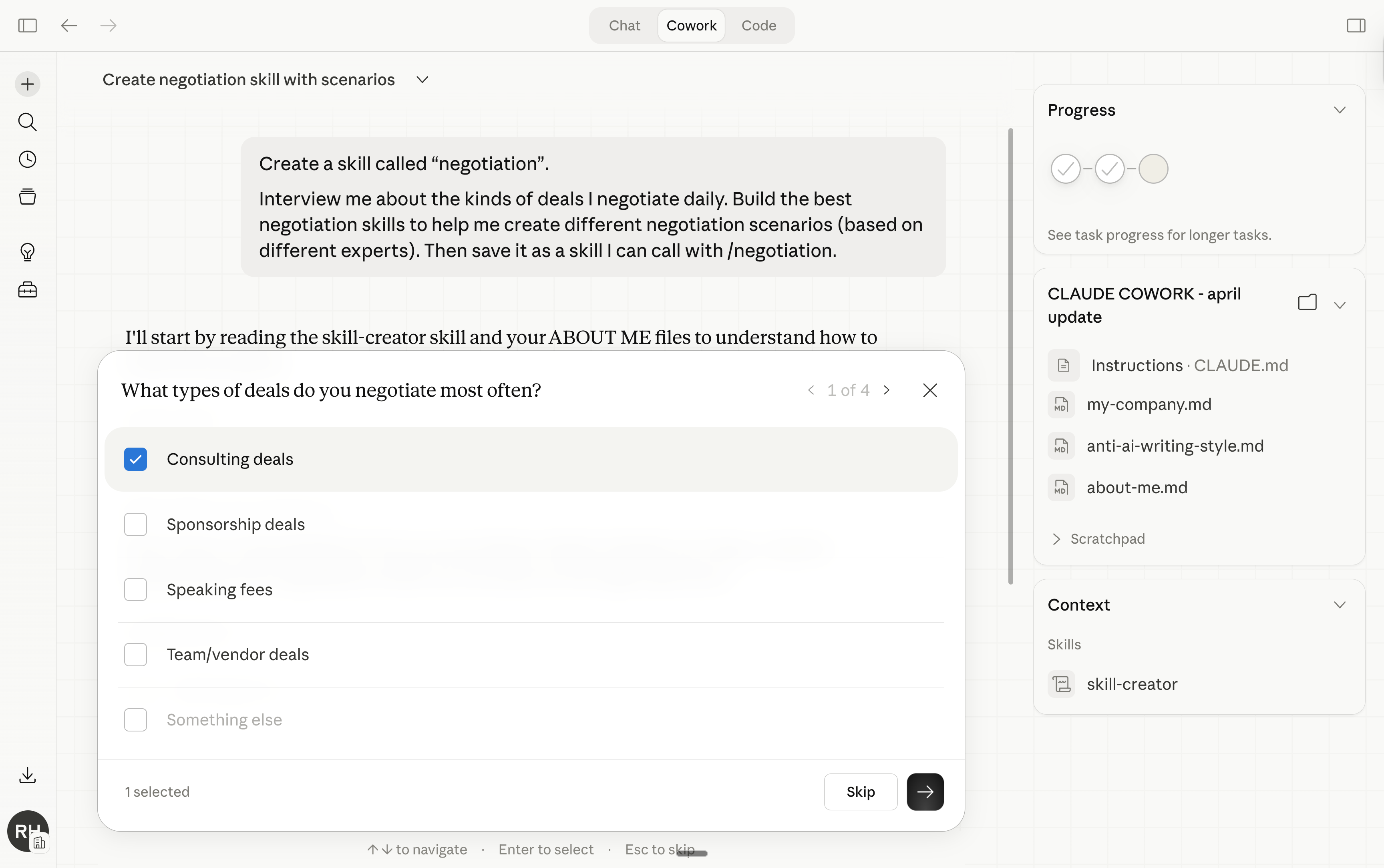
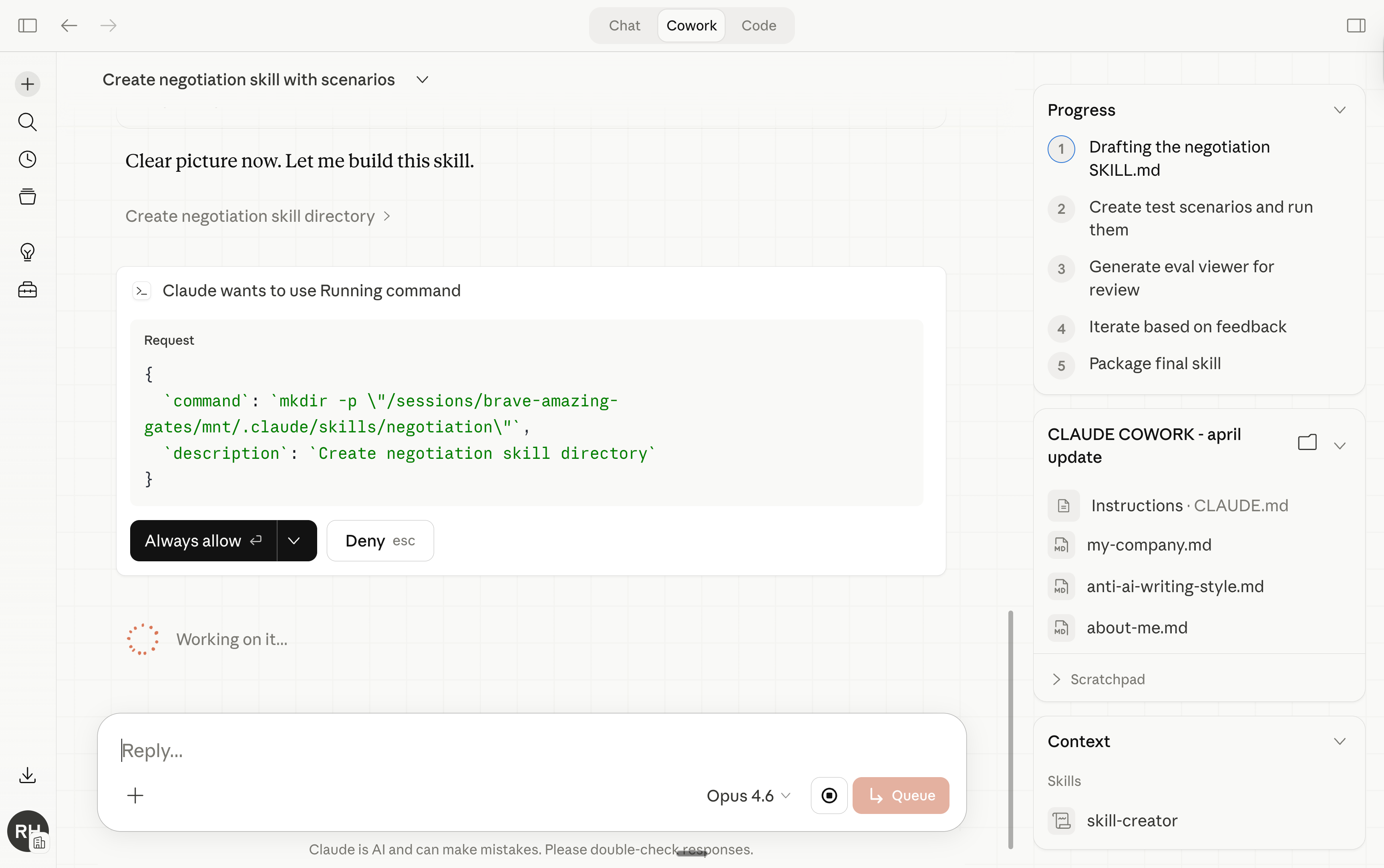
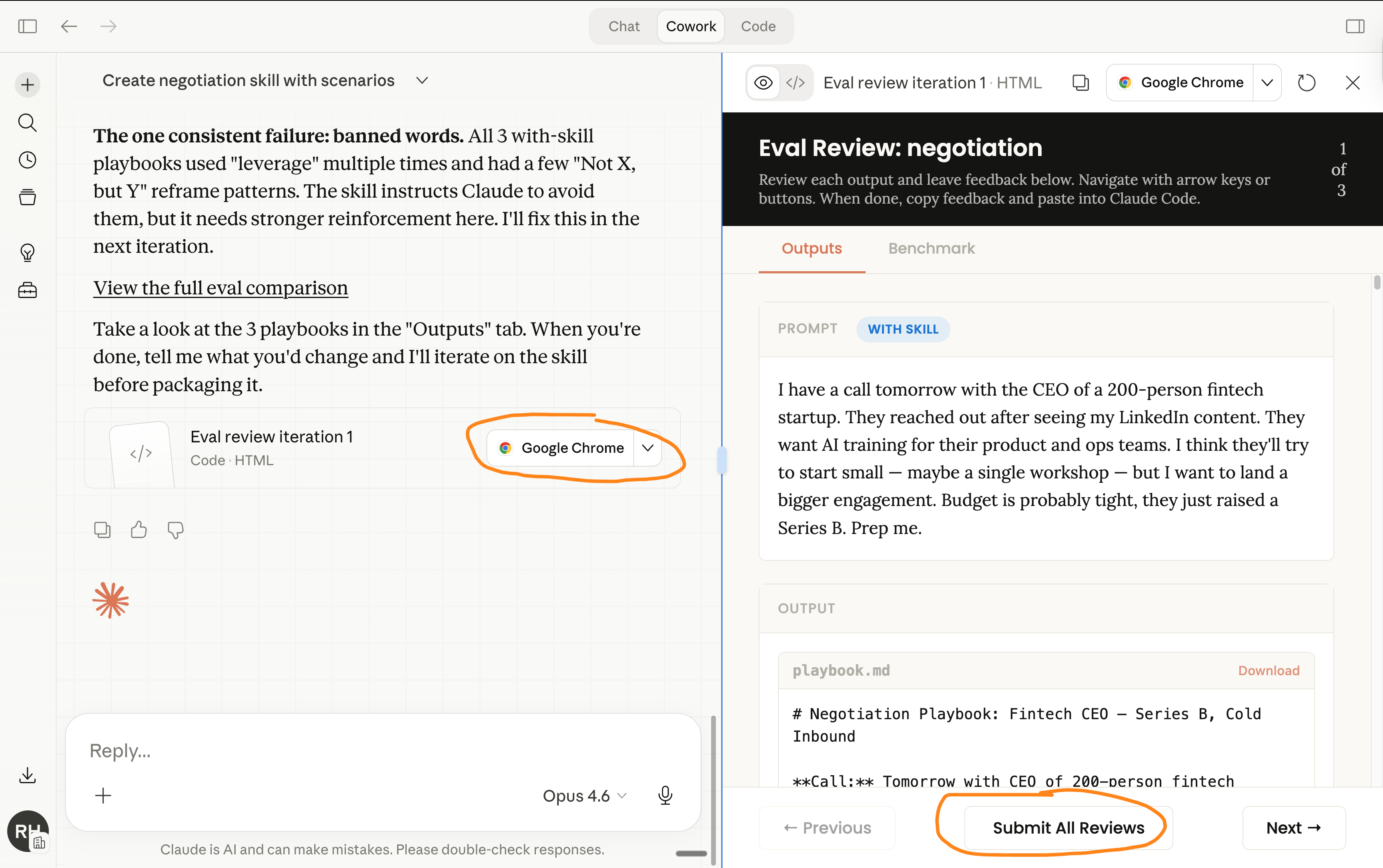
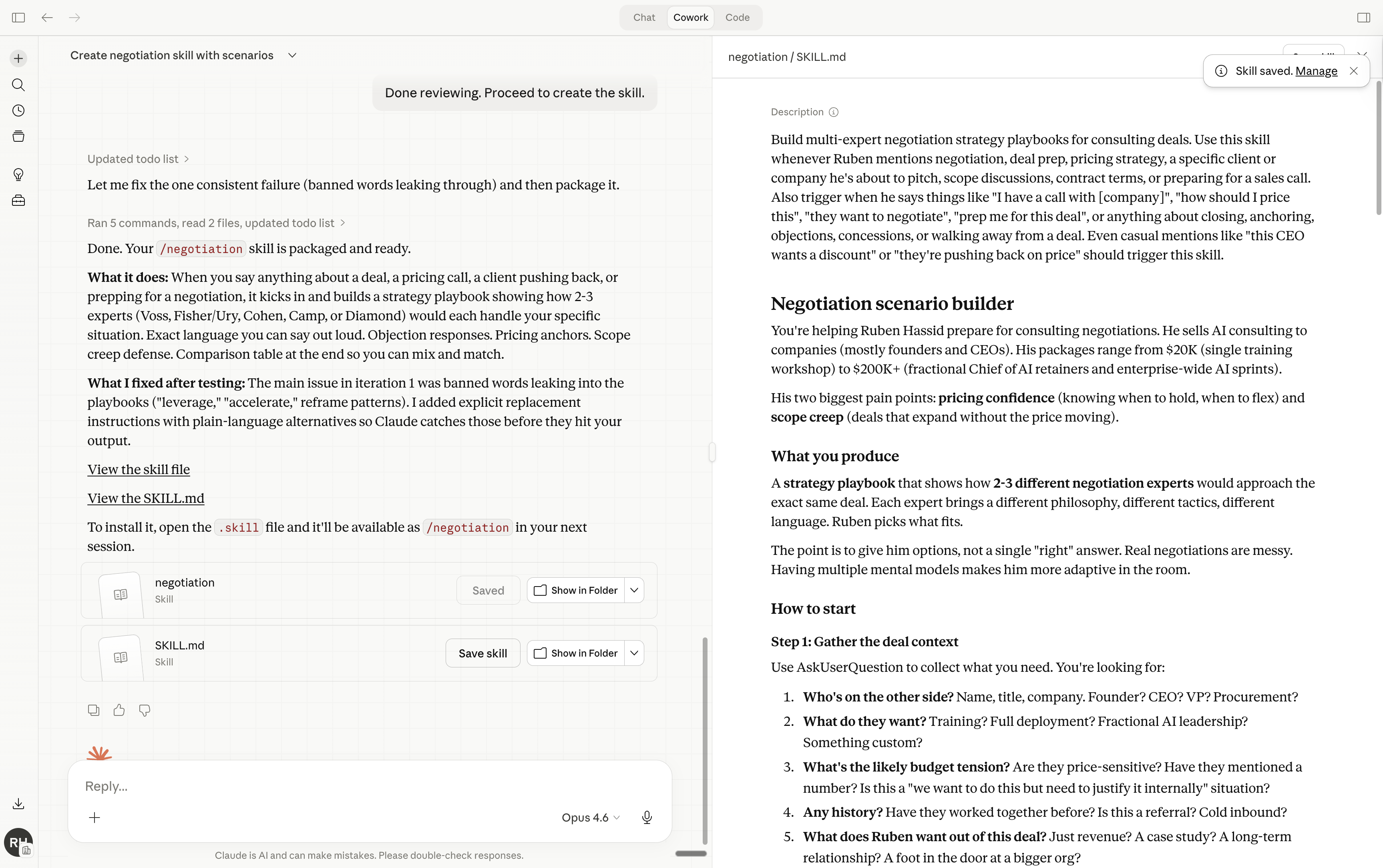
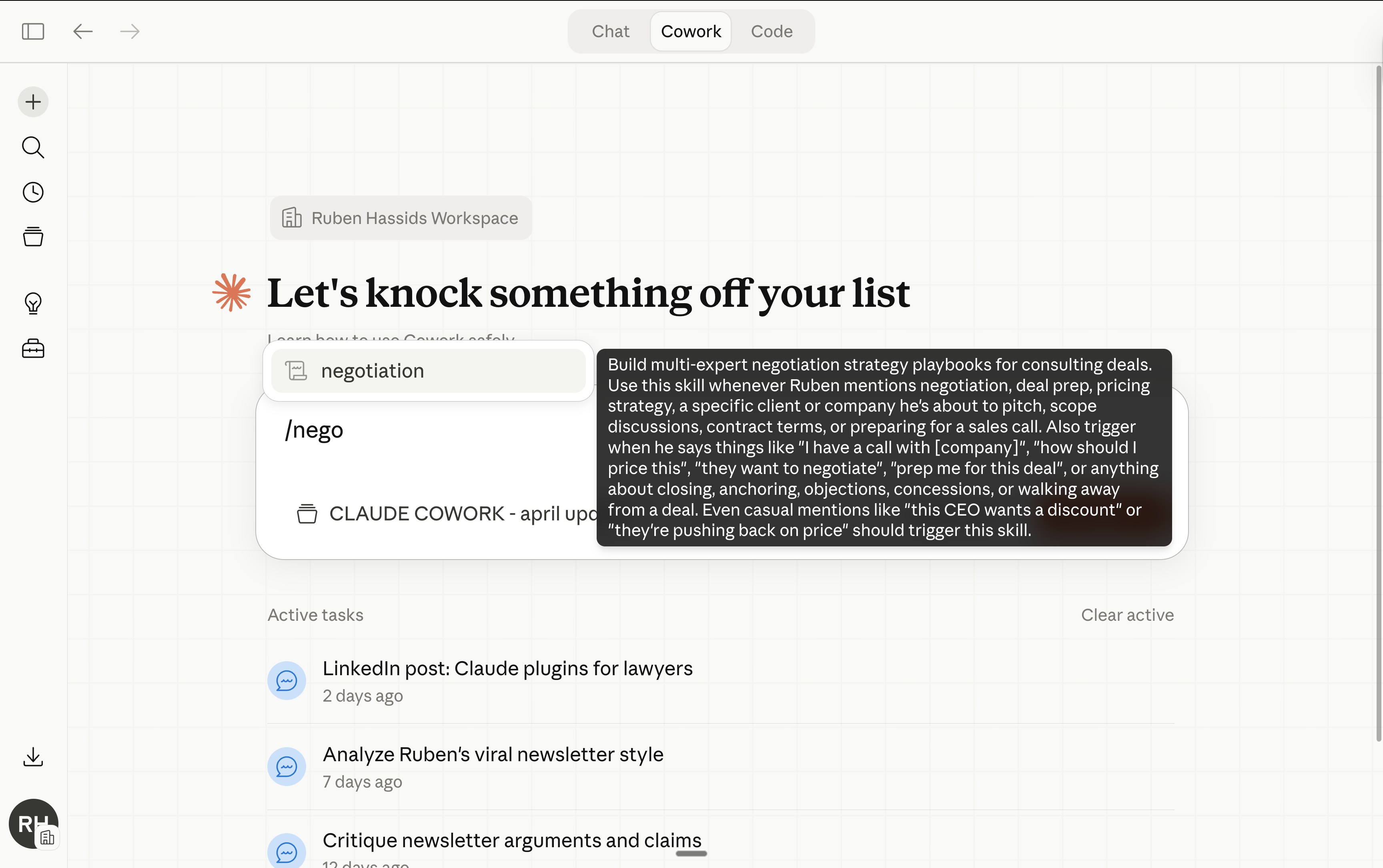
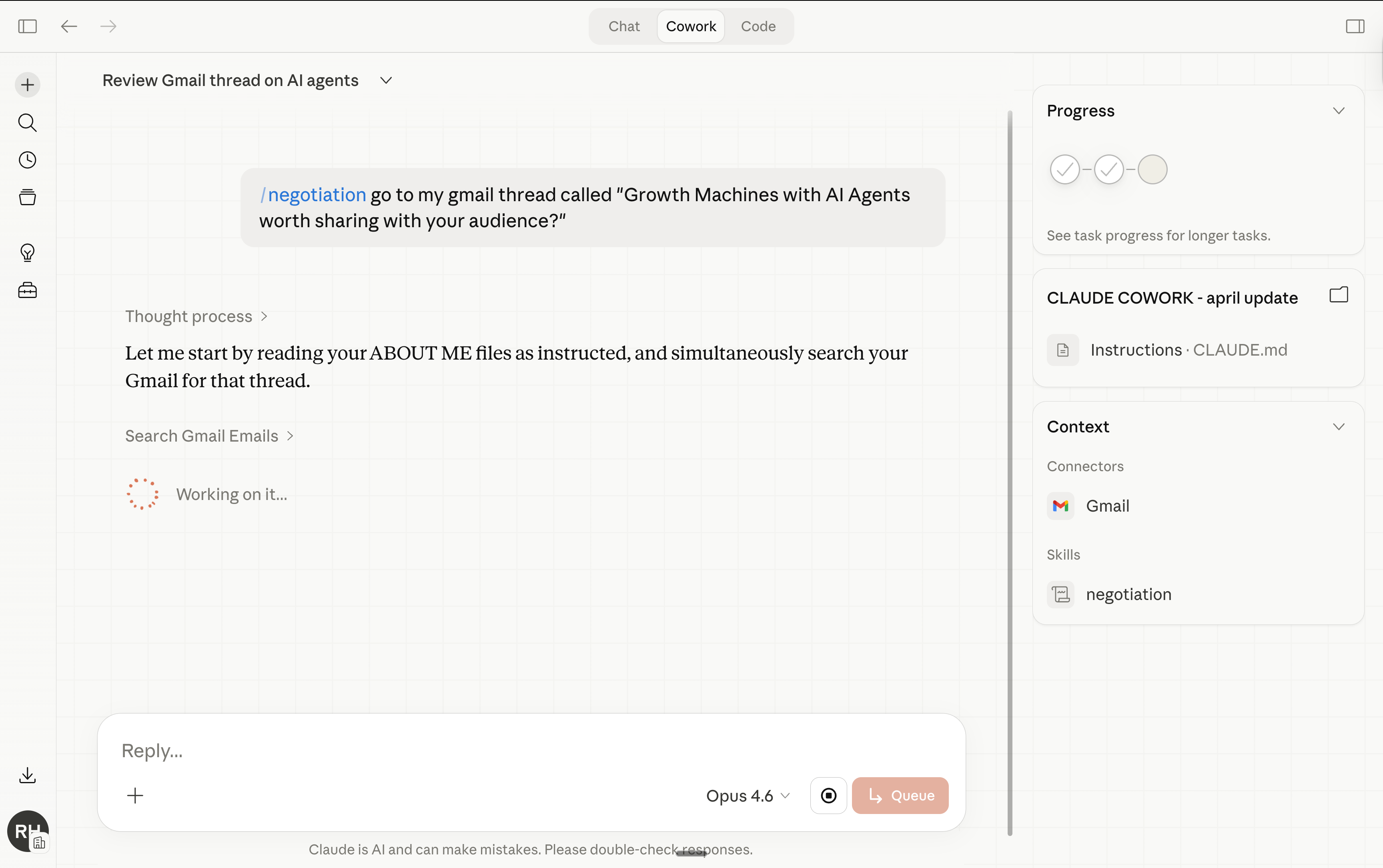
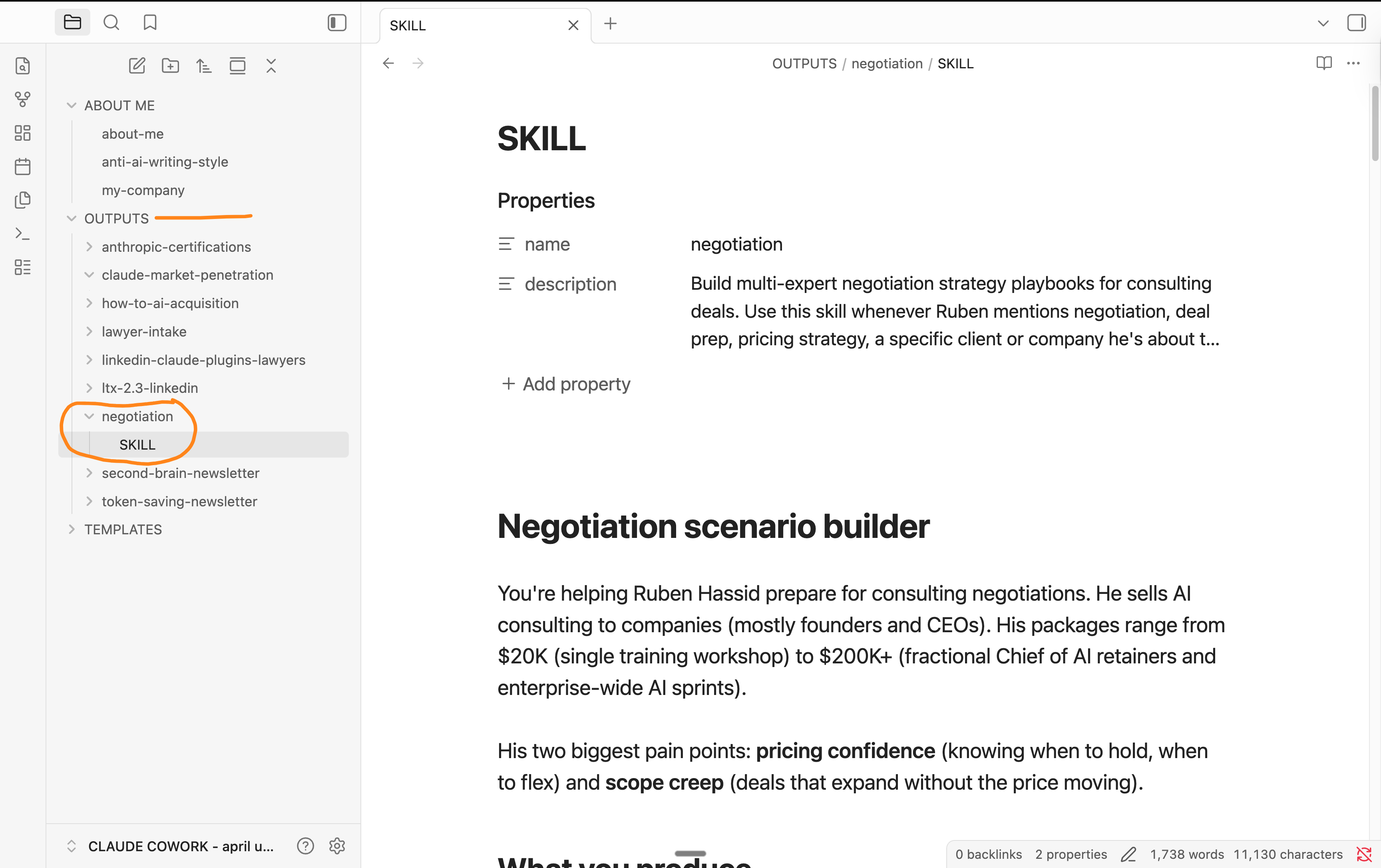
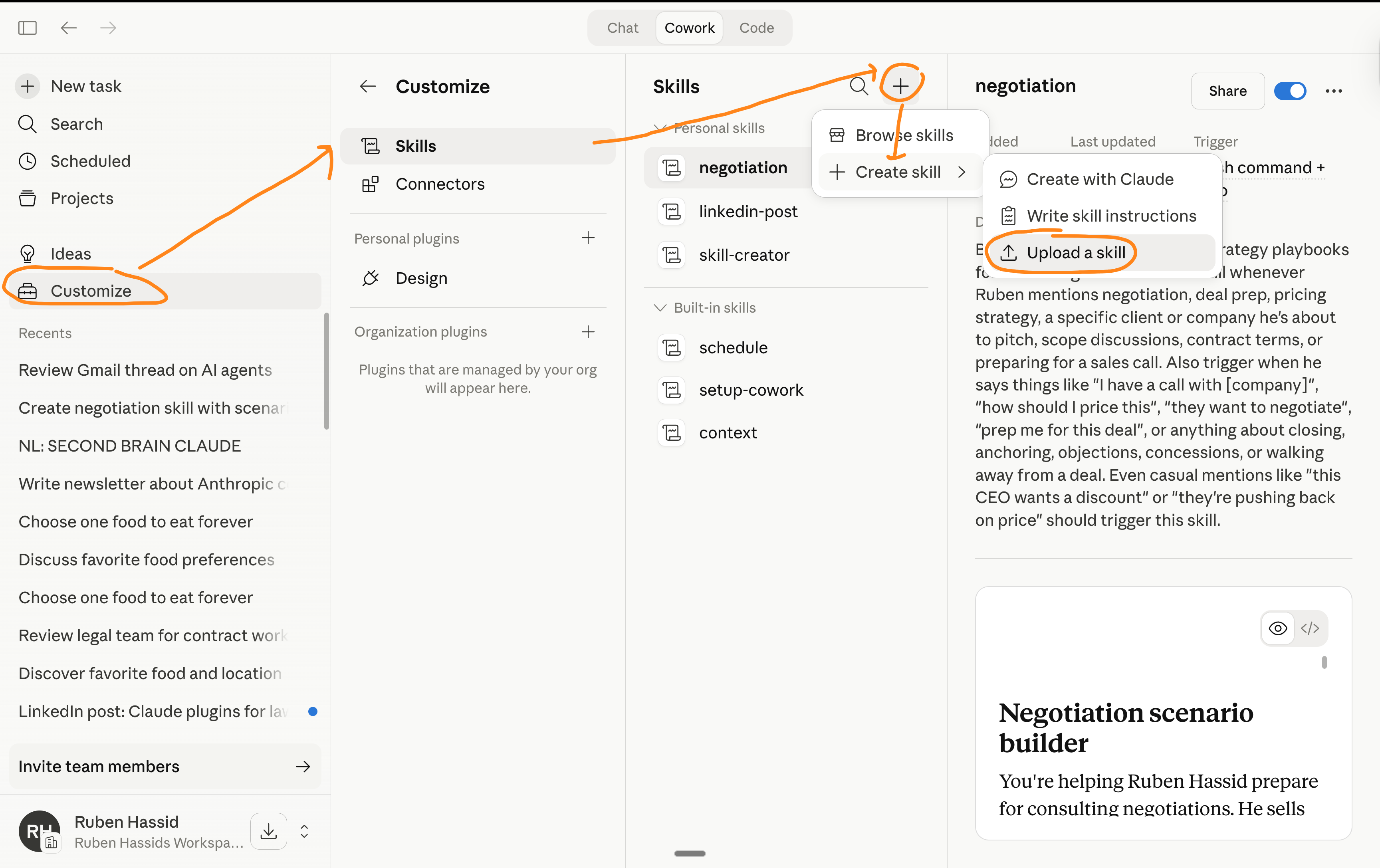
Now anytime I go to Cowork and I prompt /negotiate - it knows what to do.
Every skill lives as a text file in your Cowork folder. Which means Obsidian can see it, search it, and let you edit it. You tweak your LinkedIn skill after you find a better hook formula? Open it in Obsidian, change one line, save.
Sky is the limit with your skills:
/newsletter
/client-brief
/sales-email
/weekly-report
/meeting-notes
Why Obsidian (and why not something else).
I didn’t pick Obsidian because it’s trendy or because they paid me.
I picked it because everything else failed at least one of my criteria.
free
inside my computer
ease of use & clean design
Notion. Cloud-based. Stores everything in its own database. Your .md files would need to be imported, and every time Cowork updates a file, you’d have to re-import. Notion is great for project management. Terrible for this.
PS: My entire team is still on Notion to manage our content library.
Google Drive + Google Docs. Google Docs aren’t .md files. You’d need to convert back and forth every time Cowork reads or writes. Not useful.
Apple Notes. Closed format. Can’t point it at a folder. Can’t search across .md files. Dead end.
VS Code / Cursor. Amazing tools. For developers. If I see a code editor, I close the tab. The interface assumes you know what a terminal is.
GitHub. Renders markdown beautifully online. Requires git, commits, pushes, pulls. I lost you at “git.” Moving on.
Typora. Beautiful markdown editor. $15 one-time purchase. But it edits one file at a time. No sidebar navigation across your whole folder. No search across all files. No linking between documents. Fine for writing. Missing the “brain” part.
MarkEdit. Free, Mac only, ultra-minimal. Same problem as Typora: one file at a time, no bird’s-eye view.
Obsidian wins because…
It reads your existing folder. No import, conversion or sync.
It’s free for single-device use. $4/month if you want it on your phone too.
It’s built for non-developers. The interface is clean and simple.
And the thing that sealed it: Obsidian never touches your files in a way that breaks Cowork. No hidden metadata injected or weird format changes.
Your .md files stay .md files. Cowork reads them the same way it always did.
One download. One folder selection. Free on one device. Unbeatable.
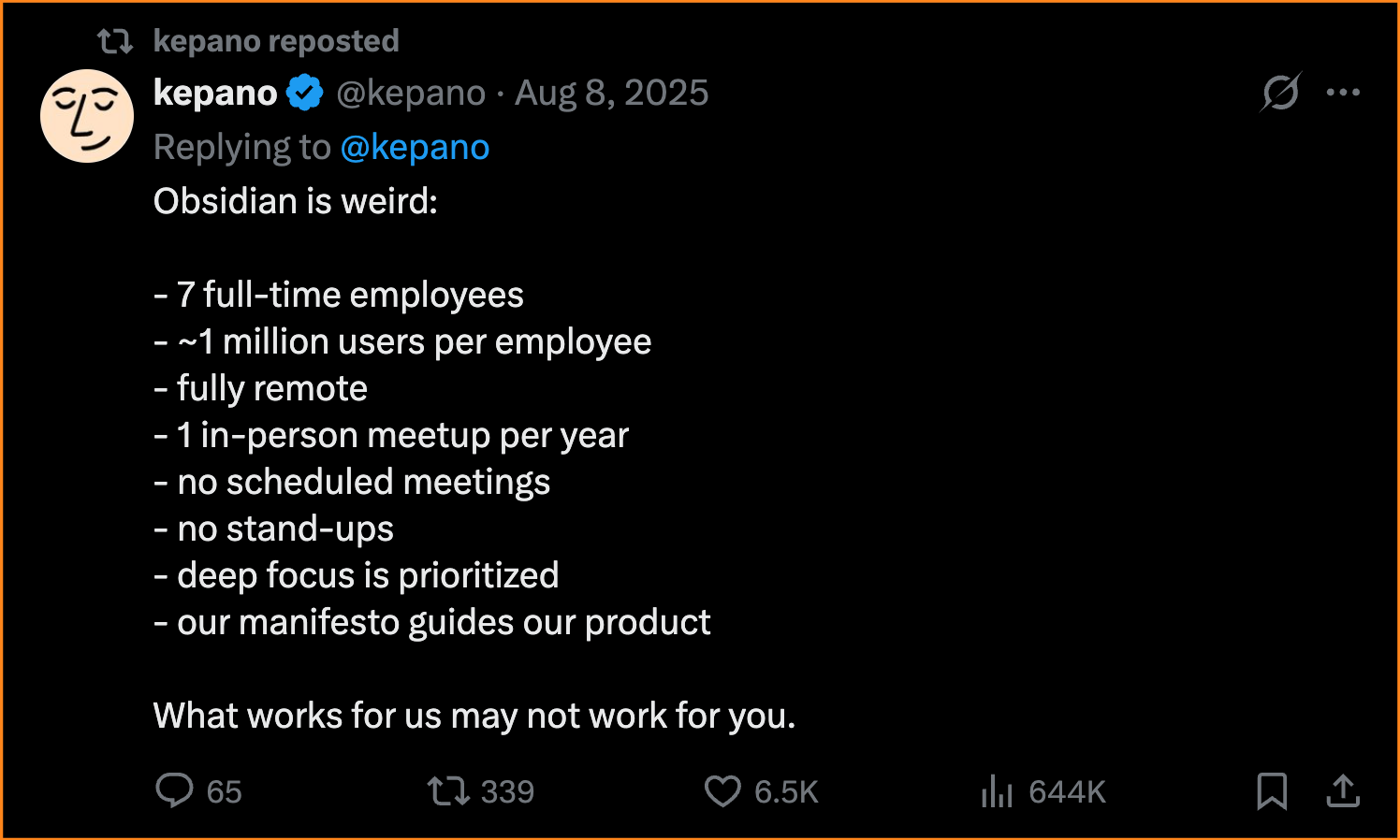
A little bonus point: I love their CEO, Steph Ango.
Where to start.
I know setting up Cowork with Obsidian looks annoying.
And reading my past 50 newsletters seem like hell on earth.
Don’t.
Just read my Cowork newsletter and this one. Skip the rest.
And focus on my next newsletters coming up.
Spend 2 x 20 minutes twice a week. Block it on your calendar.
I will make you (& me) ahead of most of the world by using AI right.
PS: This newsletter is growing because you guys are sharing it.
On every one of my free articles, I get over 1,000+ shares!! It keeps it free.
The best kind of share is to your colleagues, on your group chat (on Teams or Slack). You’re helping them switch to Claude, and you help me spread the word!
And if it’s the first time you’re here, don’t miss the next newsletter:
"Obsidian never touches your files in a way that breaks Cowork."
It's actually the whole reason this setup works. I tried Notion for this. But it added invisible formatting garbage that made Cowork choke on my files.
You don't notice until Claude starts ignoring instructions that worked yesterday. Then you spend an hour debugging something that isn't broken. It was your "better" app quietly corrupting your markdown.
Obsidian leaves your files alone. It's the only feature that matters here.
This is crazy-pants. In the last two days I set up cowork for the first time, created my about me, anti-ai, and my own peer-reviewed science PubMed requirements, created a Nutrition folder and researched my specific protein/fiber/plant minimum goals, installed Obsidian, created a /menu skill and created a menu plan that includes batch-fermentation instructions and pantry requirements. And now I can run this every week to make sure it uses in-season foods to feed a family with diverse nutritional needs.
Mind. Blown.